
How To Convert Synchrony Bank Statement To Excel, CSV, And QBO
Synchrony Bank delivers monthly statements as PDFs through its online portal. This guide shows you how to convert Synchrony Bank PDF statements to Excel, CSV, or QBO using DocuClipper's OCR.
Synchrony Bank publishes monthly statements as PDFs through its online portal and mobile app. Synchrony's consumer banking products (high-yield savings, money market, CDs) are paperless by default, so PDF is the format you'll usually be working with, whether for personal bookkeeping or client work.
For fraud detection, anomaly review, and audit-style bank statement analysis, DocuClipper's bank statement analyzer helps flag unusual activity and supports investigations after statements are digitized.
Retyping a Synchrony PDF into a spreadsheet is slow and creates data-entry errors. In this guide we'll show you how to use a bank statement converter to convert Synchrony PDF statements to Excel, CSV, or QBO. For any bank, our bank statement to Excel converter handles the full conversion.
Upload your Synchrony statement here and follow the steps below:
Drag & Drop Bank Statement Here
or
While you are here
Extract every transaction from any bank PDF
Upload a statement from any bank and DocuClipper returns a clean table with dates, amounts, descriptions, and running balance intact. No reformatting before you can reconcile or import.
Step 1: Upload Synchrony Bank Statement to DocuClipper
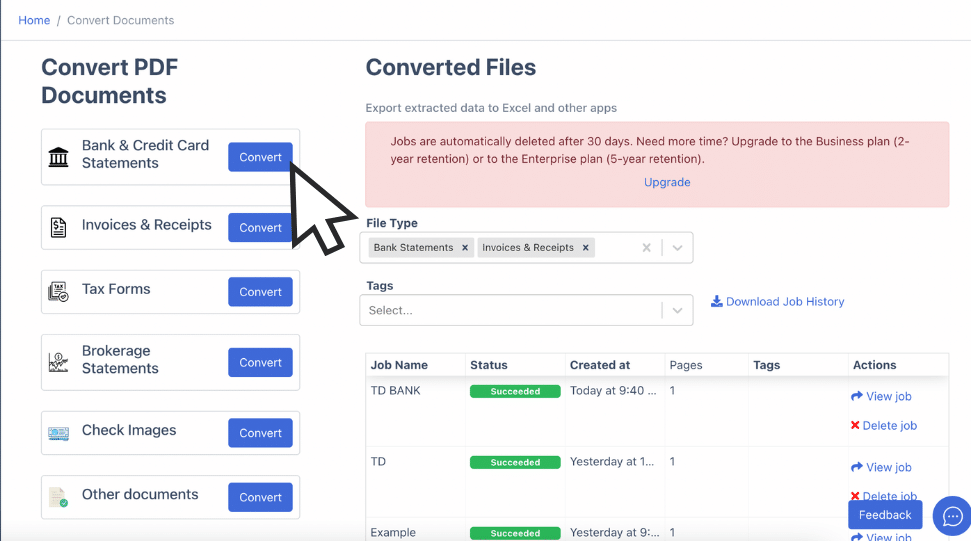
Log into your DocuClipper account, or sign up for a free trial. Navigate to the Bank and Credit Card Statements section.
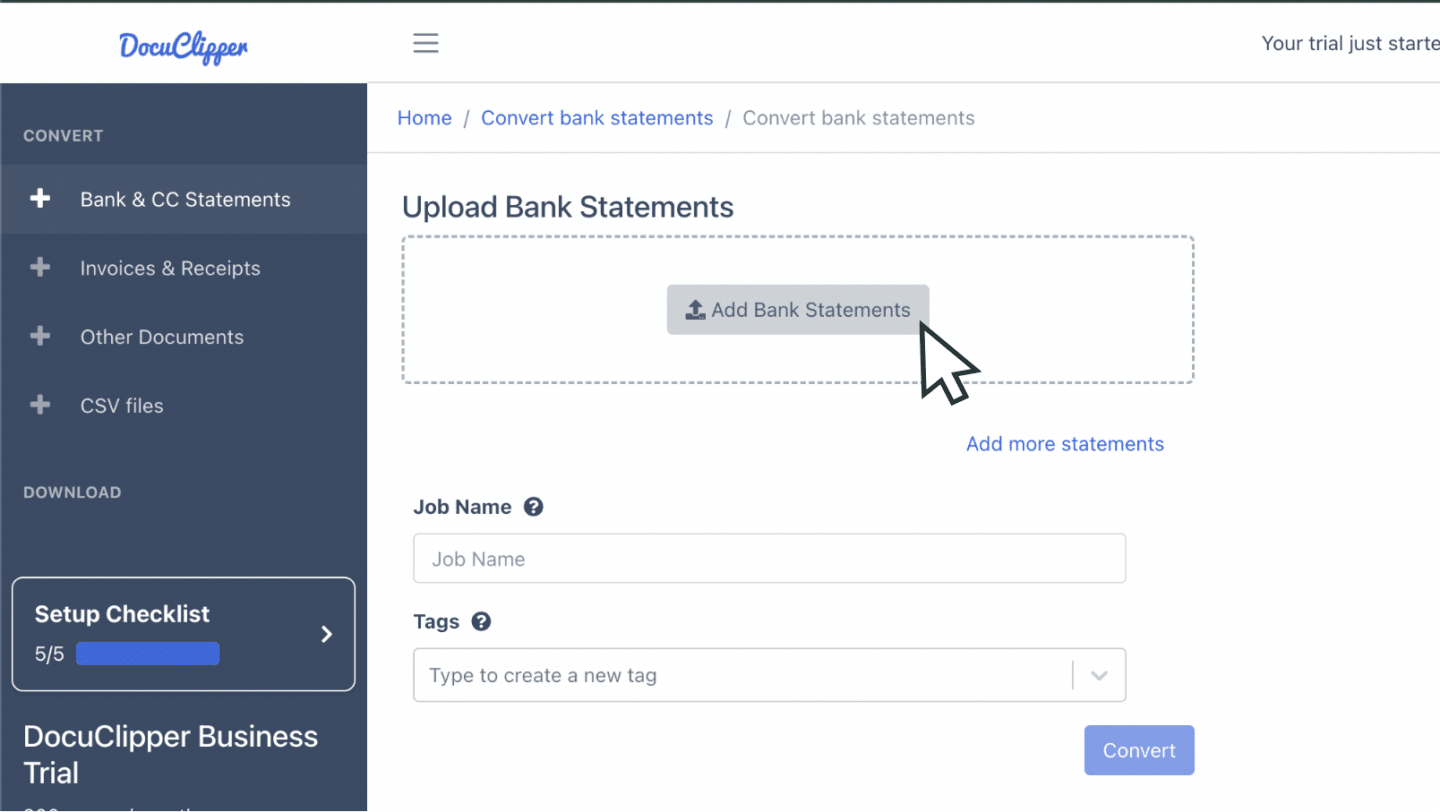
Drag and drop your Synchrony PDF statement into the upload area. Scanned paper statements work too, scan at 300 DPI or higher and upload the PDF.
You can also email statements to a designated address found in your account settings. Uploaded files appear under "Converted Files" in the sidebar.
Step 2: Analyze Synchrony Bank Statement
DocuClipper shows your Synchrony PDF and the extracted spreadsheet side by side, with a dashboard summarizing all transactions.
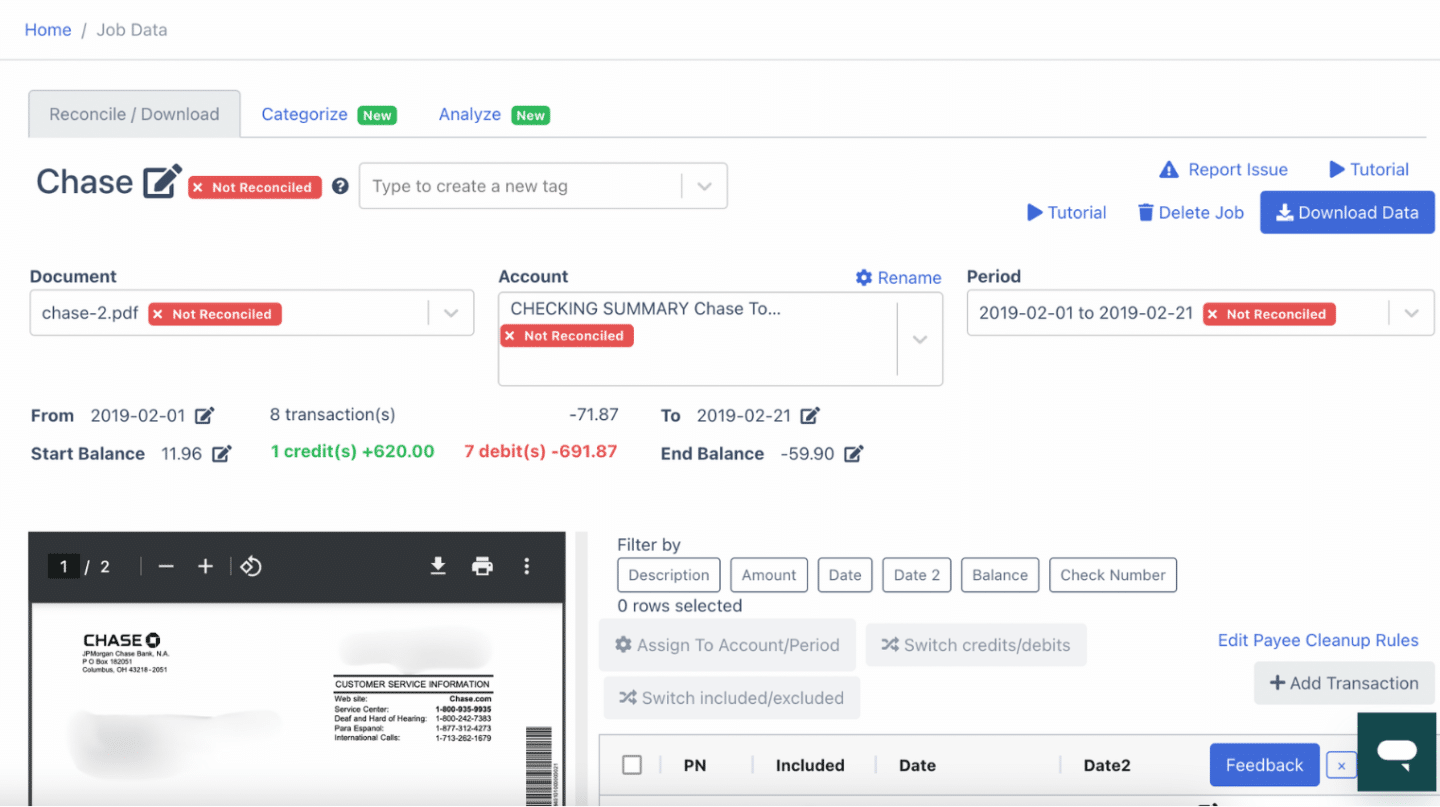
Review each transaction row carefully. For scanned statements, double-check rows where the scan is faint, since image artifacts can affect OCR accuracy.
Step 3: Reconcile Synchrony Bank Statements
DocuClipper automatically reconciles your bank statement when you click convert, comparing extracted transactions against opening and closing balances printed on the statement. Discrepancies are flagged as not reconciled.
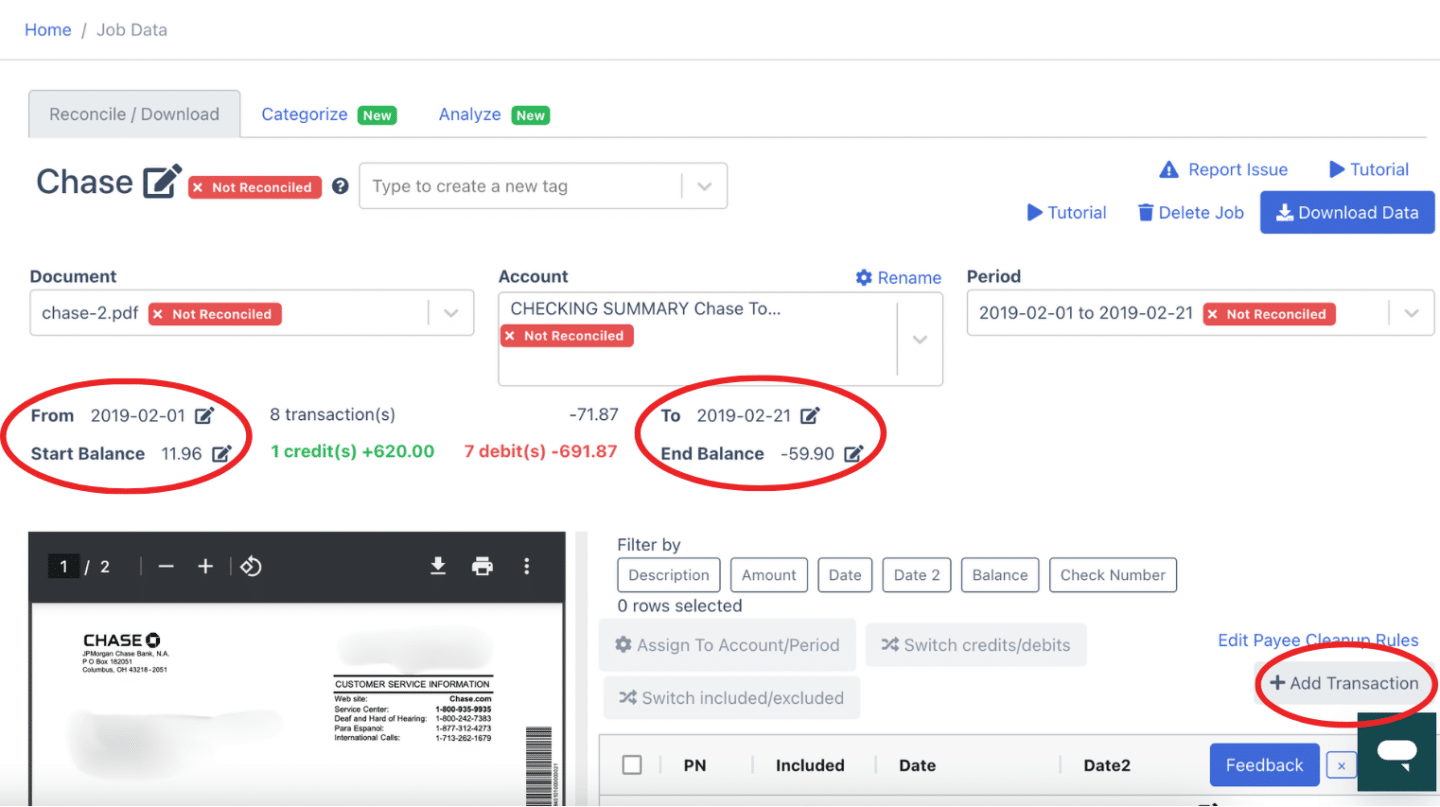
Edit amounts, dates, or descriptions by clicking the arrow next to each entry. Click "Add Transaction" to add anything missed, with debits and credits marked correctly.
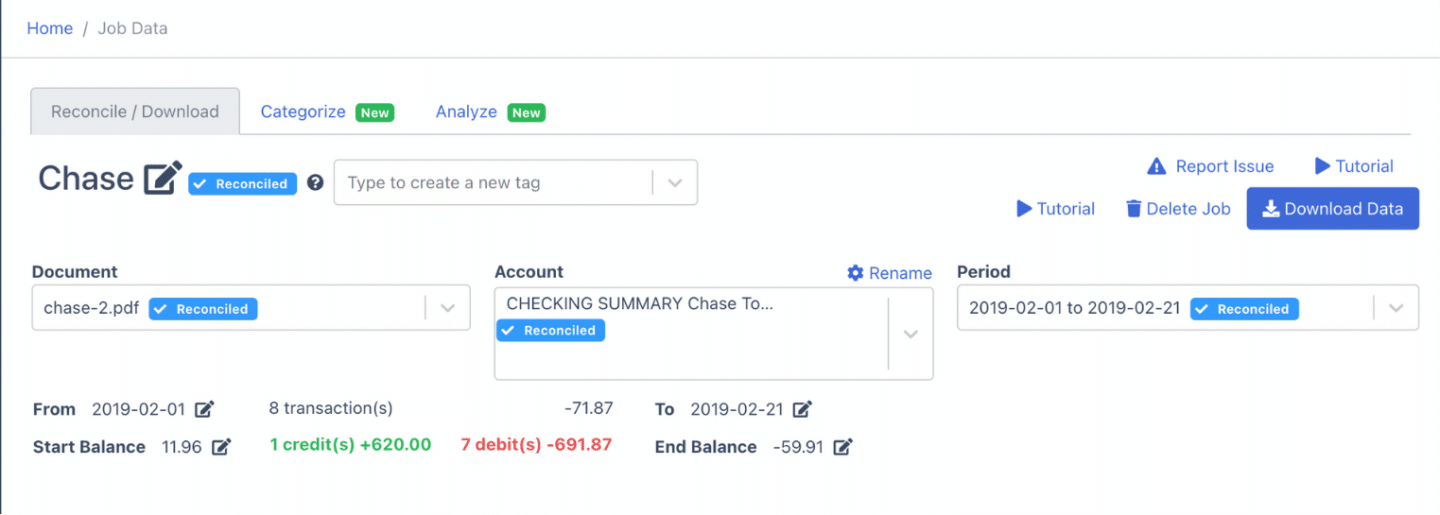
Step 4: Export Synchrony Bank Statement to Excel, CSV, QBO
Click Download to export your reconciled statement.
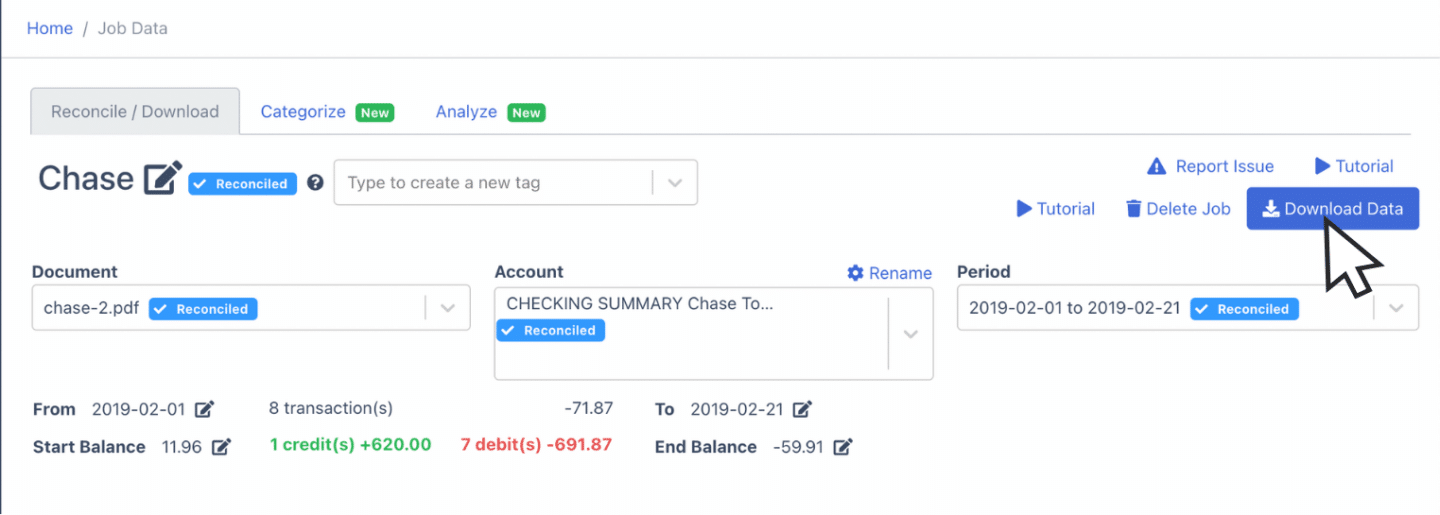
Export Synchrony Bank Statement to Excel
From the export menu, select Excel, choose XLSX, and click Download. The file saves with date, description, debit, credit, and balance in separate columns.
Export Synchrony Bank Statement to CSV
Most accounting software imports CSV. Open the export menu, select Excel, then CSV. DocuClipper provides premade formats for Xero, Sage, MYOB, Relate, NetSuite, and Quicken so column layouts match what your software expects.
Export Synchrony Bank Statement to QBO
For QuickBooks, select the QuickBooks option to download a QBO Web Connect file. For the full workflow, see bank statement to QuickBooks.
We also have guides on importing bank statements into different software:
- Import bank statements into QuickBooks
- Import bank statements into Sage
- Import bank statements into Xero
- Import bank statements into NetSuite
Step 5: Configure the Output Format
Before downloading, review and adjust the output format.
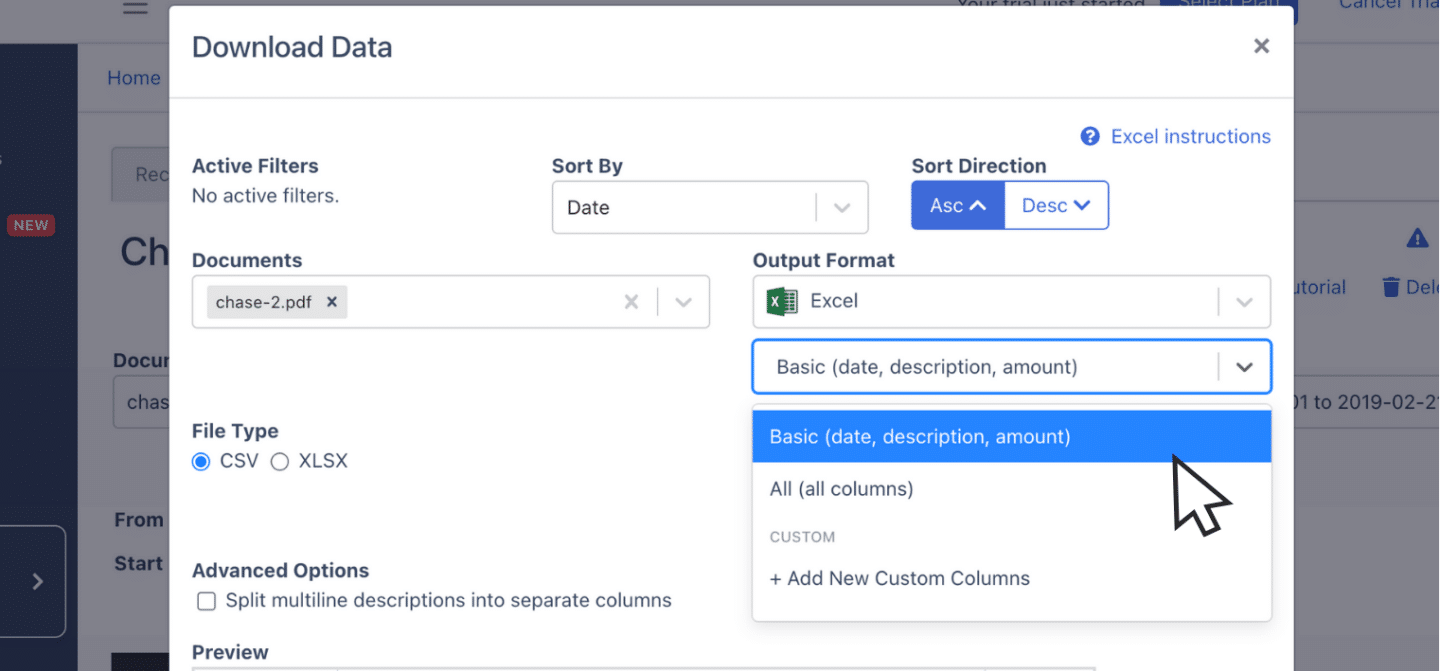
You can change date formats, reorder columns, and customize the layout to match your accounting requirements.
Put it into practice
Manual copy-paste is where errors begin
Split rows, drifting balances, missed transactions: they all trace back to re-keying. DocuClipper preserves the bank's layout so debits, credits, and totals tie out the first time.
How to Download Synchrony Bank Statements
Synchrony delivers statements through the website and the Synchrony Bank mobile app. Statements are PDFs.
On the website:
- Sign in at synchronybank.com.
- Select the account.
- Click Statements & Documents (or Documents).
- Choose the statement period and download the PDF.
In the mobile app:
- Open the Synchrony Bank app and sign in.
- Tap the account, then tap Statements & Documents.
- Select the period and tap to view or save the PDF.
Synchrony retains several years of statements online. For older periods, contact Synchrony customer service.
Final Advice
Synchrony is a paperless bank by default, so the file you'll need to process is almost always a PDF. As PDFs pile up across clients and tax years, manual entry quickly becomes the bottleneck.
DocuClipper automates conversion to Excel, CSV, and QBO, saving time, reducing errors, and freeing you up for higher-value review work.
Why Use DocuClipper to Convert Synchrony Bank Statements
DocuClipper is a web-based tool that converts PDF bank statements into XLS, CSV, and QBO using OCR. It integrates with QuickBooks, Sage, Xero, and other accounting platforms.
DocuClipper's transaction categorization groups transactions automatically, which is helpful for forensic accounting and cash-flow analysis. Beyond bank statements, DocuClipper handles credit card statements, brokerage statements, receipts, and invoices.
FAQs about Synchrony Bank Statement to Excel
Can I export my Synchrony bank statement to Excel?
Yes. Download the PDF statement from synchronybank.com or the mobile app, upload it to DocuClipper, and export to Excel (XLSX).
Does Synchrony Bank offer CSV downloads?
Synchrony's consumer portal primarily provides PDF statements. DocuClipper converts those PDFs to CSV with formats optimized for QuickBooks, Xero, Sage, and other accounting tools.
Can DocuClipper convert scanned Synchrony statements?
Yes. DocuClipper handles both digital and scanned image-based PDFs. Scan at 300 DPI or higher for best OCR accuracy.
Does this work for Synchrony co-branded credit card statements?
Yes. Synchrony issues many co-branded retail credit cards. Upload the credit card PDF to Bank & Credit Card Statements and select "Credit Card" when exporting to QBO.
How far back can I convert Synchrony statements?
DocuClipper converts any Synchrony PDF regardless of age. The Synchrony portal typically retains several years of statements; older statements can be requested from customer service.
Related Articles
Next step
Upload your first statement free
No credit card required. See extracted transactions in seconds, then export to Excel, CSV, or QBO when you're ready to scale.