
How to Import Bank Statements into QuickBooks Online and Desktop
How to get bank and credit card transactions into QuickBooks Online or Desktop when the bank feed does not cover them: bank file upload, PDF statements converted to QBO, and IIF for Desktop. With data on how far back real QuickBooks imports go and how to bring in history without duplicates.
To import a bank or credit card statement into QuickBooks, upload a file the bank provides (QBO, QFX, OFX or CSV) under Banking, File upload in QuickBooks Online, or File, Utilities, Import in QuickBooks Desktop. If all you have is the PDF statement, convert it to a QBO Web Connect file first and import that.
This guide covers the three routes, when to use each one, and how to bring in historical statements without creating duplicates. If you already know you need to turn PDF statements into QuickBooks files, go straight to importing PDF bank statements into QuickBooks.
While you are here
Extract every transaction from any bank PDF
Upload a statement from any bank and DocuClipper returns a clean table with dates, amounts, descriptions, and running balance intact. No reformatting before you can reconcile or import.
Which method should you use?
| Your situation | Best method | Why |
|---|---|---|
| Recent activity, bank supports QuickBooks | Bank feed (connect the account) | Automatic and ongoing |
| Bank offers a QBO, QFX, OFX or CSV download for the period | Upload that file in QuickBooks | No conversion needed |
| Older months the bank feed does not reach | Convert the PDF statements to QBO | Bank feeds only reach back a limited time |
| Bank or card issuer only provides PDF statements | Convert the PDF statements to QBO | The PDF is the only source |
| A client sends you statements by email or upload | Convert the PDF statements to QBO | You never had online banking access |
| QuickBooks Desktop and you want to set the offset accounts | IIF file | IIF lets you choose the account for each line |
Bank feeds are the right tool for day-to-day bookkeeping. How far back a new connection reaches depends on the bank and is often only a few months, so catch-up work, a new client, or a closed account all come back to the statements.
How far back real QuickBooks imports go
We looked at every bank and credit card statement that DocuClipper users converted to a QuickBooks file (QBO Web Connect or IIF) in the 30 days from September 14 to October 13, 2026: 32,226 statement periods across 15,885 jobs. For each one we compared the statement's closing date with the day it was downloaded for QuickBooks.
| Statement ended before it was imported | Share of statements |
|---|---|
| Within the last month | 16% |
| Within the last 90 days | 29% |
| More than 90 days earlier | 71% |
| More than 1 year earlier | 40% |
| More than 2 years earlier | 12% |
The median statement was about 9 months old (273 days) when it was converted for QuickBooks. For QuickBooks Desktop IIF files the median was 399 days, and 87% were older than 90 days.
Two things follow from this:
- Most PDF-to-QuickBooks work is history, not this month's activity. Month-end bookkeeping mostly runs on the bank feed. Statements come in when the feed cannot reach: catch-up and clean-up engagements, prior-year tax work, new clients, and accounts that were never connected.
- Big batches are normal. Most jobs were a single statement, but 29% of all statements (9,399) arrived in jobs of 12 or more, usually a full year for one account. That is where duplicates and opening-balance mistakes happen, so the history section below matters.
Method 1: Upload a QBO, QFX, OFX or CSV file from your bank
Many banks let you download transactions from online banking in a QuickBooks-friendly format. If yours does, and it covers the period you need:
- In online banking, download the transactions for the account as QBO (QuickBooks Web Connect), QFX, OFX or CSV.
- In QuickBooks Online, open Banking (in newer layouts, Transactions, then Bank transactions), choose the account, and click File upload (in the menu next to Link account).
- Select the file, map it to the QuickBooks account, and for CSV files map the date, description and amount columns.
- Review the transactions on the For Review tab.
QBO and QFX files are easier than CSV because QuickBooks reads the dates, amounts and signs without any column mapping. CSV files need one amount column (with negatives for money out) or separate debit and credit columns. If you already have a CSV that QuickBooks rejects, convert it with the CSV to QBO converter.
Method 2: Convert PDF statements to a QBO file
When the statement exists only as a PDF, convert it before importing. QuickBooks does not read PDF statements, and retyping them works for a few lines but creates the errors you then have to find during reconciliation. The PDF to QBO converter covers the file format itself; the steps below cover the whole import.
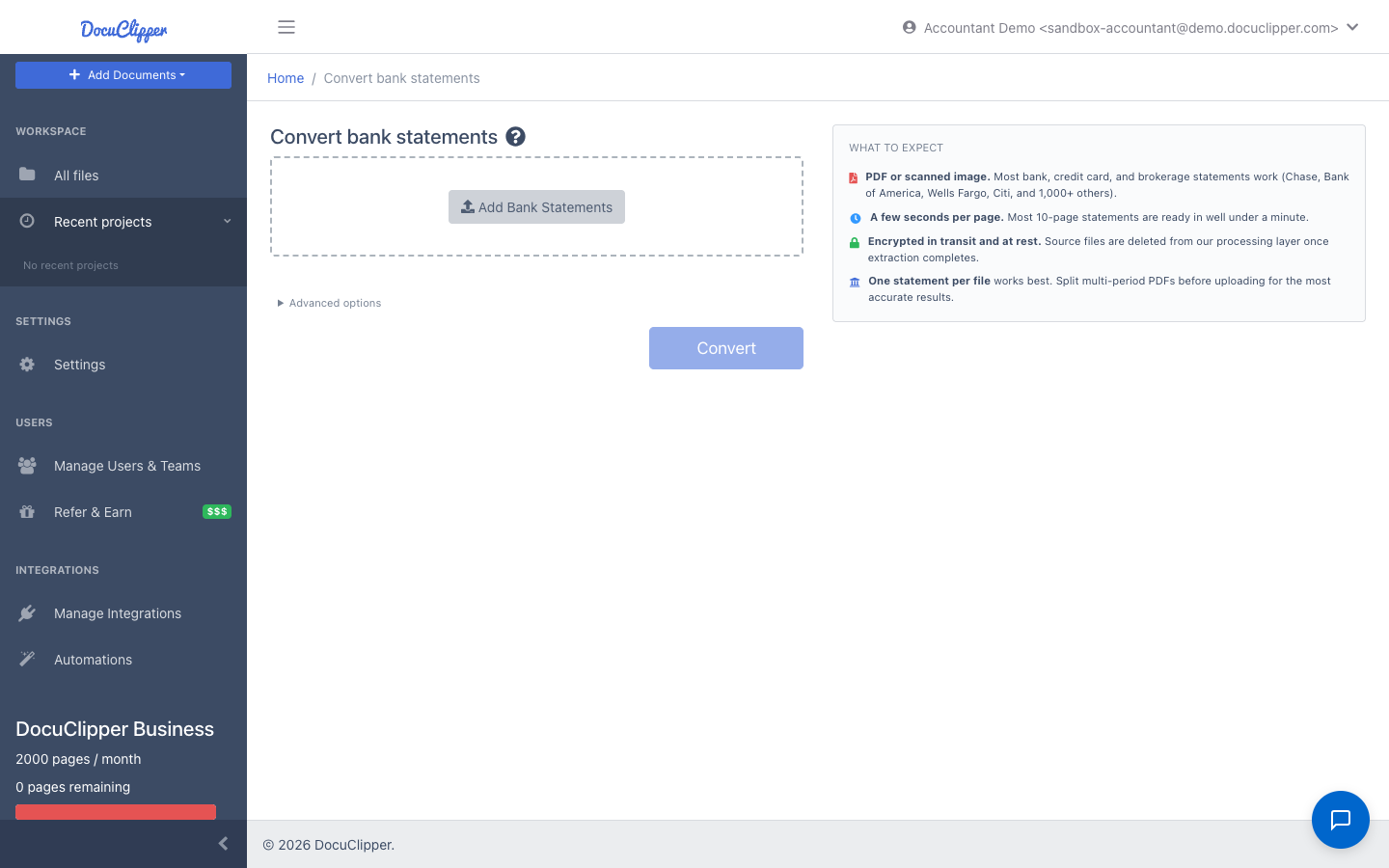
Step 1: Upload the statements
Upload the PDF bank or credit card statements to DocuClipper. Digital and scanned PDFs both work, and you can upload a year of statements for several accounts in one job.
Step 2: Check that each statement ties
DocuClipper extracts the date, description and amount of every transaction, then checks each statement period: opening balance + credits - debits must equal the printed closing balance. Periods that tie are marked Reconciled; periods that do not are flagged so you can fix them before they reach QuickBooks. In the same 30 days, 27,272 of the 29,854 statement periods downloaded as QBO files (91%) tied out; the other 2,582 were flagged for review.
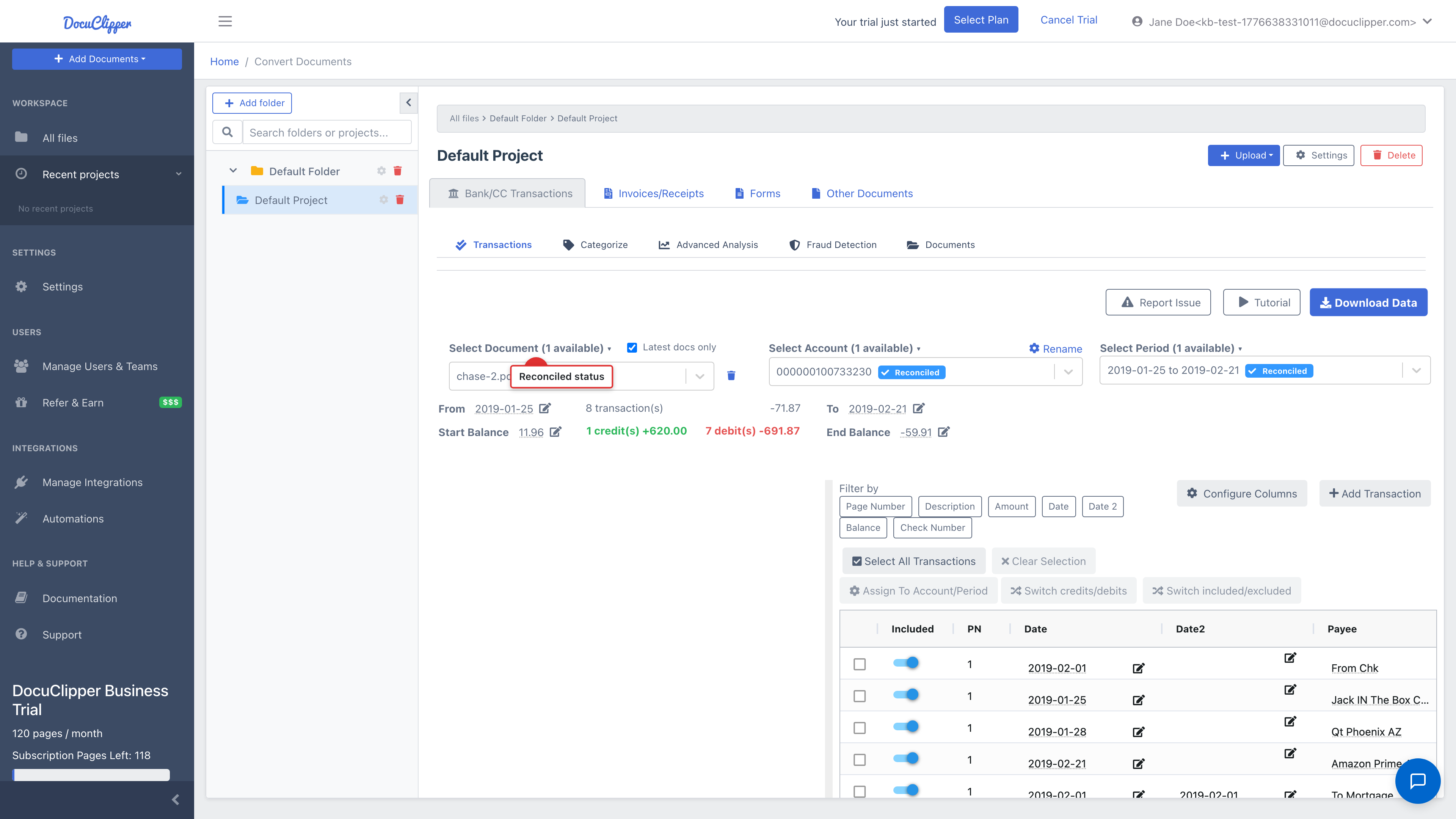
If a period is flagged, check the start and end balances first, then look for swapped debits and credits or a missing page. See how to fix a statement that does not reconcile.
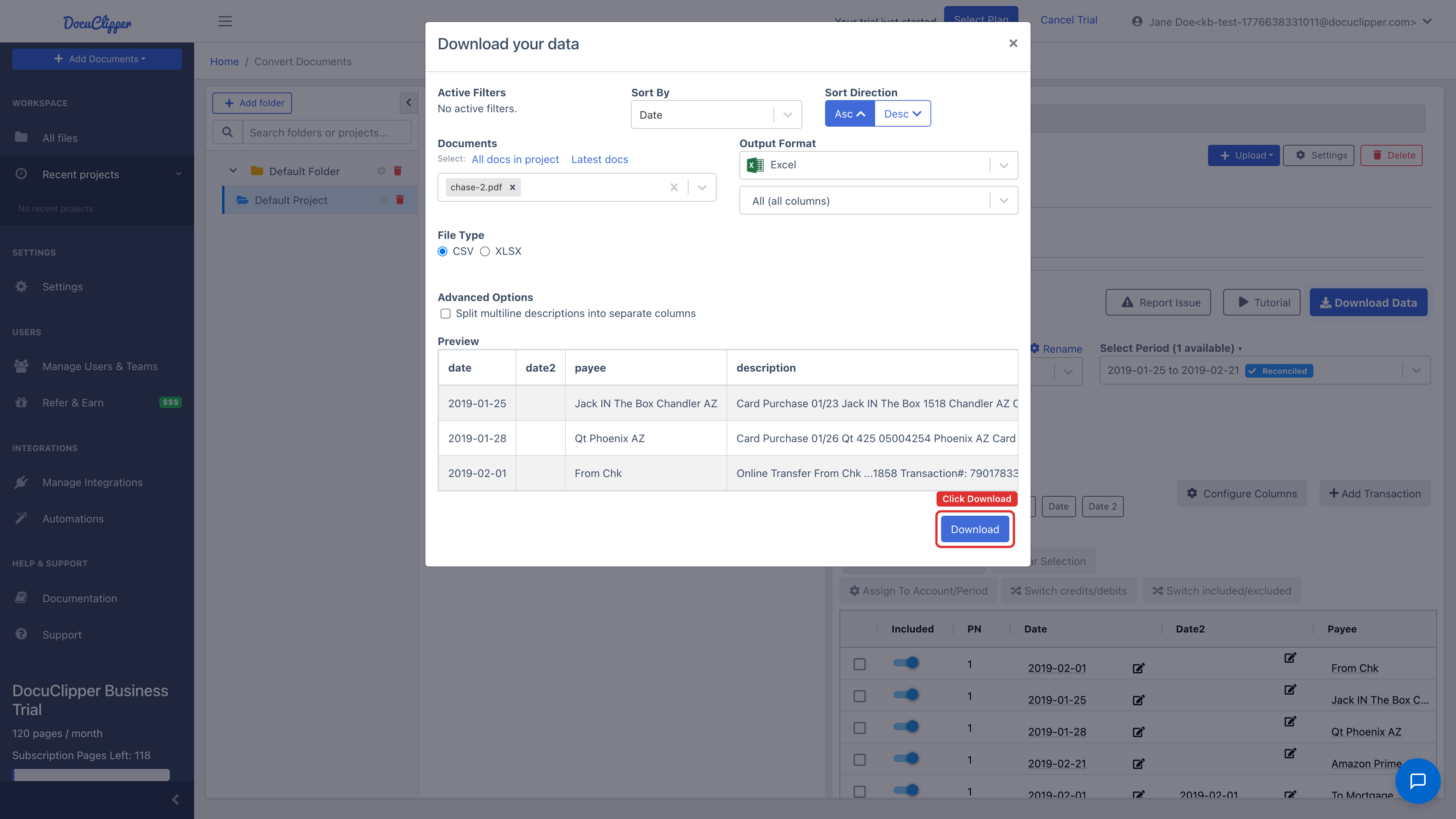
Step 3: Download a QBO Web Connect file
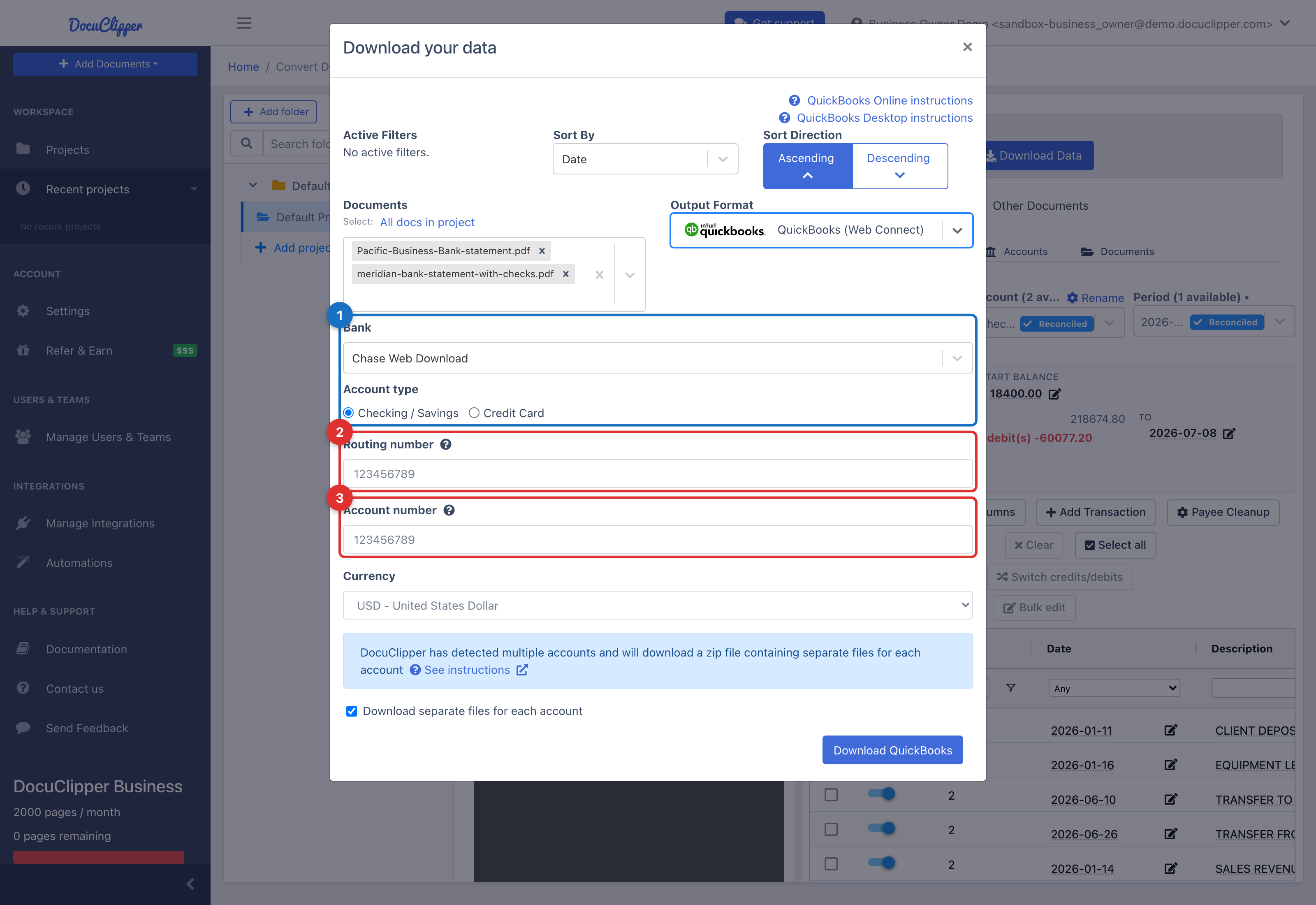
Click Download Data, choose QuickBooks (Web Connect) as the output format, then pick the bank and the account type (checking/savings or credit card). Routing and account numbers are optional but help QuickBooks match the right account.
Step 4: Import the QBO file into QuickBooks Online
In QuickBooks Online, open Banking, choose the account, click File upload, select the .qbo file, and map it to the right QuickBooks account. The transactions land on the For Review tab, where you assign a payee and category to each one, or let your bank rules do it. Full walkthrough: import a QBO file into QuickBooks Online.
Step 5 (Desktop): Import into QuickBooks Desktop
In QuickBooks Desktop, go to File, Utilities, Import, Web Connect Files, select the .qbo file, and choose the account. If the account already has a live bank feed, read the QuickBooks Desktop Web Connect guide first.
Method 3: IIF files for QuickBooks Desktop
Web Connect imports land in the bank register and still need categorizing. If you want each transaction posted to a specific expense or income account on import, use an IIF file instead. In DocuClipper, choose QuickBooks Desktop IIF, pick the QuickBooks Desktop edition (United States or Canada), and map the source and destination accounts to your chart of accounts. Then import it in QuickBooks Desktop with File, Utilities, Import, IIF Files.
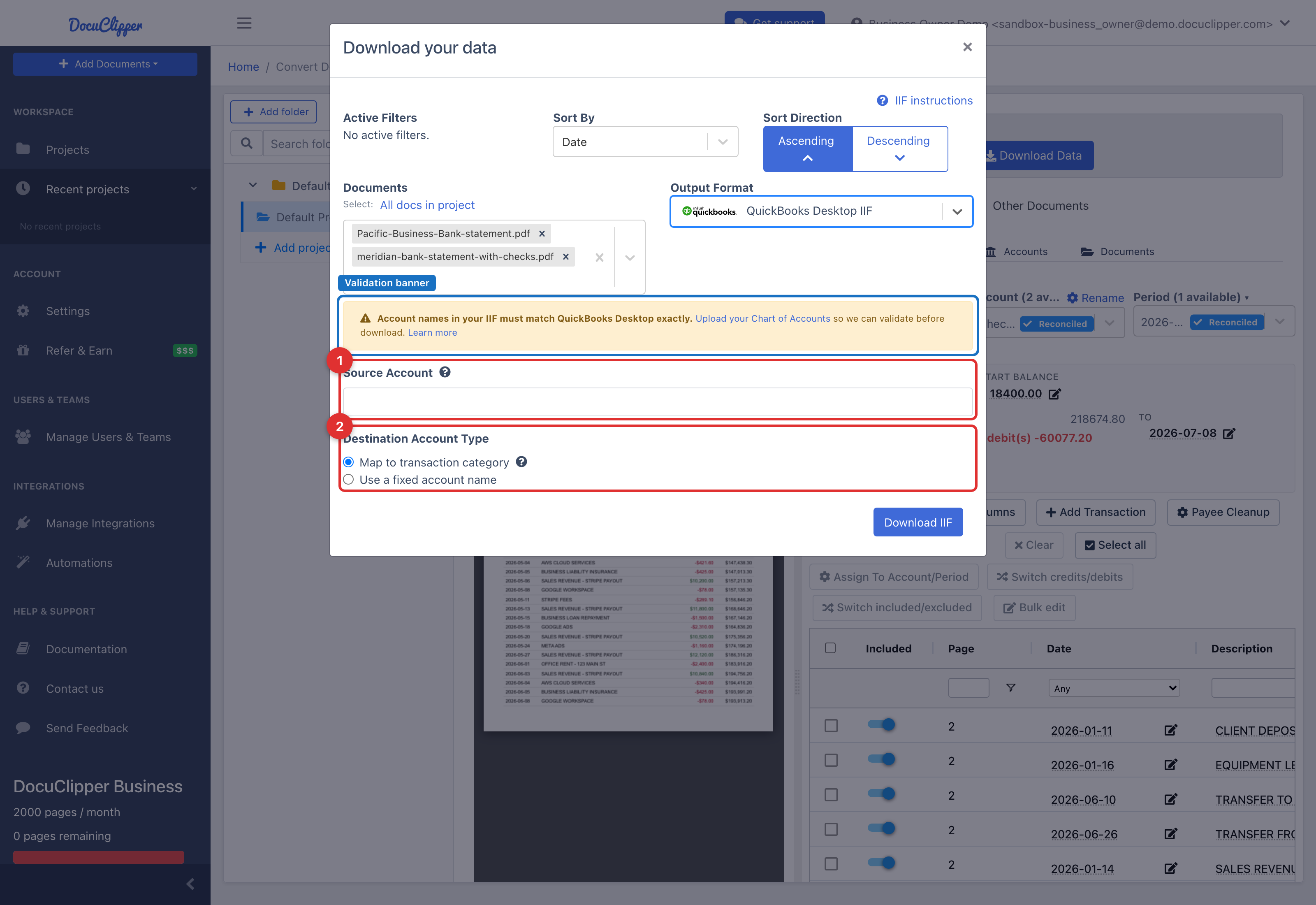
IIF import also keeps working on Desktop versions whose bank feeds Intuit has retired. Step-by-step: importing transactions into QuickBooks Desktop with IIF.
Put it into practice
Manual copy-paste is where errors begin
Split rows, drifting balances, missed transactions: they all trace back to re-keying. DocuClipper preserves the bank's layout so debits, credits, and totals tie out the first time.
Importing historical statements without duplicates
The most common problem with statement imports is the same transaction arriving twice: once from the bank feed and once from a file. QuickBooks does not always recognize them as the same transaction, because each source tags them differently.
To avoid it:
- Find the first date the bank feed covers for each account.
- Import statements only up to the day before that date. In DocuClipper, select only the statements you need before downloading.
- Set the opening balance of the account in QuickBooks to the balance on the first statement you import, dated the day before that statement starts.
- Reconcile month by month after importing, using each statement's ending balance. See how to reconcile a bank statement.
Re-importing the same DocuClipper QBO file is safe: the transaction IDs stay the same, so QuickBooks skips what it already has. A different file covering overlapping dates is not, so trim the range rather than relying on QuickBooks to catch it.
If you are rebuilding a full year, the catch-up bookkeeping guide covers the rest of the job: finding every account, checking for missing months, and pairing transfers between accounts.
Importing credit card statements
Credit card statements import the same way: convert the PDF, choose Credit Card as the account type when downloading the QBO file, and import it into the credit card account in QuickBooks. Two things to watch:
- Signs. Purchases increase the card balance and payments reduce it. If a file shows them reversed, flip them before importing rather than after; in DocuClipper, use Switch credits/debits on the affected rows.
- Payments from checking. The card payment also appears on the checking account. Book it as a transfer to the credit card account, not as an expense, or the spending is counted twice.
For card statements specifically, see the credit card statement converter.
Fixing common QuickBooks import errors
| Error | What it means | Fix |
|---|---|---|
| "QuickBooks is unable to verify the Financial Institution" | The bank ID in the QBO file is not one QuickBooks recognizes | Re-download the QBO file with a different bank selected. See this guide |
| The account you want is not listed during import | The account type in the file does not match the QuickBooks account | Re-download with the matching account type (checking/savings or credit card). See this guide |
| Transactions do not appear in QuickBooks Online | The file was mapped to a different account, or they are on the Excluded tab | Check the For Review and Excluded tabs. See this guide |
| Duplicates after import | The file overlaps the bank feed | Exclude the duplicates and re-import with a date range that ends before the feed starts |
| "CHECK is an invalid value for field TRNSTYPE" (IIF) | A US-edition IIF file was imported into QuickBooks Desktop Canada | Choose the Canada edition in the IIF export and download again |
What is a QBO file?
A QBO file is QuickBooks' Web Connect format: the transaction format a bank uses to send activity to QuickBooks, saved as a file. It carries each transaction's date, amount and description, plus the bank and account it belongs to, so QuickBooks imports it without column mapping. QFX is the equivalent for Quicken, and OFX is the open standard both are based on. A PDF statement cannot be imported into QuickBooks directly, which is why it has to be converted to QBO (or CSV) first.
Frequently asked questions
How do I import a PDF bank statement into QuickBooks Online?
QuickBooks cannot read PDF statements directly. Convert the PDF to a QBO Web Connect file, then in QuickBooks Online open Banking, choose the account, click File upload, and select the .qbo file. The transactions appear on the For Review tab.
How do I import historical transactions into QuickBooks?
Convert the older statements to QBO or CSV files and import them through File upload, but only up to the day before your bank feed starts, so the two do not overlap. Set the account's opening balance from the first statement, then reconcile each month.
How far back can QuickBooks download bank transactions?
It depends on the bank. Many bank feeds only pull a few months of history when you first connect, and some go back further. Anything older has to come from statements or file downloads. In our data, 71% of the statements converted for QuickBooks had ended more than 90 days before they were imported.
Can I import a CSV file into QuickBooks Online?
Yes. Use File upload on the Banking page and map the date, description and amount columns. The file needs either one amount column with negatives for money out, or separate debit and credit columns.
Can I import credit card statements into QuickBooks?
Yes. Convert or download the statement, choose the credit card account during import, and make sure purchases and payments have the right signs. Book card payments from checking as transfers, not expenses.
Should I use QBO or IIF for QuickBooks Desktop?
Use QBO (Web Connect) when you want the transactions in the bank register to categorize there, the same way a bank feed works. Use IIF when you want to choose the expense or income account for each transaction during import, or when your Desktop version no longer accepts Web Connect.
Why does QuickBooks say it cannot verify the financial institution?
The bank identifier inside the QBO file is not one your QuickBooks recognizes. Re-create the file with a different bank selected and import again.
Related articles
Next step
Upload your first statement free
No credit card required. See extracted transactions in seconds, then export to Excel, CSV, or QBO when you're ready to scale.