
Check Extraction Overview
What DocuClipper extracts from check images, supported input formats, accuracy expectations, and how check data fits with bank-statement transactions.
Last updated
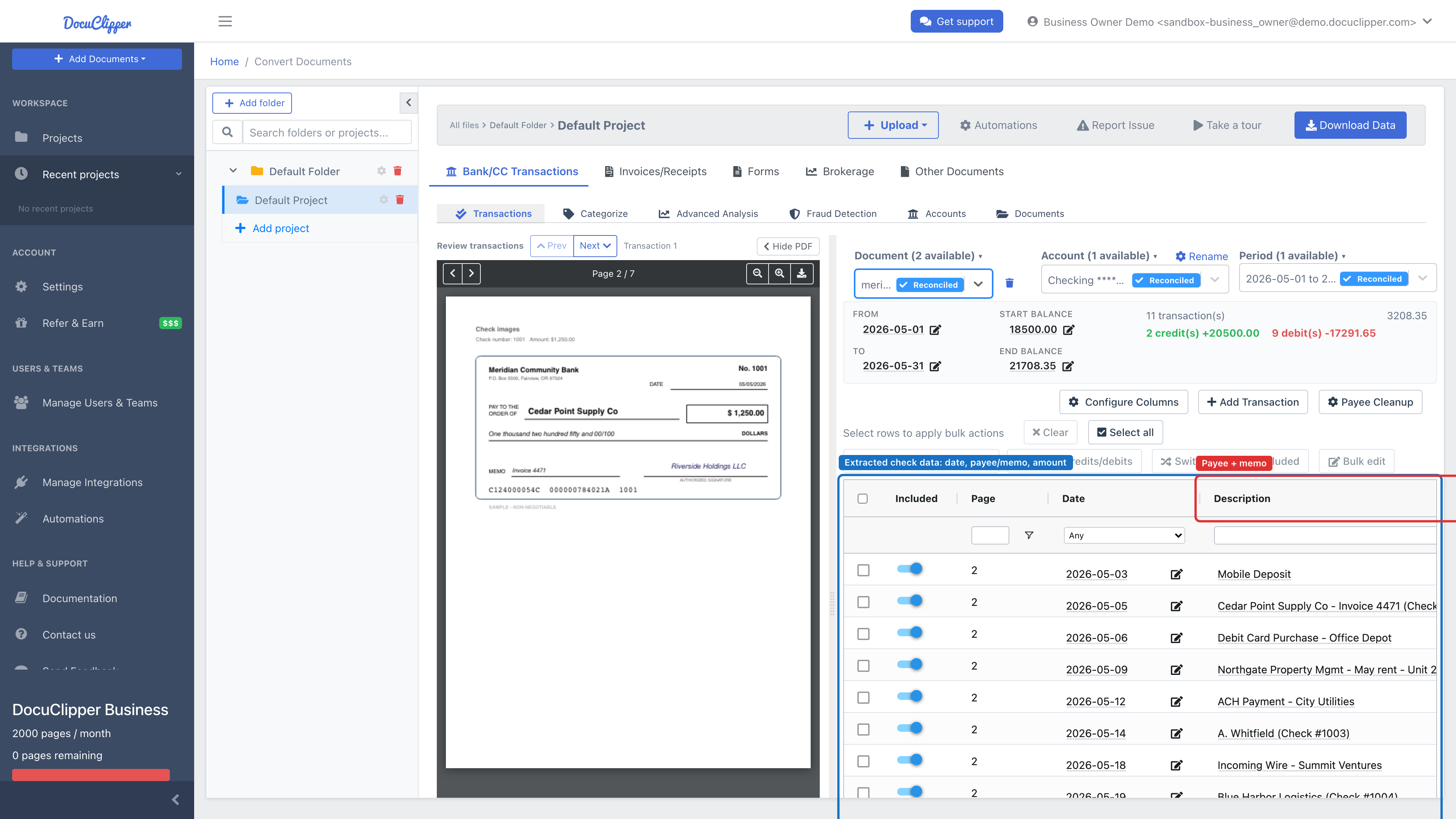
DocuClipper's check extraction reads scanned or photographed checks and pulls the same fields you would type into a register. This article covers what gets extracted, what to upload, and what to expect. For step-by-step upload instructions, see Converting check images.
What DocuClipper extracts from each check
For every check in your upload, DocuClipper attempts to read:
- Check number
- Date (normalized to a standard date format)
- Courtesy amount (the numeric box, for example
$1,250.00) - Legal amount (the written line, for example "One thousand two hundred fifty and 00/100"), kept as text and parsed to a number
- Payee (the "Pay to the order of" line)
- Memo
- Bank name printed on the check
- MICR line: routing number, account number, and the raw MICR string
- Which fields were handwritten (so you know where to look before trusting a value)
If a field is unreadable, DocuClipper returns it empty rather than guessing.
Supported input formats
- PDF is strongly recommended. Multi-check PDFs (one or many checks per page) are fully supported.
- JPG and PNG images of individual checks are accepted.
If you have a stack of paper checks, scanning them to PDF (one or several per page) typically produces the most consistent results. A flatbed scanner with multiple checks per page works well.
Accuracy: how DocuClipper cross-checks itself
Two built-in consistency checks flag suspect rows so you can review them before exporting:
- Courtesy vs. legal amount. The number in the box and the written-out amount must agree (to the penny). When they don't, that check is a likely mis-read — review it in the grid before you export.
- MICR mod-10 (routing checksum). US routing numbers are 9 digits with a mod-10 checksum. If the routing number on the MICR line fails the checksum, DocuClipper treats it as a likely OCR error in the routing field (and tries to recover a valid 9-digit routing from the raw MICR string). The other fields on the check are still returned.
Self-consistency does not guarantee correctness, it just catches the most common mis-reads. We always recommend a quick scan of the review grid before export, especially for handwritten checks.
What is not a check
If a page in your upload is clearly something else (a check stub or remittance advice, a bank statement, an invoice, or unrelated paperwork) DocuClipper labels the page accordingly and returns no checks for it instead of inventing data. You will see the page count and a note in the job results.
Output formats
Once a check job completes, you can export to any of the standard DocuClipper formats: Excel, CSV, QBO, IIF, QIF, and others. The check fields above map into the relevant columns. See Supported output formats for the full list and which accounting tools each one targets.
How check data fits with bank statements
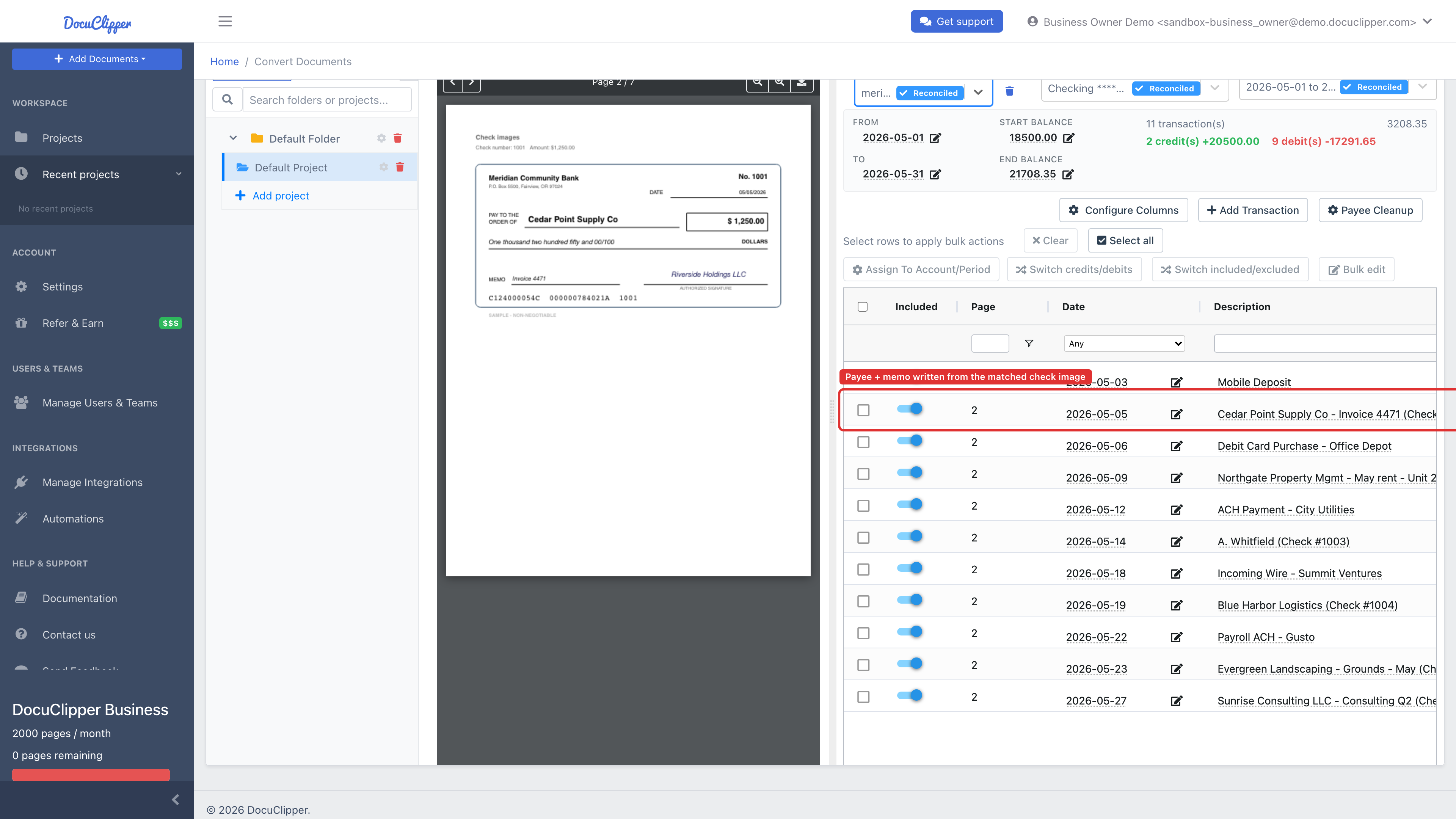
Bank statements often list paid checks as generic rows like Check #1234 with no payee or memo. When you extract the corresponding check images in the same project, DocuClipper automatically enriches those statement rows: it matches each check image to a Check #N row by check number and amount, then writes the payee and memo from the image onto the statement transaction (for example, Acme Supply - Invoice 88 (Check #1234)).
A few things to know about enrichment:
- It only overwrites the default placeholder description (
Check #1234, bare digits, orImage of Check #1234). If you've already edited a description, it's left alone. - Matching keys on check number + amount; the write date and cleared date can differ, so date is used only as a tie-breaker.
- If a check number matches more than one statement row and the amount can't disambiguate it, DocuClipper skips it rather than guessing.
You can still export both sets of data and reconcile by check number in Excel if you prefer.