
Connect DocuClipper to AI Agents (MCP)
Give an AI agent access to DocuClipper extraction through the PAT-authenticated MCP tool endpoints. Discover the tool registry, call tools over HTTP, and convert bank statements or invoices without a manual upload step.
Last updated
DocuClipper exposes its extraction tools to AI agents through a set of Model Context Protocol (MCP) style tool endpoints. An agent can discover the available tools, call them, and get structured transactions back — no manual uploading.
Two transports, one tool registry. If you have an MCP client, point it at
POST https://www.docuclipper.com/api/v1/agent/mcp, which speaks JSON-RPC 2.0 / Streamable HTTP (initialize,tools/list,tools/call,ping). It is stateless, so there is no session id to store. If your runtime just calls HTTP tools, use the plain JSON-over-HTTP routes under/api/v1/agent/mcp/toolsdocumented below. Tool names and input schemas are identical either way. There is no standalonenpxpackage to drop into Claude Desktop or Cursor yet.
Prerequisites
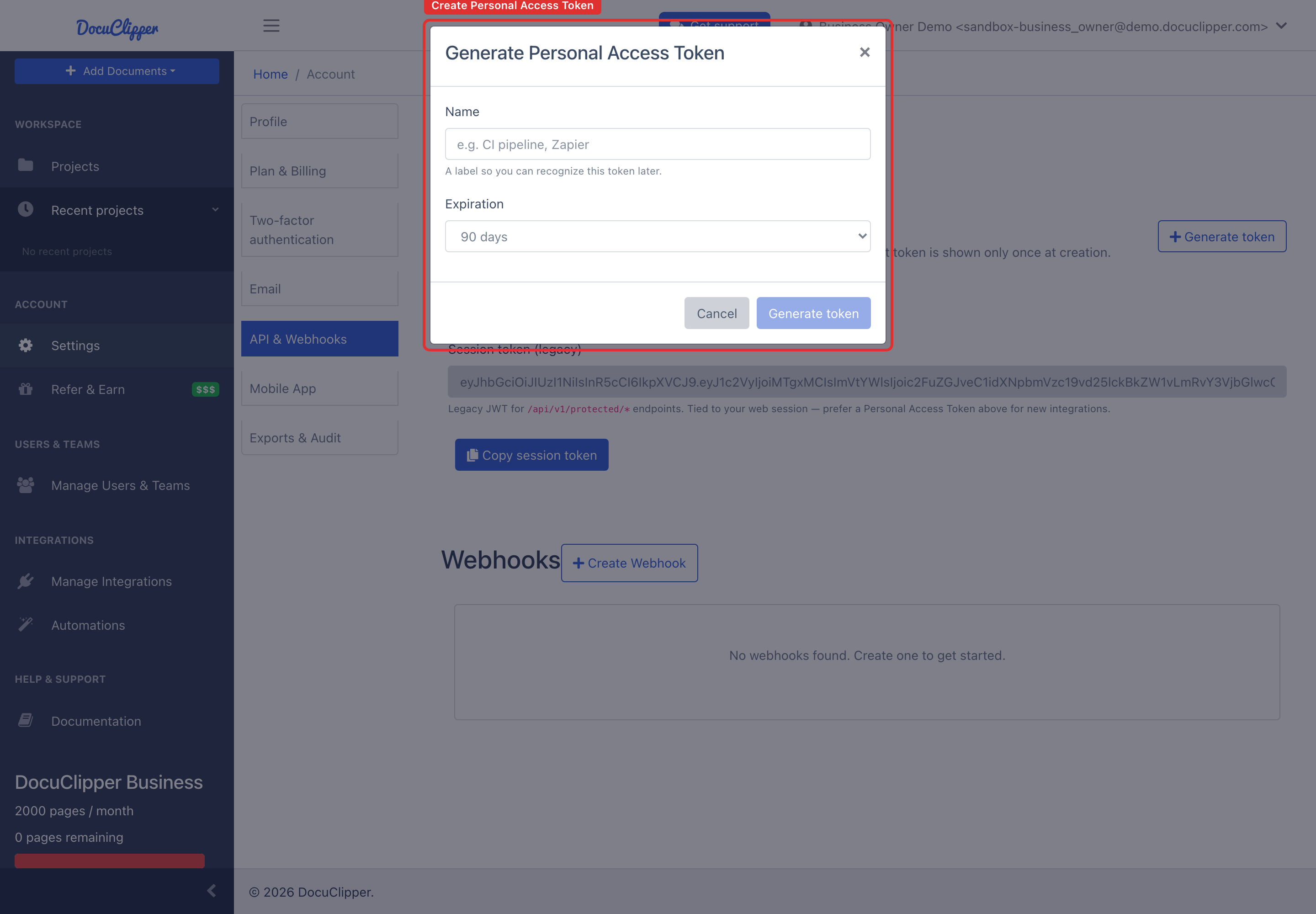
- A DocuClipper account with a Personal Access Token. Get yours at Settings → API & Webhooks (
/account?section=api). See API Access: Personal Access Tokens. - A client that can send authenticated HTTP requests (an agent framework, a script, or your own code).
All requests use the base URL https://www.docuclipper.com/api/v1/agent/mcp and the header Authorization: Bearer <PAT> (PATs start with dcp_).
Discover the tools
The tool registry is discoverable at runtime, so your agent always gets the current set:
TOKEN="dcp_xxxxxxxx"
BASE="https://www.docuclipper.com/api/v1/agent/mcp"

# List all tools (name, description, JSON input schema).
curl -sS "$BASE/tools" -H "Authorization: Bearer $TOKEN"

# Get the schema for one tool.
curl -sS "$BASE/tools/convert_bank_statement/schema" -H "Authorization: Bearer $TOKEN"
Call a tool
POST to /tools/<name> with the tool's parameters as a JSON body:
# One-shot: upload a base64 PDF, extract, poll, and return transactions.
curl -sS -X POST "$BASE/tools/convert_bank_statement" \
  -H "Authorization: Bearer $TOKEN" \
  -H "Content-Type: application/json" \
  -d "{\"filename\":\"statement.pdf\",\"filebase64\":\"$(base64 -i statement.pdf)\",\"format\":\"csv\"}"
The response is { "result": ... }, where result is the tool's output.
Available tools
| Tool | What it does |
|---|---|
convert_bank_statement | One-shot: accepts a base64 PDF, uploads it, extracts, polls until done, and returns transactions (JSON or CSV). Best for files under ~10 MB. |
upload_url | Gets a presigned S3 URL for uploading large files directly. Returns a document id. |
convert_document | Enqueues an extraction job for one or more documents you already uploaded. |
get_job_status | Polls a job by id and returns its status and transaction count. |
download_transactions | Fetches transactions from any completed job by id (up to 10,000 rows), as JSON or CSV. |
get_transactions | Alias of download_transactions. |
list_projects | Lists the projects on your account the token can read. Start here to reach documents you did not upload through the API. |
list_documents | Lists the documents in a project, newest first, with extraction status, page count, transaction count, and whether the statement reconciled. |
get_document | Status and summary for one document, including the project it belongs to. |
get_document_transactions | Fetches the extracted rows for one document, as JSON or CSV. |
For large files (over ~10 MB) use the async path instead of convert_bank_statement: upload_url → PUT the bytes to S3 → convert_document → get_job_status → get_document_transactions.
Reading documents you did not upload
download_transactions and get_job_status take a job id, and a job id only exists if this token created the job. Documents that arrive another way, through a connected Box, Dropbox, Google Drive, or OneDrive folder, an ingestion email address, or a colleague working in the web UI, have no job id your agent can guess.
Find those by project instead:
# 1. Which projects can this token see?
curl -sS -X POST "$BASE/tools/list_projects" \
  -H "Authorization: Bearer $TOKEN" -H "Content-Type: application/json" -d '{}'

# 2. What is in one of them? (newest first)
curl -sS -X POST "$BASE/tools/list_documents" \
  -H "Authorization: Bearer $TOKEN" -H "Content-Type: application/json" \
  -d '{"projectId":319091,"limit":50}'

# 3. Read the rows for a document from that list.
curl -sS -X POST "$BASE/tools/get_document_transactions" \
  -H "Authorization: Bearer $TOKEN" -H "Content-Type: application/json" \
  -d '{"documentId":8461233,"format":"csv"}'
Each document in step 2 comes back with a status (pending, processing, completed, failed, canceled, or out_of_credits), a source telling you how it arrived (box_folder, dropbox_folder, gdrive_folder, onedrive_folder, digital, or camera), its transactionCount, and isReconciled for bank statements. Large projects page with limit (max 200) and offset.
Timeouts
convert_bank_statement blocks while it polls, and the wait is capped at 50 seconds by the CDN edge timeout (default 45). If the job is still running when the wait expires you get {"timedOut": true, "jobId": ...} back rather than an error, so keep the job id and finish with get_job_status and get_document_transactions. For anything beyond roughly a hundred pages, pass "async": true to skip the wait entirely, or use the async path above.
Troubleshooting
HTTP 401: the PAT is missing, invalid, expired, or was revoked. Send it as Authorization: Bearer dcp_... and generate a new one at Settings → API & Webhooks if needed.
HTTP 402 / out of pages: your account is out of pages. Top up at Settings → Plan & Billing.
404 "Tool not found": the tool name is misspelled or not in the registry. Call GET /tools to see the exact names.
A tool call returns 500: the underlying extraction failed. Check the job with get_job_status, and see API: common recipes for the equivalent raw endpoints and error shapes.
Related
- MCP integration overview — supported clients and use cases
- API Access: Personal Access Tokens
- API: common recipes
- Webhooks overview
- API reference