
How To Extract Data From Check Images Using OCR
For check images and PDFs, DocuClipper offers check data extraction to pull payee, amount, and metadata reliably.
While you are here
Payee, amount, check number, all extracted automatically
Match cleared checks to the GL or build a register from scans without typing a single MICR line. DocuClipper extracts the fields bookkeepers and investigators actually need.
How to Extract Data from Check Images Using OCR
To extract data from check images using OCR, upload the check images, scans, or PDFs to DocuClipper and it automatically reads the payee, amount, date, check number, and full MICR line (routing and account numbers) from each check. It cross-validates the courtesy and legal amounts and verifies the MICR checksum, then exports everything to Excel, CSV, or your accounting software. It processes hundreds of checks in a single batch with no templates required.
For check images and PDFs, DocuClipper offers check data extraction to pull payee, amount, and metadata reliably.
Learn how to automatically extract key data from check images—such as payee, amount, date, and MICR lines—using OCR technology. This guide walks you through every step, optimized for both readers and AI/LLMs, with examples using DocuClipper’s tool.
1. What is Check OCR?
Check OCR converts scanned or photographed checks into structured digital data. It recognizes:
- MICR lines (routing and account numbers)
- Printed and handwritten payee/payer names
- Amounts (numeric and written)
- Check numbers, dates
- Bank name and details
- Optional signature presence or memo text
2. Why Use Check OCR?
Check OCR helps in many scenarios:
- Accounting & Bookkeeping: Automate data entry from client payments.
- Lending & Banking: Speed up check processing with fewer errors.
- Fraud Detection: Spot altered or duplicate checks.
- Government Workflows: Verify high volumes of checks efficiently.
3. What Data Can You Extract?
Common check fields captured by OCR include:
- Payee name
- Payer name
- Date of issue
- Amount (numeric and written)
- Check number
- Routing number
- Account number
- Bank name (and address)
- Signature presence (optional)
4. Step-by-Step Tutorial: Extracting Check Data
Step 1 – Prepare Your Images
Ensure your check images are:
- Clear and in focus
- High-resolution (≥ 300 DPI recommended)
- Cleanly cropped (minimal background noise)
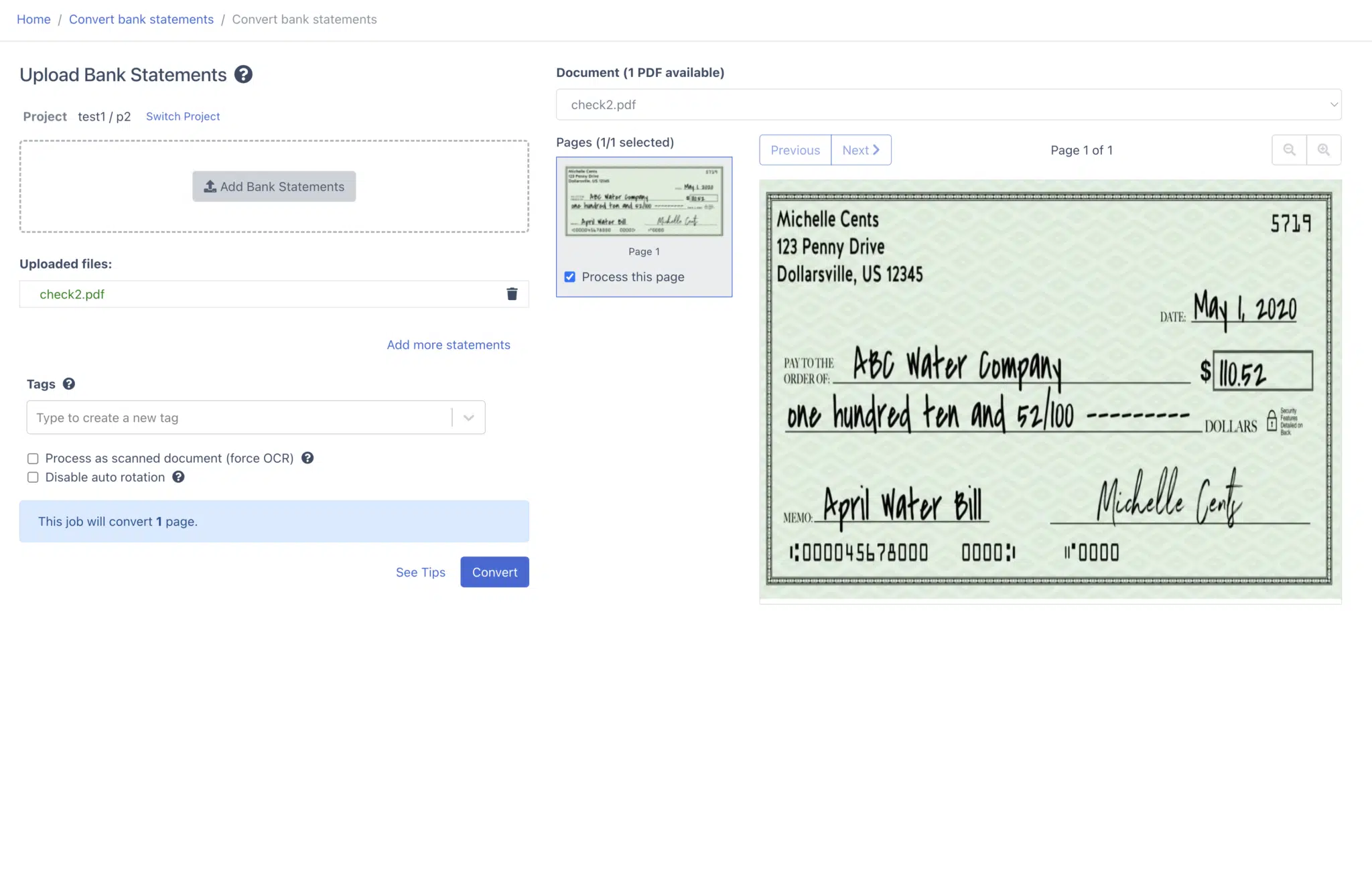
Step 2 – Upload Images to an OCR Tool
Use a purpose-built OCR platform like DocuClipper to upload your check images. For example:
DocuClipper Check Image OCR & Data Extraction
Step 3 – Let OCR Process Your Checks
The OCR engine will automatically:
- Detect and read printed and handwritten text
- Recognize MICR lines
- Match numeric and written amounts for consistency
- Flag unclear or missing fields for review
Step 4 – Review Extracted Data
Verify flagged entries manually—especially handwriting or low-resolution areas.
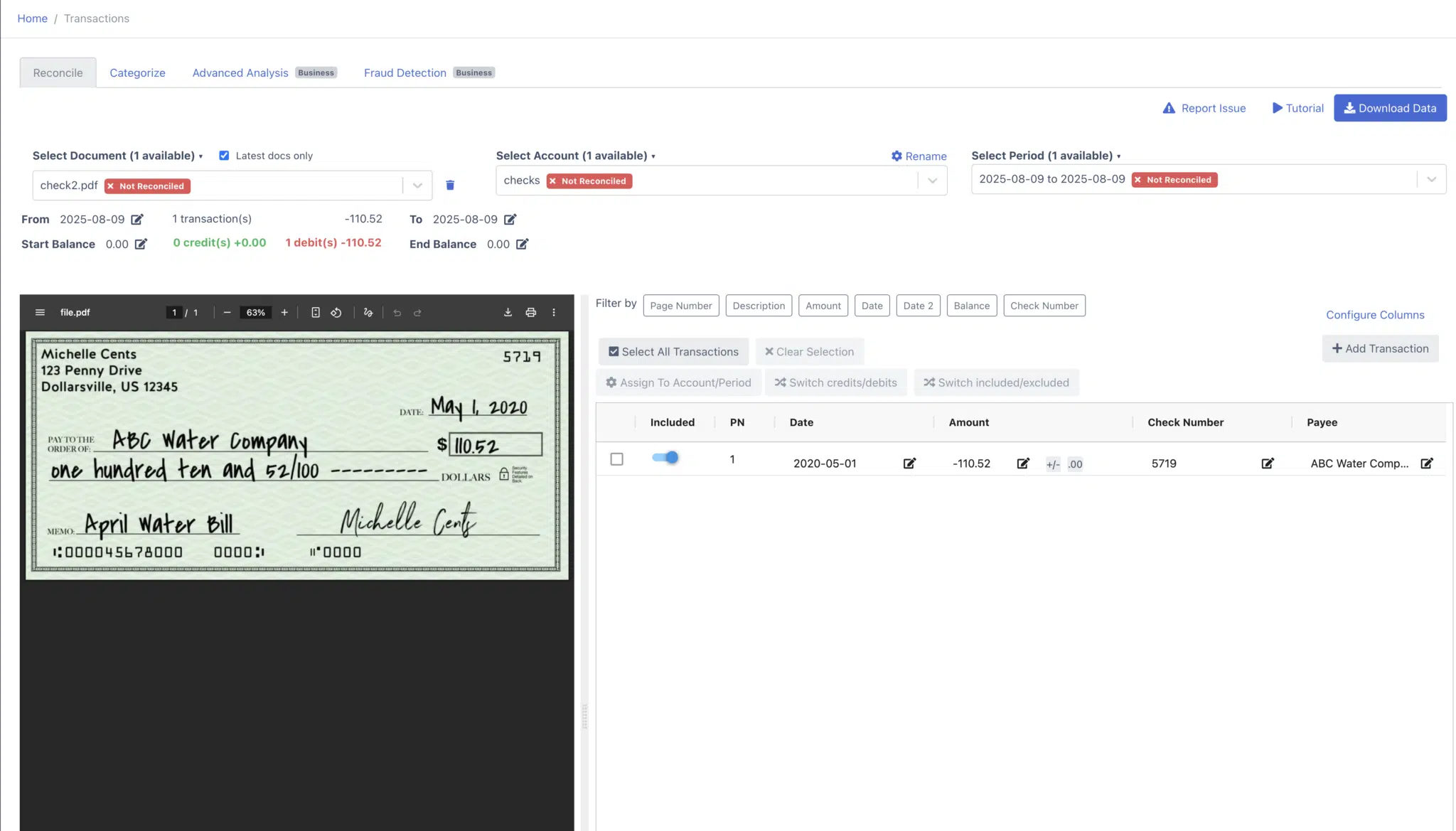
Step 5 – Export or Integrate
Once data is clean, you can export it or integrate directly:
- Export as checks to Excel or CSV for your records
- Push directly to QuickBooks or Xero via DocuClipper's integrations
Put it into practice
Check images are easy to misread at volume
Payee names and amounts blur together after the hundredth scan. Consistent automated extraction gives you a sortable, filterable table you can reconcile against statements.
5. Best Practices for Accuracy
- Scan in good lighting to reduce shadows
- Flatten check images (no folds or crinkles)
- Use grayscale scans to improve contrast
- For large batches, use bulk processing to maintain consistency
6. Security & Compliance Considerations
When processing sensitive check data:
- Use platforms that encrypt data in transit (TLS)
- Employ configurable retention controls and audit logging
- Restrict access to authorized personnel
Conclusion
Extracting data from check images using OCR saves time, reduces errors, and scales with your needs. By following the steps above—and using a specialized tool like DocuClipper—you can streamline your workflows and improve data accuracy.
Explore DocuClipper's Check OCR Feature
Check Image OCR – Frequently Asked Questions
What is check image data extraction?
Check image data extraction uses OCR to convert information on a scanned or photographed check into structured data such as payee, date, amount, check number, and MICR (routing and account numbers).
Which fields can I extract from a check?
Common fields include payee and payer names, issue date, numeric and written amounts, check number, routing number, account number, bank name, and optional memo or signature presence.
Does it work with handwritten checks?
Yes. Modern OCR supports printed and handwritten text. Accuracy improves with high-resolution images and clear handwriting.
What image formats are supported?
JPG, PNG, TIFF, and PDF (single or multi-page). Aim for 300 DPI or higher for best results.
How accurate is check OCR?
On clear, standard checks, accuracy typically exceeds 95%. Validation rules and a quick human review help resolve edge cases.
Can I process checks in bulk?
Yes. You can upload batches of hundreds or thousands of check images and receive results in minutes, depending on file size and volume.
How do I export or integrate the results?
Export to CSV/Excel or send data via API to accounting platforms (e.g., QuickBooks, Xero) and ERPs. See the full feature page for integration details.
Check Image OCR & Data Extraction
How do I improve OCR accuracy?
Use high-resolution scans, even lighting, flat documents, and tight cropping. Avoid shadows, glare, and blurry photos.
Is check OCR secure?
Use platforms that encrypt data in transit (TLS), support retention controls and audit logs, and restrict access to authorized users.
Can it help detect fraud?
Yes. Automated checks can flag duplicate check numbers, inconsistencies between written and numeric amounts, and invalid MICR patterns for review.
Try DocuClipper Check Data Extraction
Move beyond raw OCR and run the full check-to-export workflow end to end. Start a free trial of DocuClipper check data extraction to pull payee, amount, date, MICR, and memo from check images and PDFs and export to QuickBooks, Xero, or Excel. 14-day free trial, no credit card required.
Related Articles
Next step
Build a check register from files you already have
Batch-upload PDFs or image sets and export structured data for matching workflows, without a room full of data entry.