
How To Convert Charles Schwab Bank Statement To Excel, CSV, And QBO
Charles Schwab Bank offers a high-yield checking account with no foreign transaction fees, popular with travelers and investors. This guide shows how to convert Schwab Bank PDF statements to Excel, CSV, or QBO using DocuClipper's OCR, no manual data entry needed.
Charles Schwab Bank is best known for its Investor Checking account, a high-yield checking account that refunds all ATM fees worldwide and charges no foreign transaction fees. It is widely used by frequent travelers, expats, and investors who hold both brokerage and banking accounts under one Schwab login. Because Schwab combines banking and brokerage under the same platform, it is important to distinguish between bank/checking statements and brokerage account statements when downloading records for bookkeeping or lending.
DocuClipper's bank statement converter extracts all transactions from Schwab Bank checking and savings PDFs in seconds, with no manual data entry.
While you are here
Extract holdings and activity from any broker PDF
Upload a brokerage statement from Fidelity, Schwab, Vanguard, Merrill, E*TRADE, or Robinhood and DocuClipper returns structured tables (positions, buys/sells, dividends) ready to export.
Step 1: Upload Charles Schwab Bank Statement to DocuClipper
Log into your DocuClipper account (or start a free trial) and navigate to Bank and Credit Card Statements.
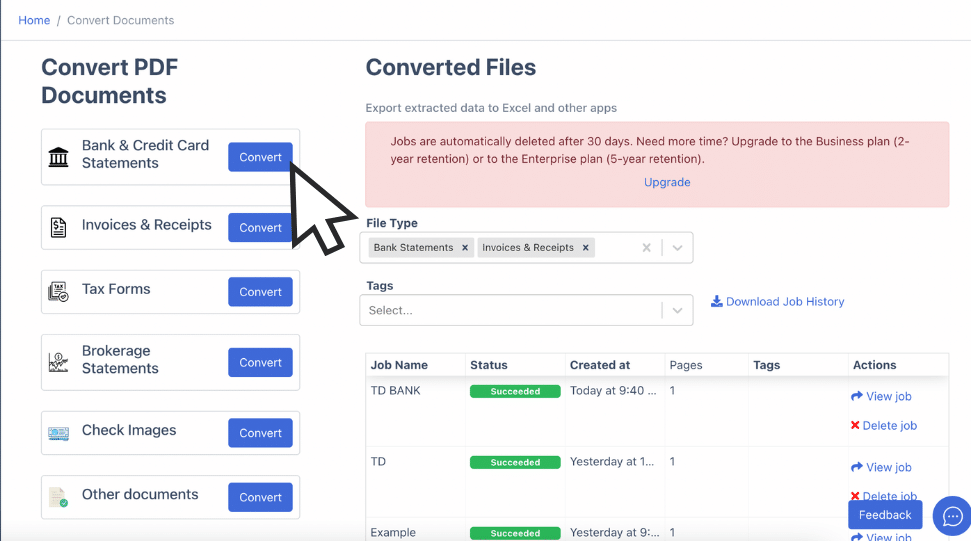
Drag and drop your Schwab Bank PDF statement into the upload area. Schwab generates clean digital PDFs for all bank accounts, OCR accuracy is consistently high.
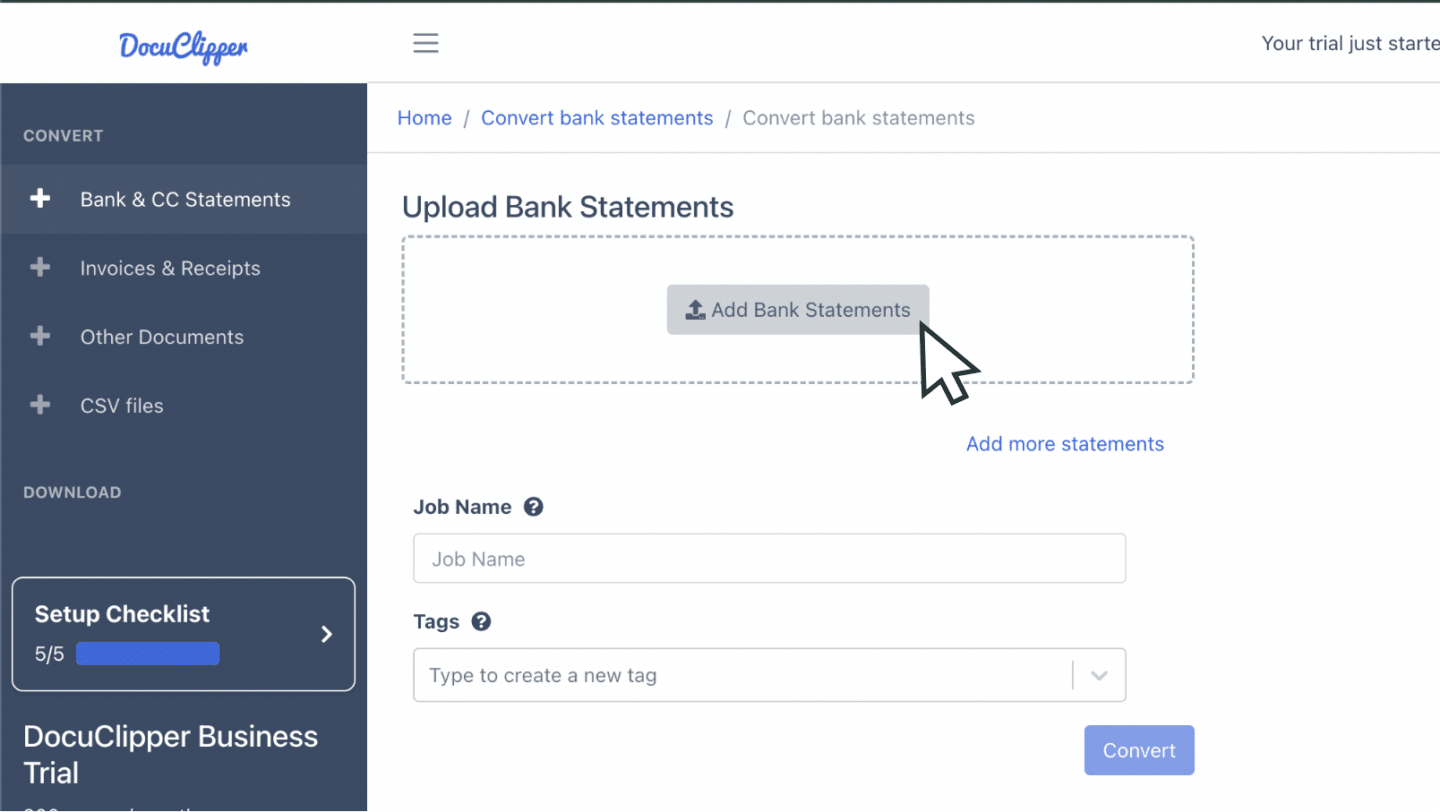
You can also email statements directly to your DocuClipper upload address, which is useful when clients forward Schwab Bank statements from their inbox.
Step 2: Review Extracted Transactions
After upload, DocuClipper displays the original PDF alongside the extracted spreadsheet. Every transaction row, date, description, debit, credit, and running balance, is pulled automatically.
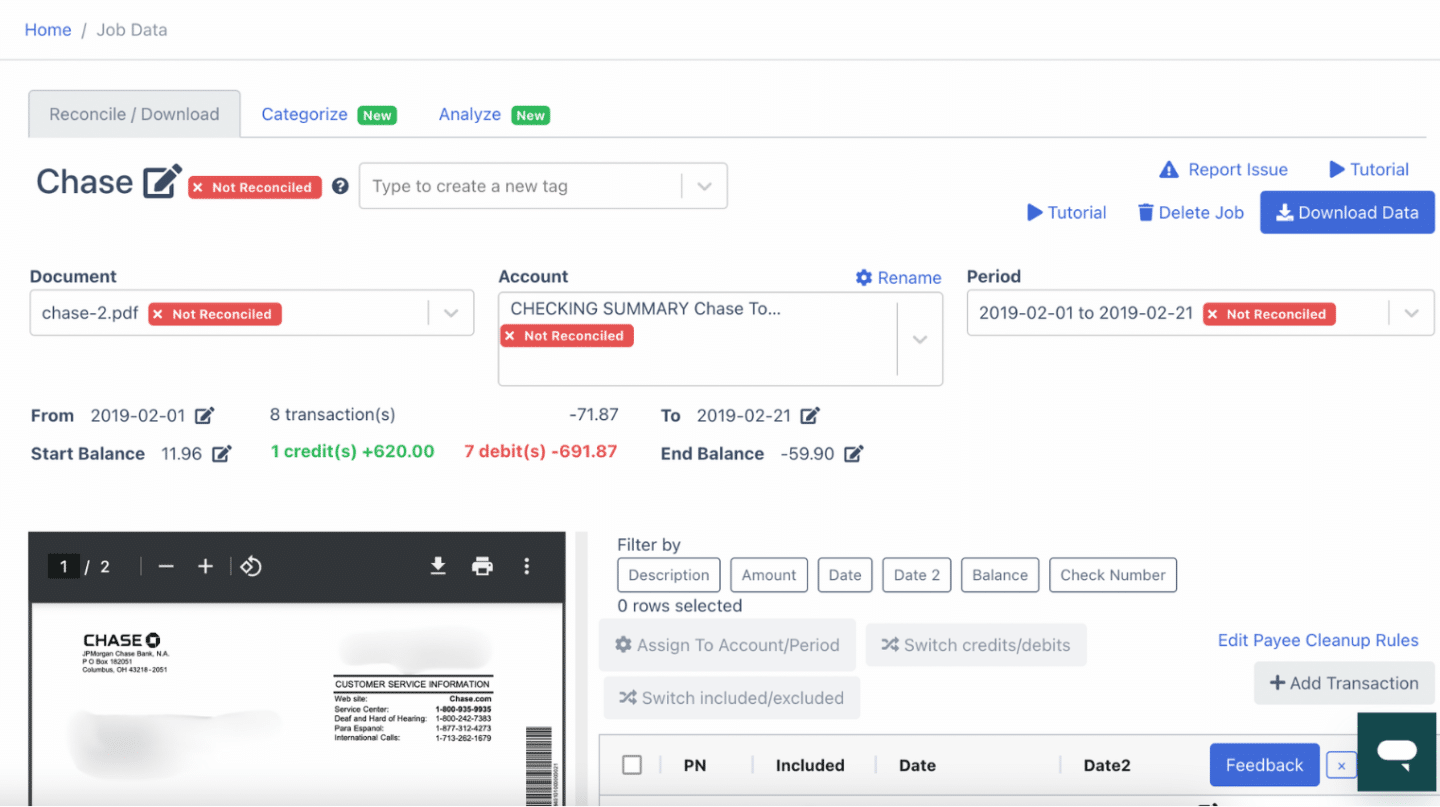
Scan the side-by-side view to confirm all rows were captured correctly before exporting.
Step 3: Reconcile the Statement
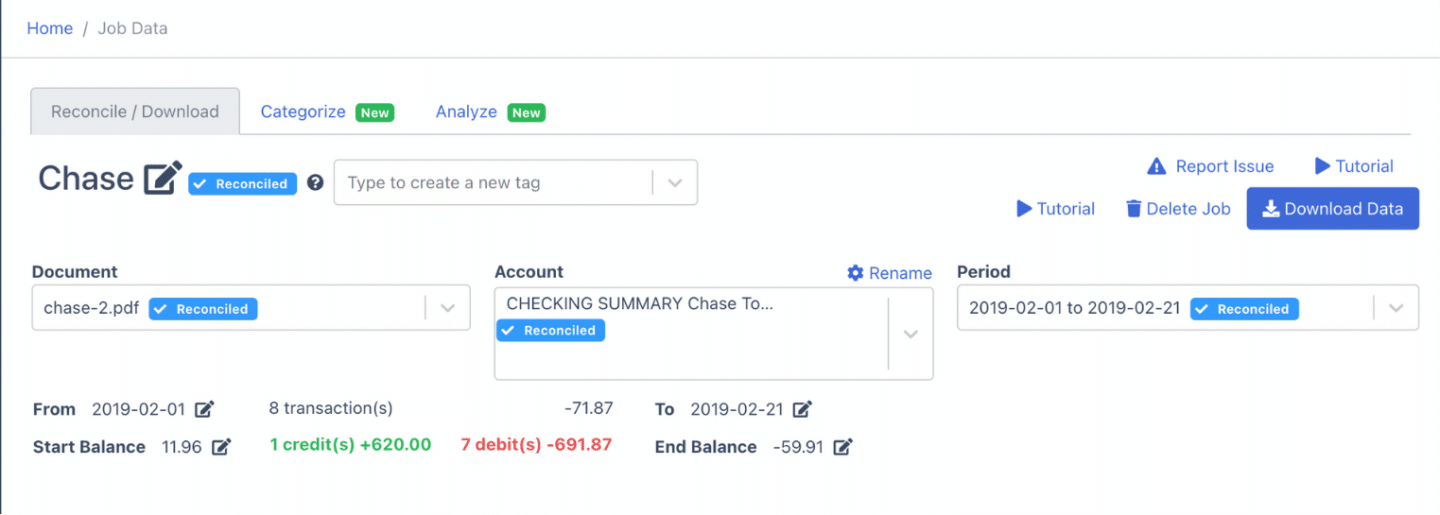
DocuClipper automatically reconciles the statement when you click convert. It compares the sum of extracted transactions against Schwab's stated opening and closing balances.
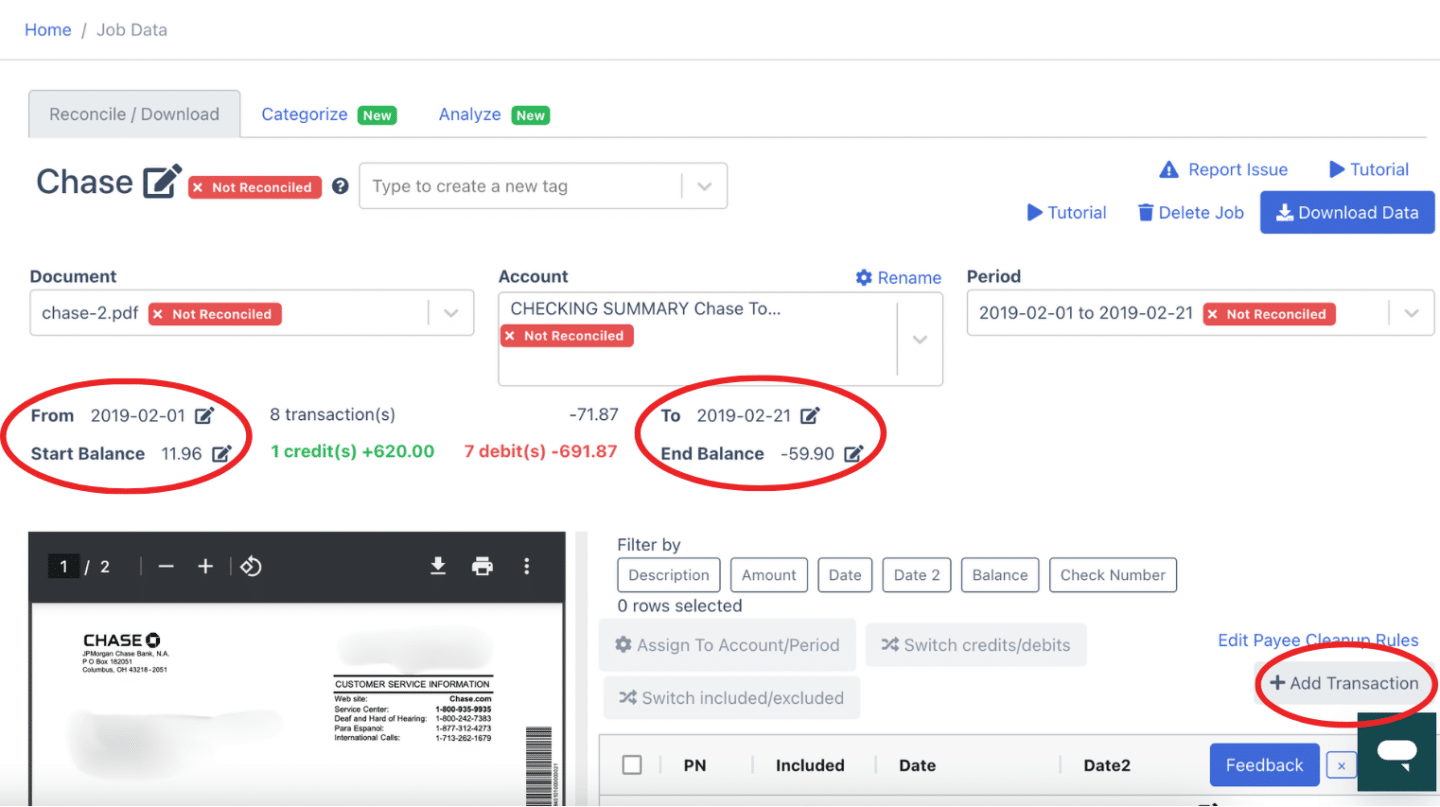
Reconciled statements are marked clearly. If any discrepancy appears, you can add missing transactions or correct figures directly in the dashboard before exporting.
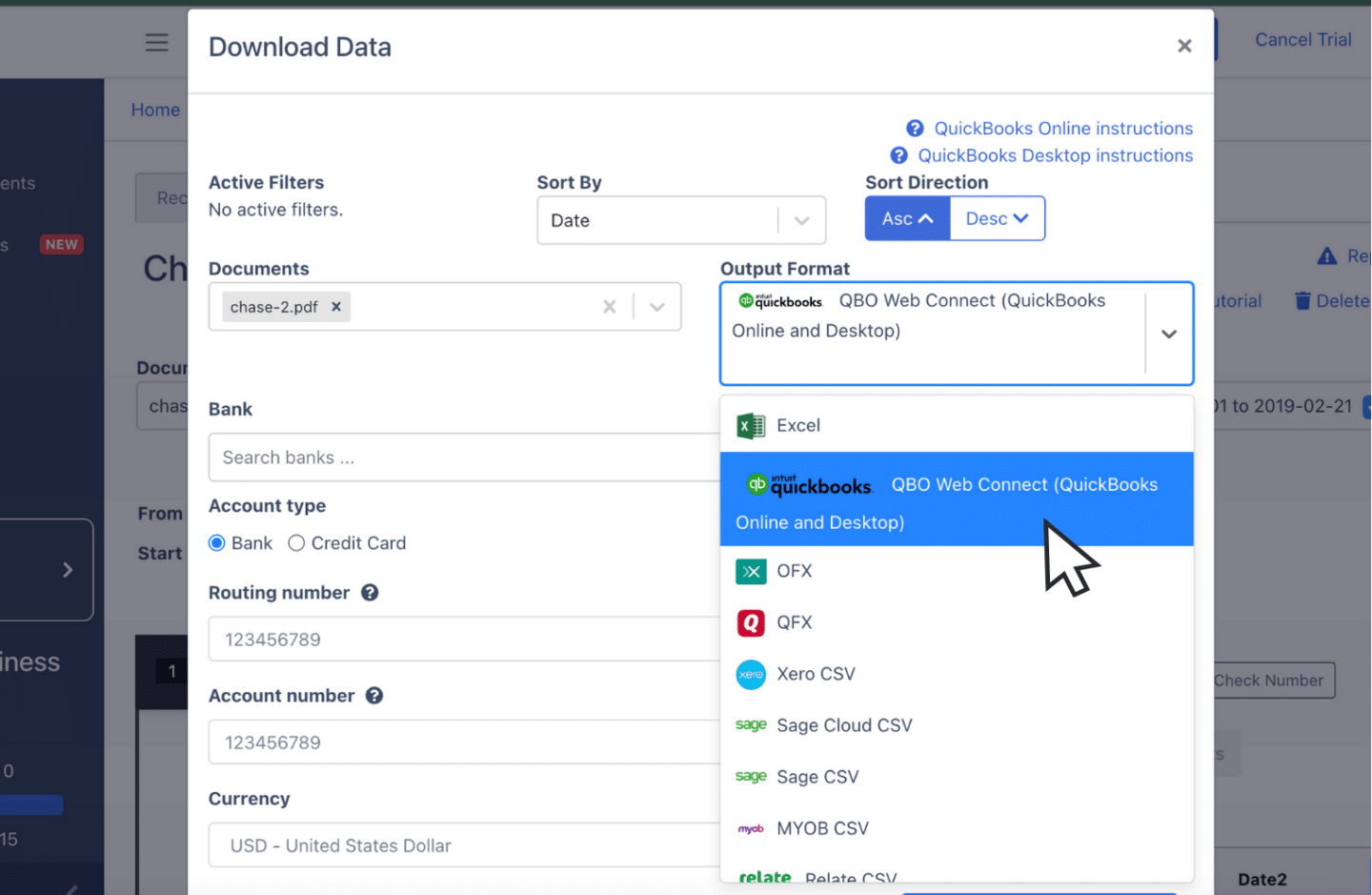
Step 4: Export to Excel, CSV, or QBO
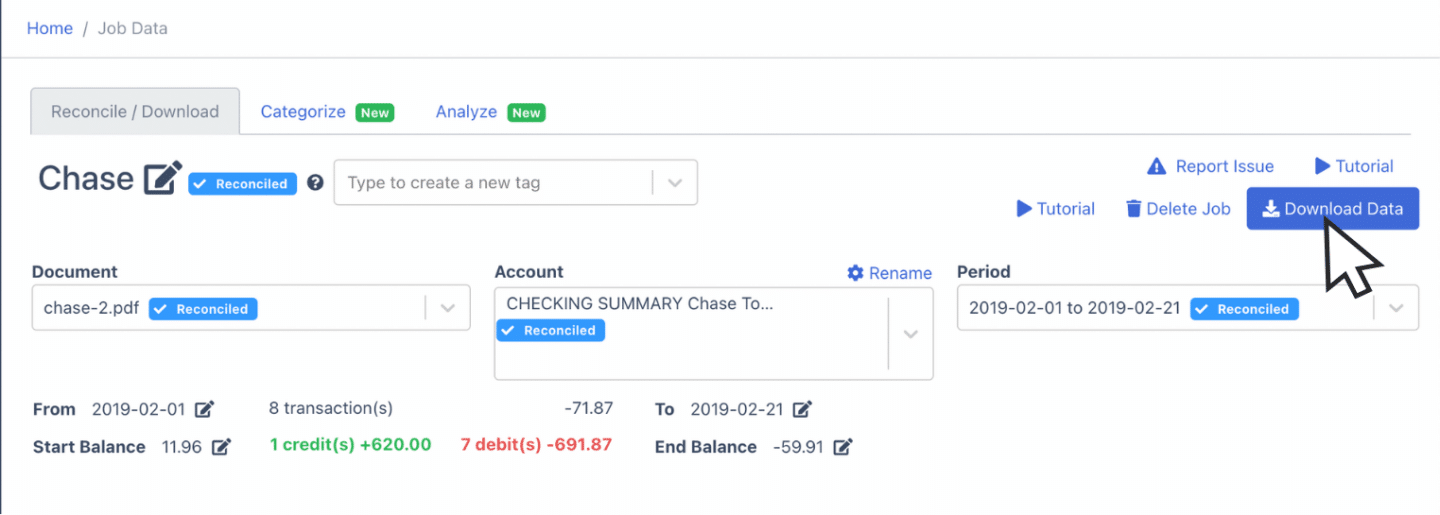
Click Download Data to export.
Export to Excel
Select Excel and choose XLSX. The file downloads immediately and opens in Microsoft Excel or Google Sheets.
For all banks and statement formats, DocuClipper's bank statement to Excel converter works the same way.
Export to CSV
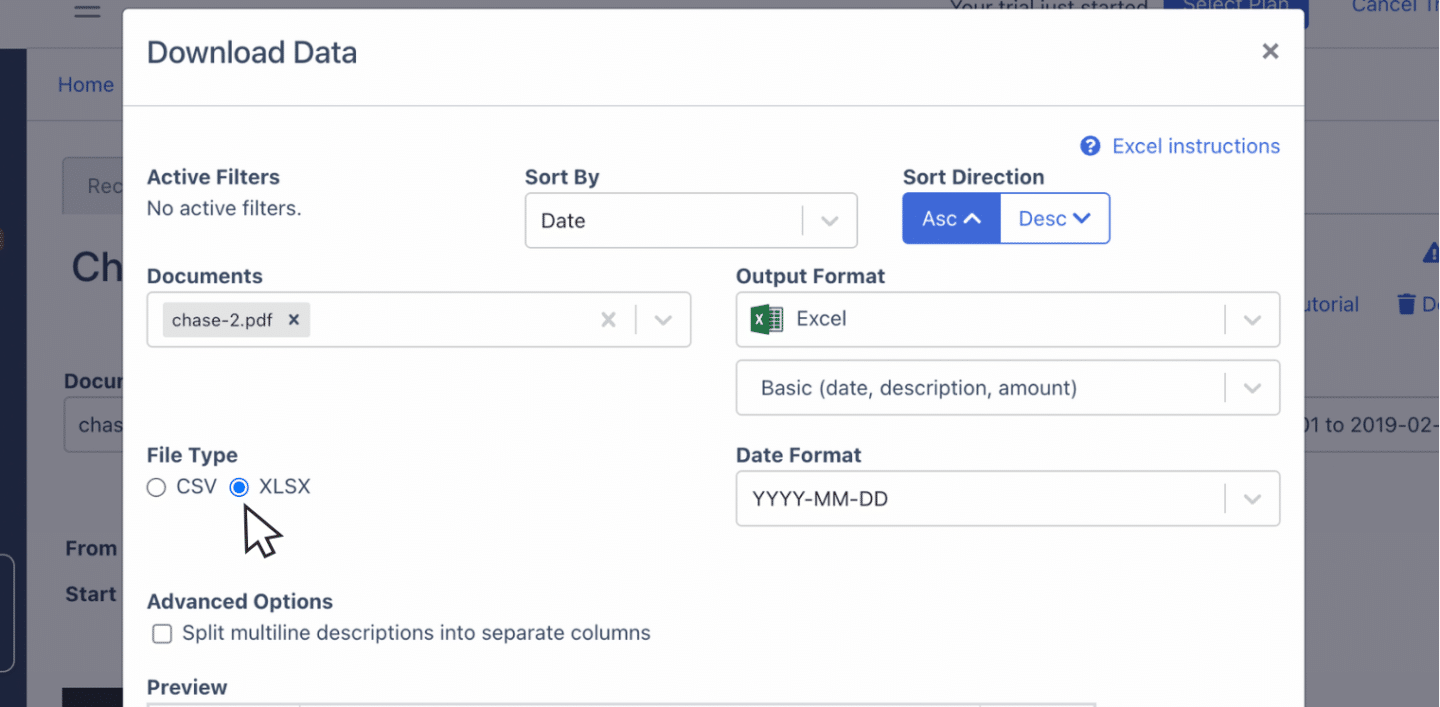
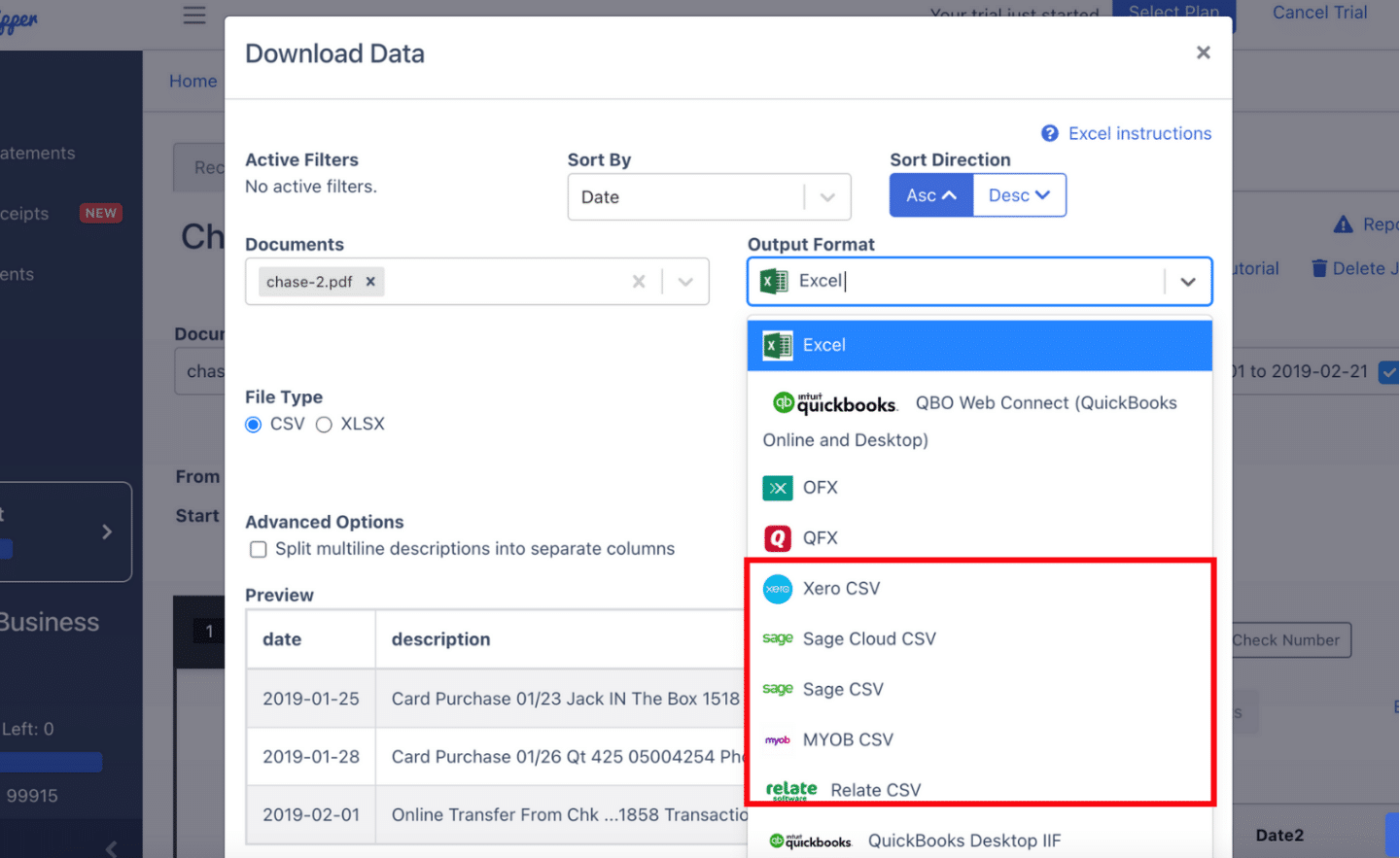
Select Excel then CSV. DocuClipper also provides pre-formatted CSV layouts for Quicken (QFX) or QIF, Xero, Sage, MYOB, and NetSuite.
For a broader walkthrough, see our guide on how to convert bank statements to Excel or CSV.
Export to QBO
Select QuickBooks to generate a QBO file for direct import into QuickBooks Desktop or Online.
For the direct bank statement to QBO workflow or a complete guide to importing bank statements into QuickBooks, see bank statement to QuickBooks.
Also useful:
Put it into practice
Manually copying brokerage data creates reconciliation errors
Cost basis, market value, realized gains: these numbers compound errors when retyped. DocuClipper extracts them directly from the statement so holdings and activity tie out the first time.
How to Download Charles Schwab Bank Statements
Online (schwab.com):
- Sign in to your Charles Schwab account at schwab.com.
- Click the Accounts tab in the top navigation.
- Select your Schwab Bank checking or savings account (not a brokerage account).
- Click the Statements tab within the account view.
- Choose the statement period and click the PDF download icon.
Available formats: PDF. History: up to 10 years for most account types.
Important: Schwab's platform hosts both brokerage account statements and bank account statements under the same login. Make sure you select your Schwab Bank checking or savings account, not a brokerage, IRA, or investment account, before downloading. Brokerage statements have a different layout and are not bank statements.
Why Convert Charles Schwab Bank Statements with DocuClipper
- Digital PDFs, high accuracy: All Schwab Bank statements are machine-generated digital PDFs. OCR accuracy is excellent with no scan artifacts.
- Traveler and expat use cases: Schwab Investor Checking is widely held by users with international transaction activity. DocuClipper correctly parses foreign currency transaction rows that appear on Schwab statements.
- Bulk processing: Upload multiple months or multiple client accounts at once. See bank statement to CSV for batch workflows.
- All formats covered: Excel, CSV, QBO, OFX, and pre-formatted exports for major accounting platforms.
- Reconciliation built in: Statements are verified against Schwab's stated balances before you export.
FAQs about Charles Schwab Bank Statement to Excel
Can I download Schwab Bank transactions as CSV directly?
Schwab's platform allows you to export recent transaction history from the account activity view, but full monthly PDF statements, which include the opening and closing balance summary required for lending or audit purposes, must be converted separately. DocuClipper converts the PDF to a structured spreadsheet in seconds.
Does DocuClipper work with Schwab brokerage account statements?
Yes. DocuClipper handles both Schwab bank statements and Schwab brokerage statements. For bank statements (Schwab Investor Checking, Schwab Bank savings), use the bank statement converter on this page. For brokerage statements with positions, holdings, and transaction activity, see: How to Convert a Schwab Brokerage Statement to Excel.
How far back can I get Charles Schwab Bank statements?
Schwab provides up to 10 years of statement history online for most account types. Download the PDFs for the date range you need, then batch-upload them to DocuClipper to produce a consolidated Excel file covering the full period.
Can I convert multiple Schwab statements at once?
Yes. DocuClipper supports multi-file uploads. Drop all your Schwab Bank PDFs into one batch and download a single combined Excel file, or export each statement individually.
Related Articles
- Bank Statement Converter
- Bank Statement to CSV
- Brokerage Statement Converter
- How to Convert a Schwab Brokerage Statement to Excel
- How to Convert Bank Statements to Excel or CSV
- How to Convert Wells Fargo Bank Statement to Excel
- How to Convert Chase Bank Statement to Excel
- How to Convert KeyBank Bank Statement to Excel
- How to Convert Discover Bank Statement to Excel
Next step
Convert your brokerage statement: free 14-day trial
Upload any PDF brokerage statement and download Holdings, Activity, and Income in a clean Excel workbook. No credit card required.