
How To Convert Regions Bank Statement To Excel, CSV, And QBO
Regions Bank business account statements frequently arrive as PDFs from accountants and clients. This guide shows how to convert Regions Bank PDF statements to Excel, CSV, or QBO using DocuClipper, no manual data entry, no template setup.
Regions Bank is one of the largest banks in the Southeast United States, with a significant presence in commercial and small business banking. Business account statements from Regions often arrive as PDFs, forwarded by clients, pulled from the online portal, or mailed as paper copies. Converting those PDFs manually is slow and error-prone.
DocuClipper's bank statement converter handles Regions Bank PDFs without template setup, extracting all transactions automatically and reconciling them against the statement totals before export.
While you are here
Extract every transaction from any bank PDF
Upload a statement from any bank and DocuClipper returns a clean table with dates, amounts, descriptions, and running balance intact. No reformatting before you can reconcile or import.
Step 1: Upload Regions Bank Statement to DocuClipper
Log into your DocuClipper account (or start a free trial) and navigate to Bank and Credit Card Statements.
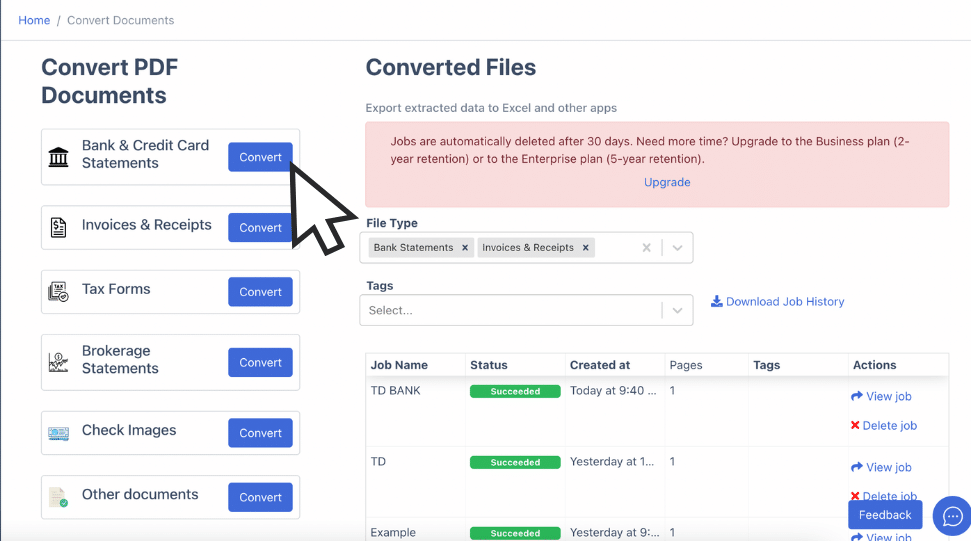
Drag and drop your Regions Bank PDF. Digital PDFs from Regions' online portal and scanned paper statements are both supported.
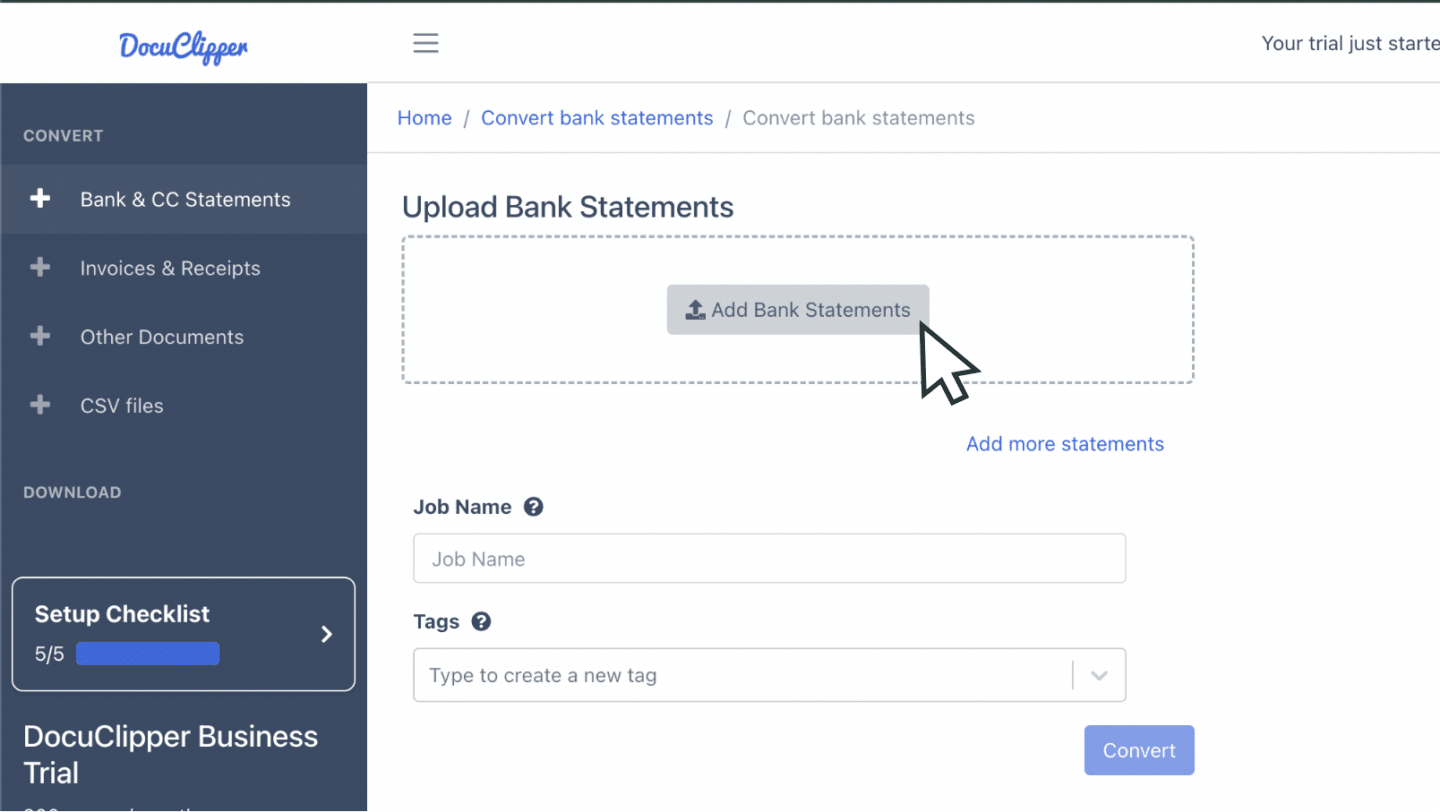
You can also email statements to your DocuClipper upload address from within your account settings, convenient when clients forward Regions PDFs directly to you.
Step 2: Review Extracted Transactions
DocuClipper presents the original PDF and the extracted spreadsheet side by side. Every transaction row, date, description, debit, credit, and running balance, is extracted automatically.
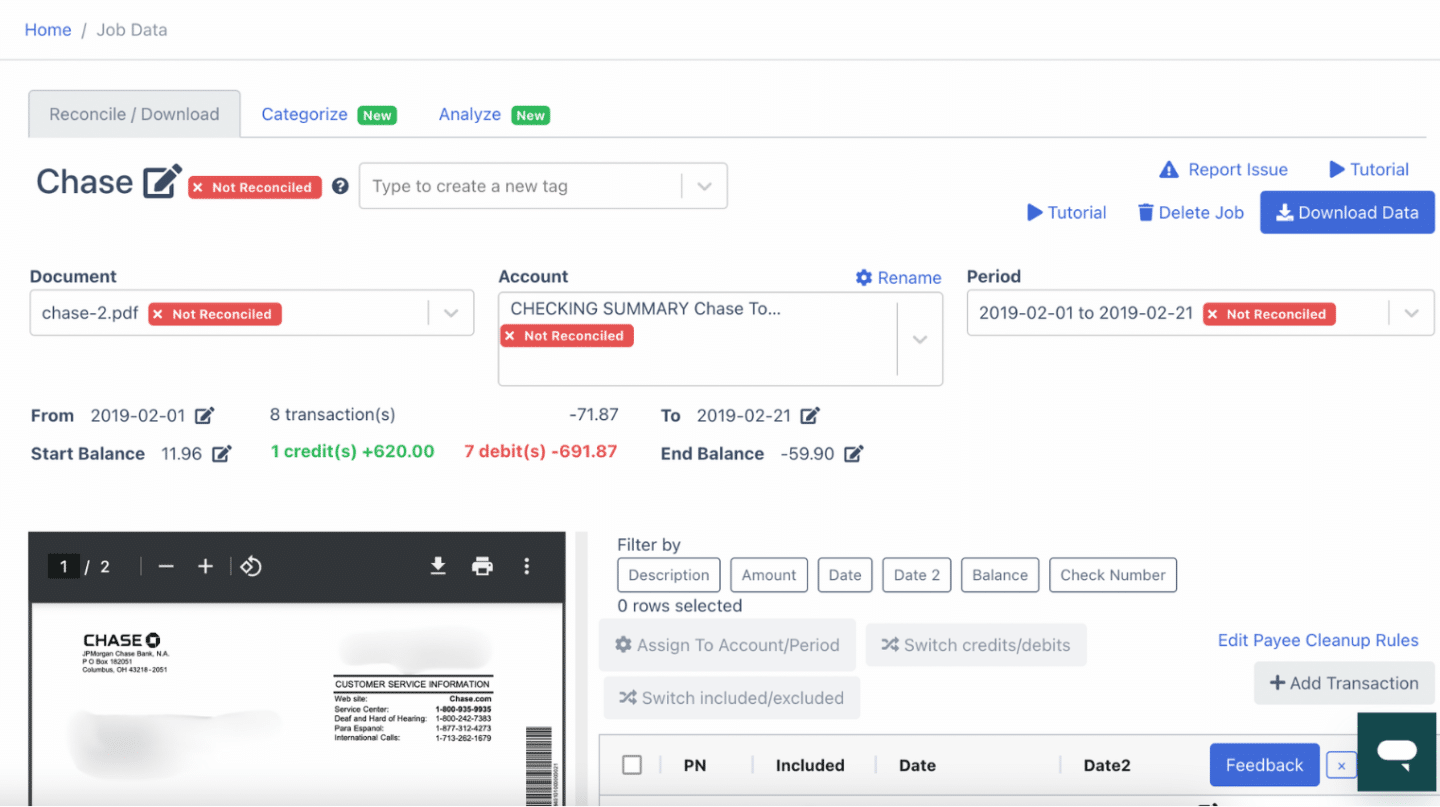
Review the output against the source PDF before proceeding to export.
Step 3: Reconcile the Statement
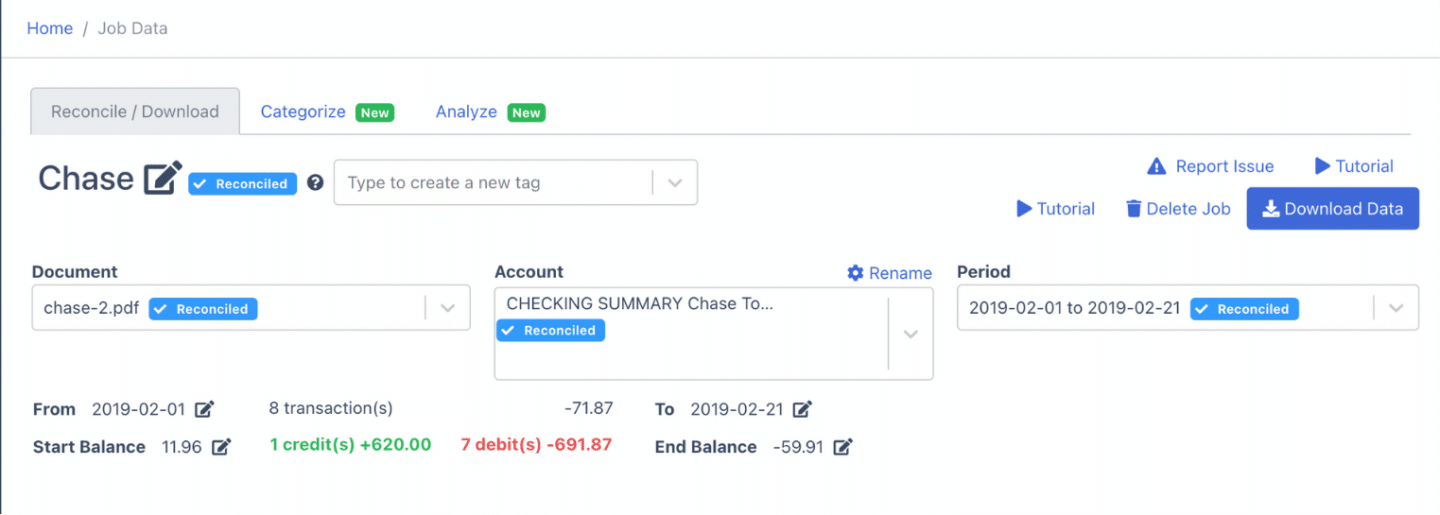
When you click convert, DocuClipper automatically reconciles the statement, comparing the sum of all extracted transactions to Regions' stated opening and closing balances.
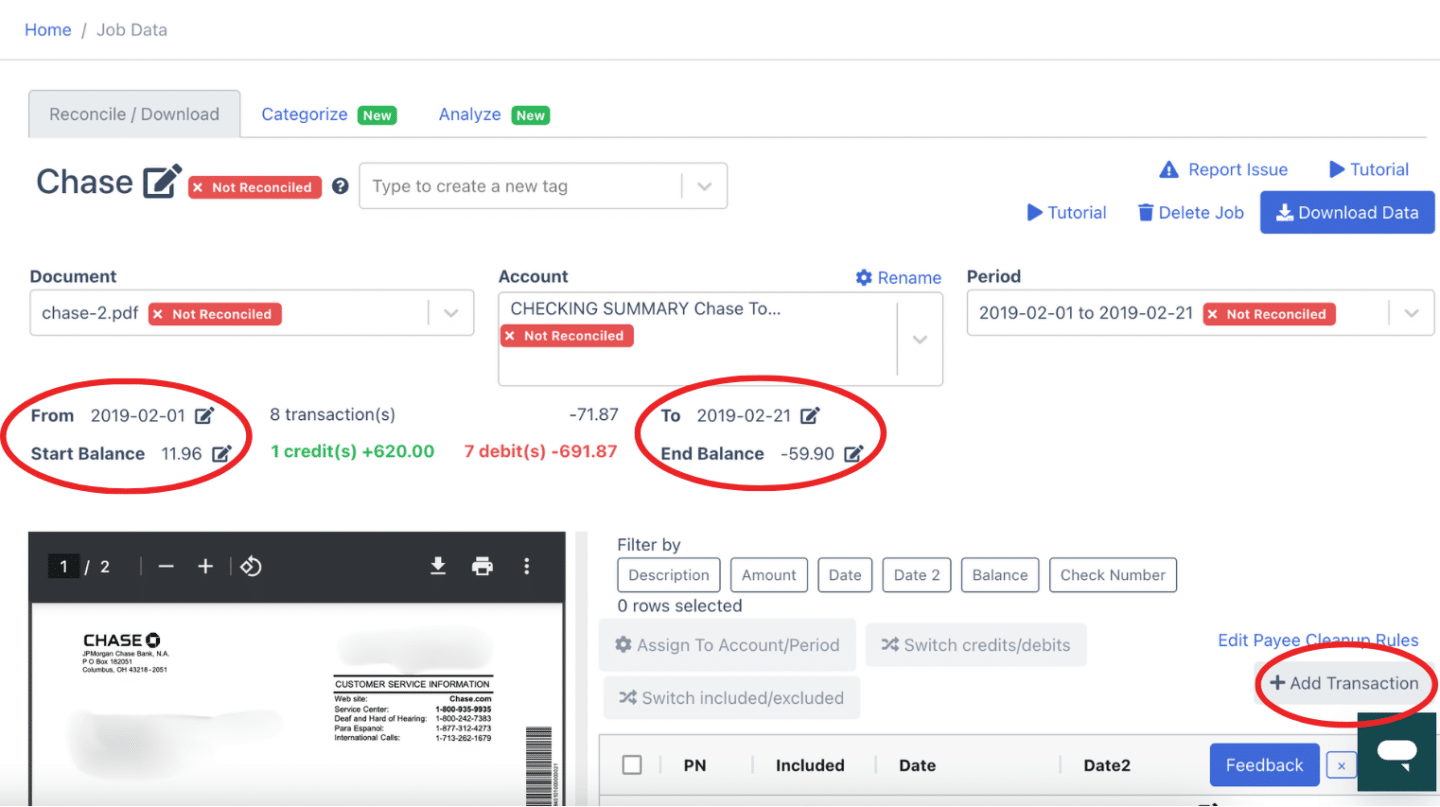
Reconciled statements are flagged as confirmed. If a discrepancy is found, you can add missing transactions or edit figures directly in the dashboard before downloading.
Step 4: Export to Excel, CSV, or QBO
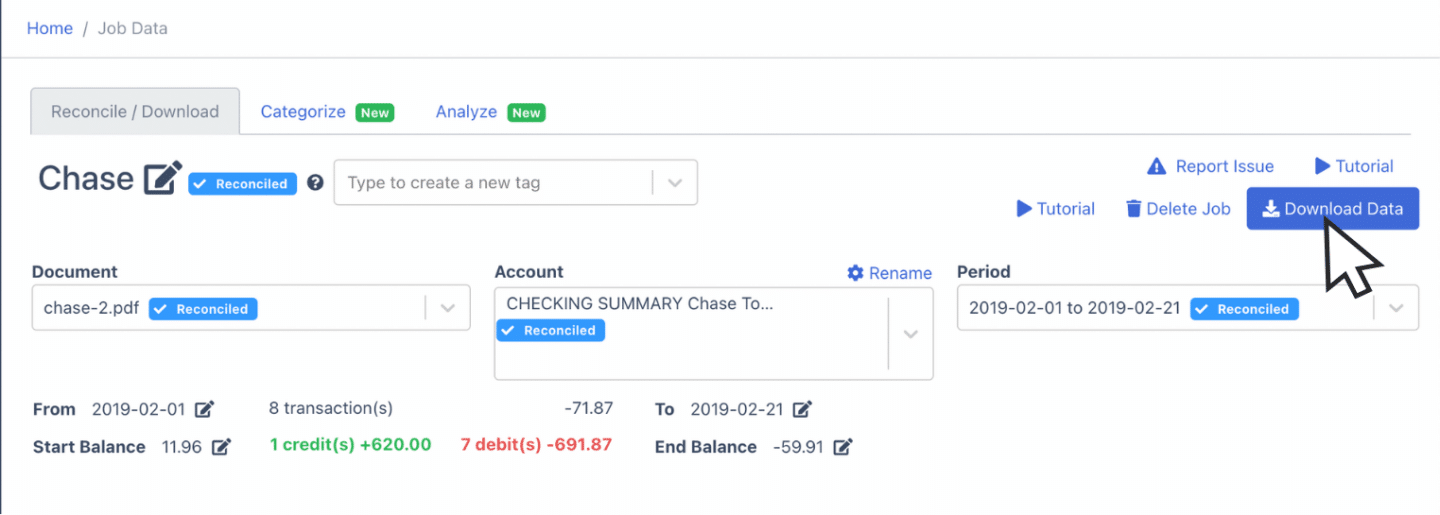
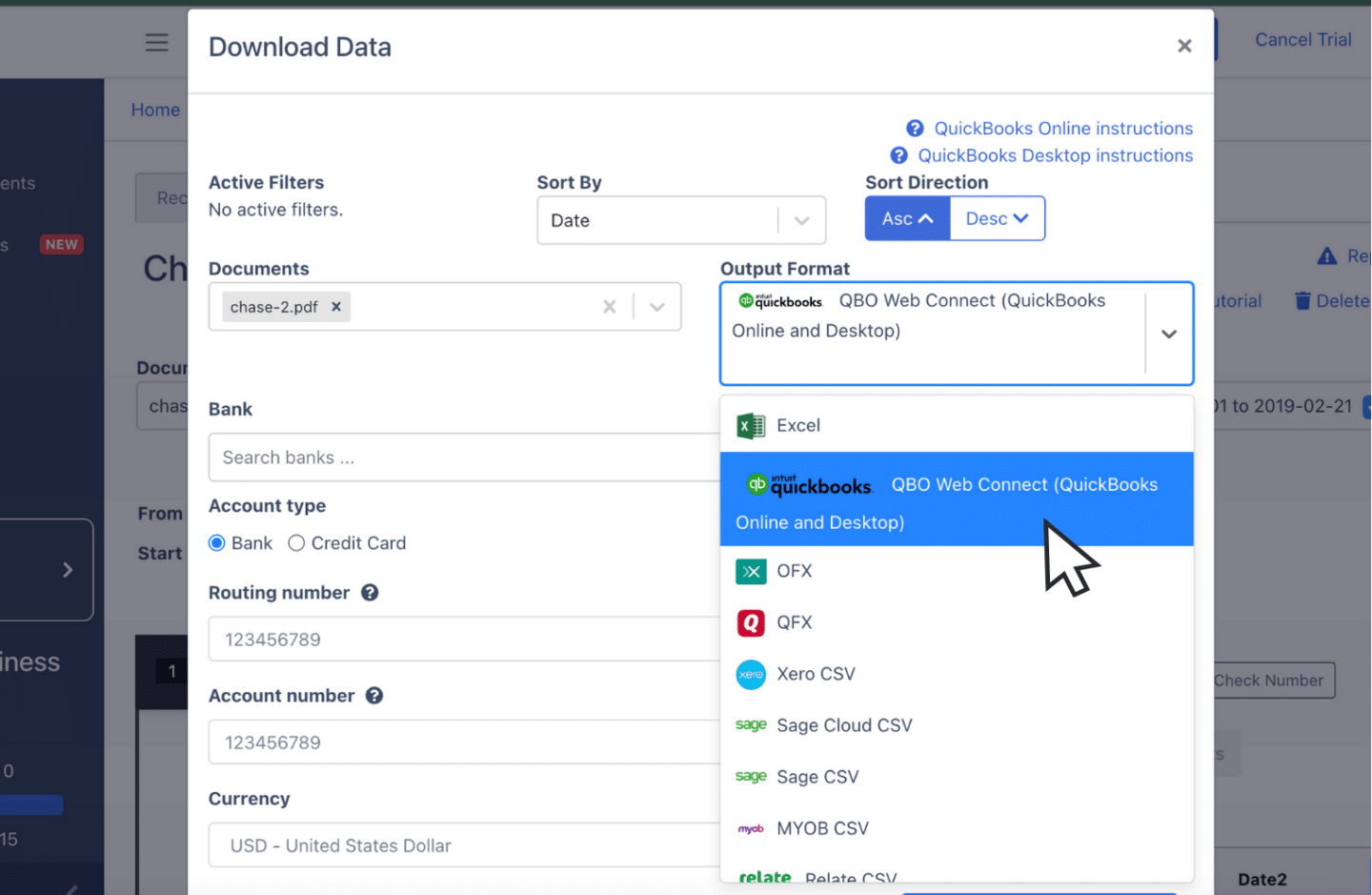
Click Download Data and choose your output format.
Export to Excel
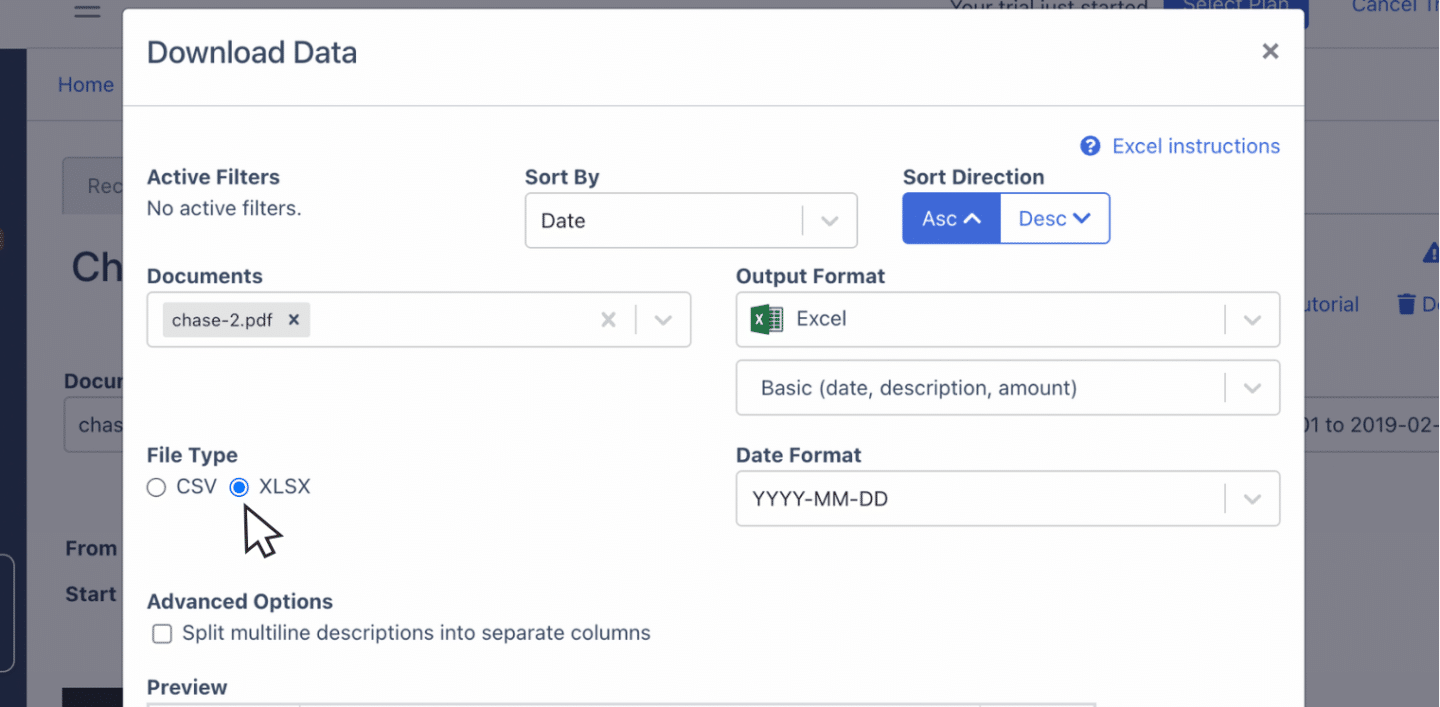
Select Excel → XLSX. Opens in Microsoft Excel, Google Sheets, or any spreadsheet application.
For all banks and statement formats, DocuClipper's bank statement to Excel converter works the same way.
Export to CSV
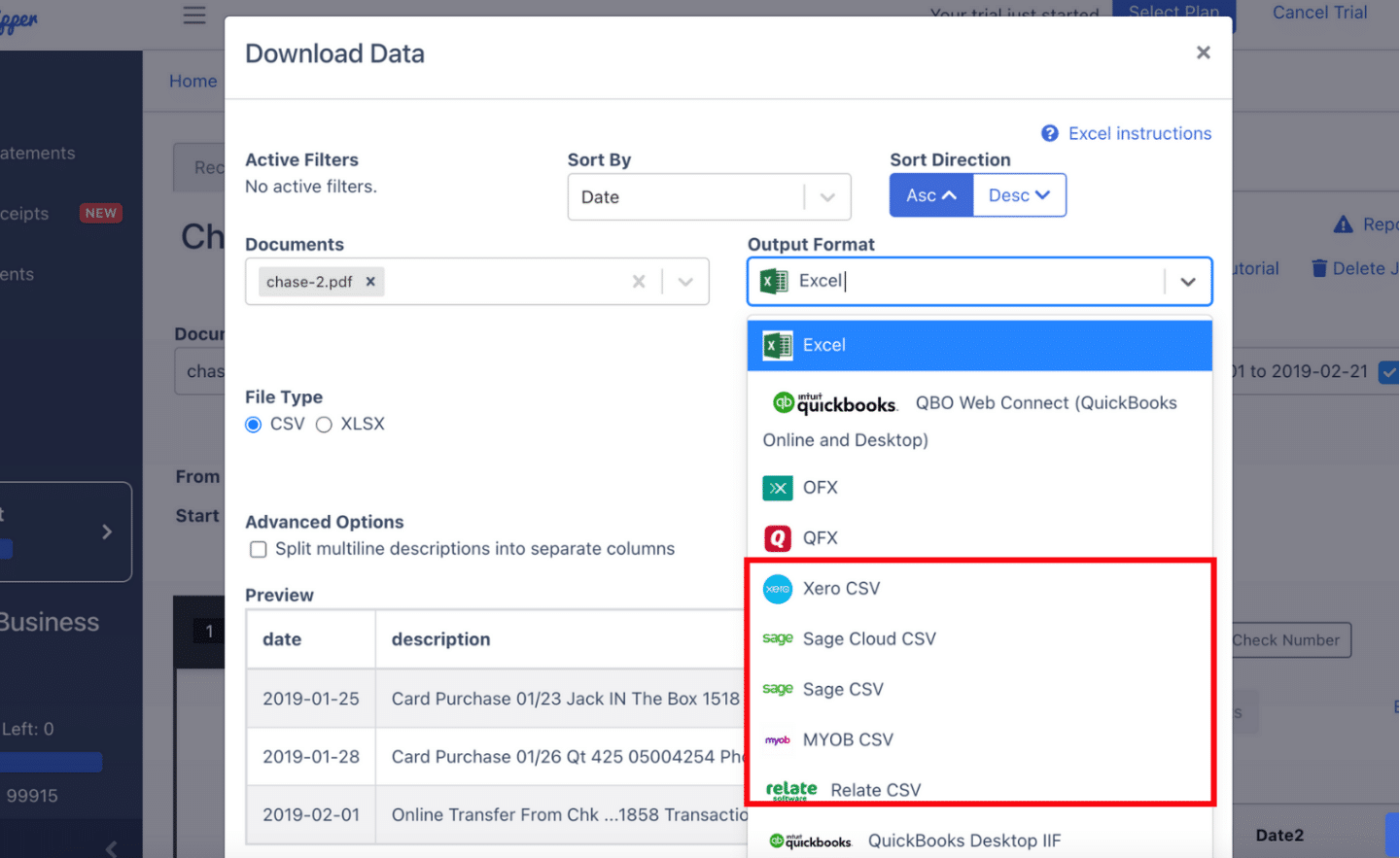
Select Excel → CSV for a format compatible with most accounting software. DocuClipper includes pre-formatted CSV layouts for Quicken (QFX) or QIF, Xero, Sage, MYOB, and NetSuite.
For a full walkthrough of format options, see how to convert bank statements to Excel or CSV.
Export to QBO
Select QuickBooks to generate a QBO file for import into QuickBooks Desktop or Online.
For a complete guide to importing bank statements into QuickBooks, see bank statement to QuickBooks.
Additional import guides:
Put it into practice
Manual copy-paste is where errors begin
Split rows, drifting balances, missed transactions: they all trace back to re-keying. DocuClipper preserves the bank's layout so debits, credits, and totals tie out the first time.
How to Download Regions Bank Statements
Online (regions.com):
- Sign in to your Regions Online Banking account.
- Go to Accounts → select the account.
- Click Activity → Export/Download.
- Choose your date range and format.
Available formats: CSV, OFX. History: up to 7 years.
Note: Regions Bank business account statements frequently arrive as PDFs rather than CSV exports, especially when clients or accountants forward statements from prior periods. DocuClipper processes these PDFs without any template configuration, making it practical for firms that handle multiple Regions clients.
Why Convert Regions Bank Statements with DocuClipper
- No template setup: DocuClipper adapts to Regions' statement layout automatically. There's no mapping to configure per account or per period.
- Business statement support: Regions business account PDFs often contain more complex transaction descriptions and check detail. DocuClipper captures all of it.
- Up to 7 years of history: Pull any period's PDF from Regions and convert it. There's no restriction on how old the statement is.
- All formats: Excel, CSV, QBO, OFX, and accounting-platform presets. See bank statement to CSV for CSV-specific workflows.
FAQs about Regions Bank Statement to Excel
Does Regions Bank offer CSV downloads?
Yes. Regions provides CSV and OFX downloads for up to 7 years of history through online banking. If your client doesn't have online access or has older statements in PDF format, DocuClipper converts the PDFs directly.
Can DocuClipper handle Regions Bank business account statements?
Yes. Business account statements from Regions, including checking, savings, and money market accounts, are all supported. The extraction process is the same regardless of account type.
What if the Regions statement is a scanned paper copy?
DocuClipper's OCR handles scanned statements as well as digital PDFs. For best results, scan at 300 DPI or higher. If a transaction is unclear, you can correct it in the dashboard before exporting.
Can I process multiple Regions statements at once?
Yes. Upload multiple PDFs in one batch, different months or different client accounts, and export the results individually or as a combined file.
Related Articles
Next step
Upload your first statement free
No credit card required. See extracted transactions in seconds, then export to Excel, CSV, or QBO when you're ready to scale.