
Automations: Email Forwarding
Get a dedicated email address for a project so any PDF attached to an email is automatically ingested and processed.
Last updated
Email forwarding gives you a dedicated @files.docuclipper.com address tied to a specific project and document type. When you (or a vendor, client, or colleague) send a document to that address, DocuClipper picks up the attachment, starts a job automatically, and the results appear in the project. No manual upload needed.
This is the fastest way to handle invoices or receipts that vendors email you directly.
Setting up email forwarding
- In the left sidebar, open Automations.
- Use Select folder & project (or Change project) to pick the folder and project where the documents should land. Automations are configured per project.
- In the Input sources card, click Add input.
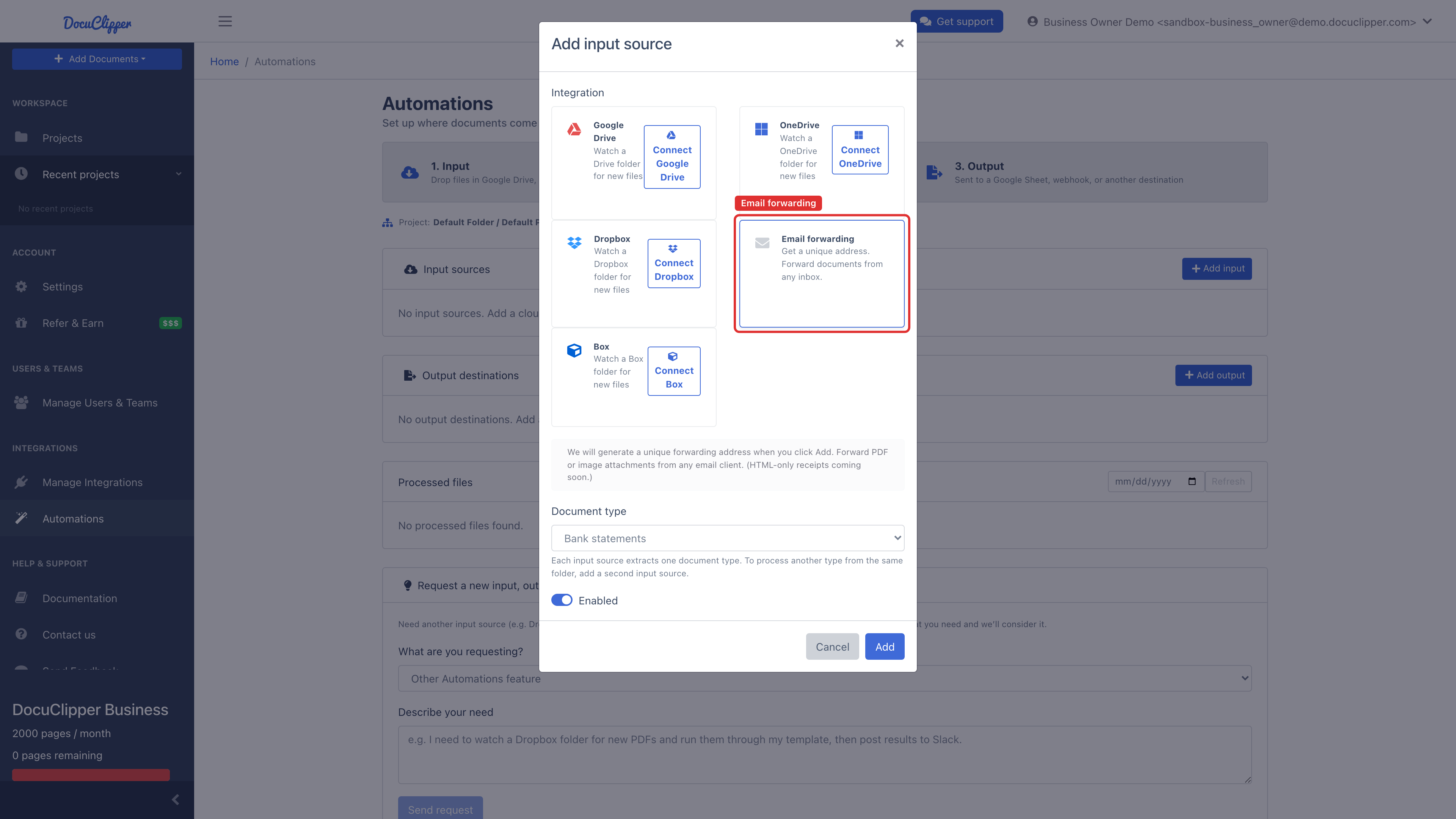
- In the Add input source window, choose the Email forwarding card.
-
Pick the Document type you want DocuClipper to extract (for example, Invoices), leave Enabled on, and click Add.
-
DocuClipper generates a unique address such as:
invoice-acme-42-a3f7x8@files.docuclipper.com -
Click Copy to copy the address to your clipboard. You can also click Send test to email a document to it right away.
-
Add that address to your email client as a forwarding rule, or give it to vendors as a dedicated inbox for their invoices.
How it works
- Any email sent to the address is fetched by DocuClipper.
- PDF and image attachments are extracted and a job is created in the project, exactly as if you had uploaded the file manually.
- If an email has no supported attachment, DocuClipper falls back to extracting the email body (useful for receipts sent as inline HTML).
- Attachment types other than PDF and image are skipped.
- Tiny images are skipped too: any image smaller than 200 pixels on its shortest side. These are email signature logos, social media icons, and tracking pixels (Outlook names them
image001.png,image002.png, and so on). They are too small to hold a readable document, so they never create a job or use pages.
When your subscription has ended
Forwarded documents use pages like any upload. If your subscription has ended, your account has no pages, so each document forwarded to your address is saved and held with the status Out of Pages instead of being processed.
- You get one email. The first time a forwarded document is held, the account owner gets one email: the forwarded documents are waiting for pages, a link to renew or choose a plan, and the date email-in turns off if nothing changes. More forwarded documents do not send more emails.
- Email-in turns off after 30 days. If no pages are added within 30 days of that email, and forwarded documents have been waiting at least 30 days, DocuClipper turns the address off. Emails sent to it after that are not received. Nothing else changes: the address, the project and the documents already received stay as they are, and no further email is sent.
- You can see it everywhere the address appears. In Automations, the input's status reads Off with the date it was turned off and why. The invoices list shows an Off badge beside the address, and the panel under the chevron says the same. Addresses under Settings > Email show the explanation with a Turn back on button.
- Turning it back on. In Automations, click the input's edit button, switch Enabled on and click Update (or click Turn back on under Settings > Email). Forwarded documents still need pages to be processed, so renew or buy pages first; then open each waiting job and click Resume processing. See Exceeding your page limit.
One address per project and document type
Each forwarding address is unique to the project + document type combination. If you need separate inboxes for invoices and bank statements, add a second Email forwarding input source with the other document type in the same project.
Invoices can be split further by direction, which is worth doing if you receive vendor bills and issue sales invoices into the same project:
- Bills & receipts (you pay) - the address starts
bills-… - Sales invoices (you send) - the address starts
sales-… - Invoices (auto-detect AP/AR) - the address starts
invoice-…, and DocuClipper works out the direction from the document
Anything arriving at a bills- or sales- address is treated as that direction
without relying on detection, which is the more reliable option when a vendor's
layout looks like a sales invoice (or vice versa).
You don't have to go through the Automations page to get these two addresses. Both are listed together, with a Create address button for whichever one doesn't exist yet, in two places:
- The invoice upload screen, in the Skip the upload next time - email invoices straight in panel below the Convert button.
- The invoices list - the chevron at the right of the row above the table opens the same panel, holding both addresses and the cloud-folder inputs. (Also on the Analytics view, and reachable from the empty state when a project has no invoices yet.)
That row also shows the bills- address inline, beside an envelope icon with a
copy button, so the address you need most often is one click away. Until that
address exists the spot reads Email invoices in instead - a project that has
only a sales- address still shows the prompt, since it's the bills- one the
row displays.
Creating one address does not create the other - a project can hand out a
bills- address only, a sales- address only, or both.
Sharing the address
You can share the forwarding address with anyone who should be able to submit documents to the project (vendors, clients, or team members). There is no authentication on the sending side; anyone who knows the address can trigger an ingest.
Keep the address private if you want to control who can submit documents.
Troubleshooting
- Job not created after sending an email: allow a minute or two for delivery and processing. Check the project's recent jobs list for the new job.
- Attachment not processed: DocuClipper processes PDF and image attachments. Other file types (spreadsheets, ZIPs, etc.) are skipped.
- Lost the email address: open Automations, select the project, and find the email input in the Input sources table - the address is listed there with a copy button. For invoice projects it's quicker to open the invoices list: the
bills-address sits in the row above the table with a copy button next to it, and the chevron beside it opens a panel showing thesales-address too.