
Multi-Account Forensic Tracing
Tag accounts by holder and role, then trace money across subjects using the Flow of Funds filters and the multi-sheet XLSX export.
Last updated
Multi-account tracing is the workflow forensic accountants and fraud examiners use when an investigation spans several bank or credit card accounts — often across different holders, entities, or institutions — and the question is "how did money move between these parties?" This article covers the Accounts tab and the related Flow of Funds filters and exports that make that question answerable in DocuClipper. Tagging accounts in the Accounts tab is available on every plan; the Flow of Funds tracing and multi-sheet export require the Business or Enterprise plan.
What "multi-account tracing" means in DocuClipper
One investigation lives in one project. Inside that project you upload every relevant statement — the subject's checking and savings, a related LLC's operating account, a custodial account, a counterparty's statements obtained via subpoena, etc. DocuClipper deduplicates the underlying accounts so that:
- N statements for the same account collapse to one Account row.
- The same masked account number at two different banks stays as two distinct accounts (the dedupe key is account number + routing number + institution, scoped to the project).
The result is an Accounts list — one row per real-world account — that you can tag, filter, and trace against.
Tagging accounts: the holder workflow
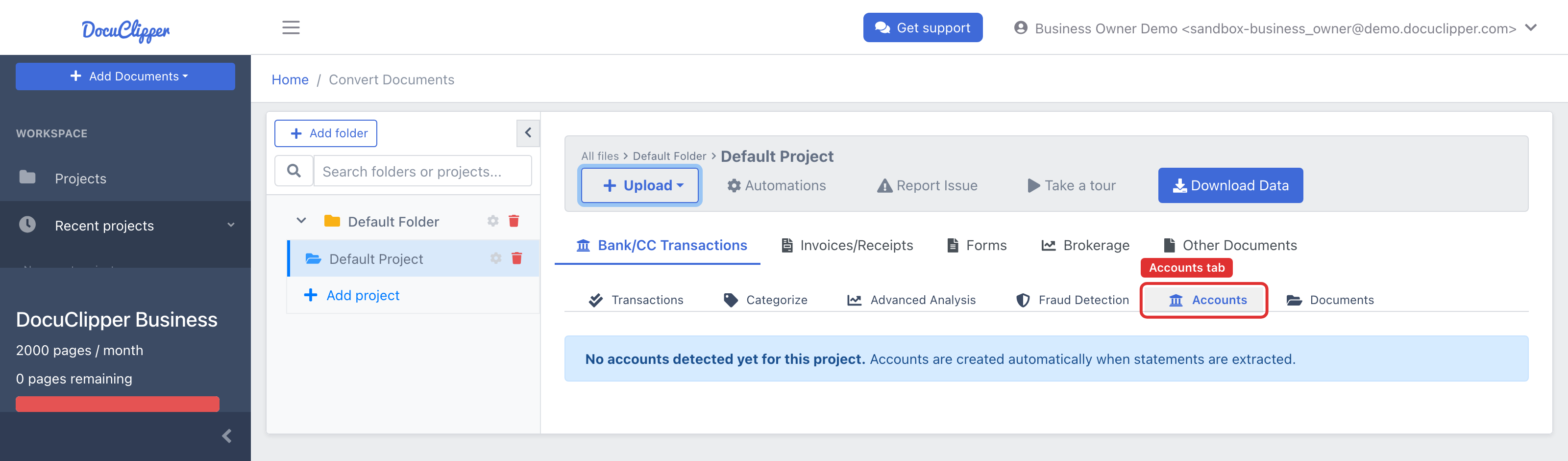
Open the Accounts tab in your Bank/CC project's section nav. Each row is one account, showing its institution, masked account number (and routing number when known), display name, and attributes.
For a forensic investigation, the most useful pattern is to tag every account with a holder and a subject_role:
holder— the human-readable owner. Use canonical labels (Subject A,Subject B,Acme LLC,Custodian — Wells Fargo). Pick the labels once and use them consistently across every account; the filter chips key off the exact string.subject_role— what the holder represents in your engagement (subject,related_entity,counterparty,custodian,nominee).
The attribute-key field suggests the standard keys as you type (holder, subject_role, account_type, custodian, currency); the value is free-form. Other useful keys:
account_type—checking,savings,operating,trust,escrow,credit_cardcustodian— for accounts held by a fiduciarycurrency— for cross-border work
Free-form keys also work. Anything you tag becomes a Flow of Funds filter and a column in the XLSX export, so be deliberate — a tag taxonomy you'll reuse beats one-off scribbles.
You can also rename the display name inline (click the pencil next to the name). The display name is what shows up on the Sankey diagram and in the export, so rename to whatever your report will read best (Subject A — Chase ...4521).
Tracing flows: filtering by holder or role
Open the Advanced Analysis section, then the Flow of Funds tab. (Flow of Funds is built from categorized transactions — if you see "No categorized transactions found," categorize the project first.) The filter bar at the top of the chart lets you scope by any account attribute or by a specific account.
A typical "Subject A → Subject B" trace:
- In the + filter by… dropdown, pick
holder, then chooseSubject A. The Sankey narrows to flows involving Subject A. The value dropdown only lists holders you've actually tagged, so tag your accounts first. - Add a second chip —
holder=Subject Bthe same way, or click the link on the chart to pin that source→destination flow. The transaction table below the chart updates in sync. - The URL bar updates with every chip — copy it to share the exact view with a partner or attach to your work paper.
Filters combine. subject_role=subject plus account_type=operating is "the operating accounts of any of my subjects." holder=Subject A plus a specific counterparty account gives you the dyad view.
Clicking on the Sankey adds a chip rather than navigating away: an account node pins that account, and a link pins that source→destination flow. The chart, the transaction table, and the URL stay in sync, so the analysis is always one click away from a screenshot you can drop in a report.
The Flow of Funds export
Click Export flow of funds to download a multi-sheet XLSX scoped to whatever filters you currently have applied. Three sheets, each meant for a different part of a forensic deliverable:
Sheet 1 — Transactions
Every transaction that survives the current filter, one row each. In addition to the usual fields, each row carries:
account_holderandaccount_institution— copied from the source account, so the sheet is self-contained without a lookup.transfer_match_id— non-empty when the transaction is part of a detected inter-account transfer. Two rows sharing the sametransfer_match_idare the matched debit/credit pair.transfer_counterparty_holderandtransfer_counterparty_account— for transfer rows, who the money moved to or from.
This is the "show me every underlying transaction with full provenance" sheet. Drop it into evidence or pivot it however your case requires.
Sheet 2 — Between accounts
The aggregate view that backs the Sankey. One row per source/destination pair, with an edge_type column:
transfer— money moved between two accounts that are both in the project.inflow— money came into an in-project account from a counterparty whose statements aren't in the project.outflow— money left an in-project account to an external counterparty.
Use this sheet to reproduce the diagram in a written report and to highlight the largest dyads at a glance.
Sheet 3 — Account totals
One row per account with period_start, period_end, total_inflows, total_outflows, net, and transaction_count. The summary your reader wants on page 1 of the report: which accounts moved how much money over what window.
Edge case: the same real account showing up twice
If the same real-world account appears with slightly different account numbers across statements — common when a bank reformats statements mid-year, masks differently, or you have a mix of paper and electronic statements — DocuClipper may create two Account rows because the dedupe key sees them as different.
When this happens you have two options:
- Rename and tag both rows with the same
holderandsubject_role. The Flow of Funds filters key off the tags, not the account row identity, so aholder=Subject Afilter pulls both rows together for analysis and export. This is the recommended workaround today. - Wait for the manual-merge UI, which is on the roadmap but not yet shipped. When it lands you'll be able to collapse two Account rows into one canonical row from the Accounts tab directly.
For now, option 1 is the right move — it produces correct totals on Sheet 3 (each row is still its own account, which often matches reality more closely than the user assumes) and correct holder-level aggregates everywhere else.