
Financial Analysis
Transfers Analysis
Automatically detect and match inter-account transfers to eliminate double-counting in cash flow analysis, approve, reject, or manually create matches.
Last updated
Overview
The Transfers feature automatically detects and matches transactions that represent money movements between different accounts. This is essential for understanding the complete financial picture and avoiding double-counting in financial analysis.
What It Does
- Automatic Detection: Uses algorithms to identify potential transfer transactions between accounts
- Transaction Matching: Pairs corresponding debit and credit transactions that represent the same money movement
- Manual Creation: Allows you to manually create transfer matches when automatic detection misses them
- Status Management: Track approval status of detected transfers
How Transfer Detection Works
The system analyzes transactions looking for:
- Similar amounts on different accounts within a time window
- Opposite transaction types (one debit, one credit)
- Matching or similar descriptions
- Reasonable timing between transactions
How to Use
- Navigate to Transfers: Open the Advanced Analysis tab and select the Transfers sub-tab.
- Automatic Detection:
- Click Detect Transfers to run automatic matching
- The system analyzes all transactions and identifies potential matches
- Review Matches:
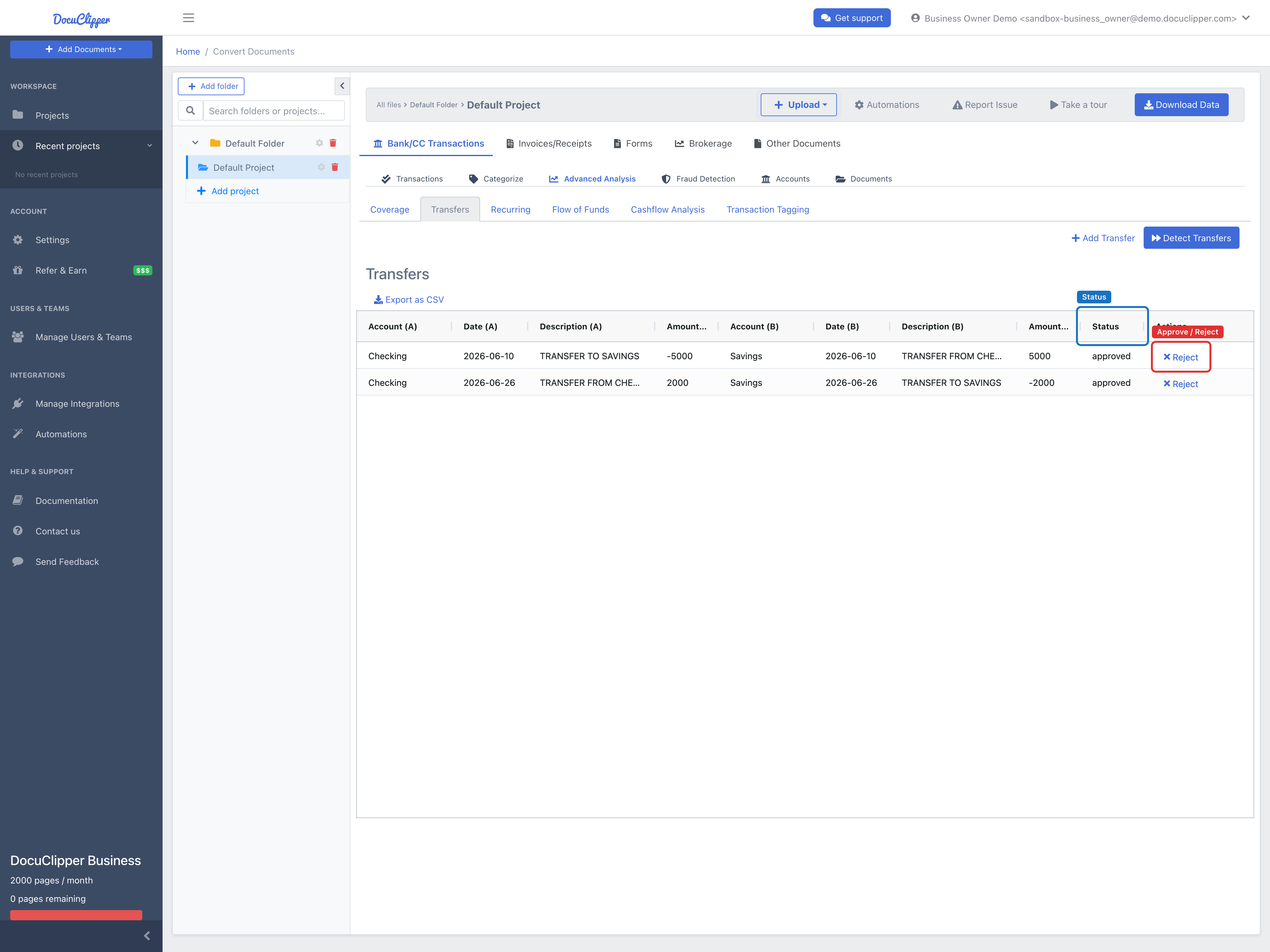
- View the results table showing paired transactions
- Check account names, dates, descriptions, and amounts
- Review the match status (pending, approved, rejected)
- Approve or Reject:
- Click Approve for valid transfers
- Click Reject for false positives (rejected rows drop out of the table)
Manual Transfer Creation
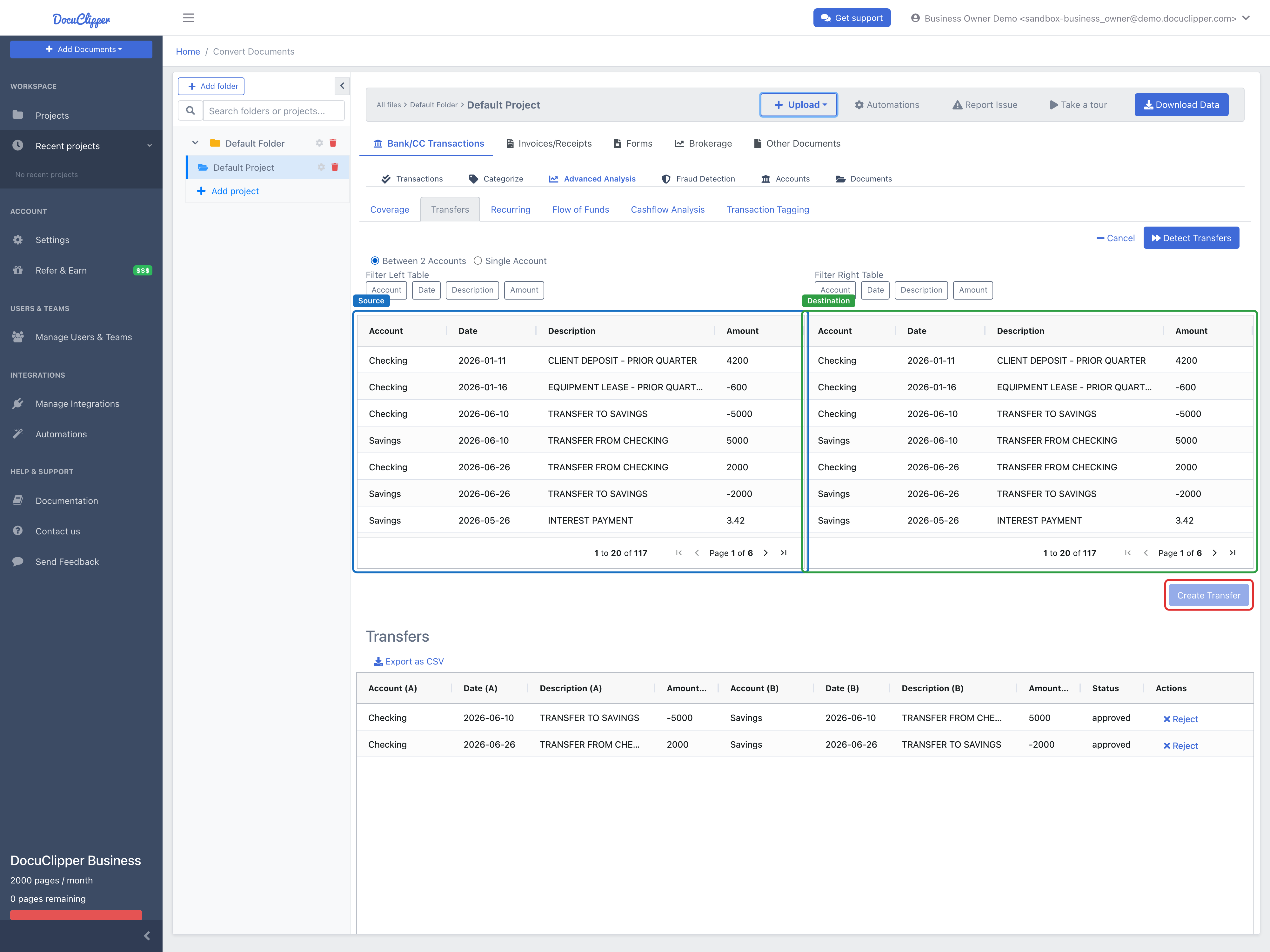
- Open Creator: Click Add Transfer to expand the manual creation interface.
- Select Transactions:
- Use the left table to select the source transaction
- Use the right table to select the destination transaction (it must be a different transaction on a different account)
- Create the transfer: Click Create Transfer to link the selected transactions.
Understanding the Results Table
Each row pairs two transactions. The (A) columns are one side of the transfer and the (B) columns are the other:
- Account (A): First account name
- Date (A): Transaction date
- Description (A): Transaction description
- Amount (A): Transaction amount (typically negative for outgoing)
- Account (B): Second account name
- Date (B): Transaction date
- Description (B): Transaction description
- Amount (B): Transaction amount (typically positive for incoming)
- Status: Current approval status — pending, approved, or rejected. Approve and Reject actions live in this column; rejected pairs are hidden from the table.
Common Use Cases
- Financial Analysis: Eliminate double-counting in cash flow analysis
- Fraud Investigation: Track money movements between accounts
- Asset Tracing: Follow funds as they move through different accounts
- Reconciliation: Ensure all transfers are properly matched
Best Practices
- Review All Matches: Don't auto-approve; manually verify each suggested match
- Check Timing: Ensure transfer dates make logical sense
- Verify Amounts: Amounts should match exactly or have explainable differences (fees)
- Document Decisions: Keep notes on why matches were approved or rejected
- Regular Updates: Re-run detection after adding new transaction data
Export Options
Export the transfers table to CSV for external analysis or reporting.
Troubleshooting
Missing Transfers
- Check if transactions are in different date ranges
- Verify account names are correctly identified
- Use manual creation for complex cases
False Positives
- Review transaction descriptions carefully
- Check for legitimate duplicate transactions
- Consider timing differences between accounts