
Advanced Analysis Overview
DocuClipper's Advanced Analysis tab bundles Cashflow Analysis, Coverage (Date Gaps), Transfers, Recurring, Transaction Tagging, and Flow of Funds for bank and credit card statement analysis.
Last updated
DocuClipper's Advanced Analysis is the sub-tab inside a Bank/CC project that groups every analytical tool the platform offers on top of extracted transactions. It turns a pile of statements into a set of reports lenders, forensic accountants, and bookkeepers actually act on.
This page covers what each sub-feature does and when to use it. The detail articles linked from each section go deeper.
What is Advanced Analysis in DocuClipper?
Once a project has at least one extracted bank or credit card statement, Advanced Analysis is available as a tab alongside Bank/CC Transactions and Documents. It runs across every transaction in the project, regardless of which document the transaction came from, so analyses work the same whether you have one statement or two years of them.
The tools live in sub-tabs: Cashflow Analysis, Coverage, Transfers, Recurring, Flow of Funds, and Transaction Tagging. Pick a sub-tab, view the report on screen, filter or refine, and export. Each report is recomputed as you add, edit, or re-extract statements in the project.
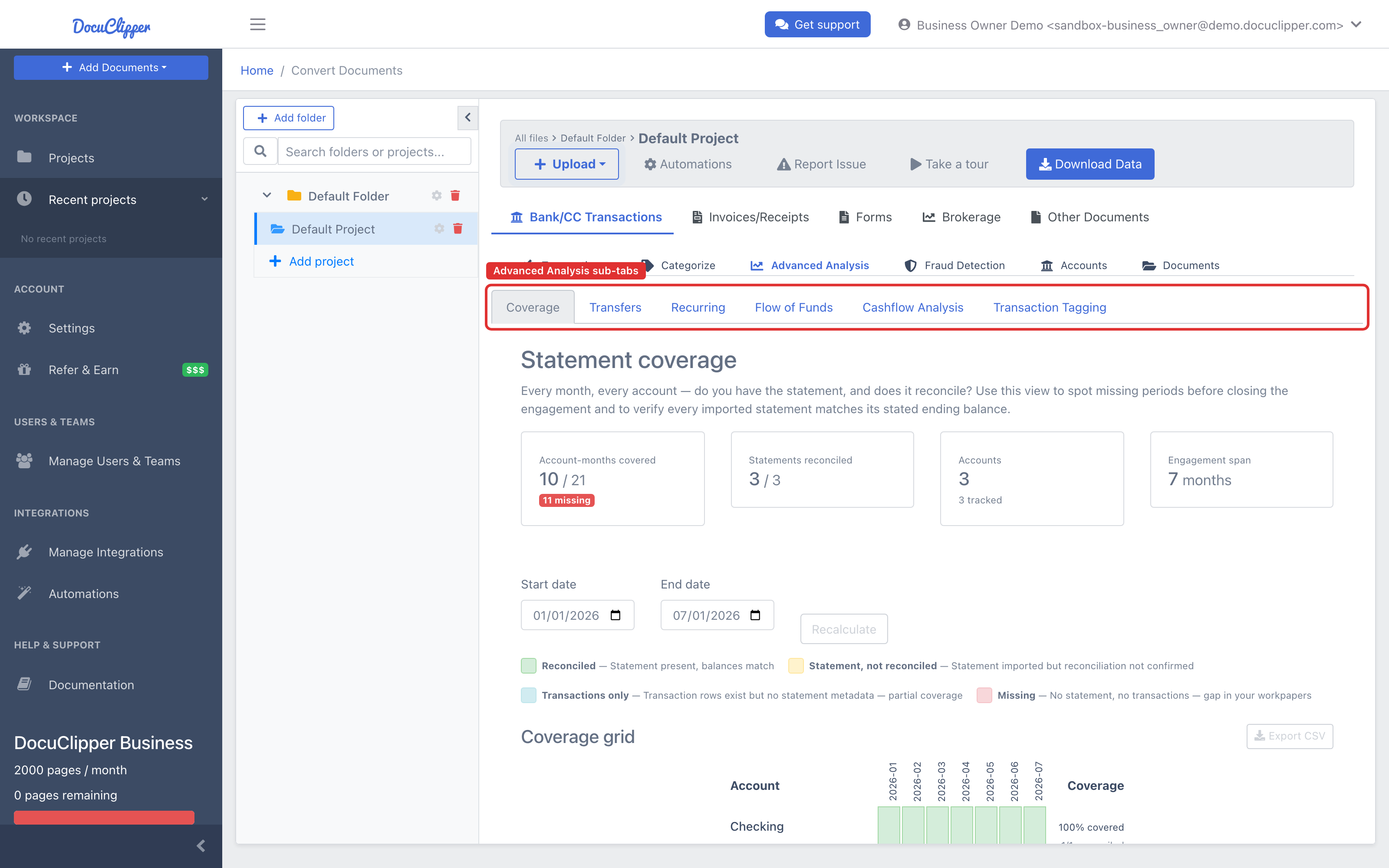
The sub-features
Coverage (Date Gaps)
The Coverage sub-tab flags missing periods across each account and shows whether each present statement reconciles. Use it to prove continuous coverage before a reconciliation, underwriting review, or forensic engagement, and to catch duplicate uploads via its Overlapping periods table. See Date Gaps Analysis.
Transfers
Identifies transactions that move money between accounts in the same project — internal transfers — so you don't double-count them as income or expense. Essential before any cash-flow conclusion. See Transfers Analysis.
Recurring
Detects transactions that repeat on a regular cadence (monthly subscriptions, rent, payroll, recurring deposits). Use it to surface fixed costs, identify subscription bloat, or confirm income stability for underwriting. See Recurring Transactions Analysis.
Transaction Tagging
Applies custom tags to transactions manually or through If/Then rules on description and amount. Use it to build review queues, flag investigations, or organize transactions into ad-hoc buckets that aren't full categories. See Transaction Tagging and Automated Transaction Tagging Rules.
Cashflow Analysis
Aggregates categorized transactions into a period-by-period cash-flow report — inflows, outflows, net. The standard report lenders read to underwrite a small business. See Cashflow Analysis.
Flow of Funds
Traces money across accounts and counterparties so you can answer "where did this deposit come from" or "where did this transfer go" without reading line items by hand. The investigator's tool. Flow of Funds requires a Business or Enterprise plan — on other plans the sub-tab shows an upgrade prompt. See Flow of Funds Analysis.
Multi-subject investigations also rely on the project's Accounts tab, where each underlying account (deduplicated across statements) can be tagged with a holder, role, and other attributes. Those tags then drive Flow of Funds filters and a multi-sheet XLSX export. See Multi-Account Forensic Tracing.
Categorization, Transfers, Recurring, and Cashflow overview
A combined walkthrough of how these four pieces work together is in Categorization, Transfers, Recurring, and Cashflow Overview.
Which Advanced Analysis tools should I use?
The right tools depend on the job. A practical matrix:
| Role | Primary tools | Why |
|---|---|---|
| Lender / Underwriter | Date Gaps, Cashflow, Recurring, Transfers | Prove coverage, derive monthly cash flow, confirm fixed obligations and recurring income, exclude internal transfers. |
| Forensic Accountant | Date Gaps, Flow of Funds, Transfers, Transaction Tagging | Detect missing periods and hidden accounts, trace money across counterparties, flag transactions for review. |
| Accountant / Bookkeeper | Transfers, Recurring, Cashflow, Transaction Tagging | Clean internal transfers, identify recurring items, build accurate cash-flow reports, organize transactions for review. |
Most projects use a subset, not all six. Start with Date Gaps to confirm your data is complete, then move to the analyses that match the engagement.
Does Advanced Analysis work for credit card statements too?
Yes. The same sub-tab is available for credit card projects. The reports apply the same logic to credit card transactions — recurring charges, transfers (e.g., payments from a linked checking account), tagging, and cash-flow style summaries — though Cashflow Analysis and Flow of Funds are most powerful when bank and credit card statements live in the same project so transfers between them are detected.
Exporting Advanced Analysis results
Every Advanced Analysis report can be exported. The standard export formats include Excel and CSV, with PDF available on supported reports. See Understanding Supported Output Formats for what's available where.
FAQs
What is Advanced Analysis in DocuClipper?
Advanced Analysis is the sub-tab inside a Bank/CC project that contains DocuClipper's analytical tools — Date Gaps, Transfers, Recurring, Transaction Tagging, Cashflow Analysis, and Flow of Funds — run across every extracted transaction in the project.
Which Advanced Analysis tools should lenders use?
Underwriters typically use Date Gaps to verify complete statement coverage, Cashflow Analysis for monthly inflows and outflows, Recurring to confirm fixed costs and income, and Transfers to exclude internal movements that would otherwise inflate revenue.
Is Advanced Analysis included in the free trial?
The Advanced Analysis sub-tab is part of the standard project workflow and is available during the free trial. Specific export limits or page allowances may apply per plan — see Understanding the DocuClipper Free Trial for trial scope.
Can I export the analysis to PDF or Excel?
Yes. Each Advanced Analysis report supports export. Excel and CSV are universally available; PDF is supported on reports designed for sharing. See Understanding Supported Output Formats.
Does Advanced Analysis work for credit card statements too?
Yes. Credit card projects expose the same Advanced Analysis sub-tab. Combining bank and credit card statements in one project gives the best results because transfers between the two are detected and excluded from cash-flow totals.