
Choose "Bills & Receipts" or "Sales Invoices" When You Upload
On the invoice upload screen you tell DocuClipper whether the batch is documents you pay (bills & receipts) or documents you send (sales invoices). That choice sets the right AP/AR document type automatically.
Last updated
When you upload invoices, DocuClipper asks one question up front: are these documents you pay or documents you send? Answering it lets DocuClipper assign the correct document type (Accounts Payable vs Accounts Receivable) automatically, so there are fewer manual fixes after extraction.
Where you choose it
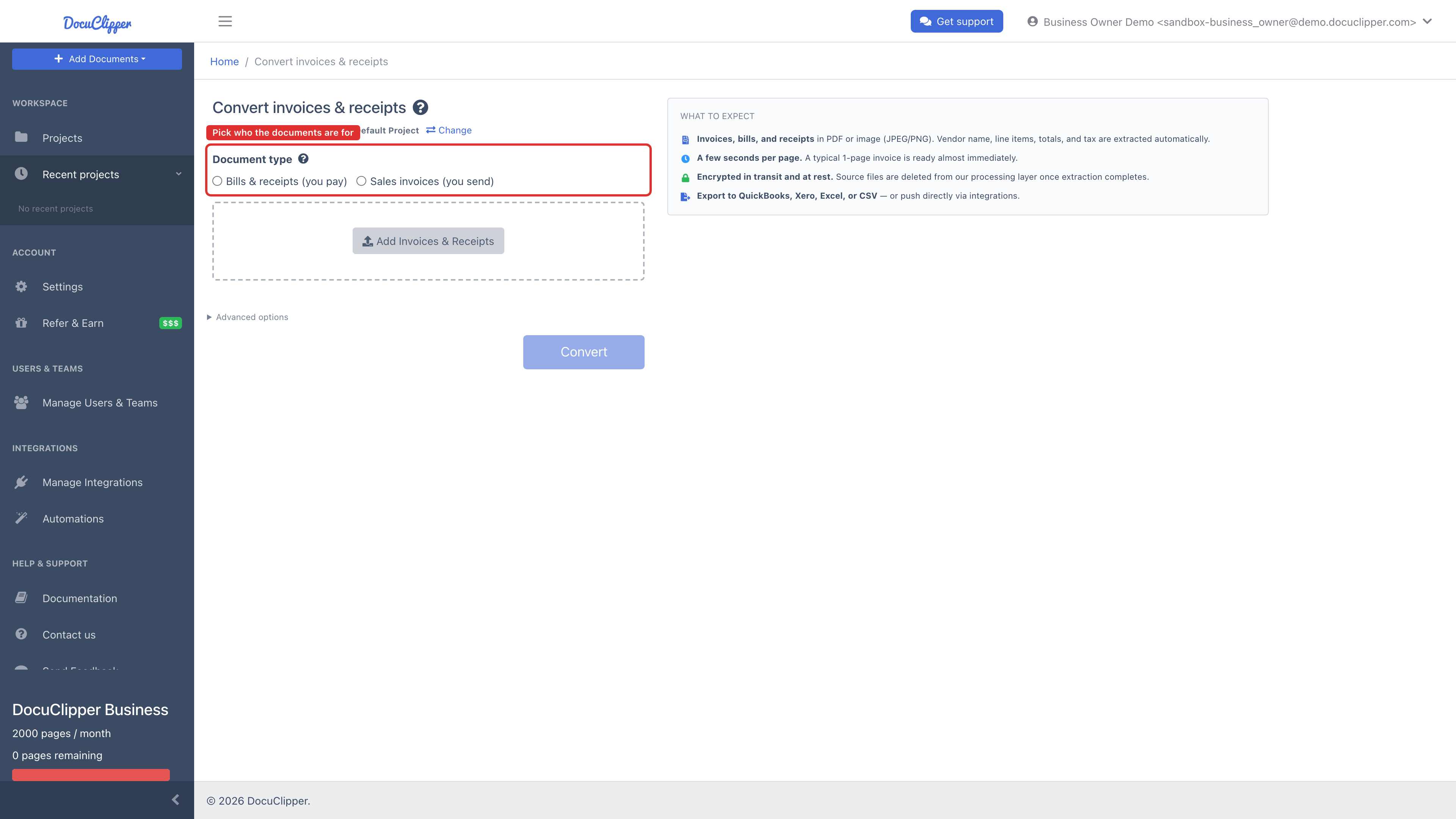
From a project, open the Upload dropdown (or Add Documents in the sidebar) and pick the direction straight from the menu:
- Bills & Receipts (you pay) - invoices you receive from vendors and receipts for things you've paid for.
- Sales Invoices (you send) - invoices you issue to your customers.
Either choice opens the upload screen with the matching Document type already selected, so you can go straight to dropping your files. The same two options appear on the upload screen itself if you want to switch before starting the extraction.
What each option does
The choice tells DocuClipper your intent for the batch. Combined with the integration connected to your project, intent decides the document type each invoice gets:
Bills & receipts (you pay) - AP
Every document in the batch is treated as Accounts Payable.
- With QuickBooks or Xero connected: documents auto-create in the accounting app as bills/expenses - a QuickBooks Bill or Purchase/expense, or a Xero ACCPAY bill. (QuickBooks records post; Xero records land as drafts you approve in Xero.)
- Without an integration: documents are categorized as Payables for export to Excel.
Sales invoices (you send) - AR
Every document in the batch is treated as Accounts Receivable.
- With QuickBooks or Xero connected: documents auto-create as sales invoices - a QuickBooks Invoice or a Xero ACCREC invoice. (QuickBooks records post; Xero records land as drafts you approve in Xero.)
- Without an integration: documents are categorized as Receivables for export to Excel.
For how these records are created on extraction, kept in sync on later edits, and validated before each push, see QuickBooks & Xero two-way sync.
You can still override per invoice
The upload choice classifies the whole batch. If a single document turns out to be the other direction (it happens), open it in the invoice editor and change the Document Type dropdown. The override applies to that one invoice.
When you change an invoice's document type, DocuClipper automatically re-runs your invoice rules against the new type, so categories or products get re-applied if you have rules set up. See Editing invoice data for the field-level edit flow.
Why this exists
DocuClipper could try to guess AP vs AR from the document text alone, but a wrong guess means manual cleanup on every invoice. Telling it the direction at upload sidesteps the guesswork. It's especially useful when:
- You batch-upload a single vendor's monthly bills (always AP).
- You upload a folder of invoices you've sent (always AR).
- You convert receipts that don't have a clear "Bill To" / "Invoice To" header.
If you regularly upload mixed batches, pick the majority direction and override the few outliers per invoice.