
Export Invoices to Xero
Link a DocuClipper project to Xero once and let extracted invoices and receipts sync automatically as draft bills — updated in place whenever you edit them.
Last updated
DocuClipper sends invoices and receipts into Xero automatically. You link a project to a Xero organization once, and from then on every invoice DocuClipper extracts is created in Xero on its own — no per-document "Import" click. When you later edit one, DocuClipper updates the same Xero record instead of creating a second draft.
Records are created in Xero as drafts so nothing hits your ledger until you review it: a purchase becomes a draft bill (ACCPAY), a sale becomes a draft sales invoice (ACCREC), and a credit note becomes a draft credit note - see Credit notes. Which one you get is decided by the document type you pick at upload.
Prerequisites
- A Xero account with access to the organization you want to send invoices to.
- At least one invoice or receipt processed in a DocuClipper project.
Step 1: Link the project to Xero (one time)
Linking is what turns on auto-sync — there is no separate on/off switch.
- Open any invoice in the project to open the invoice editor.
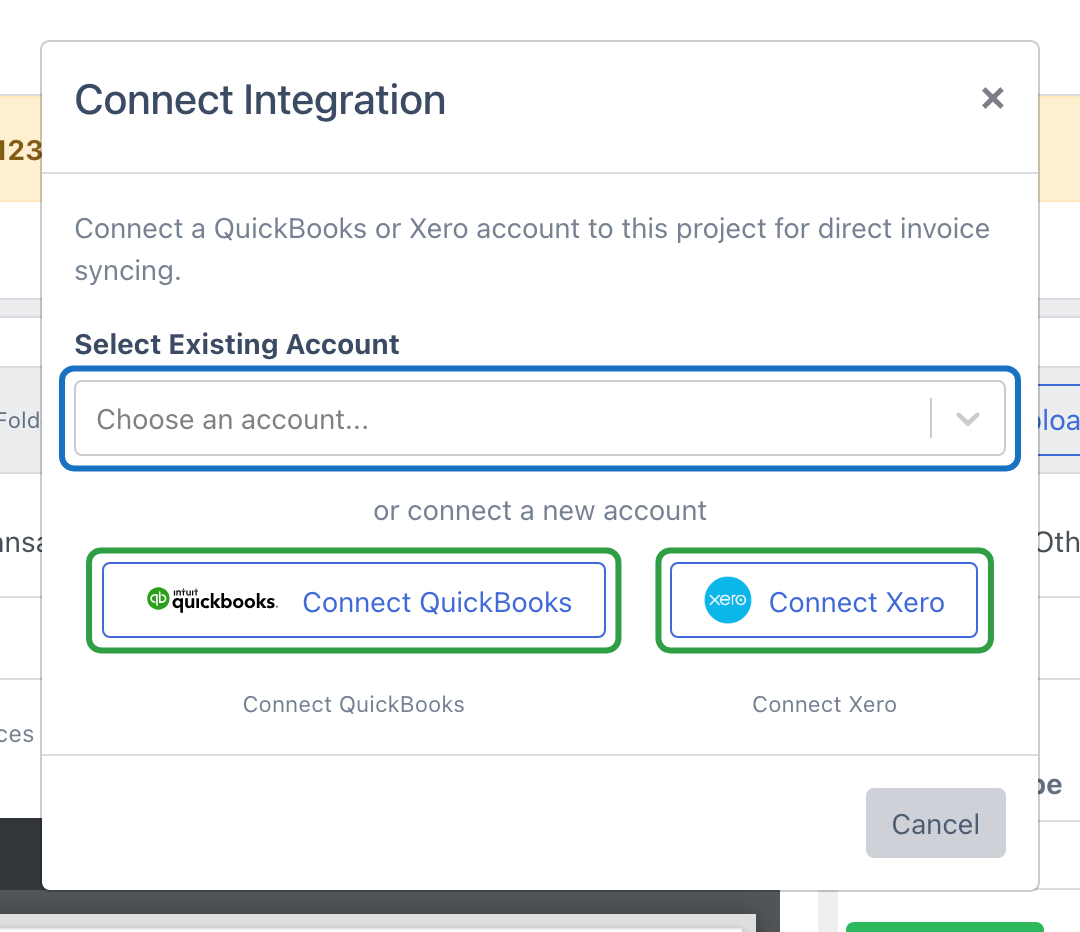
- In the Export & Sync sidebar, click Connect Integration.
- Choose Xero, sign in, authorize DocuClipper, and pick the Xero organization.
You only do this once per organization. Linking the connected account to the project is what routes that project's invoices to the right Xero organization. (You can also start the Xero connection from Settings → Manage Integrations or /manageIntegrations.)
Step 2: It syncs automatically
When extraction finishes, DocuClipper creates each approved invoice in Xero as a draft — a draft bill or a draft sales invoice — with the contact, invoice number, date, due date, line items, tax, and totals already mapped. You do not click anything.
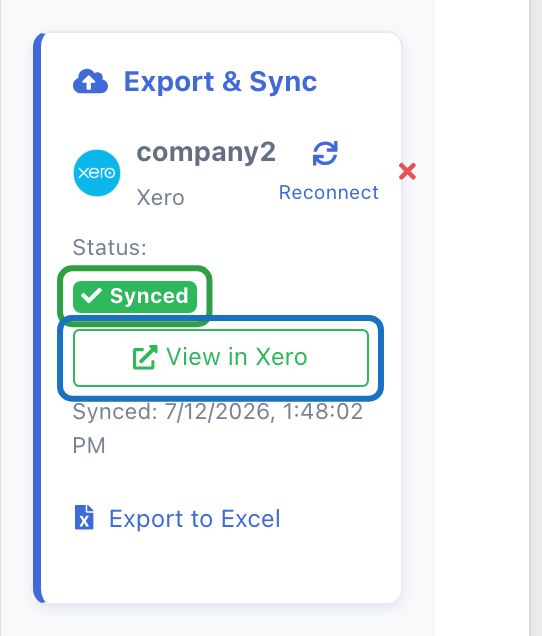
The Export & Sync panel shows the status for each document:
- Synced (green) — created in Xero. Shows a View in Xero deep link and the sync time.
- Not Synced (grey) — ready to sync, waiting on the approval or extraction step.
- Missing Fields (yellow) — a required field (contact, account code, or amount) is empty; fill it in and it syncs. When it's a line-level account, the message names the line.
- Error (red) — Xero rejected the record; the panel shows the reason (often an invalid tax rate or missing contact), or a Reconnect button if the connection expired.
Approval gate: if an approval rule applies to the project, an invoice must be approved before it syncs. Purchase orders bypass approval and sync as soon as they are extracted.
Step 3: Edit anything — it re-syncs
Edit a synced invoice — change the account, an amount, the contact, a line item — and DocuClipper pushes the change to the same Xero draft by its id. You never get a second copy.
The Contact, item, account, and tax rate fields are searchable dropdowns that pull live from your connected Xero organization, so you map to records that already exist or create them inline.
When an edit doesn't add up
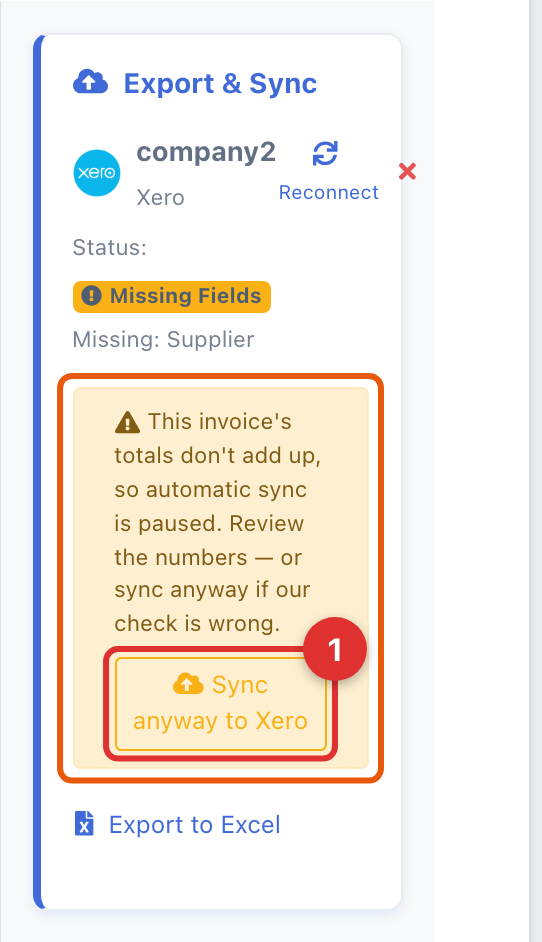
If your edit leaves the totals unbalanced (subtotal + tax ≠ total), DocuClipper pauses the automatic push and shows an "automatic sync is paused" banner in the editor so a wrong number doesn't reach Xero. Fix the totals and it resumes on its own — or, if the numbers are correct as-is, click Sync anyway to Xero to override the pause.
Credit notes
A credit note is a refund or adjustment: a supplier crediting you back, or you crediting a customer. Xero keeps these as their own record type rather than as a bill with negative amounts, and DocuClipper does the same.
Set the document type to Credit Note, either at upload (Add Documents) or from the document-type dropdown in the invoice editor. DocuClipper then creates a draft credit note in Xero instead of a bill.
Supplier credit or customer credit
Xero has two kinds, and DocuClipper picks the right one from the contact already on the document:
| The document has | DocuClipper creates | Effect in Xero |
|---|---|---|
| A supplier (the usual case) | Supplier credit note (ACCPAYCREDIT) | Reduces what you owe (accounts payable) |
| A customer, and no supplier | Customer credit note (ACCRECCREDIT) | Reduces what you're owed (accounts receivable) |
You don't set this separately. If DocuClipper picks the wrong one, change the contact on the document, setting a customer instead of a supplier or the reverse, and it re-syncs to the correct side. Changing the document type between Credit Note and Bill also works: DocuClipper removes the record it created before, so you never end up with both on the ledger.
Amounts stay positive
Enter credit note amounts as positive numbers, exactly as they appear on the document. The record type is what makes it a credit, and Xero subtracts it. Entering a negative amount would double the sign and move the balance the wrong way.
Every line needs an account
Credit notes follow the same rule as bills: every line needs an account, or Xero rejects the record. If a line has no account, the editor tells you which line before you sync. Setting a default account for the project covers any line you haven't coded, which is usually the quickest fix.
Debit notes
Xero has no debit note record. If you set a document to Debit Note, DocuClipper won't sync it and will say so rather than guessing. Change it to Bill or Credit Note, whichever matches what the document actually does.
Field mapping
| DocuClipper field | Xero field |
|---|---|
| Vendor / supplier | Contact |
| Invoice number | Reference |
| Invoice date | Date |
| Due date | Due date |
| Line items | Line items (with description, quantity, unit amount) |
| Tax total | Tax |
| Total | Total |
If a contact with the same name exists in Xero, DocuClipper attaches the record to it; if not, it creates a new contact.
Setting a default account
If most of your bills should post to the same account, set a project-wide default so DocuClipper fills it in automatically — this also helps records pass Xero's validation on sync.
- Open the project and click Project Settings.
- Go to the Invoices tab.
- Under Default account code, pick the account from the dropdown. The list comes from your connected Xero organization's chart of accounts and shows both the code and the name (for example,
4305 - Temporary Labor). - Click Save.
From now on, every line item that doesn't already have an account assigned (from a vendor rule or manual edit) uses that account. Lines that already have an account keep their own value, and you can still override per line in the editor. Child projects inherit the default from the parent unless you set a different value at the child level.
This tab also holds the invoice number prefix. Neither setting is a sync switch — linking the project (Step 1) is what enables auto-sync.
If the project isn't linked to Xero or QuickBooks Online yet, the default-account field accepts free text — but switching to the dropdown after you connect is recommended so you can't typo a code that doesn't exist.
Tips
- Run invoices through your approval workflow first — only approved invoices sync.
- Map recurring vendors to the correct Xero account once using invoice rules; the GL account flows through automatically.
- If a sync fails, the Export & Sync panel shows the Xero error message right on the document (usually a missing contact or an invalid tax rate).
Scanning receipts into Xero
Receipts work exactly like invoices — there's no separate flow. Upload them the same way (Add Documents → Bills & Receipts (you pay), drag in one receipt or a whole folder of PDFs and images), and DocuClipper extracts the merchant, date, line items, tax, and total template-free, so a merchant you've never scanned works with no setup.
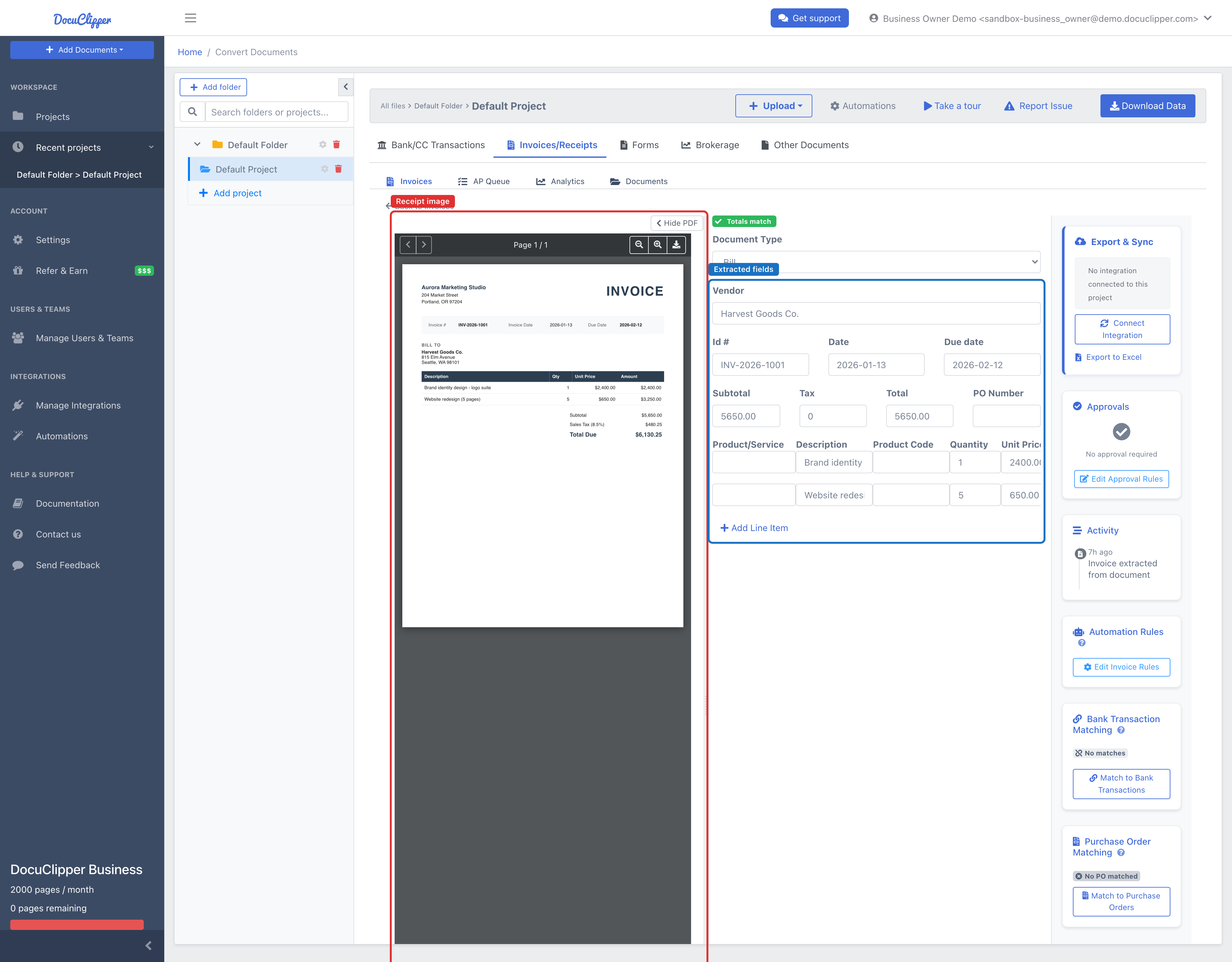
Once the project is linked to Xero (Step 1), each approved receipt syncs on its own as a draft — a receipt for a purchase typically becomes a draft spend-money transaction or a draft bill (ACCPAY), so nothing hits your ledger until you review it. The field mapping above applies (vendor → Contact, tax total → Tax, and so on), and mapping a recurring merchant to the right Xero account once with invoice rules means repeat receipts come in already coded. Everything else on this page — the approval gate, edit-and-re-sync, and duplicate handling — applies to receipts too.
What happens when DocuClipper flags a duplicate
DocuClipper checks every newly extracted invoice against your last 90 days of uploads. When it finds another invoice with the same vendor, the same total (within ±$0.01), and a date within ±3 days, it flags the new one with a yellow warning and holds the sync so you don't create a duplicate draft bill.
Open the flagged invoice to see the warning. DocuClipper's own duplicate flag is informational and doesn't block the sync. And if Xero already has that invoice number, DocuClipper automatically links to the existing Xero record instead of creating a second one — the sync succeeds pointing at what's already there, so you can't double-post. The duplicate flag stays on the row for audit. (This is unrelated to Sync anyway, which overrides the separate reconciliation check when totals don't add up.)
For details: