
How to Extract and Categorize Bank Transactions from a PDF
If you’re managing finances across multiple accounts, the challenge is real: combining PDFs and CSVs, reconciling discrepancies, and ensuring everything’s categorized and ready for your accountant or tax filing. DocuClipper tackles each of these steps in one streamlined workflow.
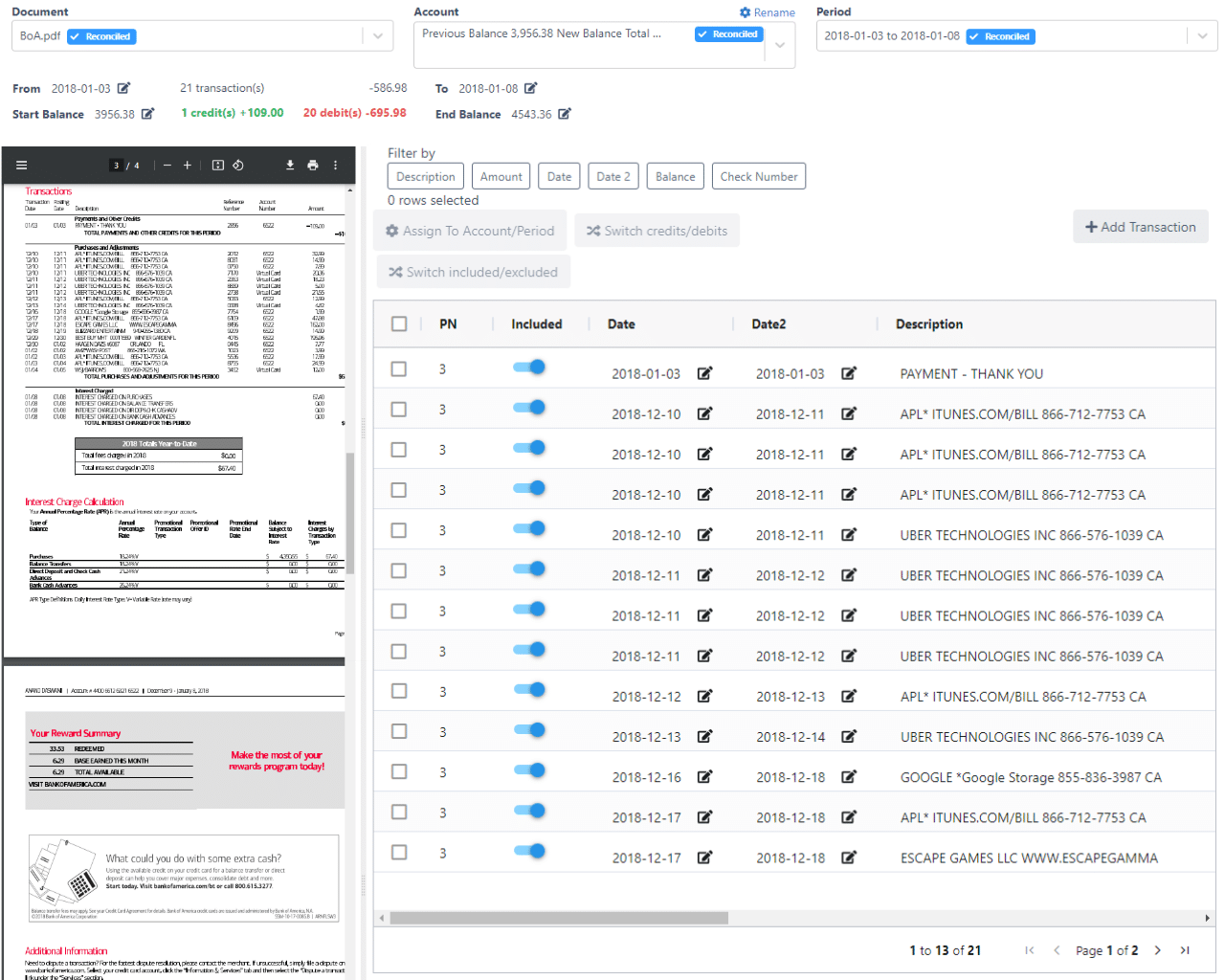
1. Why Organizing Transactions from Multiple Formats Matters
- Different banks export PDFs or CSVs inconsistently.
- Manual consolidation and cleanup are tedious and error-prone.
- Accountants and tax software require reconciled, categorized, and formatted data.
While you are here
Extract every transaction from any bank PDF
Upload a statement from any bank and DocuClipper returns a clean table with dates, amounts, descriptions, and running balance intact. No reformatting before you can reconcile or import.
2. Importing PDFs and CSVs with DocuClipper
- Drag & drop or upload both PDF bank statements and CSV exports.
- Use the Bank Statement Converter to normalize formats.
- Batch upload for multiple accounts in one go.
3. Reconciliation: Catch Errors Before You File
DocuClipper automatically compares running balances and flags:
- Missing or duplicated transactions
- Mismatched totals
- Statement period gaps

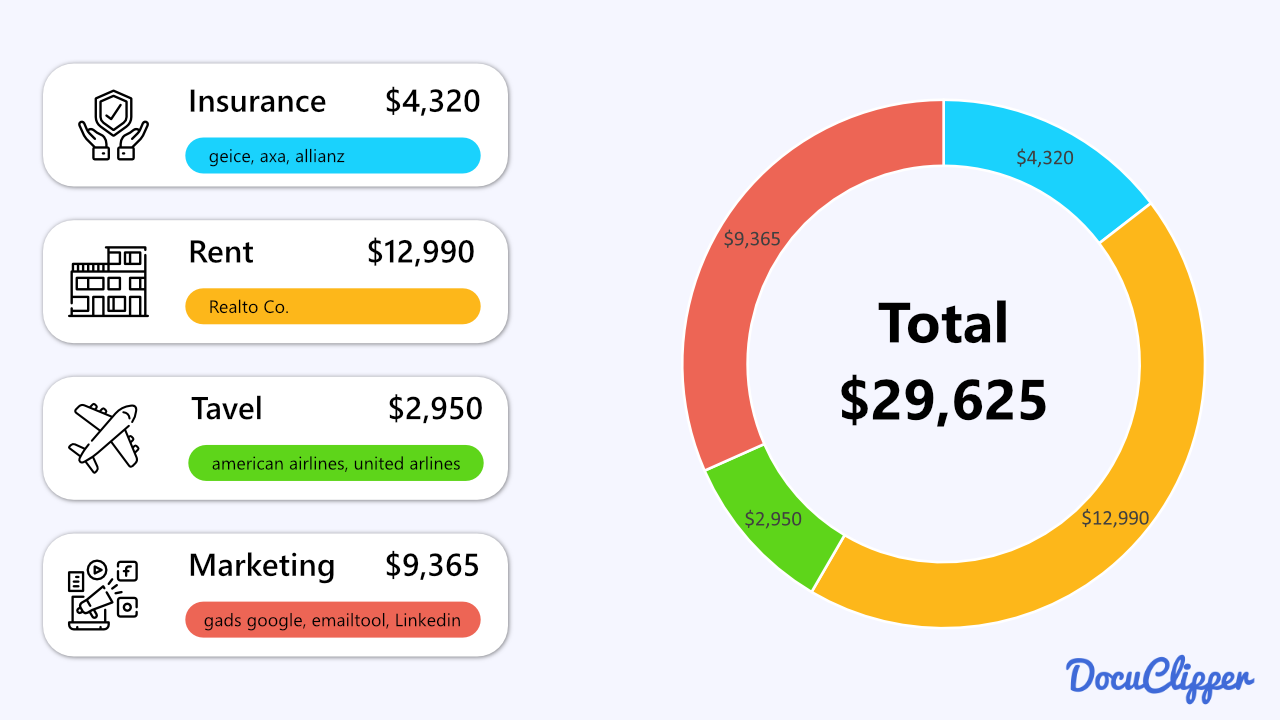
4. Smart Categorization with Custom Rules
With the Transaction Categorization feature, you can:
- Auto-tag common expenses
- Upload vendor–category CSVs
- Match categories to tax forms (like Schedule C)
5. Exporting Data for Accountants & Tax Filing
- Excel/CSV – universal and archive-friendly
- QBO (QuickBooks)
- WebConnect/QIF – for Quicken, Sage, Xero, NetSuite
Full export details available in our PDF-to‑QBO Converter, CSV‑to‑QBO Converter, and download guide.
Put it into practice
Manual copy-paste is where errors begin
Split rows, drifting balances, missed transactions: they all trace back to re-keying. DocuClipper preserves the bank's layout so debits, credits, and totals tie out the first time.
Next step
Upload your first statement free
No credit card required. See extracted transactions in seconds, then export to Excel, CSV, or QBO when you're ready to scale.