
How To Convert Westpac Bank Statement To Excel, CSV, And QBO
Westpac issues PDF statements through Westpac Online Banking and the Westpac App. Convert your Westpac PDF statement to Excel, CSV, or QBO with DocuClipper.
Westpac Banking Corporation is one of Australia's Big Four banks and issues statements as PDFs through Westpac Online Banking and the Westpac App. PDFs are fine for record-keeping but awkward to use in Excel or import into Xero, MYOB, or QuickBooks Online.
For fraud detection, anomaly review, and audit-style bank statement analysis, DocuClipper's bank statement analyzer helps flag unusual activity after statements are digitized.
In this article, we'll show you how to convert a Westpac statement to Excel using a bank statement converter. For any bank, our bank statement to Excel converter handles the conversion.
To get started, upload your Westpac statement here and follow the steps below:
Drag & Drop Bank Statement Here
or
While you are here
Extract every transaction from any bank PDF
Upload a statement from any bank and DocuClipper returns a clean table with dates, amounts, descriptions, and running balance intact. No reformatting before you can reconcile or import.
Step 1: Upload Westpac Bank Statement to DocuClipper
Log into your DocuClipper account or sign up for a free trial.
Go to the "Bank and Credit Card Statements" section.
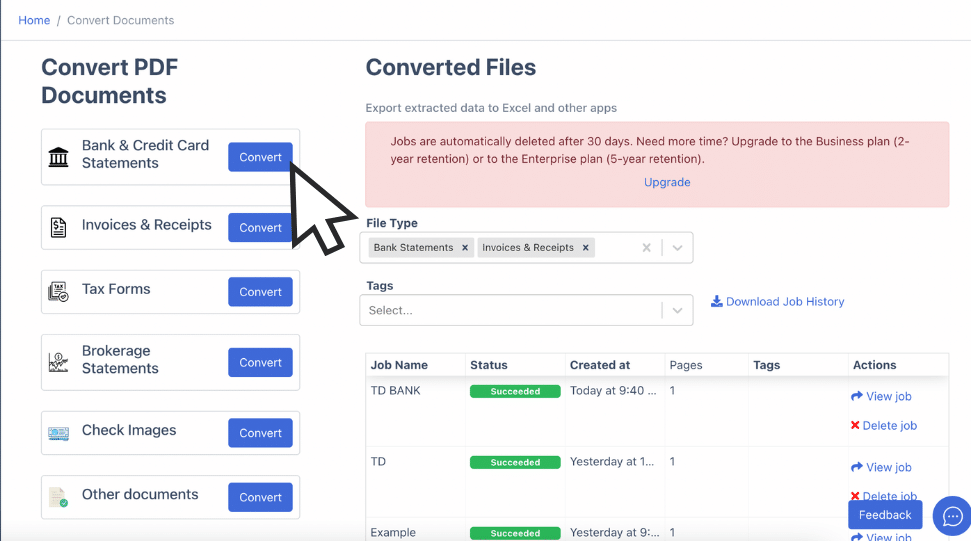
Drag and drop your Westpac PDF statement. If your statement is on paper, scan it first.
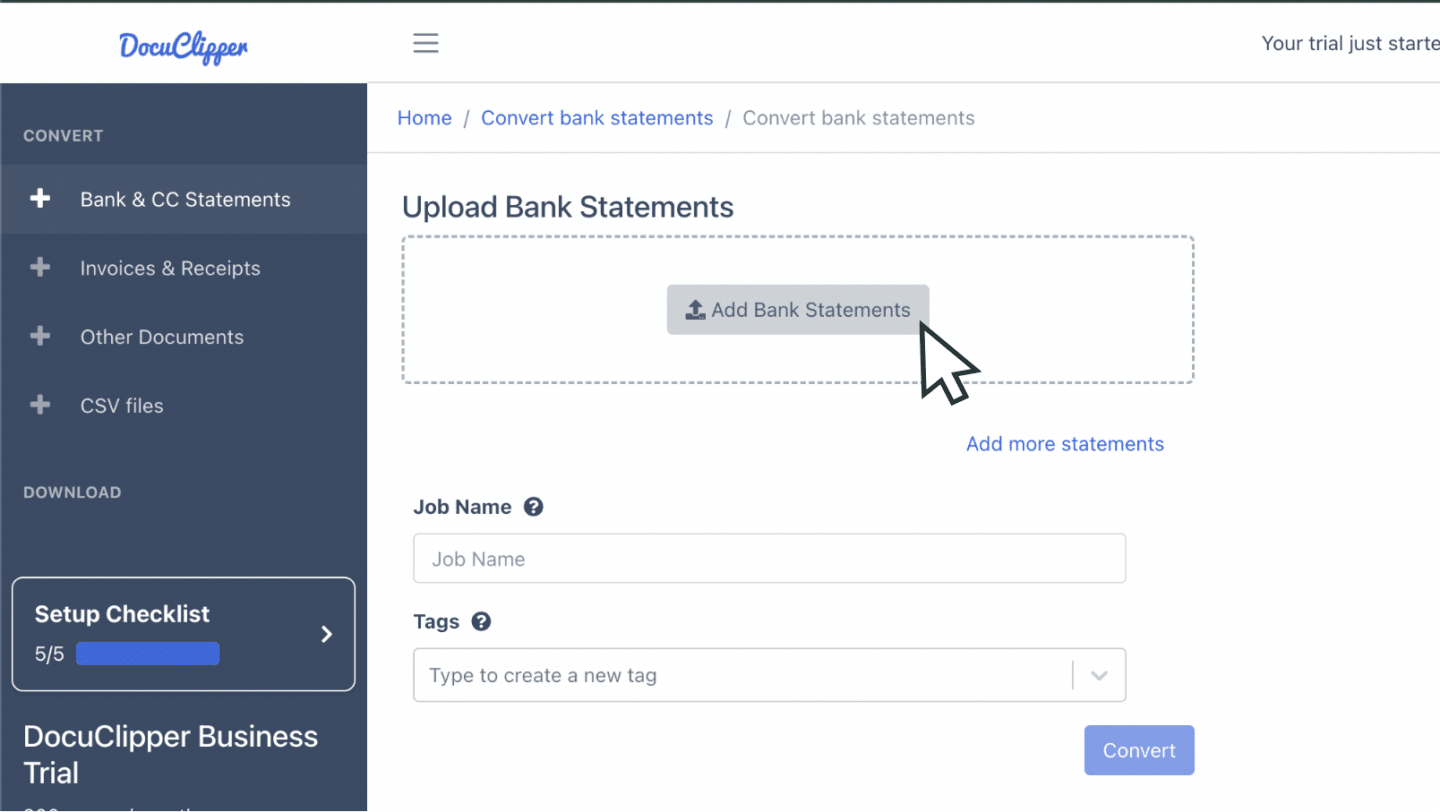
You can also email the statement to the address listed in your account settings.
Step 2: Analyze the Westpac Bank Statement
View the original PDF and the spreadsheet side by side with a summary dashboard.
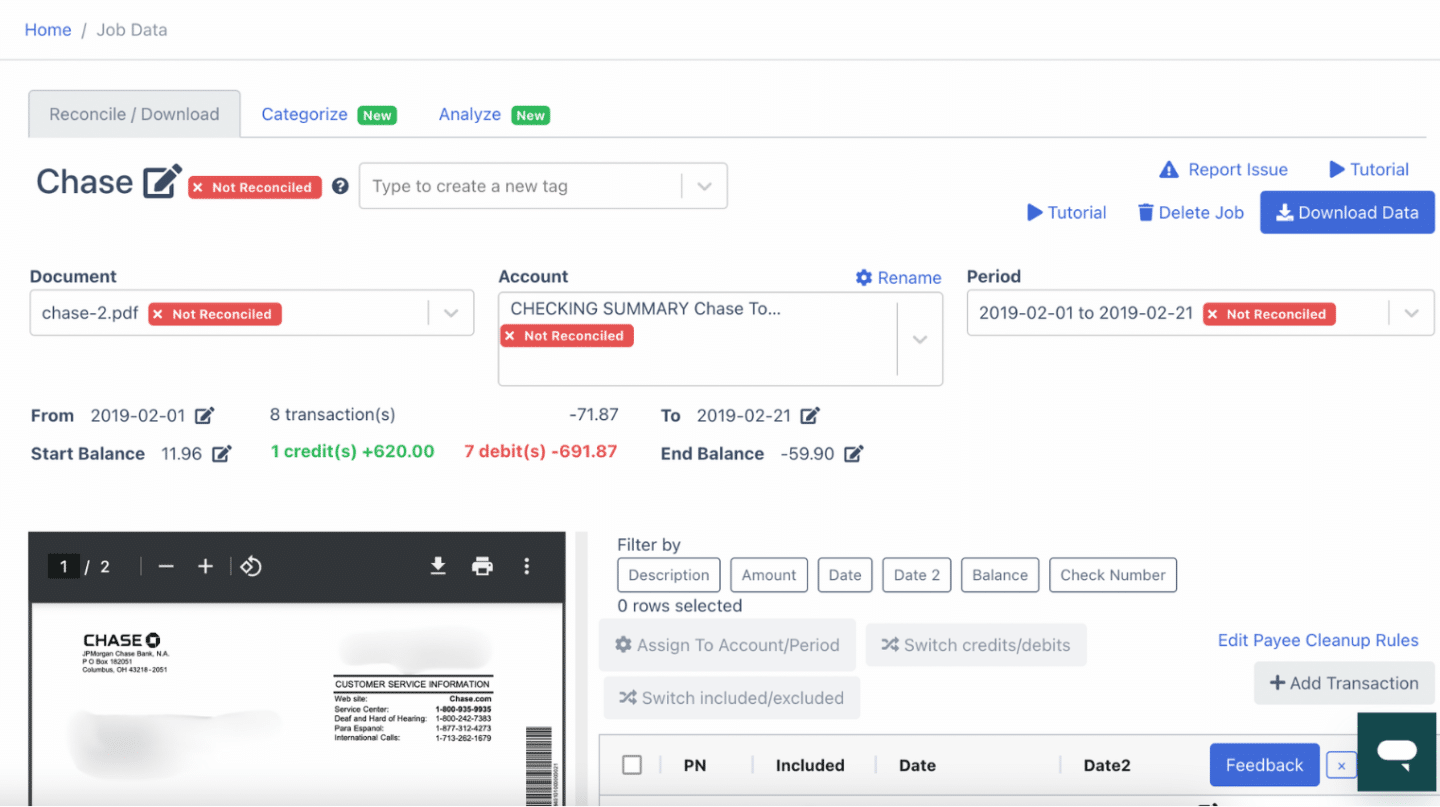
Confirm AUD amounts, transaction dates (DD/MM/YYYY), and the running balance.
Step 3: Reconcile Westpac Bank Statements
DocuClipper reconciles your bank statement automatically when you click convert. Discrepancies are flagged.
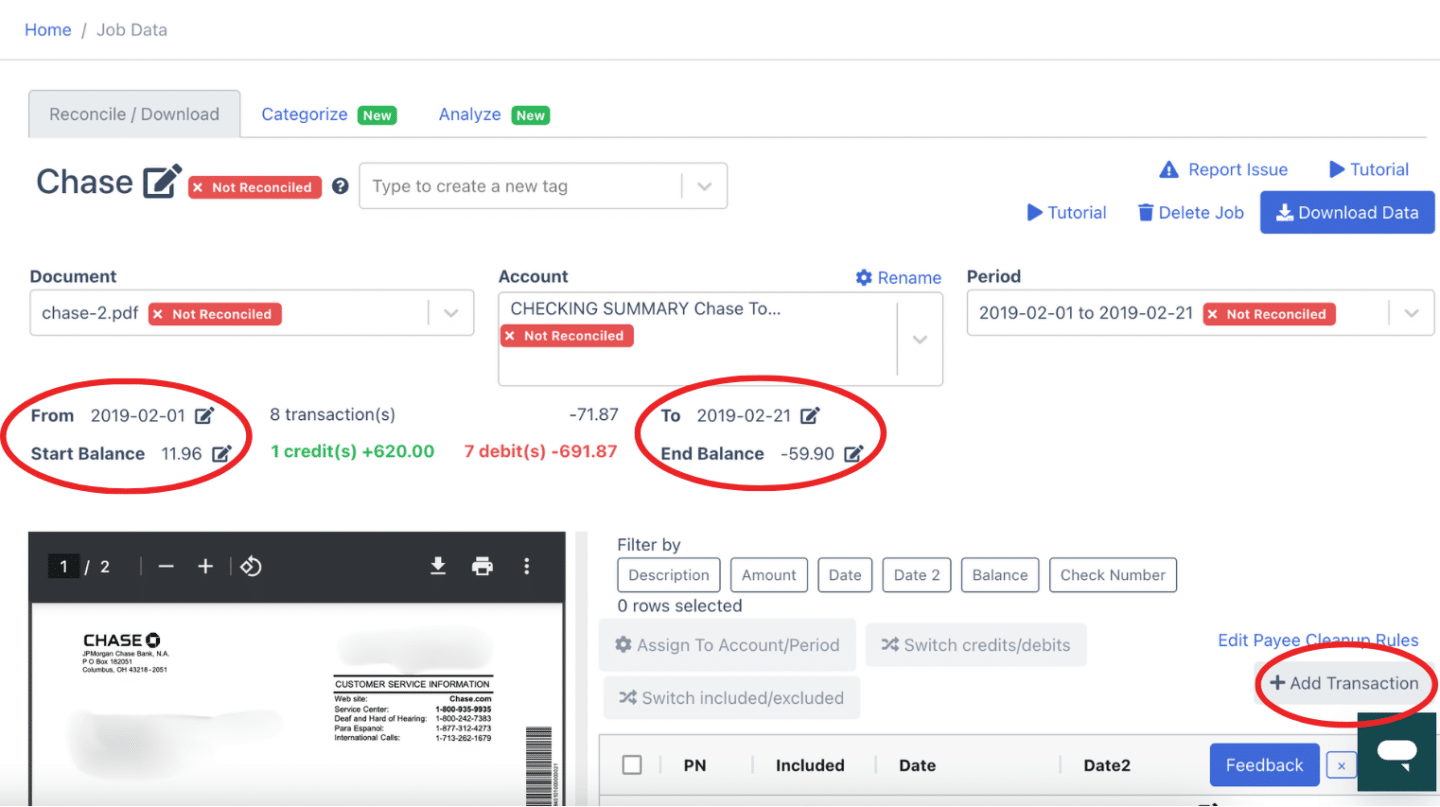
You can edit amounts, dates, or transactions, or add a missing line item.
Step 4: Export Westpac Bank Statement to Excel, CSV, QBO
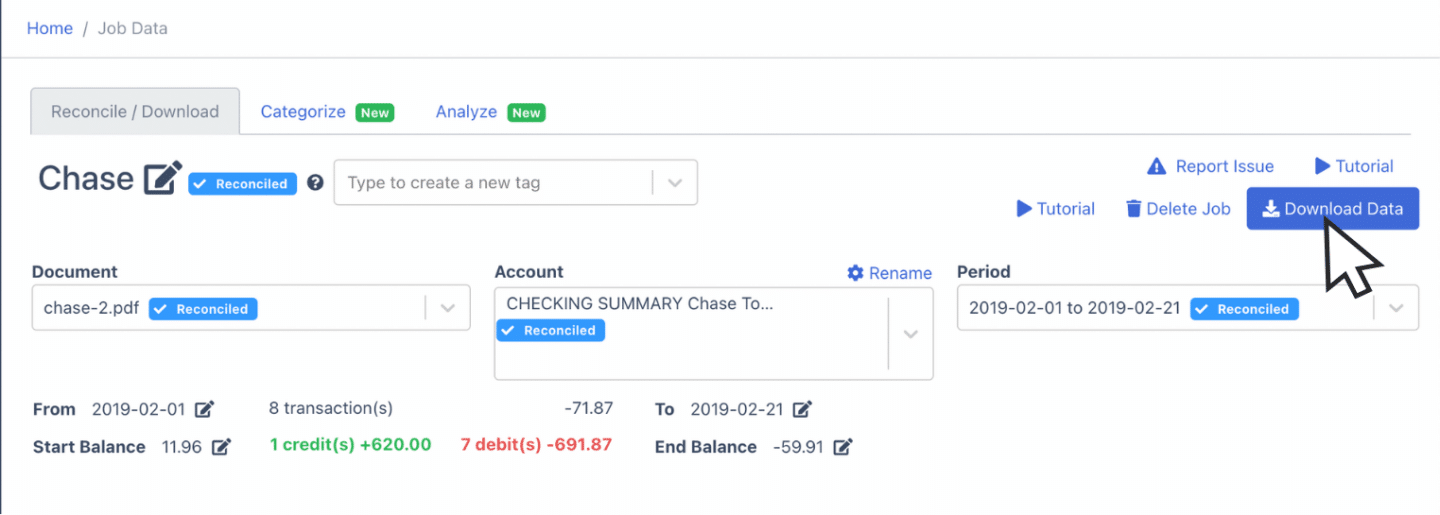
Export to Excel
Open the export menu, select "Excel", pick XLSX, click Download.
Export to CSV
Choose "Excel" then CSV. Premade formats for Xero, MYOB, QuickBooks Online, Sage, Quicken, and NetSuite are included.
Export to QBO
Select "QuickBooks" in the export menu. For the full workflow, see bank statement to QuickBooks.
More import guides:
- Import bank statements into QuickBooks
- Import bank statements into Xero
- Import bank statements into Sage
- Import bank statements into NetSuite
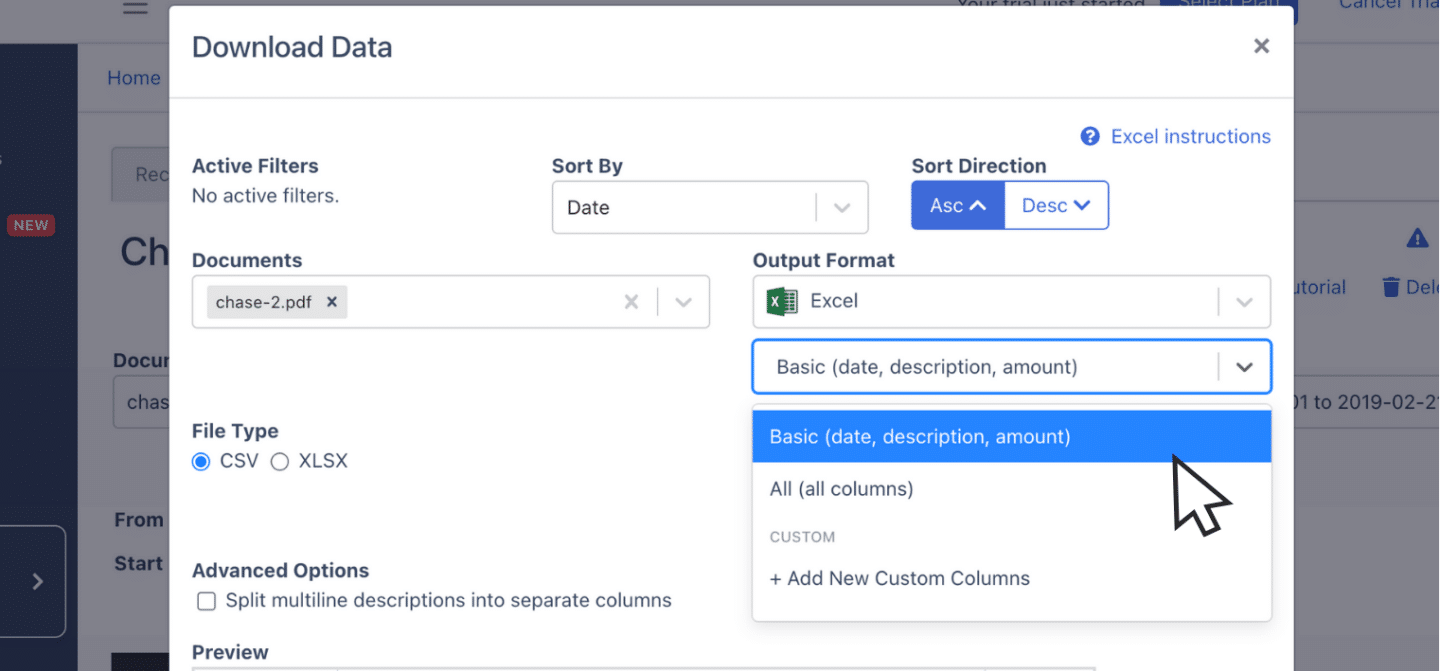
Step 5: Configure the Output Format
Before exporting, adjust the date format (Westpac uses DD/MM/YYYY, common for Australian accounting), reorder columns, or split debits and credits.
Put it into practice
Manual copy-paste is where errors begin
Split rows, drifting balances, missed transactions: they all trace back to re-keying. DocuClipper preserves the bank's layout so debits, credits, and totals tie out the first time.
How to Download a Westpac Bank Statement
On the Westpac Online Banking website (westpac.com.au):
- Log in to Westpac Online Banking at westpac.com.au.
- Click "Documents" in the top navigation.
- Select "Statements".
- Pick the account and statement period, then click the PDF download icon.
In the Westpac App:
- Open the Westpac App and log in.
- Tap "Services" in the bottom menu.
- Tap "Statements".
- Choose the account and period, then tap download or share to save the PDF.
Westpac retains up to 7 years of statements online for most personal and business accounts.
Final Advice
PDFs grow into hundreds of files quickly for Australian accountants and bookkeepers managing client work. DocuClipper converts those PDFs into Excel, CSV, or QBO so you can spend time on analysis and BAS prep instead of data entry.
Why Use DocuClipper to Convert Westpac Bank Statements
DocuClipper is a web-based tool used by 10,000+ businesses to convert PDF bank statements into XLS, CSV, and QBO. It integrates with QuickBooks, Xero, MYOB, and Sage, and supports credit card statements, brokerage statements, receipts, and invoices.
FAQs about Westpac Bank Statement to Excel
Can I export my Westpac statement directly to Excel?
No. Westpac Online Banking and the Westpac App provide PDF statements only. Use DocuClipper to convert the PDF to Excel.
What format do I get from Westpac, and can I convert it?
Westpac statements download as PDFs. DocuClipper converts those PDFs to XLSX, CSV, or QBO with column-level control over dates, descriptions, debits, credits, and balance.
Can I merge multiple Westpac statements into one spreadsheet?
Yes. Upload multiple monthly statements in one batch and DocuClipper will combine them into a single Excel or CSV file, sorted chronologically.
Should I export to CSV or Excel for my accounting software?
Use CSV for direct import into Xero, MYOB, or QuickBooks Online. Use XLSX if you want to review or edit the data in Excel before importing. DocuClipper produces both from the same statement.
Can DocuClipper handle Westpac credit card statements as well as bank statements?
Yes. Westpac Altitude, Low Rate, BusinessChoice, and other credit card statements all convert. Credit card statements use a slightly different layout than transaction accounts, and DocuClipper handles both.
Related Articles
<script type="application/ld+json"> { "@context": "https://schema.org", "@graph": [ {"@type": "Article", "headline": "How To Convert Westpac Bank Statement To Excel, CSV, And QBO", "datePublished": "2026-04-26", "author": {"@type": "Organization", "name": "DocuClipper"}}, {"@type": "HowTo", "name": "Convert a Westpac statement to Excel", "step": [ {"@type": "HowToStep", "name": "Upload", "text": "Upload your Westpac PDF statement to DocuClipper."}, {"@type": "HowToStep", "name": "Review", "text": "Review extracted transactions side by side."}, {"@type": "HowToStep", "name": "Reconcile", "text": "DocuClipper reconciles automatically."}, {"@type": "HowToStep", "name": "Export", "text": "Export to Excel, CSV, or QBO."}, {"@type": "HowToStep", "name": "Configure", "text": "Configure date format and columns."} ]}, {"@type": "FAQPage", "mainEntity": [ {"@type": "Question", "name": "Can I export my Westpac statement directly to Excel?", "acceptedAnswer": {"@type": "Answer", "text": "No. Westpac provides PDF only; convert with DocuClipper."}}, {"@type": "Question", "name": "What format do I get from Westpac?", "acceptedAnswer": {"@type": "Answer", "text": "PDF. DocuClipper converts to XLSX, CSV, or QBO."}}, {"@type": "Question", "name": "Can I merge multiple Westpac statements into one spreadsheet?", "acceptedAnswer": {"@type": "Answer", "text": "Yes, batch-upload monthly statements and DocuClipper combines them chronologically."}}, {"@type": "Question", "name": "CSV or Excel for my accounting software?", "acceptedAnswer": {"@type": "Answer", "text": "CSV imports directly into Xero, MYOB, and QuickBooks Online; XLSX is for review/edit."}}, {"@type": "Question", "name": "Does DocuClipper handle Westpac credit card statements?", "acceptedAnswer": {"@type": "Answer", "text": "Yes, Westpac credit card and bank account statements both convert."}} ]} ] } </script>Next step
Upload your first statement free
No credit card required. See extracted transactions in seconds, then export to Excel, CSV, or QBO when you're ready to scale.