
Converting Brokerage Statements
Extract holdings, account summaries, and reconciled period totals from US brokerage statements. Outputs to Excel.
Last updated
DocuClipper extracts structured holdings data from monthly and quarterly US brokerage statements. The output is different from a bank statement: instead of a list of transactions, you get a position-by-position breakdown of what the account held at period close, plus the account summary totals (beginning value, ending value, dividends, deposits, withdrawals).
What you get
For each account in the statement, DocuClipper extracts:
Per holding (one row per security):
- Symbol and CUSIP
- Description
- Quantity
- Price
- Market value
- Cost basis (when reported)
- Unrealized gain or loss (when reported)
- Estimated annual income and yield (when reported)
- Section (Cash, Money Market, Bonds, Equities, Mutual Funds, Options, Other)
Per account summary:
- Account number, broker, account type
- Statement period (start and end dates)
- Beginning value, ending value, change for the period
- Deposits and withdrawals
- Dividends and interest
- Reconciliation status (sum of position market values vs ending value, ±$1 tolerance)
Step 1: Upload
- From the project workspace, click Add Documents in the left sidebar and pick Brokerage Statements (PDF).
- Drag and drop your PDF, or click the dropzone to select files.
- Click Convert.
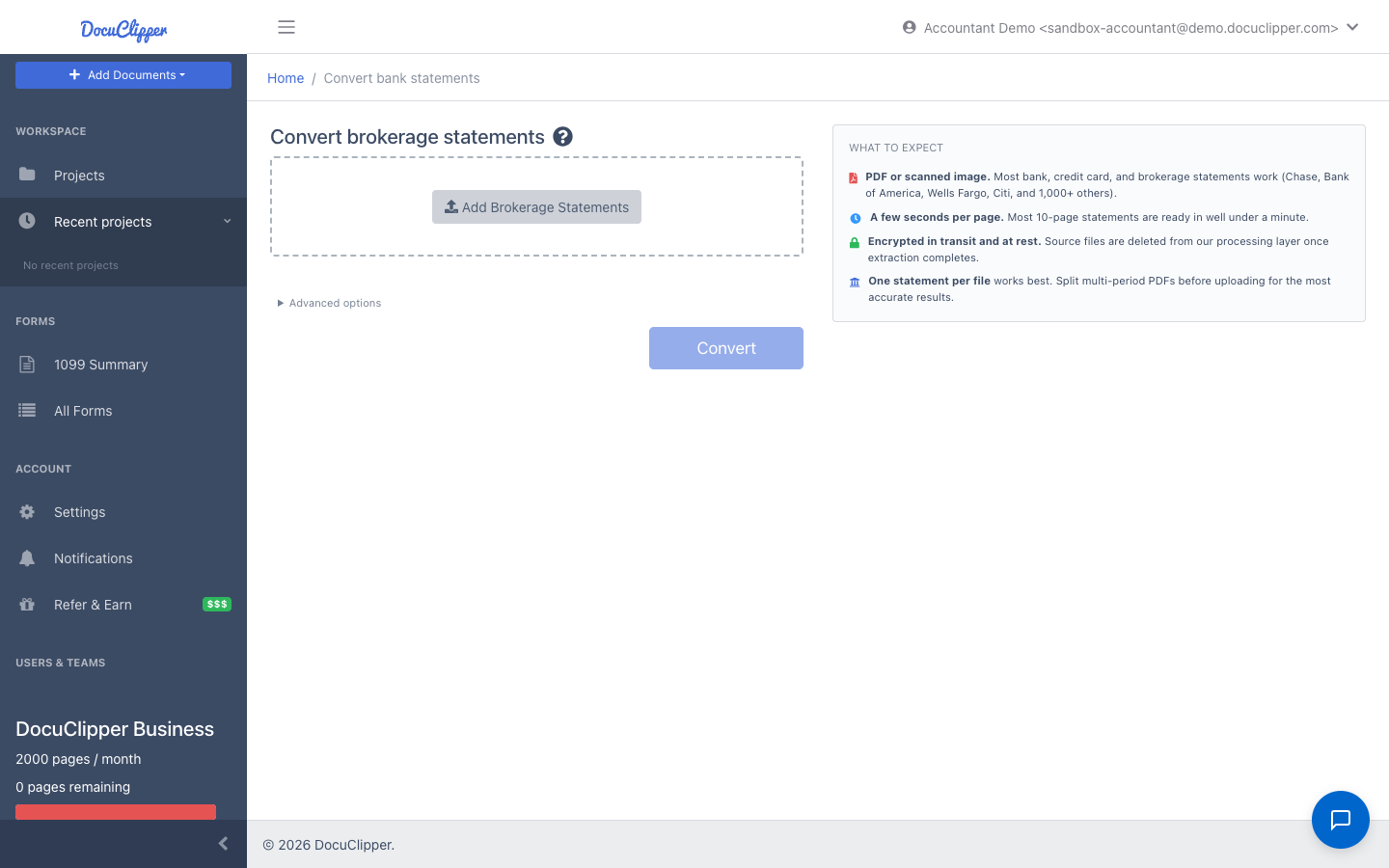
You can upload multiple periods from the same account in a single job. Each statement is processed independently and the results appear together in the Holdings tab.
For best results:
- Download the statement directly from your broker's online portal as a PDF. Print-to-PDF and screenshot captures lose the text layer DocuClipper needs.
- Use full monthly or quarterly account statements. Trade confirmations and 1099 tax documents are not supported.
Step 2: Review your holdings
When extraction completes, the project workspace lands you on the Brokerage tab with the Holdings sub-tab open. The PDF appears on the left and the extracted data on the right. Use Hide PDF / Show PDF to give the data more room.
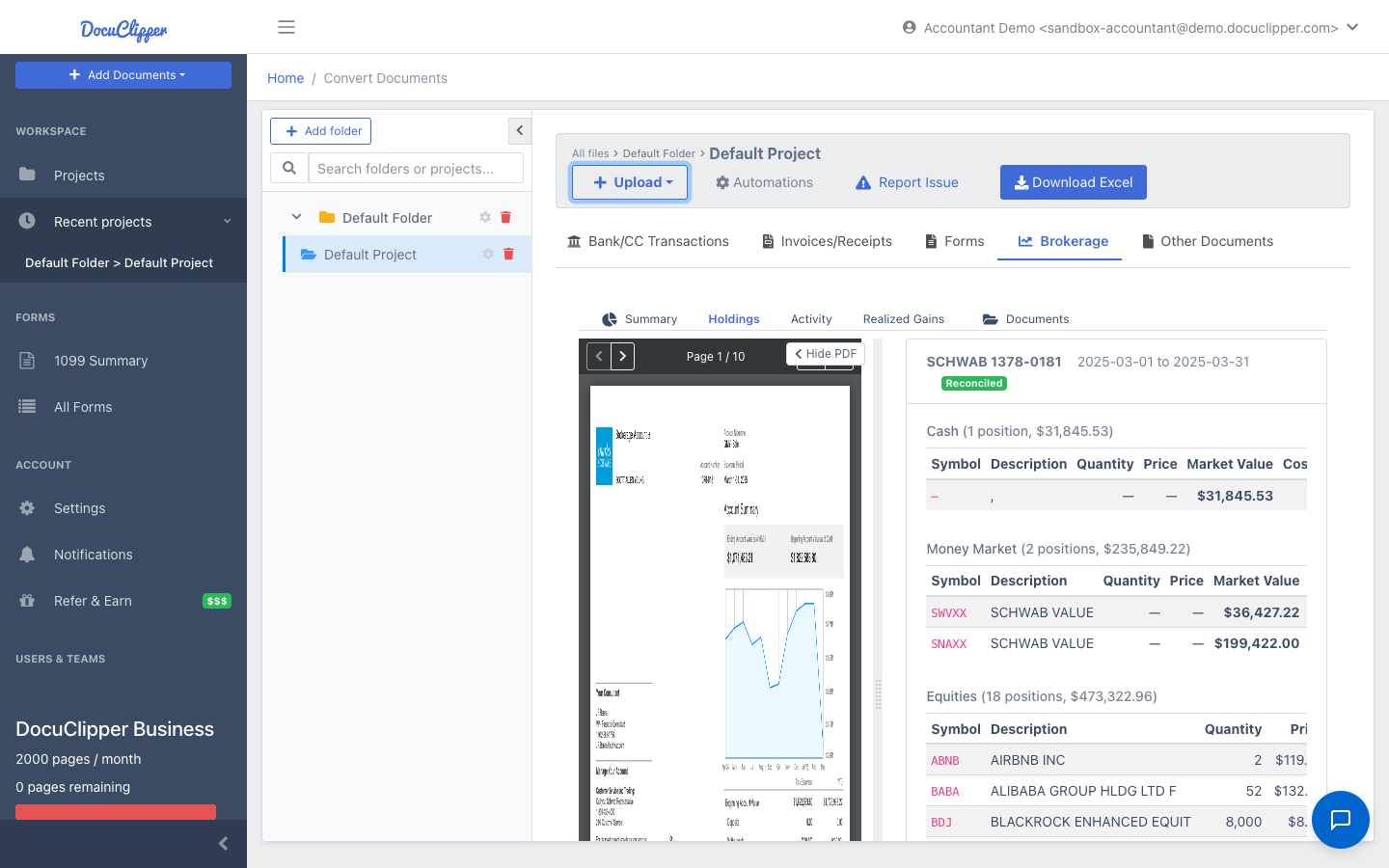
Each account card shows the broker name, account number, statement period, and a Reconciled or Not reconciled badge. Below the header, positions are grouped by section: Cash, Money Market, Bonds, Equities, Mutual Funds, Options, Other. Each row is one security with symbol, description, quantity, price, market value, cost basis, and unrealized gain or loss when the statement reports them.
The reconciliation badge tells you whether the sum of position market values matches the printed ending value within $1. A green Reconciled badge means the extraction is internally consistent. A yellow Not reconciled badge means there's a gap worth a quick visual check before you trust the totals.
Summary
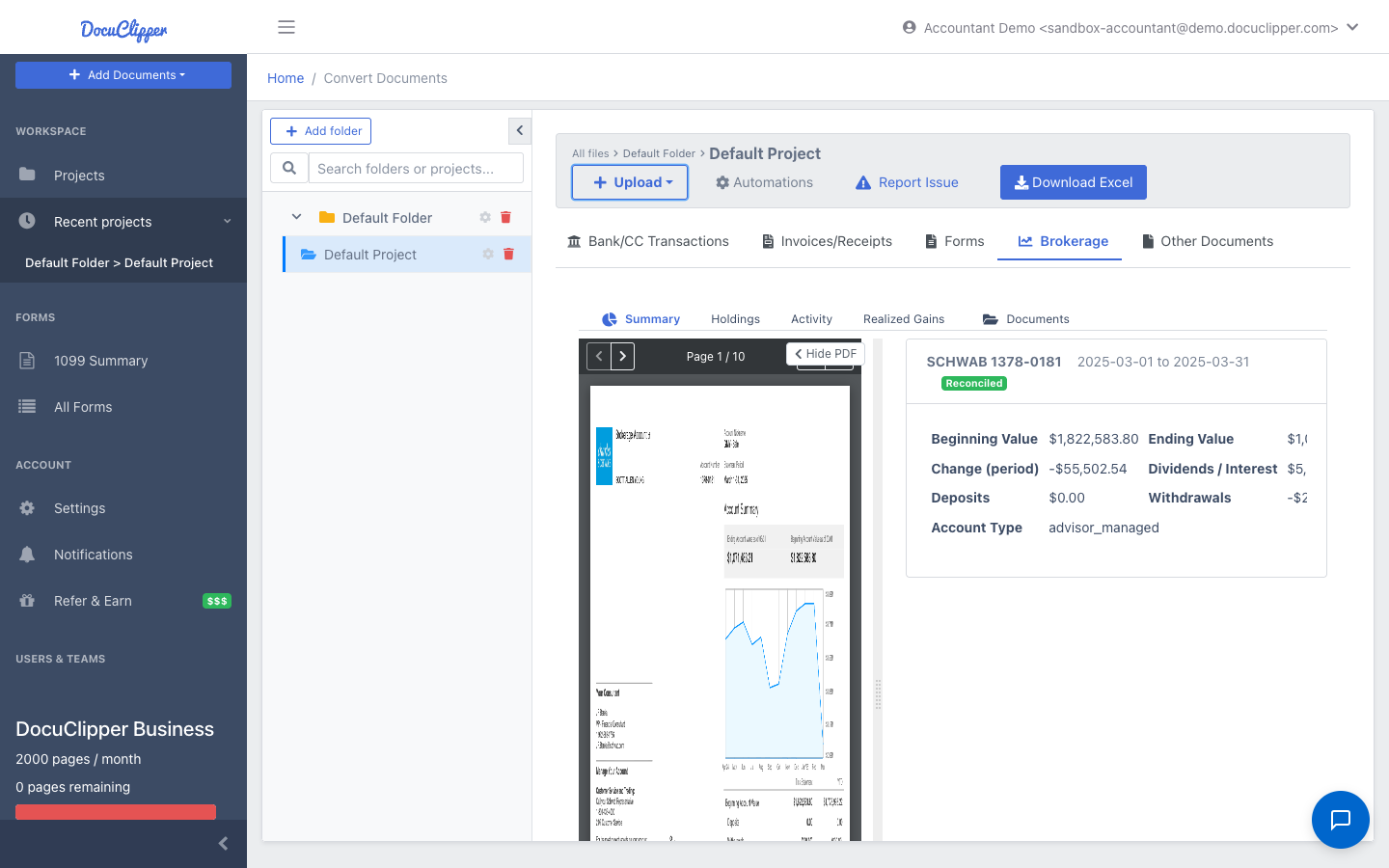
The Summary sub-tab shows the period-level totals: beginning value, ending value, change for the period, dividends and interest, deposits, withdrawals, and account type (taxable, IRA, advisor-managed, etc.).
Activity
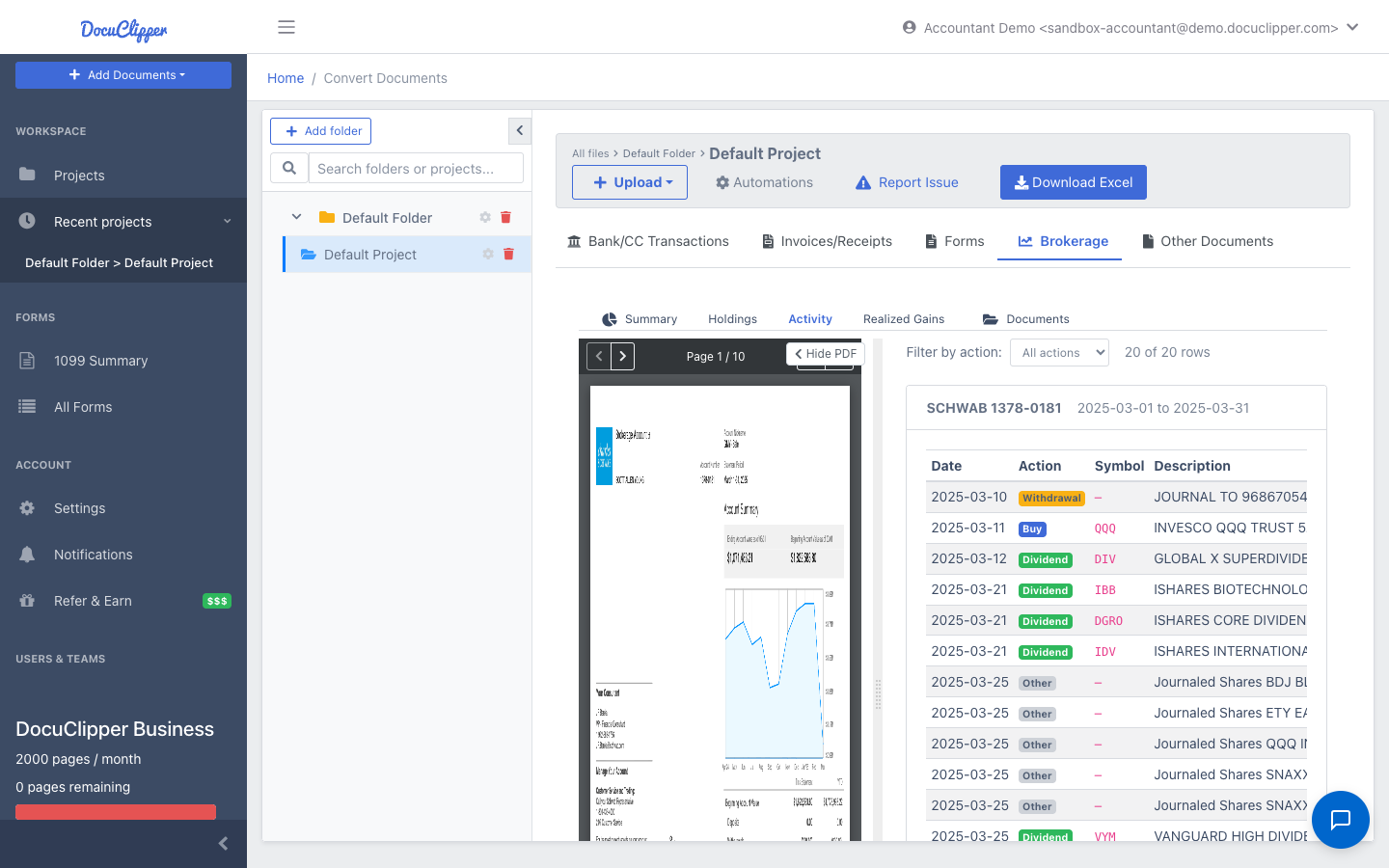
The Activity sub-tab lists every transaction the statement reports — buys, sells, dividends, withdrawals, journal entries, and other. Use the action filter to narrow the list to a single type.
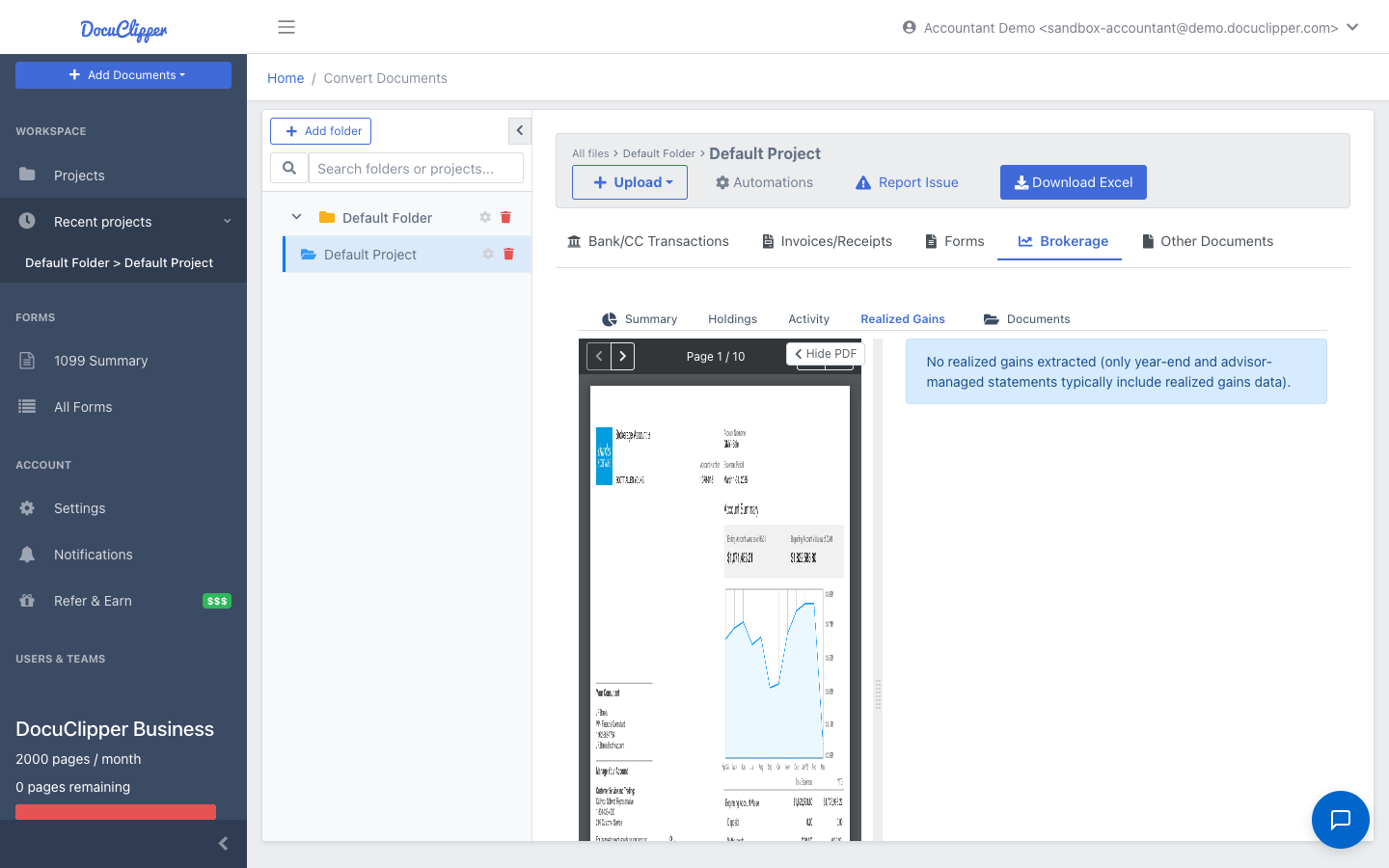
Realized Gains
When the statement includes a Realized Gain or (Loss) section (year-end statements, 1099-B-style detail), the Realized Gains sub-tab shows lot-by-lot detail: date sold, date acquired, cost basis, proceeds, gain/loss, holding period, and wash-sale flag. Periodic monthly and quarterly statements typically don't include this section.
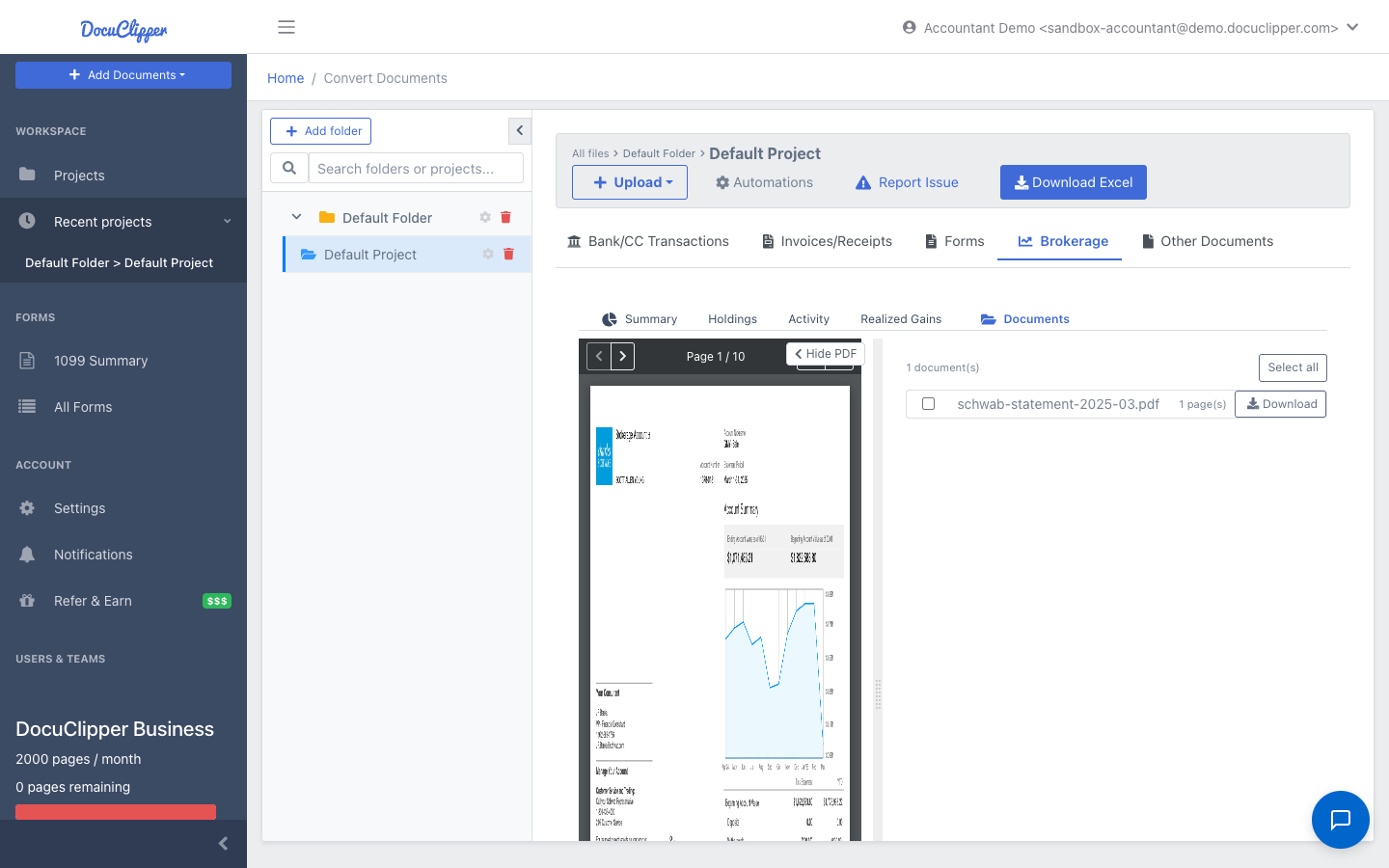
Documents
The Documents sub-tab lists every brokerage PDF in the project. Click Download on a row to download the original source file.
Step 3: Download to Excel
Click Download Excel in the project toolbar (top right, next to Automations). The workbook contains four sheets:
- Summary — one row per account with all period totals
- Holdings — every position across the job, with broker, account, and statement period as columns so you can pivot or filter across multiple statements
- Activity — every transaction (buys, sells, dividends, etc.)
- Realized Gains — lot-by-lot detail (empty for periodic statements that don't report it)
Supported brokers
DocuClipper extracts holdings from these US brokers:
| Broker | Notes |
|---|---|
| Charles Schwab | One, Premium, and classic statement layouts |
| Fidelity | Brokerage and combined CMA + IRA statements |
| E*TRADE | Includes Morgan Stanley statements (shared post-acquisition layout) |
| Morgan Stanley | Wealth Management, Smith Barney, post-acquisition E*TRADE |
| Merrill | Retail and advisor-managed |
| Wells Fargo Advisors | WellsTrade and full-service WFA. Not Wells Fargo Bank deposit accounts. See note below. |
| Raymond James | Capital Access, Brokerage, Advisory |
| TD Ameritrade | Legacy pre-Schwab-acquisition statements |
| Edward Jones | Single-account and multi-account portfolio summaries |
Brokers we don't support yet
Vanguard, Robinhood, and Interactive Brokers are on the roadmap but not in v1. If you upload one of these, the job will run but the Holdings tab will be empty or incomplete. Email support@docuclipper.com with a sample PDF if you need extraction for one of these and we'll let you know when it ships.
Per-broker notes
- Wells Fargo Advisors vs Wells Fargo Bank. WFA brokerage statements (advisor-managed accounts, WellsTrade) are supported. Wells Fargo Bank deposit-account statements (checking, savings, Way2Save) are processed by the standard bank statement converter, not the brokerage extractor. If you have both, upload them through their respective entry points.
- Schwab options-trading and multi-statement bundles. A small number of Schwab statements with options sub-accounts or bundled multi-period PDFs may not reconcile cleanly. The Holdings table will still populate; review the Not reconciled badge before relying on the totals.
- Morgan Stanley share class details. Some MS statements with very large balances may show small reconciliation gaps (a few dollars on six-figure accounts) due to source-side rounding in the statement itself, not extraction error.
Common questions
Does this work for IRAs? Yes. Schwab IRAs, Fidelity combined CMA + IRA statements, Edward Jones IRAs, and equivalent at the other supported brokers all work. The extracted summary will show the account type (IRA, Roth IRA, taxable, etc.) when the statement labels it.
Can I upload multiple statements at once? Yes. Drop them all in the upload widget. Each statement is extracted independently and appears as its own card in the Holdings tab. The Excel download includes all positions from all statements.
What about historical statements going back several years? Yes. The extractor doesn't depend on statement date. Older statement layouts that match the current format are handled the same way.
Why is my balance off by a few dollars? Two common causes: the broker's own statement contains small rounding gaps (most often on Morgan Stanley statements with large balances), or the statement covers an options sub-account where DocuClipper didn't capture every line. The Reconciled badge flags these for you.
Can I use this output for tax filing? No. Brokerage statements show holdings and summary totals, not the tax-cost-basis detail required for Schedule D. For tax filing, use your broker's 1099-B or consolidated 1099 documents.