
Preparing Your Files for the Best Results
A few quick checks before you upload — original PDFs, upright pages, one statement page per PDF page, full-page scans — give DocuClipper the cleanest input and the most accurate extraction.
Last updated
DocuClipper reads almost any bank statement, credit card statement, invoice, or check, but the quality of the file you upload has the single biggest effect on accuracy. A few seconds of prep up front prevents the most common extraction issues — missing transactions, debits and credits flipped, or a statement that won't reconcile.
This guide covers the checks that matter most, and how to fix a file that needs it.
File types you can upload
DocuClipper accepts PDFs, common image files (JPG, PNG), and TIFF images (.tif / .tiff). Scanners and fax/document-management systems often save to TIFF, so you can upload those directly — DocuClipper normalizes a TIFF to a PDF automatically when it comes in, then extracts from it the same way. (For the bank-transactions and forms converters you can also upload CSV and Excel files; see Convert bank transactions CSV.)
Whatever the format, the quality guidance below still applies — a sharp, upright, full-page TIFF extracts well; a blurry or skewed one doesn't.
Start from the original PDF when you can
- Download the PDF directly from your bank's website rather than scanning or photographing a paper copy. Original ("text") PDFs are the most accurate input by far.
- If you only have paper, scan it rather than photographing it with a phone — scans are flatter, sharper, and properly aligned.
- Avoid screenshots and re-saved/"printed-to-PDF-from-a-photo" files. They lose the crispness DocuClipper relies on.
Make sure the pages are upright
If a page opens sideways or upside-down, rotate it the right way up and save before uploading. A statement that is rotated 90° puts the rows and columns in the wrong direction, which can cause whole pages to come back empty or with scrambled columns.
- Mac Preview: open the PDF, select the page thumbnails, Tools → Rotate Left/Right, then File → Save.
- Adobe Acrobat: Organize Pages → Rotate, then save.
- Free online tools (e.g. a "rotate PDF" tool) work too — rotate, download, then upload the corrected file.
One statement page per PDF page
DocuClipper expects one statement page per page of the PDF. Some exports — especially legal/DSAR "subject access request" packs and printed booklets — place two statement pages side-by-side on a single sheet ("2-up"), sometimes rotated to landscape. This layout interleaves two different pages' rows and is the hardest case to read accurately.
If your file is laid out two-up:
- Re-download a standard, one-page-per-page copy from your bank if one is available — this is always the best option.
- If not, split the sheets so each statement page is its own page (the "split/extract pages" feature in Acrobat, Preview, or a free PDF tool), and rotate them upright.
- Then upload the cleaned-up file.
Keep the full page, in good quality
- Don't crop — the running balance column on the right edge is what DocuClipper uses to reconcile. If it's cut off, the statement won't balance.
- For scans, aim for ~300 DPI, straight (deskewed), and high contrast. Faint, skewed, or low-resolution scans are the most common cause of misread amounts and dates.
- Remove any password protection before uploading (open the PDF, print/save it as a new unprotected PDF).
A few more tips
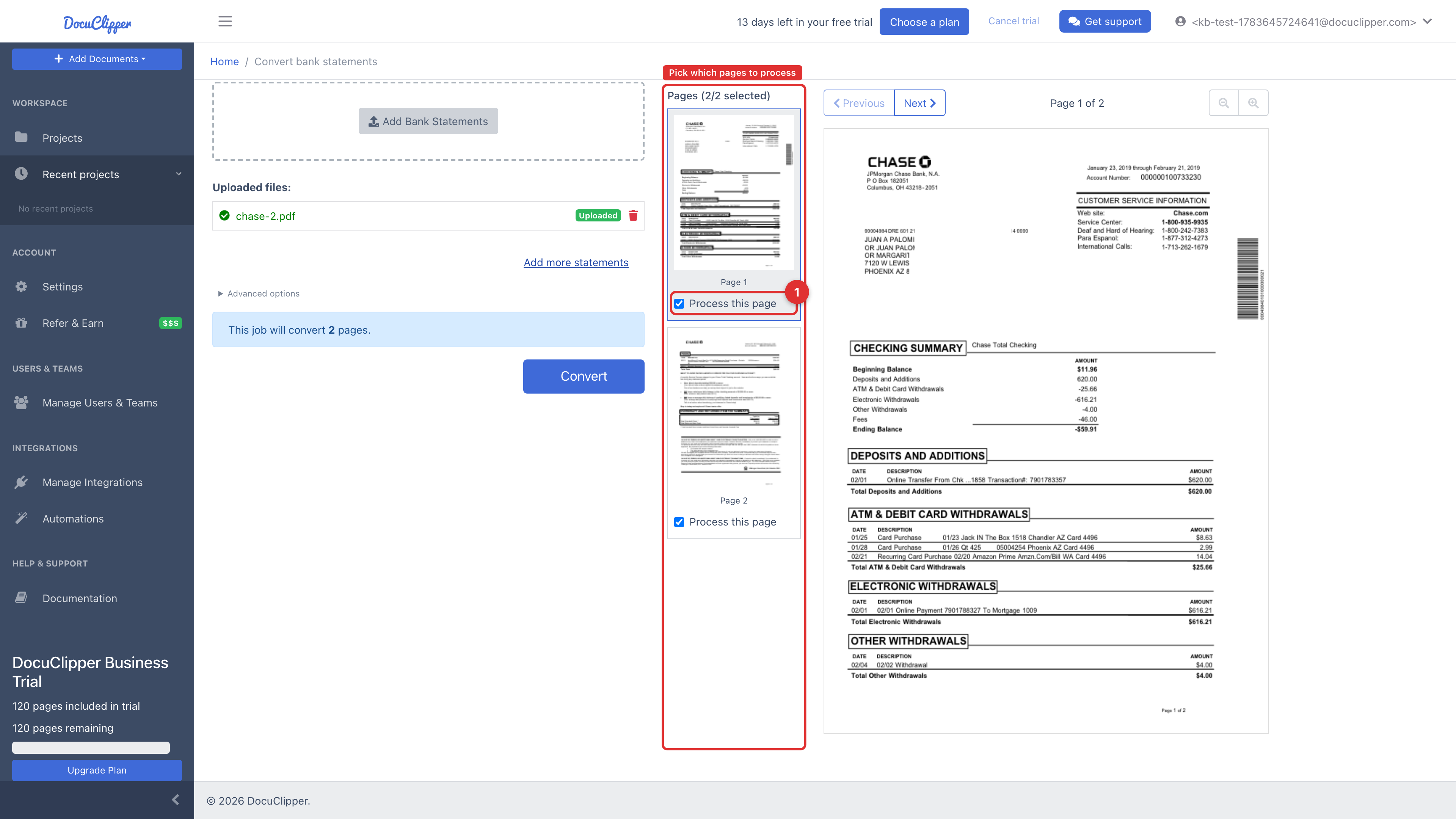
- Only need part of a large file? After you upload, you can select just the pages you want so DocuClipper processes only those — handy for very large packs.
- One account per file when you can. Multi-account files work, but a single account is cleanest.
- Invoices and receipts: one document per file gives the most reliable line-item and total extraction.
If something still looks off
Even with a clean file, occasionally a transaction is misread. DocuClipper flags these for you, and you can fix them in a click:
- Bank Statement Reconciliation Issues
- Fixing Missing or Wrong Transactions
- Debits and Credits Are Backwards
If a statement still doesn't extract correctly after cleaning up the file, send it to our support team — we tune DocuClipper for new statement layouts regularly and can usually turn a fix around quickly.