
How To Convert ABSA Bank Statement To Excel, CSV, And QBO
ABSA issues monthly statements as PDFs through Online Banking and the ABSA Banking App. Convert your ABSA PDF statement to Excel, CSV, or QBO with DocuClipper.
ABSA issues monthly statements as PDFs through ABSA Online Banking and the ABSA Banking App. PDFs are inconvenient when you need to filter, sort, or import into QuickBooks, Xero, or Sage.
For fraud detection, anomaly review, and audit-style analysis, DocuClipper's bank statement analyzer flags unusual activity after digitization.
This guide shows how to convert an ABSA statement to Excel using a bank statement converter. For any bank, our bank statement to Excel converter handles the conversion.
Upload your ABSA statement here:

Drag & Drop Bank Statement Here
or
While you are here
Extract every transaction from any bank PDF
Upload a statement from any bank and DocuClipper returns a clean table with dates, amounts, descriptions, and running balance intact. No reformatting before you can reconcile or import.
Step 1: Upload ABSA Bank Statement to DocuClipper
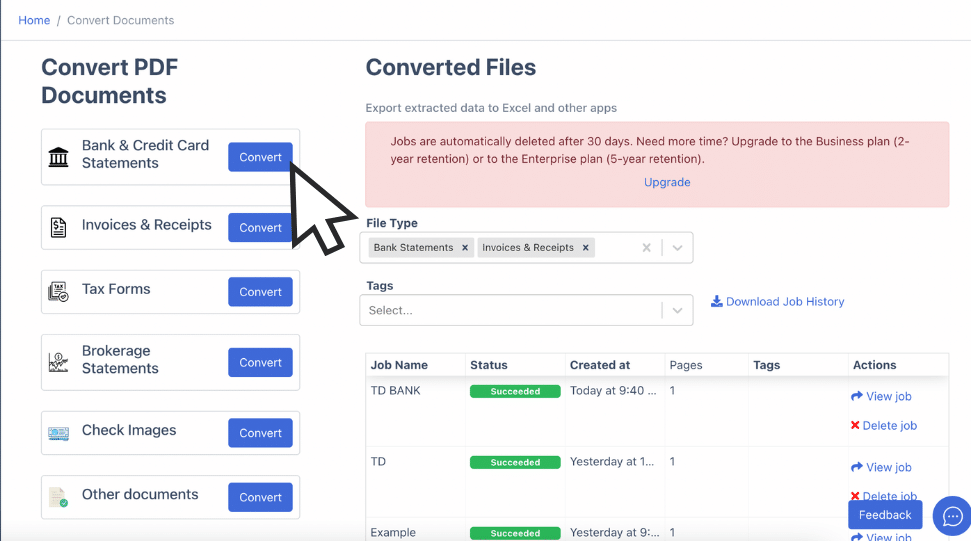
Log into DocuClipper or start a free trial. Go to "Bank and Credit Card Statements".
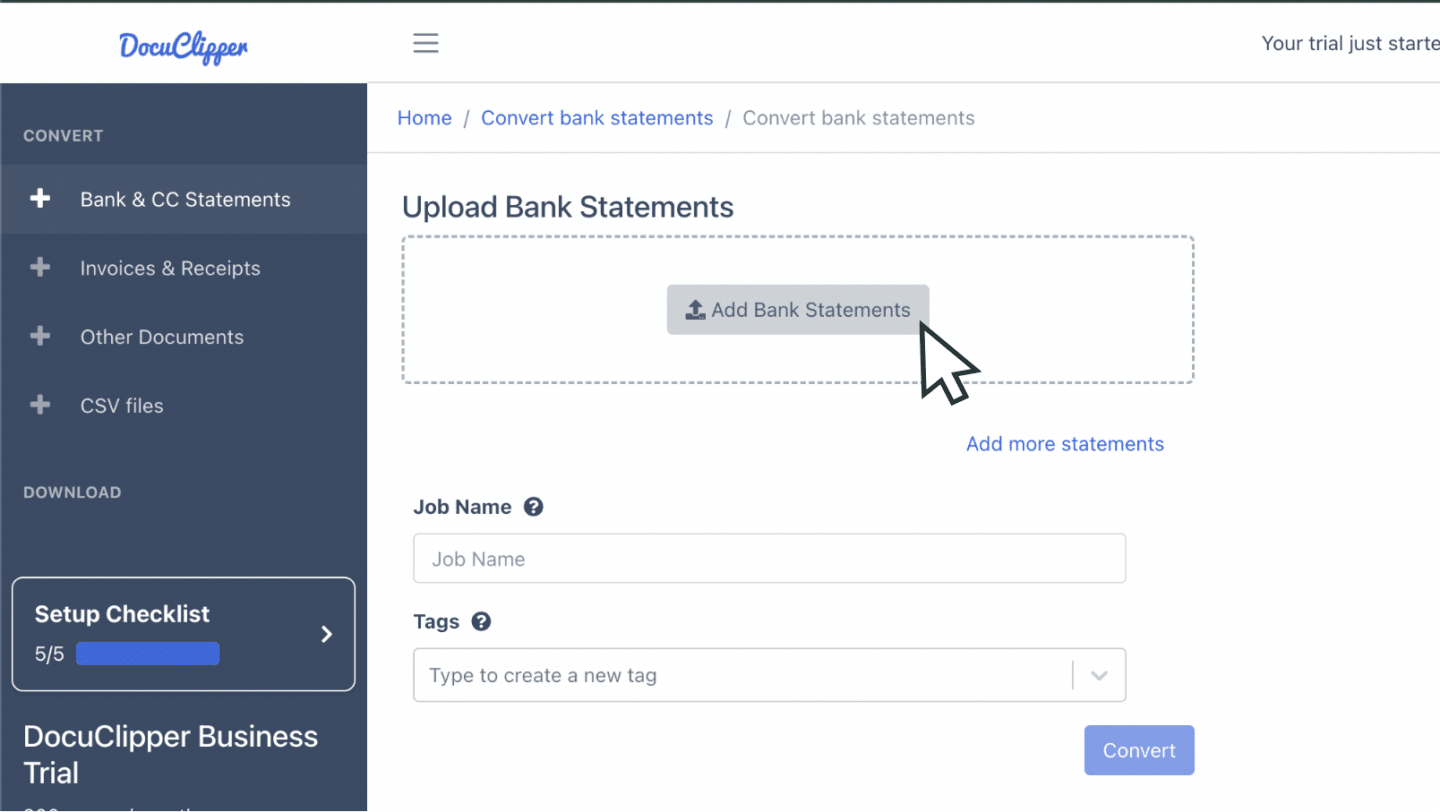
Drag and drop your ABSA PDF. Scan paper statements first.
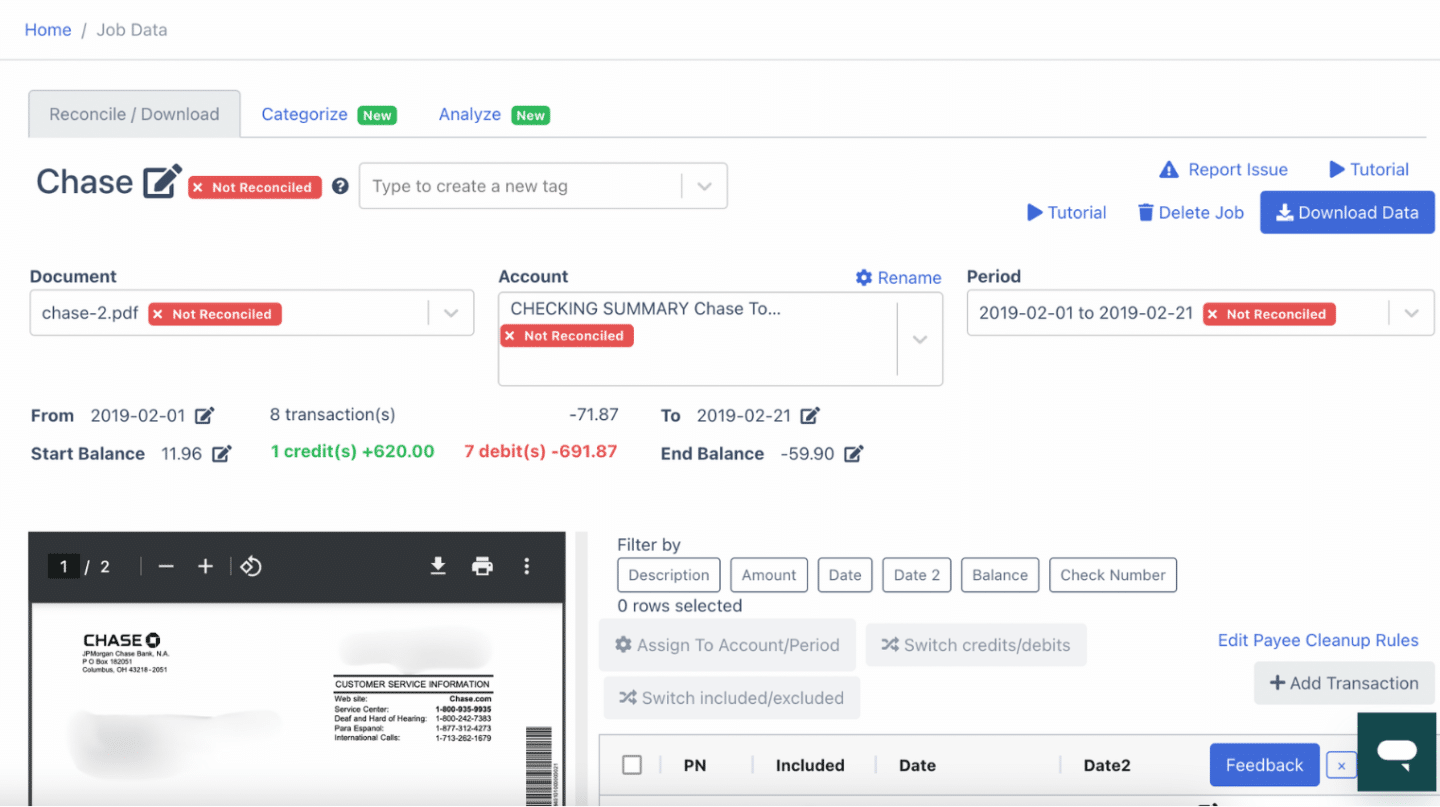
Step 2: Analyze the ABSA Bank Statement
Side-by-side view shows the PDF and the spreadsheet with a summary dashboard.
ABSA statements are often issued in English or Afrikaans; DocuClipper handles both.
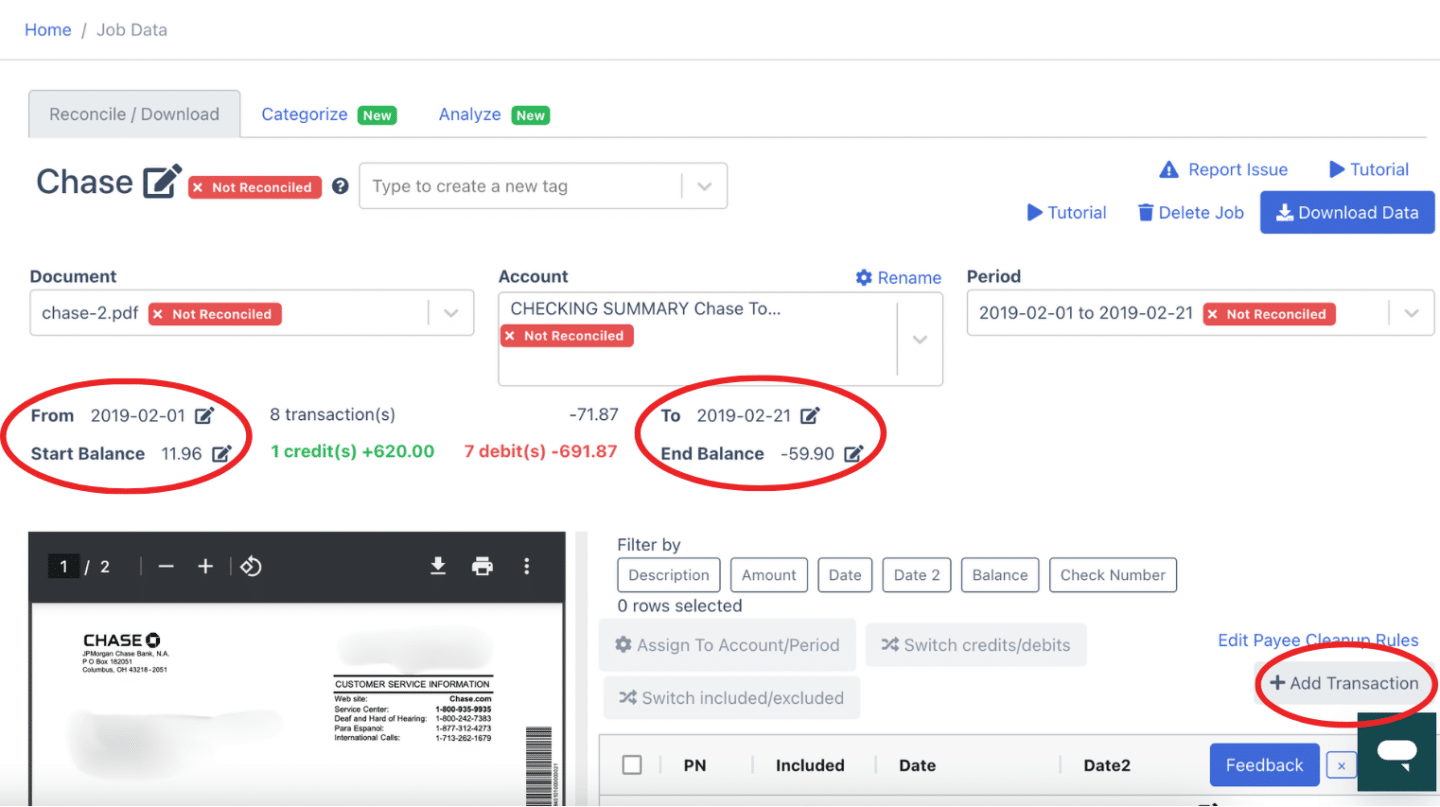
Step 3: Reconcile ABSA Bank Statements
DocuClipper reconciles automatically. Discrepancies are flagged for review.
Step 4: Export ABSA Bank Statement to Excel, CSV, QBO
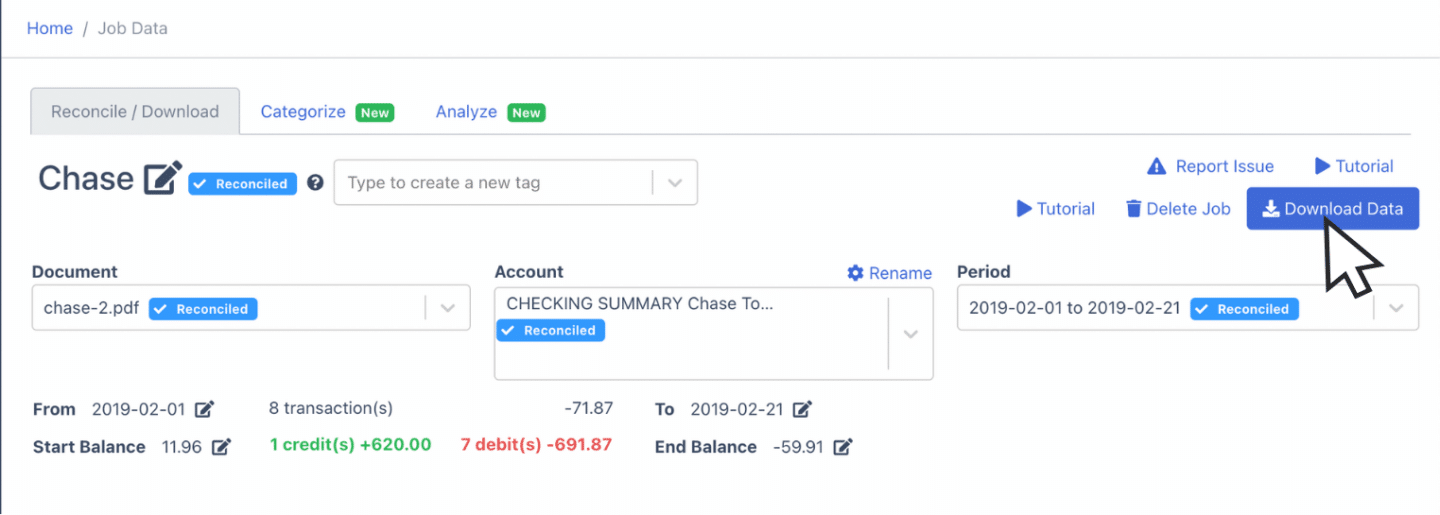
Export to Excel
Export menu → "Excel" → XLSX → Download.
Export to CSV
Export menu → "Excel" → CSV. Premade formats for Quicken, Xero, Sage, MYOB, and NetSuite.
Export to QBO
Export menu → "QuickBooks". See bank statement to QuickBooks.
More guides:
- Import bank statements into QuickBooks
- Import bank statements into Sage
- Import bank statements into Xero
- Import bank statements into NetSuite
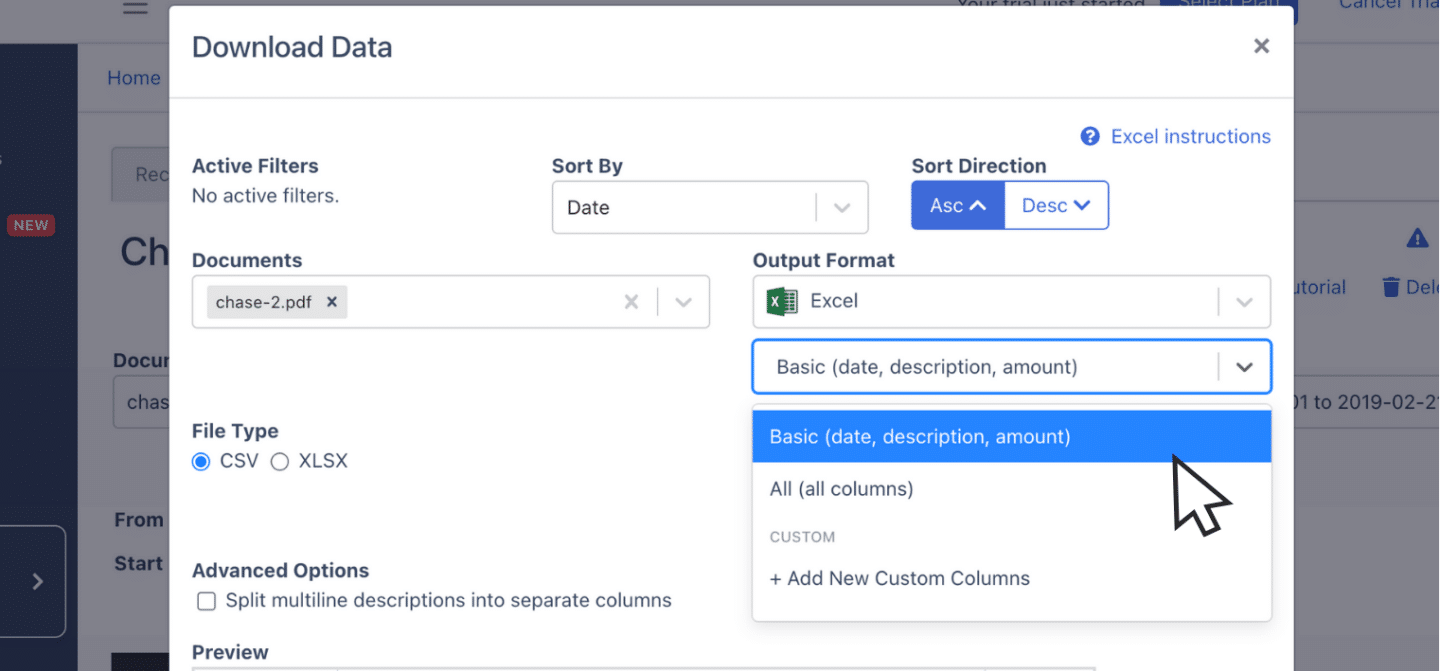
Step 5: Configure the Output Format
Adjust date format (DD/MM/YYYY), reorder columns, or split debits and credits. ZAR amounts are preserved.
Put it into practice
Manual copy-paste is where errors begin
Split rows, drifting balances, missed transactions: they all trace back to re-keying. DocuClipper preserves the bank's layout so debits, credits, and totals tie out the first time.
How to Download an ABSA Bank Statement
ABSA serves customers in English and Afrikaans.
On the ABSA website (absa.co.za):
- Log into ABSA Online Banking.
- Select the account from "My Accounts".
- Click "Statements" (or "Documents").
- Choose the date range, click "View" or "Download" to save the PDF.
In the ABSA Banking App:
- Open the ABSA Banking App and log in.
- Tap the account.
- Tap "Statements" or the menu icon → "Statements".
- Select the period and tap download/share to save the PDF.
eStatements are emailed monthly to the address on file.
Final Advice
Manual data entry from PDFs scales poorly. DocuClipper converts ABSA PDFs into Excel, CSV, or QBO so you can focus on the work that matters.
Why Use DocuClipper to Convert ABSA Bank Statements
DocuClipper is used by 13,000+ businesses to convert PDF bank statements into XLS, CSV, and QBO using OCR. It integrates with QuickBooks, Sage, and Xero, and handles credit card statements, brokerage statements, receipts, and invoices.
FAQs about ABSA Bank Statement to Excel
Can I export my ABSA statement to Excel directly?
No. ABSA only provides PDFs. Convert with DocuClipper.
Does DocuClipper read Afrikaans ABSA statements?
Yes. DocuClipper handles both English and Afrikaans ABSA statements.
How far back can I get ABSA statements?
ABSA Online Banking typically retains several years of statements; older statements through branch request.
Can I convert ABSA business and Islamic Banking statements?
Yes. DocuClipper handles all ABSA statement types including business, corporate, and Islamic Banking products.
Will the ZAR currency be preserved in Excel?
Yes. ZAR amounts and DD/MM/YYYY dates are preserved in the export.
Related Articles
<script type="application/ld+json"> { "@context": "https://schema.org", "@graph": [ {"@type": "Article", "headline": "How To Convert ABSA Bank Statement To Excel, CSV, And QBO", "datePublished": "2026-04-25", "author": {"@type": "Organization", "name": "DocuClipper"}}, {"@type": "HowTo", "name": "Convert an ABSA statement to Excel", "step": [ {"@type": "HowToStep", "name": "Upload", "text": "Upload your ABSA PDF statement."}, {"@type": "HowToStep", "name": "Review", "text": "Review transactions side by side."}, {"@type": "HowToStep", "name": "Reconcile", "text": "Auto-reconcile, fix any flagged items."}, {"@type": "HowToStep", "name": "Export", "text": "Export to Excel, CSV, or QBO."}, {"@type": "HowToStep", "name": "Configure", "text": "Configure output format."} ]}, {"@type": "FAQPage", "mainEntity": [ {"@type": "Question", "name": "Can I export my ABSA statement to Excel directly?", "acceptedAnswer": {"@type": "Answer", "text": "No, ABSA only provides PDFs."}}, {"@type": "Question", "name": "Does DocuClipper read Afrikaans ABSA statements?", "acceptedAnswer": {"@type": "Answer", "text": "Yes."}}, {"@type": "Question", "name": "How far back can I get ABSA statements?", "acceptedAnswer": {"@type": "Answer", "text": "Several years online."}}, {"@type": "Question", "name": "Can I convert ABSA business statements?", "acceptedAnswer": {"@type": "Answer", "text": "Yes, all ABSA statement types are supported."}}, {"@type": "Question", "name": "Is ZAR preserved in the Excel export?", "acceptedAnswer": {"@type": "Answer", "text": "Yes."}} ]} ] } </script>Next step
Upload your first statement free
No credit card required. See extracted transactions in seconds, then export to Excel, CSV, or QBO when you're ready to scale.