
Bank Statement to IIF 4.7/5(124 reviews)3.3M+ bank and card statements converted
Bank Statement PDF to IIF for QuickBooks Desktop
Turn any bank or credit card statement into an IIF built for your client's company file: every account name checked against their chart before you download, and every statement tied to its printed balances first.
4.7/5(124 reviews)3.3M+ bank and card statements converted14-day free trialNo credit card required
Last updated:
How do you convert a bank statement PDF to IIF for QuickBooks Desktop?
Upload the PDF statements to DocuClipper, confirm each one ties out to its printed opening and closing balances, and download QuickBooks Desktop IIF with the source account and your account mapping set. Then import it in QuickBooks Desktop with File, Utilities, Import, IIF Files. Bank and credit card statements both work.
- Exported as IIF, last 12 months
- 300,000+ bank and card transactions
- Posts as
- Deposits and checks, card charges and refunds, or general journal entries
- Accounts
- Each category maps to an account from your QuickBooks Desktop chart
- QuickBooks Desktop
- Pro, Premier and Enterprise; US and Canadian editions
- Median conversion time
- 15 seconds
- Price and trial
- From $29/month; 14-day free trial, no credit card
DocuClipper production data: IIF exports November 23, 2025 to November 22, 2026; median conversion time across all bank statement jobs, October 10 to November 8, 2026.
Used by teams at firms like these













What you get in the IIF file
- Every transaction on the statement, with its date, amount and description, ready for File, Utilities, Import.
- Each transaction posted to the account you categorized it to, or to one clearing account if you'd rather recode in QuickBooks.
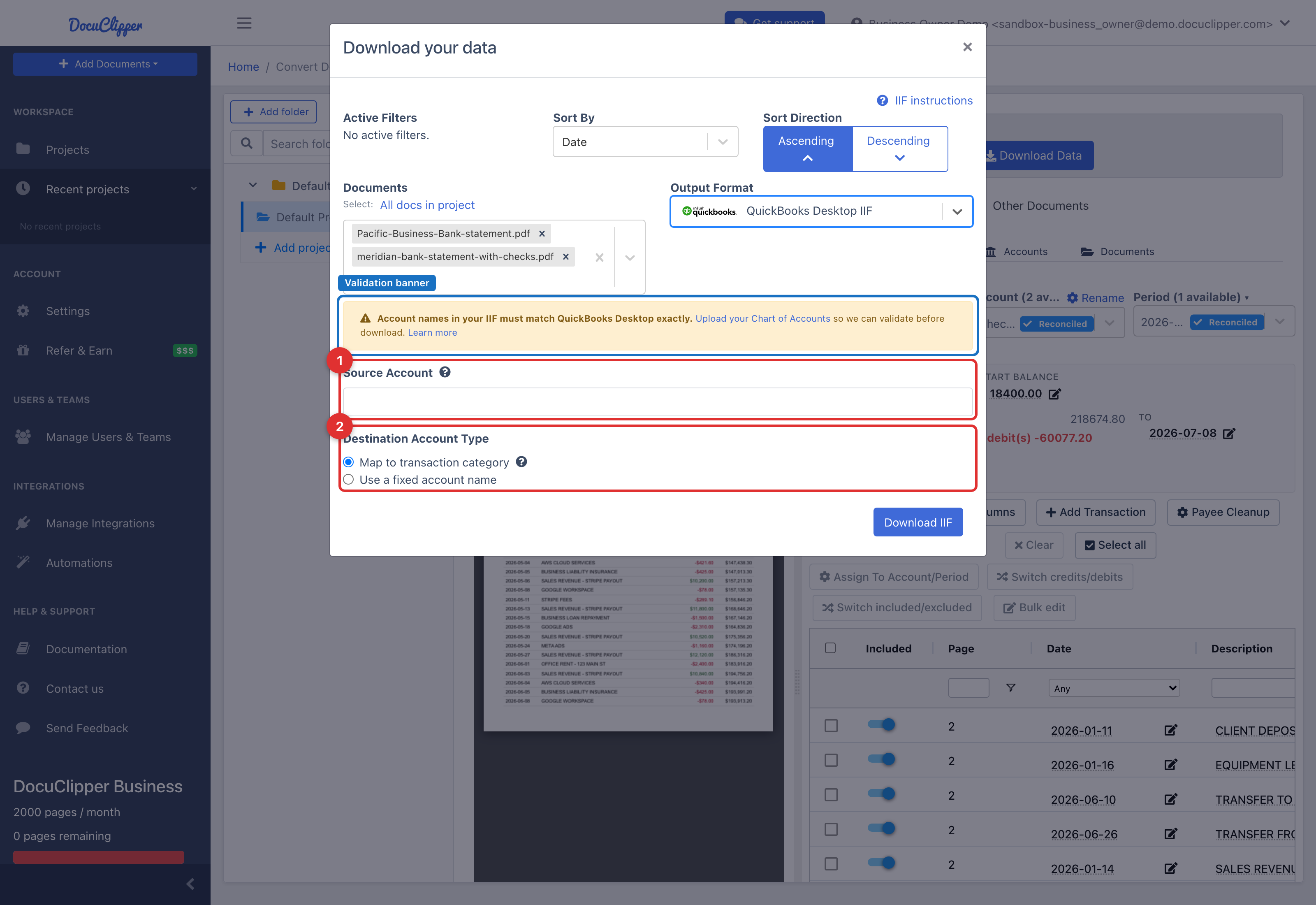
- Account names checked against your saved chart of accounts before download, so the import doesn't stop on a name QuickBooks can't find.
- Bank statements as deposits and checks, credit card statements as charges and refunds, or everything as general journal entries.
- Uncategorized transactions sent to Uncategorized Expenses or Uncategorized Income, created on import if the company file doesn't have them.
- The same conversion also downloads as QBO (Web Connect), Excel or CSV.
How bank statement to IIF conversion works
From PDF statement to transactions in your QuickBooks Desktop register in three steps.
→
Upload your statements
Drag in the PDF bank or credit card statements, digital or scanned. A full year for an account can go in one job.
→
Check the balances
Every statement is checked against its printed opening and closing balances. Anything that doesn't tie out is flagged for a quick look before you export.
Download IIF and import
Choose QuickBooks Desktop IIF, pick the source account, and import the file with File, Utilities, Import, IIF Files.
Why firms on QuickBooks Desktop use DocuClipper for IIF
An IIF import can't be undone in bulk. Get it right before it lands.
Your chart, your account names
Save a client's chart of accounts once and every export uses its exact names, sub-accounts included. Mismatches are listed before you download, not after QuickBooks rejects the file.
Numbers you can sign off on
Each statement is tied to its printed opening and closing balances, so a missed line is caught in DocuClipper instead of at month-end reconciliation.
Bank and card accounts
Checking and savings import as deposits and checks, credit cards as charges and refunds, loans and lines of credit as journal entries.
One project per company file
Each client keeps its own chart of accounts and default accounts, so one client's accounts never show up in another client's export.
Journal entries when you need them
Tick one box to import every transaction as a balanced general journal entry, for any account type. The choice is remembered per project.
Any bank, scanned too
Big banks, community banks and credit unions, current or years-old statements, downloaded or scanned. Nothing to set up.
How the IIF lands in QuickBooks Desktop
Bank and card transactions arrive as the same types QuickBooks uses for downloaded activity, so they show in the register, Check Detail and Deposit Detail, and reconcile like any other bank transaction.
Checking or savings
In: Deposit. Out: Check (Cheque in the Canadian edition).
Credit card
In: Credit card refund. Out: Credit card charge.
Loan, line of credit or other account
In: General journal entry. Out: General journal entry.
Prefer journal entries? Tick Export as General Journal entries and every transaction imports as a balanced journal entry, for any account type. The full walkthrough is in the QuickBooks Desktop IIF import guide, with how to export your chart of accounts and categorize with your QuickBooks Desktop accounts.
Who converts bank statements to IIF
CPA firms
- Catch up a client's year of statements into their company file before the tax deadline.
- Map recurring vendors to the client's accounts once, and every statement after that posts to them without recoding.
- Keep each client in its own project with its own chart of accounts.
Bookkeepers
- Load each month's bank and card statements for clients whose banks don't connect to their QuickBooks Desktop version.
- Import card statements as charges and refunds straight into the card account.
- Reconcile in QuickBooks against statements that already tie out.
QuickBooks Desktop Enterprise teams
- Bring in accounts that have no bank feed, including loans and lines of credit as journal entries.
- Rebuild the history of a closed or acquired account from its old PDF statements.
- Give every preparer and reviewer a login: all plans include unlimited users.
What Customers Say
Real reviews from accountants, bookkeepers, and finance teams.
“DocuClipper has helped us eliminate several manual data entry processes, saving us a lot of time.”
KR
Kristin Mitchell
Accounting, United States
“It's a complete game-changer. Instead of spending hours combing through statements, we get the data we need almost instantly.”
MA
Matt
Lending, United Kingdom
“DocuClipper allowed us to enhance our advisory services, directly impacting our bottom line.”
SA
Sarah Winship
Accounting, United Kingdom
Ready to try it? Start your free 14-day trial, no credit card required.
Start free trialRelated QuickBooks Desktop and bank statement tools
QuickBooks Desktop integration
Every way to get statements and invoices into QuickBooks Desktop: IIF, Web Connect and more.
Learn morePDF to QBO converter
Convert statement PDFs to QBO (Web Connect) for the QuickBooks bank feeds screen.
Learn moreInvoices to QuickBooks Desktop
Post invoices and bills to QuickBooks Desktop as IIF, line items coded to your accounts.
Learn moreCredit card statement converter
Card statements to Excel, CSV, QBO or IIF, checked against the card's balance.
Learn moreBank statement to QIF
QIF files for Quicken, Microsoft Money, GnuCash and Moneydance.
Learn moreBank statement converter
All bank statement conversion formats in one place.
Learn moreBank Statement to IIF FAQs
Upload the PDF statements to DocuClipper and check that each one ties out to its printed opening and closing balances. Then click Download Data, choose QuickBooks Desktop IIF, pick the source account and how transactions map to accounts, and click Download IIF.
Open the company file first, then go to File, Utilities, Import, IIF Files, click Import IIF and select the downloaded .iif file. Don't double-click the file: QuickBooks then tries to open it as a company file. Back up the company file before you import, because an IIF import can't be undone in bulk.
Yes. Set Source Account Type to Credit card and the file imports as credit card charges and refunds in your card account. Bank accounts get deposits and checks, and loans or lines of credit get general journal entries.
Each transaction's category becomes the account on the other side of the entry. Save your chart of accounts to the project once and DocuClipper offers your exact account names, checks every name in the file before download and lists any that don't match. Or post everything to one clearing account and recode it in QuickBooks.
Withdrawals post to Uncategorized Expenses and deposits to Uncategorized Income. The file declares both accounts, so QuickBooks Desktop creates them on import if your company file doesn't have them. You can pick your own accounts per project instead.
Yes. Tick Export as General Journal entries and every transaction imports as a balanced journal entry against the source account, whatever its type. The choice is saved per project.
QuickBooks Desktop Pro, Premier and Enterprise. Choose the United States or Canada edition when you download: the Canadian edition spells withdrawals Cheque and accepts only its own spelling, so the file has to match the company file.
Use IIF when you want each transaction posted straight to an account from your chart, or when your QuickBooks Desktop version no longer takes Web Connect. Use QBO when you want transactions to go through the bank feeds screen and be matched there. Both come from the same conversion.
Give each QuickBooks company file its own project. The chart of accounts is saved on the project, so one client's accounts are never offered in another client's export.
Yes. Scanned PDFs and photos work alongside statements downloaded from online banking.
You can try it free for 14 days, with no credit card: convert up to 120 pages of your own statements, check every extracted transaction, and download a sample IIF of up to 10 transactions to test the import. Full IIF downloads come with a paid plan, from $29/month for 60 pages.
DocuClipper extracts at 99.9% field-level accuracy, and every statement is checked against its own printed opening and closing balances. A statement that doesn't tie out is flagged before you download, so you review that one instead of every row.
Yes. DocuClipper is SOC 2 Type II audited, uploaded files are encrypted in transit and in storage, and you can delete a client's files at any time. Client files are never used to train third-party AI models. Our security page lists everything your firm's vendor file needs: the SOC 2 report, DPA and sub-processor list.
Yes. Every plan includes unlimited users at no extra cost, so preparers, reviewers and partners each get their own login and share the plan's pages. There is no fee per user or per client.