
QuickBooks Desktop 4.7/5(120+ reviews)Trusted by 10,000+ finance teams
Stop Retyping Statements and Bills Into QuickBooks Desktop
For bookkeepers with clients still on Desktop — Pro, Premier, Enterprise, Mac, even 2014. Turn their PDFs into the QBO and IIF files QuickBooks imports, checked against each client’s chart of accounts before you download.
4.7/5(120+ reviews)Trusted by 10,000+ finance teamsNo credit card requiredWorks on versions Intuit discontinuedNo upgrade, no subscription to Intuit
Which file your QuickBooks version will accept
QuickBooks Desktop reads two file formats. Which one you want depends on your edition and on what Intuit still supports for it.
Bank & credit card statements
QBO (Web Connect) file
Desktop versions that still accept Web Connect imports
Convert a PDF statement into the same file format your bank would have sent. Import it under File → Utilities → Import → Web Connect and the transactions land in your register with dates, amounts, and payees already mapped.
Web Connect import guideBank & credit card statements
IIF file
Older versions where bank feeds and Web Connect are gone
When Intuit sunsets online banking for your version, IIF still works. Pick the source account, map each transaction's category to a destination account, and import under File → Utilities → Import → IIF Files. No upgrade, no subscription.
IIF import guideInvoices, bills & receipts
IIF file, as bills or invoices
Accounts payable and accounts receivable
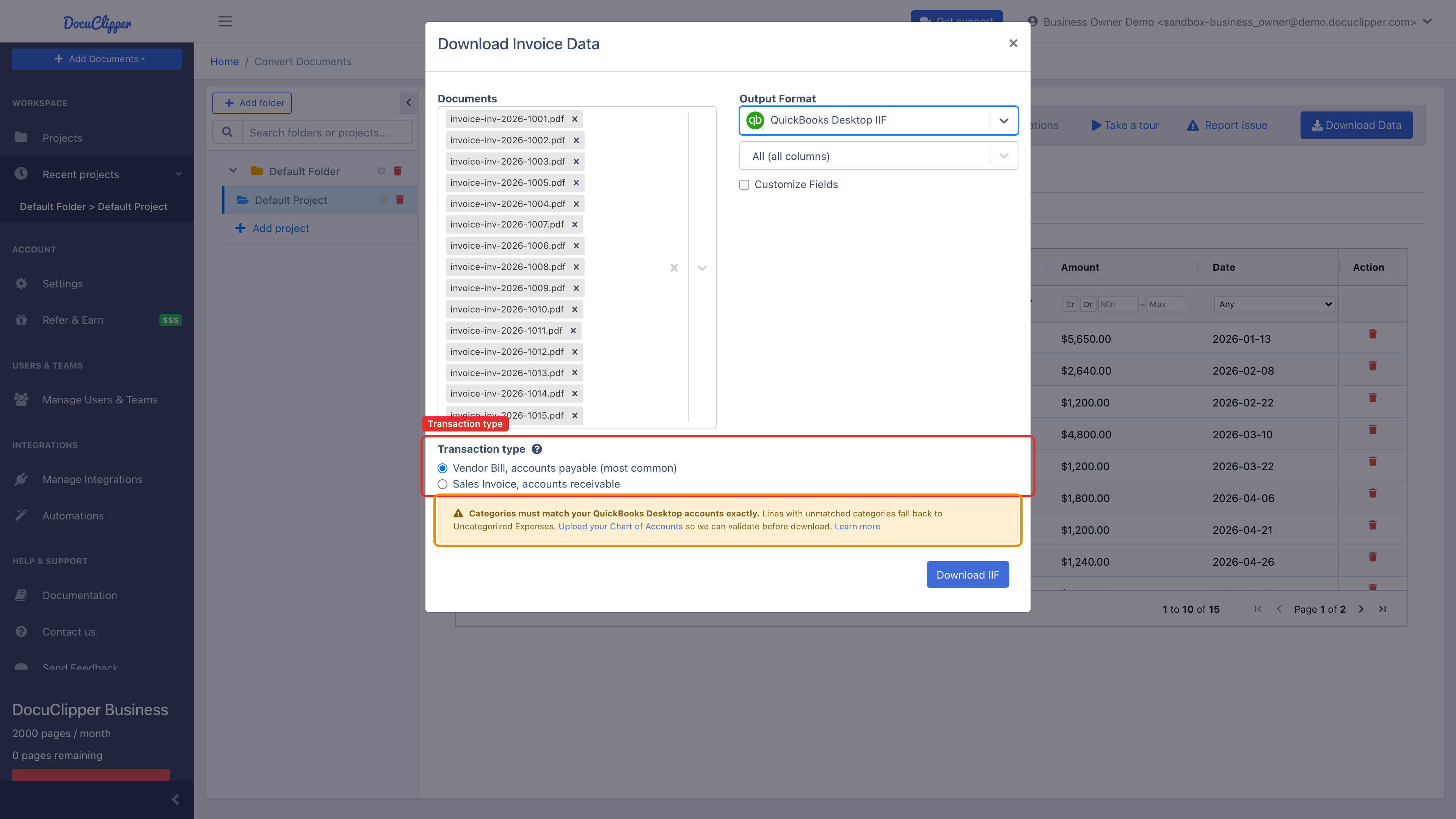
Post each document as a Vendor Bill (TRNSTYPE=BILL) for AP or a Sales Invoice (TRNSTYPE=INVOICE) for AR. Every line item arrives with its own account from your chart, so the bill lands split the way you would have entered it.
Invoice IIF guideNo more “Account Name does not exist”
Pick the posting type, and every account name in the file is checked against the chart you uploaded — while you can still fix it. That check is what prevents “Account Name does not exist”, the most common reason a first IIF import fails.
Which format do I need?
| What you have | Use | Why |
|---|---|---|
| PDF bank or credit card statement, supported version | QBO (Web Connect) | Carries transaction IDs, so QuickBooks does duplicate detection for you |
| PDF statement, version whose bank feeds were discontinued | IIF | IIF import isn't part of the online banking service Intuit sunsets |
| Statement you want posted to specific accounts | IIF | Each transaction's category becomes the destination account on the split |
| Supplier invoice or bill to pay | IIF — Vendor Bill | Posts to accounts payable as TRNSTYPE=BILL with line items intact |
| Invoice you issued to a customer | IIF — Sales Invoice | Posts to accounts receivable as TRNSTYPE=INVOICE |
Pro, Premier, Enterprise, and QuickBooks for Mac. Not sure which import your version still supports? Start with IIF — it works everywhere.
Every bill coded to the client’s own accounts
Coding, approvals, purchase-order matching, and duplicate checks happen in DocuClipper — so the file you import is already right.
Account names checked before download
Upload your Chart of Accounts once per project and every export is checked against it. Mismatches are listed inline, before you open QuickBooks — that name mismatch is what stops most first imports.
Line items coded to your own accounts
Your chart becomes the list DocuClipper codes against. Transactions and invoice lines get an expense account from it, and the Category field becomes a dropdown of your accounts instead of a free-text box you have to spell exactly right.
Approved before it reaches your books
Route bills to the people who have to sign off, and match them against purchase orders, while they are still in DocuClipper — so nothing lands in the company file unreviewed.
Duplicates flagged before you export
Re-upload the same invoice and DocuClipper flags it against the copy already in the project, showing the matching total and date, so you can drop it before it reaches QuickBooks twice.
Step-by-step guides
Export your Chart of Accounts from QuickBooks DesktopDo this first — everything else validates against itImport bank transactions with Web Connect (QBO)For versions that still support itImport bank transactions with IIFWorks on discontinued versionsExport invoices as IIF (bills or sales invoices)AP and AR from the same dialogCategorize transactions with your QuickBooks Desktop accountsBank and credit card statementsCategorize invoice line items with your QuickBooks Desktop accountsCode each line to a real expense account
Trusted by accountants and bookkeepers
“DocuClipper has helped us eliminate several manual data entry processes, saving us a lot of time.”
KR
Kristin Mitchell
Accounting, United States
“It's a complete game-changer. Instead of spending hours combing through statements, we get the data we need almost instantly.”
MA
Matt
Lending, United Kingdom
“DocuClipper allowed us to enhance our advisory services, directly impacting our bottom line.”
SA
Sarah Winship
Accounting, United Kingdom
QuickBooks Desktop questions
Yes. QuickBooks Desktop has no public API for importing transactions the way QuickBooks Online does, so DocuClipper exports the file formats Desktop reads natively: QBO (Web Connect) and IIF for bank and credit card statements, and IIF for invoices, bills, and receipts. It works with Pro, Premier, Enterprise, and QuickBooks for Mac, including versions whose bank feeds Intuit has discontinued.
Yes, and you don't need to upgrade. Intuit sunsets online banking services for older Desktop versions on a rolling schedule, which is what produces messages like “Bank feeds are no longer supported for your version.” IIF import is not part of that service and keeps working. Convert your PDF statements with DocuClipper and import the IIF file under File → Utilities → Import → IIF Files.
Use QBO if your version still accepts Web Connect imports — it carries transaction IDs, so QuickBooks handles duplicate detection for you. Use IIF when Web Connect is unavailable for your version, or when you want each transaction posted to a specific destination account rather than landing in the For Review queue.
That error means a name in the file doesn't match an account in your company file exactly. Export your Chart of Accounts from QuickBooks Desktop and upload it to your DocuClipper project once, under Project Settings → QuickBooks Desktop. Every IIF download is then validated against it and any mismatch is listed before you download, so the import doesn't fail.
Yes. The IIF export dialog has a transaction type choice: Vendor Bill posts to accounts payable as TRNSTYPE=BILL, and Sales Invoice posts to accounts receivable as TRNSTYPE=INVOICE. DocuClipper handles the sign convention, the AR/AP account, and the counterparty for each.
Every line item, with its description, quantity, unit price, and amount, each posted to an account from your chart. That is the difference between a bill you still have to open and split by hand and one that is already coded.
No. DocuClipper reads each document's layout automatically, so statements from hundreds of institutions and invoices from any supplier work without per-bank or per-vendor setup.
Because QuickBooks Desktop doesn't offer one. Unlike QuickBooks Online, Desktop has no public API for pushing transactions into a company file, so every tool that says it works with Desktop is producing a file you import — the difference is how much work is already done when it lands. DocuClipper does the coding, validation, approvals, and duplicate checks before the file is written, so the import step is a download and a File → Utilities → Import.
Yes. Each client gets its own project with its own chart of accounts, and you choose the export format per project — QBO for the ones whose version still takes Web Connect, IIF for the ones it doesn't. Nothing is shared between clients unless you share it.
QuickBooks Online has a direct API integration — DocuClipper pushes bills, expenses, and transactions into it without files. See the QuickBooks hub for that workflow.