
How To Convert BMO Bank Statement To Excel, CSV, And QBO
BMO (Bank of Montreal) is one of Canada's Big Five banks, with personal, business, and US operations through BMO Harris. This guide shows how to convert BMO PDF statements to Excel, CSV, or QBO using DocuClipper, no manual data entry required.
BMO (Bank of Montreal) is Canada's oldest bank, founded in 1817, and one of the country's Big Five. It serves personal, small business, and commercial clients across Canada, with US operations through BMO Bank N.A. (formerly BMO Harris). BMO statements arrive as PDFs through BMO Online Banking, and they follow a consistent two-column withdrawals/deposits layout. To use that data in Excel, QuickBooks, or accounting software, you need a conversion step.
DocuClipper's bank statement converter extracts every transaction from BMO PDFs in seconds, with no manual data entry.
While you are here
Extract every transaction from any bank PDF
Upload a statement from any bank and DocuClipper returns a clean table with dates, amounts, descriptions, and running balance intact. No reformatting before you can reconcile or import.
Step 1: Upload BMO Statement to DocuClipper
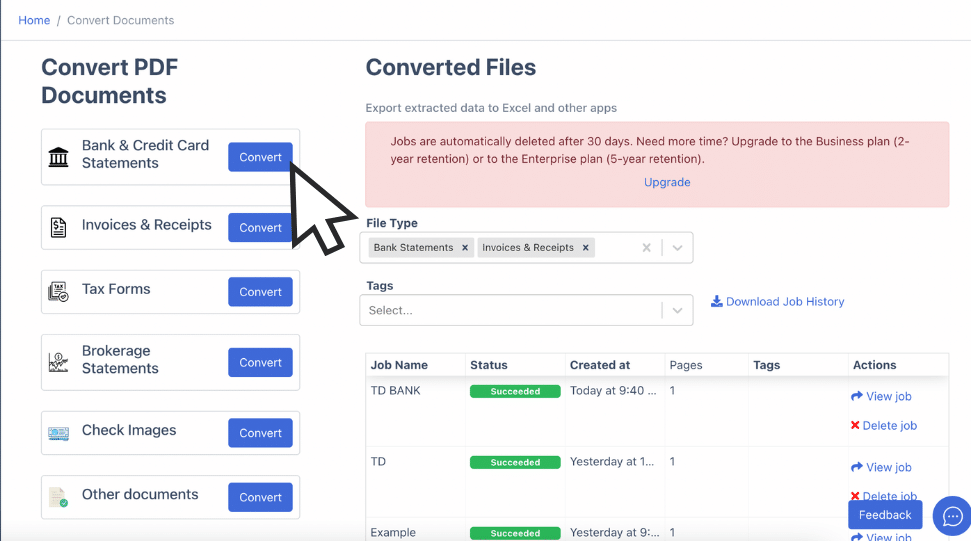
Log into your DocuClipper account (or start a free trial) and navigate to Bank and Credit Card Statements.
Drag and drop your BMO PDF statement into the upload area. BMO issues clean digital PDFs through Online Banking, which DocuClipper's OCR handles with high accuracy.
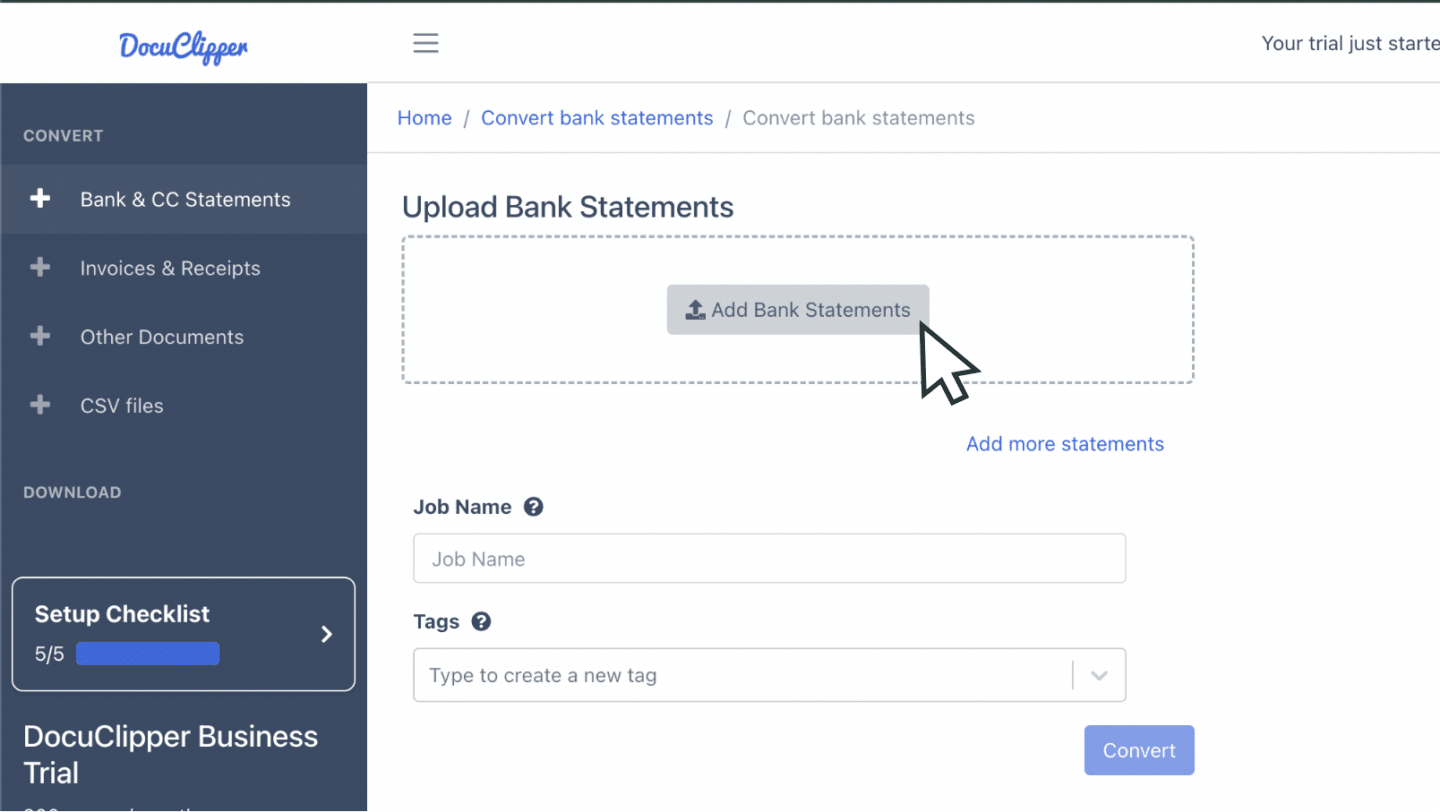
You can also email statements directly to your DocuClipper upload address, useful when clients forward BMO PDFs to you.
Step 2: Review Extracted Transactions
After upload, DocuClipper displays the original PDF alongside the extracted spreadsheet. Every transaction row, including dates, descriptions, withdrawals, deposits, and running balances, is pulled automatically.
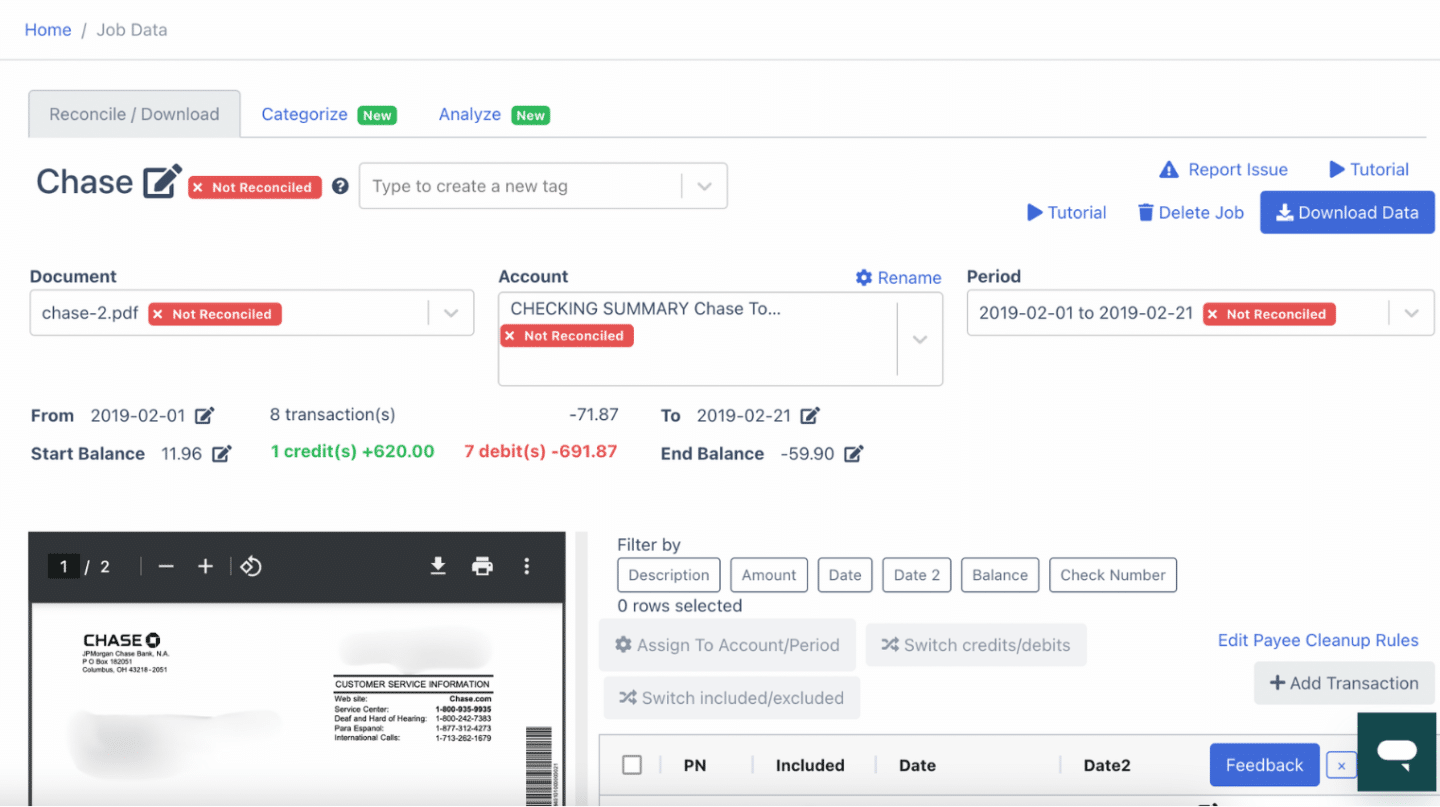
Scan the side-by-side view to confirm all rows were captured correctly before exporting.
Step 3: Reconcile the Statement
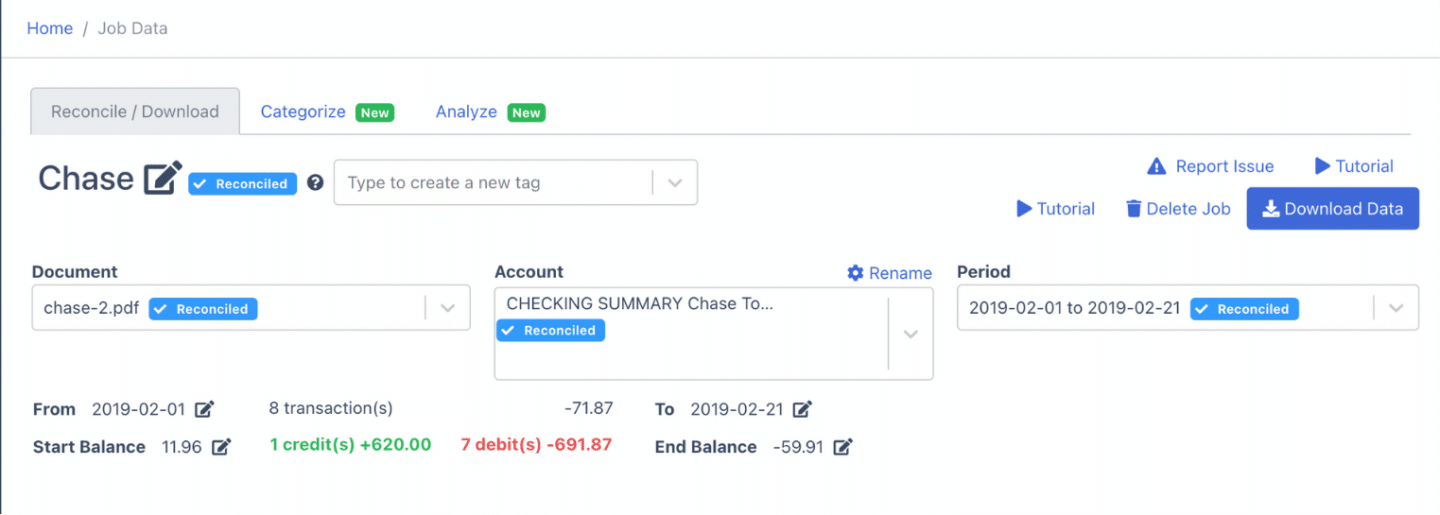
DocuClipper automatically reconciles the statement when you click convert. It compares the sum of extracted transactions against BMO's stated opening and closing balances.
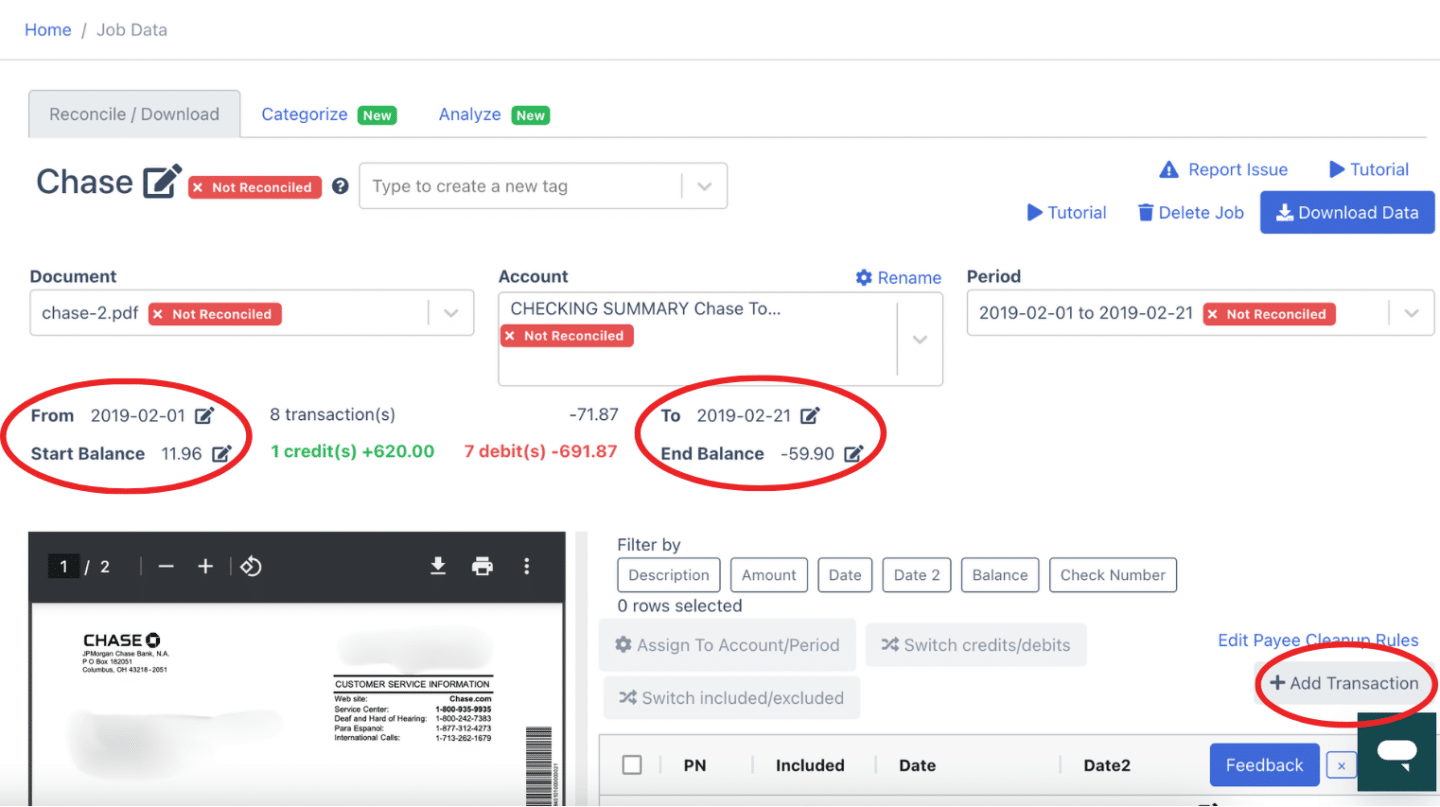
Reconciled statements are marked clearly. If a discrepancy appears, you can add missing transactions or edit figures directly in the dashboard before exporting.
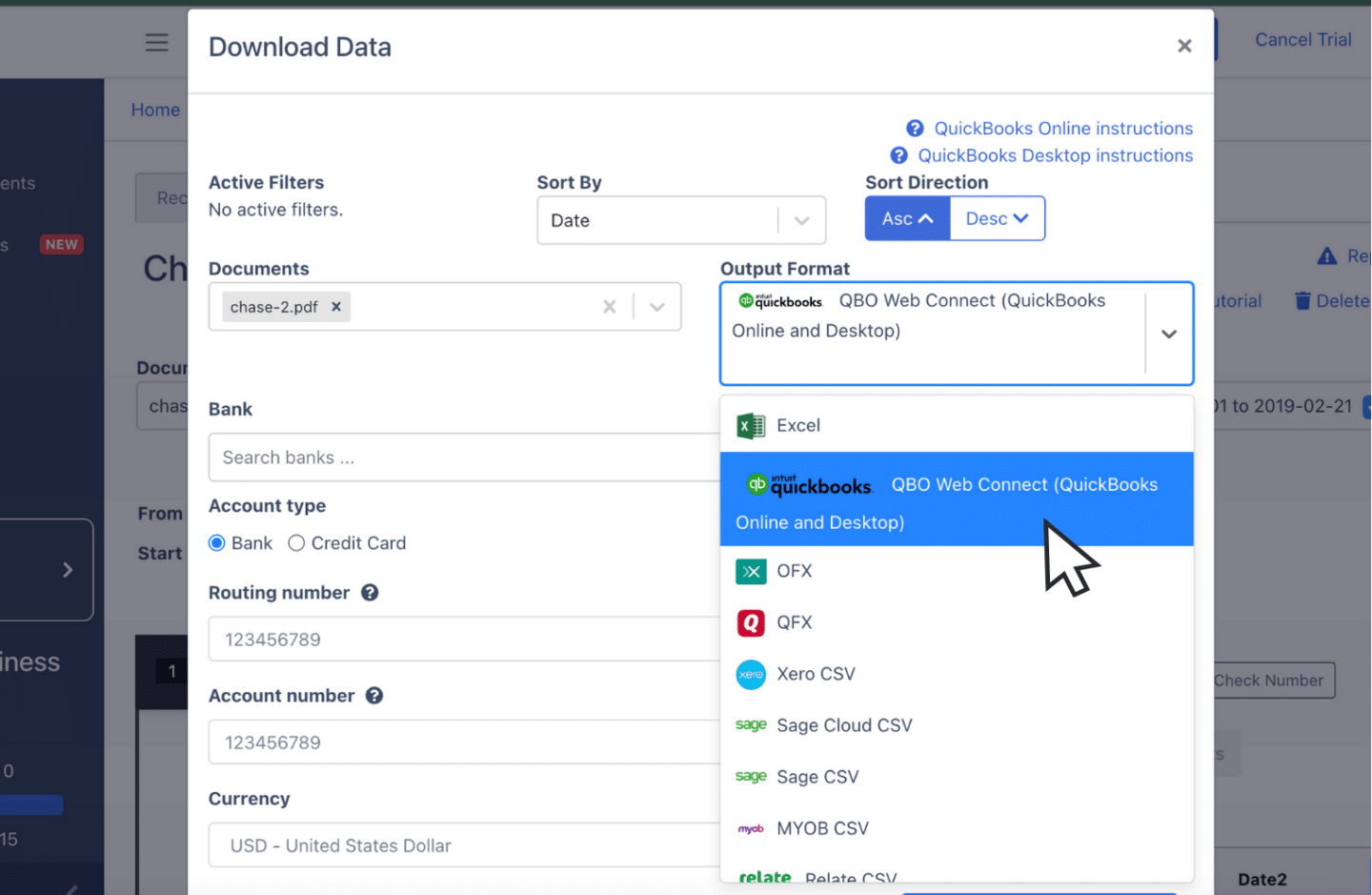
Step 4: Export to Excel, CSV, or QBO
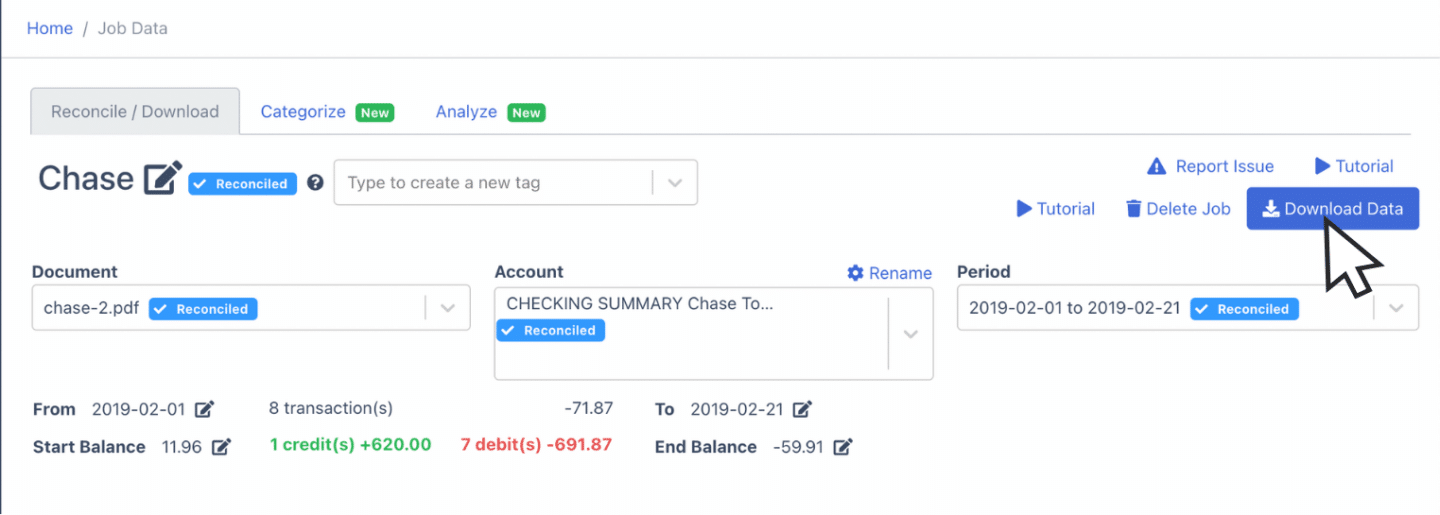
Click Download Data to export.
Export to Excel
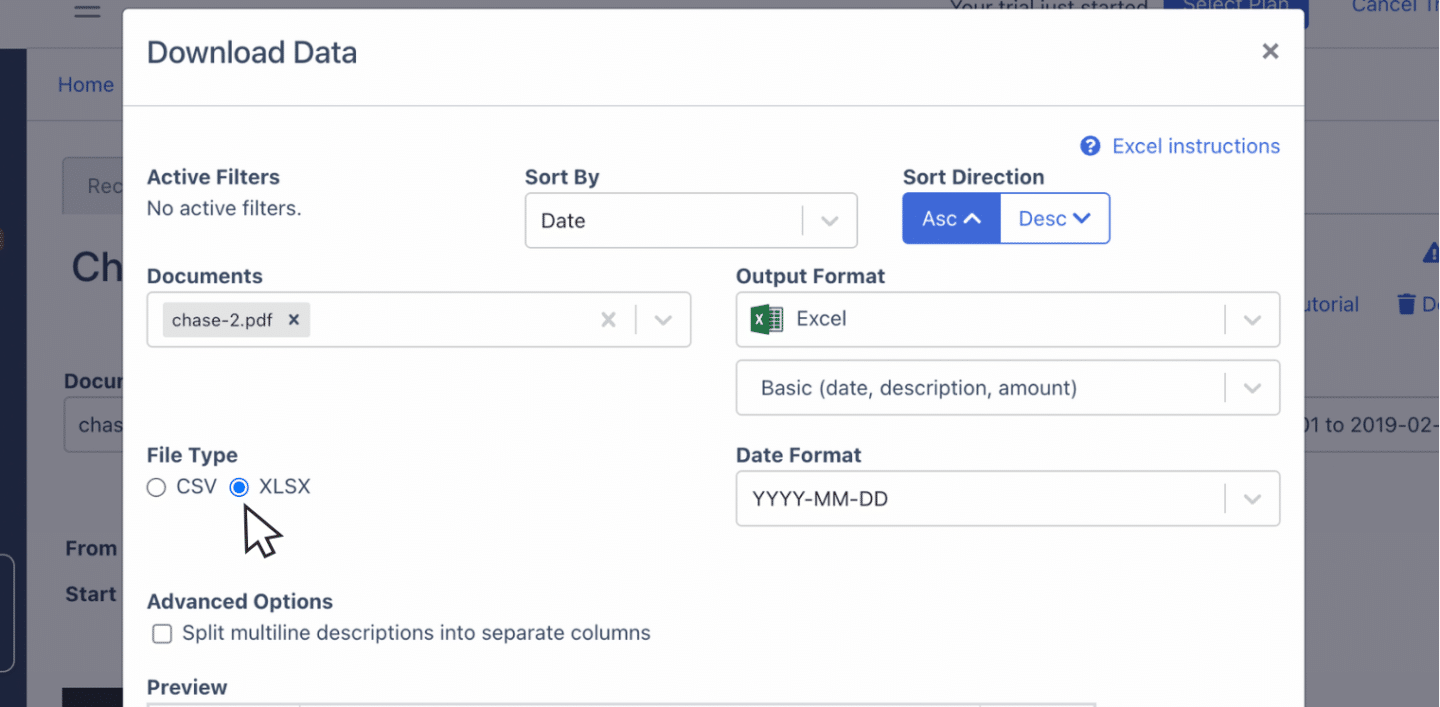
Select Excel and choose XLSX. The file downloads immediately and opens in Microsoft Excel or Google Sheets.
For all banks and statement formats, DocuClipper's bank statement to Excel converter works the same way.
Export to CSV
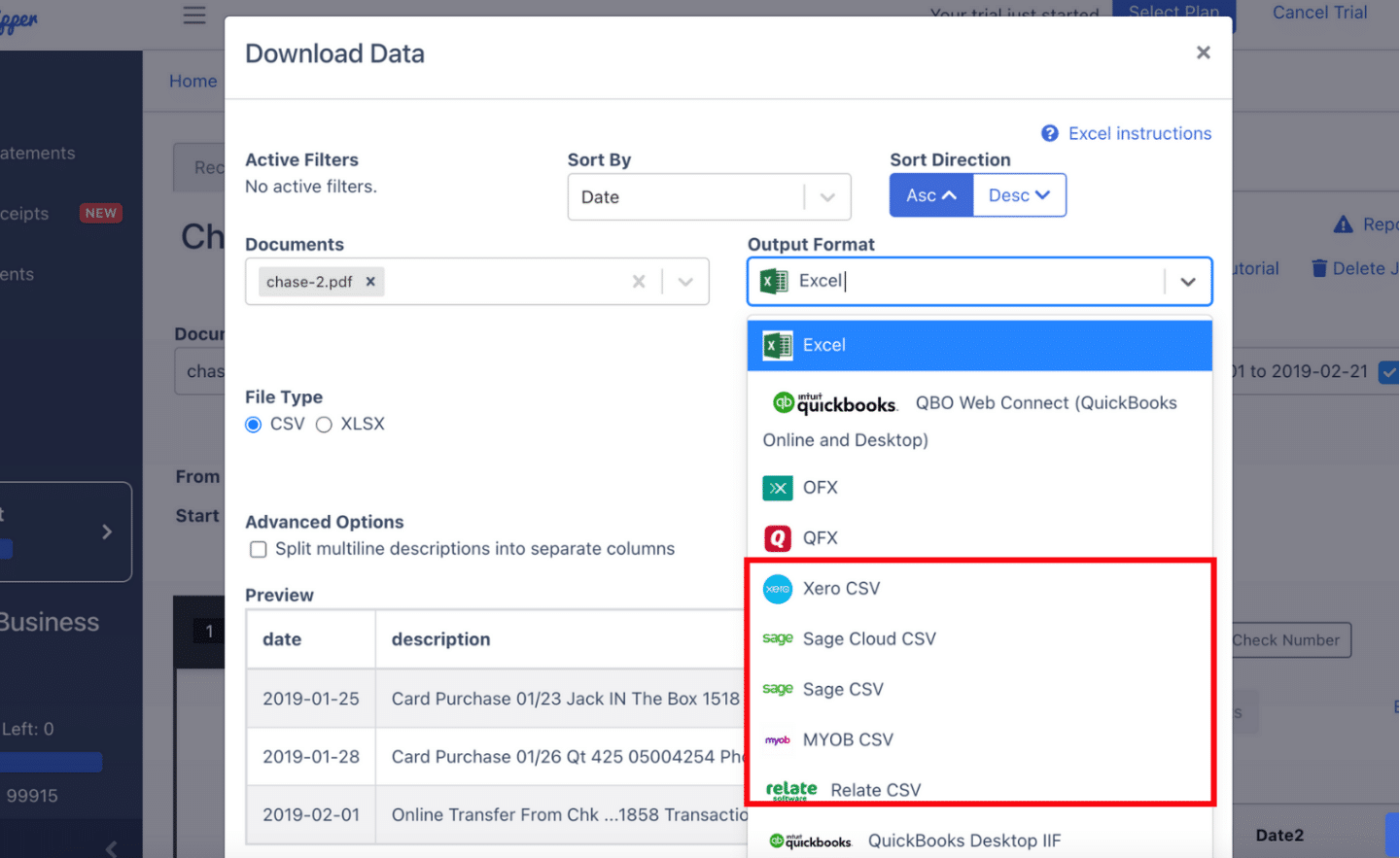
Select Excel then CSV. DocuClipper also provides pre-formatted CSV layouts for Quicken (QFX) or QIF, Xero, Sage, MYOB, and NetSuite.
For a broader walkthrough, see our guide on how to convert bank statements to Excel or CSV.
Export to QBO
Select QuickBooks to generate a QBO file for direct import into QuickBooks Desktop or Online.
For a complete guide to importing bank statements into QuickBooks, see bank statement to QuickBooks.
Also useful:
Put it into practice
Manual copy-paste is where errors begin
Split rows, drifting balances, missed transactions: they all trace back to re-keying. DocuClipper preserves the bank's layout so debits, credits, and totals tie out the first time.
How to Download BMO Bank Statements
Online (bmo.com):
- Sign in to BMO Online Banking.
- Select the account you want statements for.
- Click eStatements (or View Statements).
- Choose the statement period and click Download PDF.
In the BMO mobile app:
- Open the BMO mobile app and sign in.
- Tap the account, then Statements & Documents.
- Select the period and download the PDF.
Available history: BMO retains up to 7 years of eStatements through Online Banking. For older statements, contact BMO directly.
Note: If you bank with BMO in the US (BMO Bank N.A., formerly BMO Harris), the statement format and download process are similar but accessed through bmo.com/us. DocuClipper handles both Canadian and US BMO statements.
Why Convert BMO Statements with DocuClipper
- Digital PDFs, high accuracy: BMO issues machine-generated PDFs through Online Banking, so DocuClipper's OCR extraction is consistently accurate without scan noise.
- Withdrawals and deposits cleanly separated: BMO's two-column layout maps directly into the debit/credit columns of the export, ready for accounting software.
- All formats covered: Excel, CSV, QBO, OFX, and pre-formatted exports for major accounting platforms including Xero and Sage.
- Reconciliation built in: Statements are verified against BMO's stated balances before you export, catching any extraction gaps before they affect your work.
FAQs about BMO Bank Statement to Excel
Can I download BMO statements as CSV directly?
BMO does not offer a native CSV export of full monthly statements. You can download recent transaction activity in other formats from Online Banking, but those exports do not include the opening and closing balance summary that lenders and auditors expect. DocuClipper converts the full PDF statement into a structured spreadsheet that includes all balance data.
Does DocuClipper work with BMO chequing, savings, and credit card statements?
Yes. DocuClipper handles all BMO account types including chequing, savings, business banking, and BMO Mastercard credit card statements. The extraction process is the same regardless of account type.
How far back can I get BMO statements?
BMO retains up to 7 years of eStatements through Online Banking. For older statements, contact BMO directly to request them. Once you have the PDFs, batch-upload them to DocuClipper to get a consolidated Excel file covering the full date range.
Can I convert multiple BMO statements at once?
Yes. DocuClipper supports multi-file uploads. Drop all your BMO PDFs into one batch and download a single combined Excel file, or export each statement individually.
Does DocuClipper work with BMO Harris (US) statements?
Yes. BMO Bank N.A. (formerly BMO Harris) statements use a similar layout to BMO Canada statements. DocuClipper handles both.
Related Articles
- Bank Statement Converter
- Bank Statement to CSV
- How to Convert Bank Statements to Excel or CSV
- How to Convert RBC Bank Statement to Excel
- How to Convert TD Bank Statements to Excel
- How to Convert CIBC Bank Statement to Excel
- How to Convert Desjardins Bank Statement to Excel
- How to Convert National Bank of Canada Statement to Excel
- How to Convert Tangerine Bank Statement to Excel
Next step
Upload your first statement free
No credit card required. See extracted transactions in seconds, then export to Excel, CSV, or QBO when you're ready to scale.