
Audit Log
Enable audit logging to track every sign-in, edit, and deletion on your account, then download a CSV for compliance review.
Last updated
The audit log records key account activity, such as sign-ins, administrative access, and plan or permission changes, so you can review who did what and when for compliance and troubleshooting. It is off by default and must be turned on by an account admin.
Audit logging is included on Business and Enterprise plans. If you don't see the controls described below, your plan doesn't include it: upgrade to Business to turn it on.
Where to find it
In the app, go to Account → Exports & Audit (/account?section=exports). The Audit log card is at the bottom of that page, below the Processing history download.
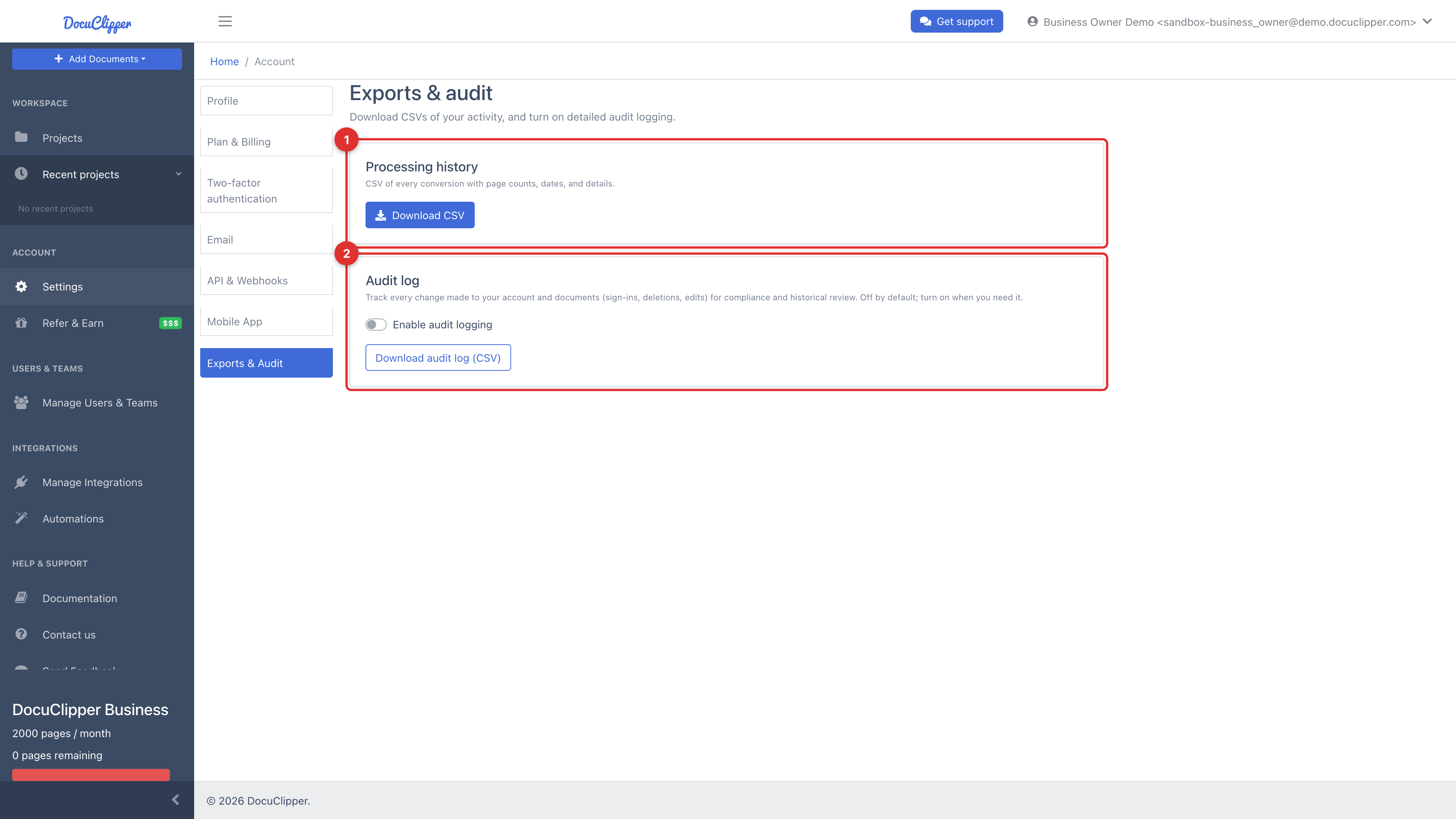
Turning audit logging on
- On the Exports & Audit page, find the Audit log card.
- Toggle Enable audit logging to on.
- The switch changes to Audit logging is on and you'll see a confirmation.
Once enabled, DocuClipper starts recording subsequent activity. Actions taken before you turned logging on are not retroactively captured.
Downloading the audit log
Click Download audit log (CSV) at any time to export a CSV (audit_log.csv) of the recorded events. Each row includes:
- Timestamp
- User (the actor, and the account email)
- Action performed
- Affected target
- IP address
The download includes all events recorded since logging was first enabled on your account.
Turning audit logging off
Toggle the switch back to off. Existing log records are preserved, so you can still download the history even after disabling.
Who can access this
Audit logging is available on Business and Enterprise plans, and is managed by account admins. Enabling or disabling audit logging and downloading the CSV all require admin access, non-admin users won't be able to change the setting or export the log even if they can see the Exports & Audit page.