
Two-Factor Authentication (2FA)
Add an authenticator app as a second login factor to protect your DocuClipper account.
Last updated
Two-factor authentication (2FA) adds a second verification step at login. After entering your password, you'll also enter a one-time code from an authenticator app (Google Authenticator, Authy, 1Password, etc.).
Admin access required. The 2FA setup screen is only visible to account (contract) admins and DocuClipper support staff. If you don't see it in your account settings, contact your account admin.
Setting up 2FA
- Go to Account settings. If you're an admin, a Two-factor authentication entry appears in the section list.
- Click Two-factor authentication.
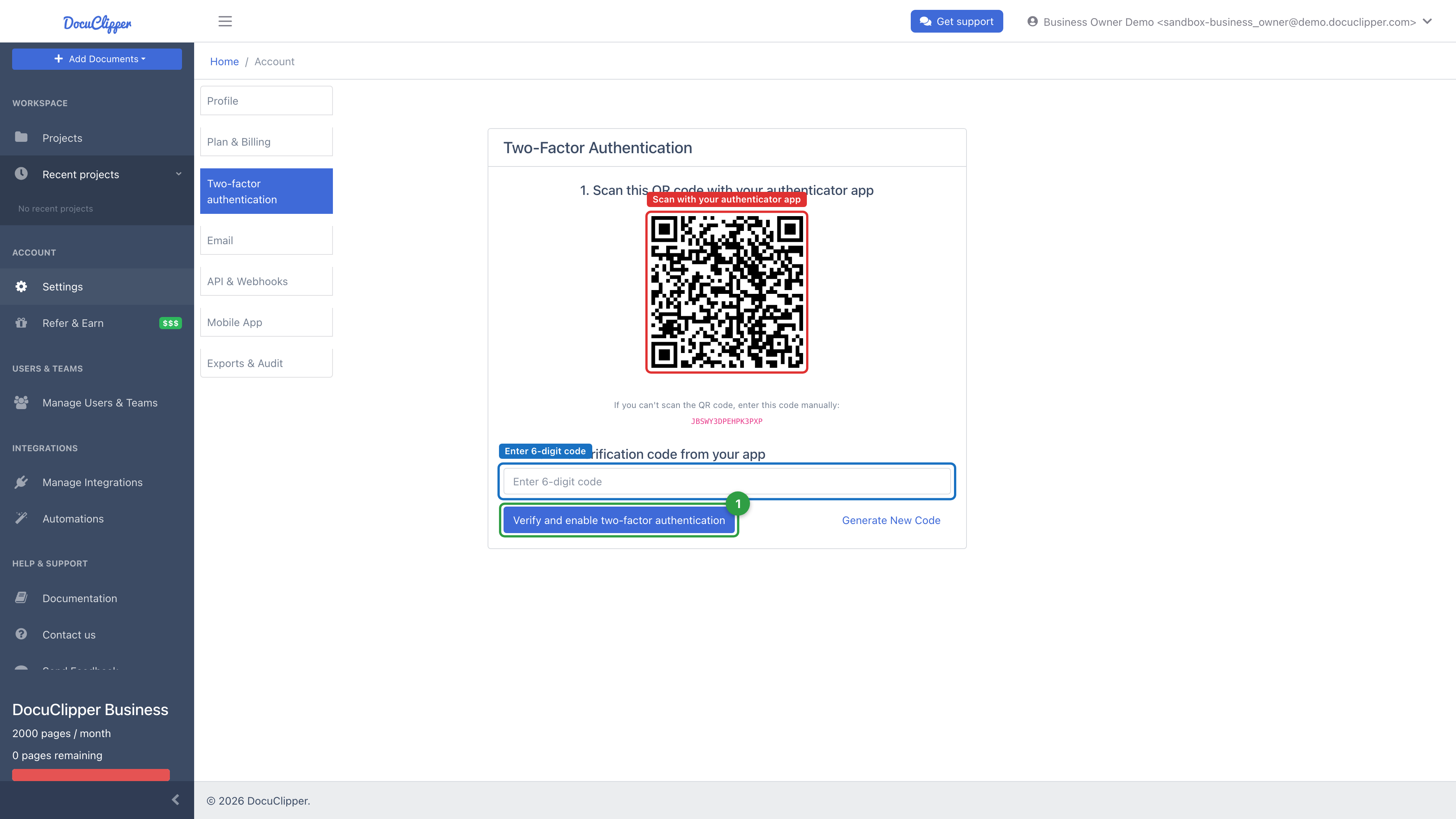
- Open your authenticator app (Google Authenticator, Authy, 1Password, etc.) and scan the QR code shown on screen. If you can't scan it, enter the secret key manually.
- The authenticator app will show a 6-digit code. Enter it and click Verify and enable two-factor authentication.
- Once verified, 2FA is active. You'll be asked for a code on every subsequent login.
Turning 2FA on signs you out of DocuClipper on every other device and browser, so each of them has to log in again with a code. The browser you used to turn it on stays signed in.
Store the secret on a second device or in a password manager during setup - DocuClipper does not issue one-time recovery codes (see below).
Logging in with 2FA enabled
- Enter your email and password as normal.
- When prompted, open your authenticator app and enter the current 6-digit code.
- Codes refresh every 30 seconds. If the code fails, wait for the next one.
Disabling 2FA
Turning 2FA off needs a current code from your authenticator app, the same as logging in. Being signed in is not enough on its own, so someone who gets hold of a signed-in browser cannot remove your second factor.
- Go to Account settings and click Two-factor authentication.
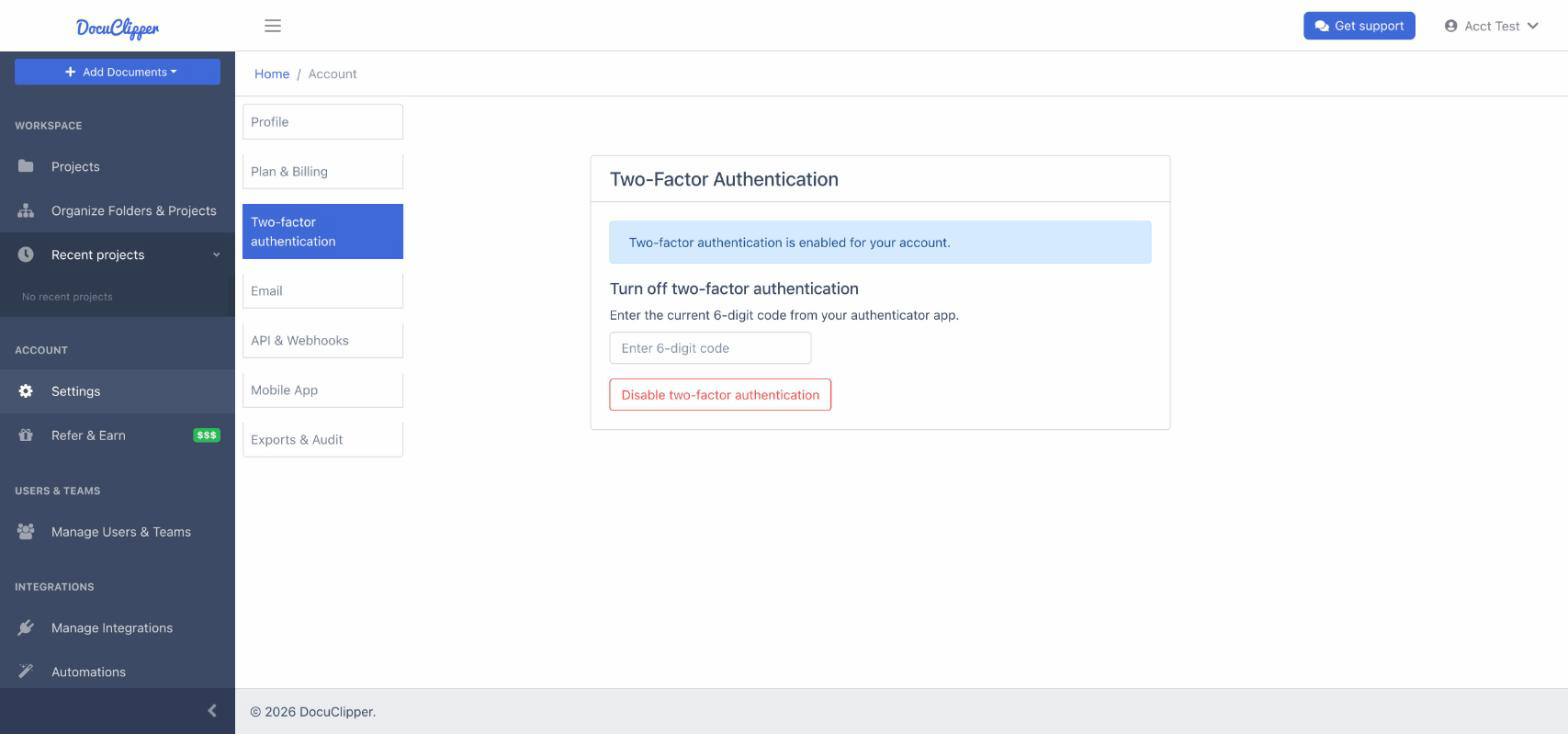
- Under Turn off two-factor authentication, enter the current 6-digit code from your authenticator app.
- Click Disable two-factor authentication.
2FA is removed from your account, so you won't be asked for a code at your next login. Turning it off also signs you out on your other devices and browsers. The browser you used to turn it off stays signed in.
If the code is not accepted, wait for the next one in your app and enter it before it changes. After 5 incorrect codes, turning 2FA off is paused for 15 minutes.
If you've lost access to your authenticator app and can't log in, see Recovering access when you lose your 2FA authenticator. DocuClipper does not issue one-time backup codes, so the recovery path is a verified support reset.
Signing out other devices
Changing your password or turning 2FA on or off signs you out of DocuClipper on all your other devices and browsers. Use this when a device is lost or shared: change your password (see How to Change Personal Information and Email) and every other session ends at once. Anyone using those sessions has to log in again with the new credentials.
A note on backup codes
Some products give you a one-time list of recovery codes when you enable 2FA. DocuClipper does not. To stay protected against losing access, store the 2FA secret on a second device or in a password manager during setup. See the recovery guide for the recommended setup.