
Managing Project Documents
Use the Documents section inside a DocuClipper project to download the original PDF, delete a source file, and move documents to another project — and understand how documents map to transactions.
Last updated
Every source file you upload to a project is listed in that project's Documents section, alongside its transactions and analysis. From there you can download the original PDF, delete a file, and move documents to another project.
Documents, transactions, and projects sit in a clear hierarchy: a project contains many documents, and each document contributes the transactions extracted from it. Understanding that relationship makes cleanup and troubleshooting much faster.
How are documents, transactions, and projects related?
A project is the workspace you create for a client, an account, or a review period. Inside that project, every file you upload becomes a document. The rows in the Transactions view are extracted from those documents — each transaction belongs to exactly one source document.
When you delete a document, the transactions extracted from it go with it. The rest of the project is untouched.
Where is the Documents section?
Open a project, then pick the document type at the top (for example Bank/CC Transactions). In the row of sections below it — Transactions, Categorize, Advanced Analysis, Fraud Detection, Accounts — click Documents.
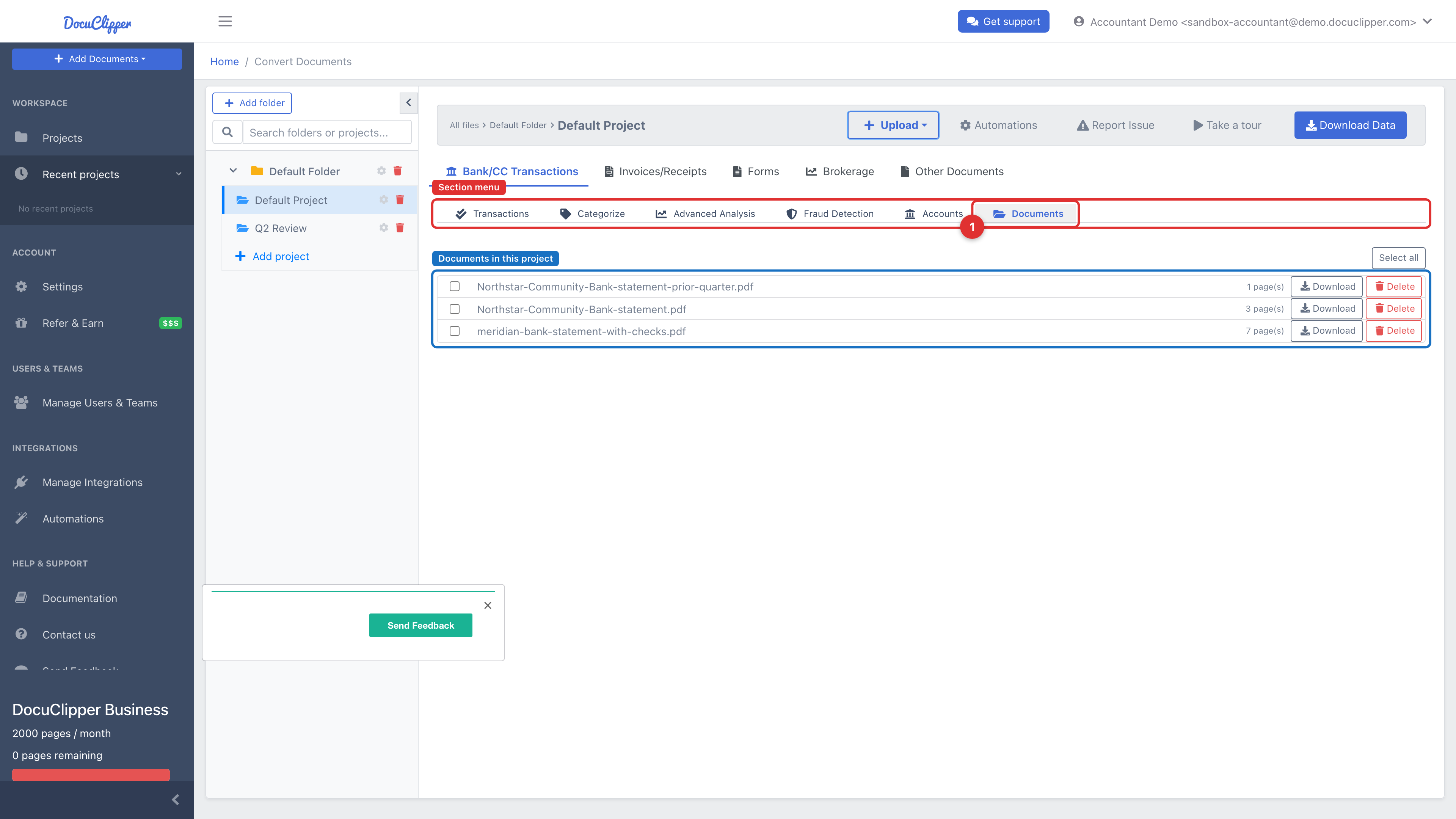
The Documents section lists every file uploaded to the project for that document type, showing the file name and its page count. Each of the other document types (Invoices/Receipts, Brokerage, Other Documents) has its own Documents section that works the same way.
Can I download the original file I uploaded?
Yes. Each document row has a Download button that returns the exact file you uploaded. This is useful when you need to share the source with a client, send it to an auditor, or re-upload it to a different project. You can also right-click a row and choose Download.
How do I delete a document?
Use the Delete button on the document row (or right-click the row and choose Delete). DocuClipper asks you to confirm, then removes the file and every transaction extracted from it. Any tags, categorizations, and notes attached to those transactions are removed with them.
Delete is permanent within the project and can't be undone. If you might need the file again, download the original first.
How do I move documents to another project?
Select one or more documents with the checkboxes, then click Move to project in the selection bar (or right-click a single row and choose Move to project). Pick the target folder and project, then confirm. Moving a document carries its transactions with it.
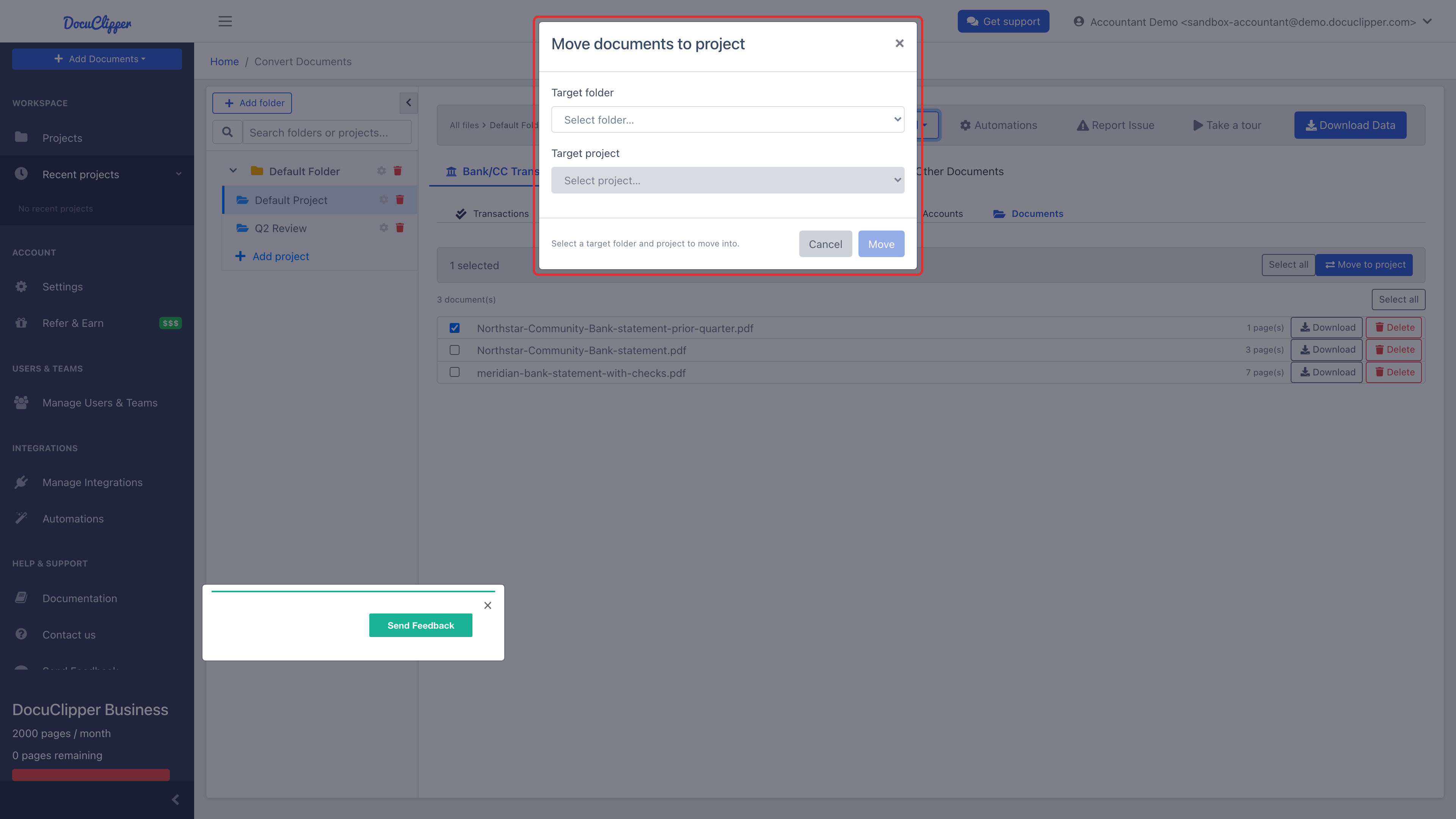
You need at least one other project to move into. If the account has only one project, create a second one first and it will appear as a target.
How do I find which statement a transaction came from?
Open the Transactions section. When a project holds more than one document, a document picker appears above the transaction list — use it to switch to a single document and see only the transactions extracted from that file. That's the fastest way to tie a transaction back to its source, and from there you can jump to the Documents section to download or delete the file.
Does a document reconcile?
Reconciliation is shown in the Transactions view (and summarized in the Coverage report under Advanced Analysis), not in the Documents list. A statement reconciles when its extracted transactions tie to the printed beginning and ending balances; if the running total doesn't match, it usually means a transaction was missed, duplicated, or an amount was misread.
A statement that doesn't reconcile is a signal to investigate before trusting downstream analysis. See How to Fix "Not Reconciled" Statements.
FAQs
Can I download the original file I uploaded?
Yes. Each document row in the Documents section has a Download button that returns the original file exactly as you uploaded it.
What happens to transactions when I delete a document?
Deleting a document permanently removes every transaction extracted from it, along with any tags, categorizations, and notes on those transactions. The rest of the project's data is unaffected.
How do I move a document to another project?
In the Documents section, select the documents, click Move to project, and pick the target folder and project. The document's transactions move with it. You need at least one other project to move into.
How do I find which statement a transaction came from?
Open the Transactions section. If the project has more than one document, use the document picker above the list to filter to a single document and view only its transactions.
Does the Documents section reconcile my statements?
No — reconciliation status appears in the Transactions view and in the Coverage report, not in the Documents list. The Documents section is for downloading, deleting, and moving source files.
How many documents can I upload to a project?
There's no fixed per-project document limit; uploads are bounded by your plan's page allowance, not the number of files. Very large projects work fine, though analysis screens may take longer to load.