
How to Fix "Not Reconciled" Statements in DocuClipper
Learn how to diagnose and fix reconciliation errors when DocuClipper shows a "Not Reconciled" status for your bank or credit card statements.
Last updated
Understanding Reconciliation
When bank or credit card statements are uploaded to DocuClipper, the system automatically extracts transaction data and calculates totals to verify alignment with the original statement. This verification process is called reconciliation.
A Reconciled status indicates that DocuClipper's extracted data matches the statement's totals. Conversely, a Not Reconciled status signals a mismatch, typically caused by missing data, misclassified transactions, or unavailable totals in the uploaded document.
Reconciliation is tracked per account and period, not per file. A PDF that holds several accounts or months can show some periods Reconciled and others Not Reconciled at the same time - fix each period on its own.
DocuClipper captures these key values:
- Start Balance (if available)
- End Balance
- Total Credits (Deposits/Incomes)
- Total Debits (Withdrawals/Expenses)
- Number of Credits
- Number of Debits
Common Causes of "Not Reconciled" Status
- Missing Transactions: One or more transactions weren't extracted due to formatting issues or scanning problems
- Incorrect Transaction Type: A transaction classified as debit instead of credit (or vice versa)
- Incomplete Statement Data: The PDF lacks totals for debits, credits, or balances
- Corrupted or Partial Upload: Missing or cropped pages during upload
How to Fix Reconciliation Issues
1. Review the Summary panel
Open the period and check the Summary panel. It shows the extracted Start Balance, End Balance, and the credit and debit counts and totals, next to a Reconciled / Not Reconciled badge. Compare these against the statement's printed totals to see where the mismatch is.
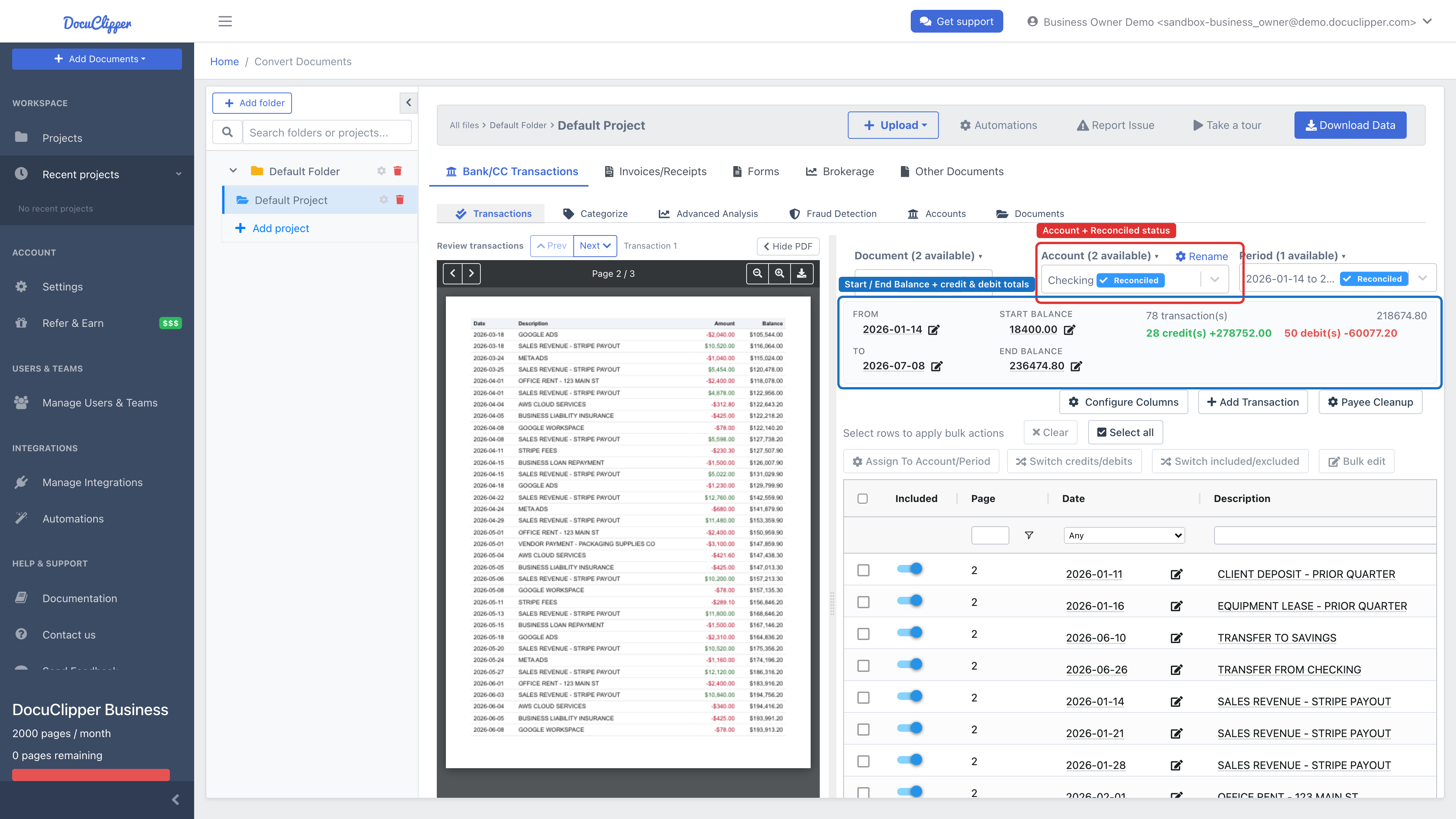
2. Identify Mismatched Credits or Debits
Scan the transactions table for the period to locate discrepancies between DocuClipper's counts and the amounts printed on your statement.
3. Correct Misclassified Transactions
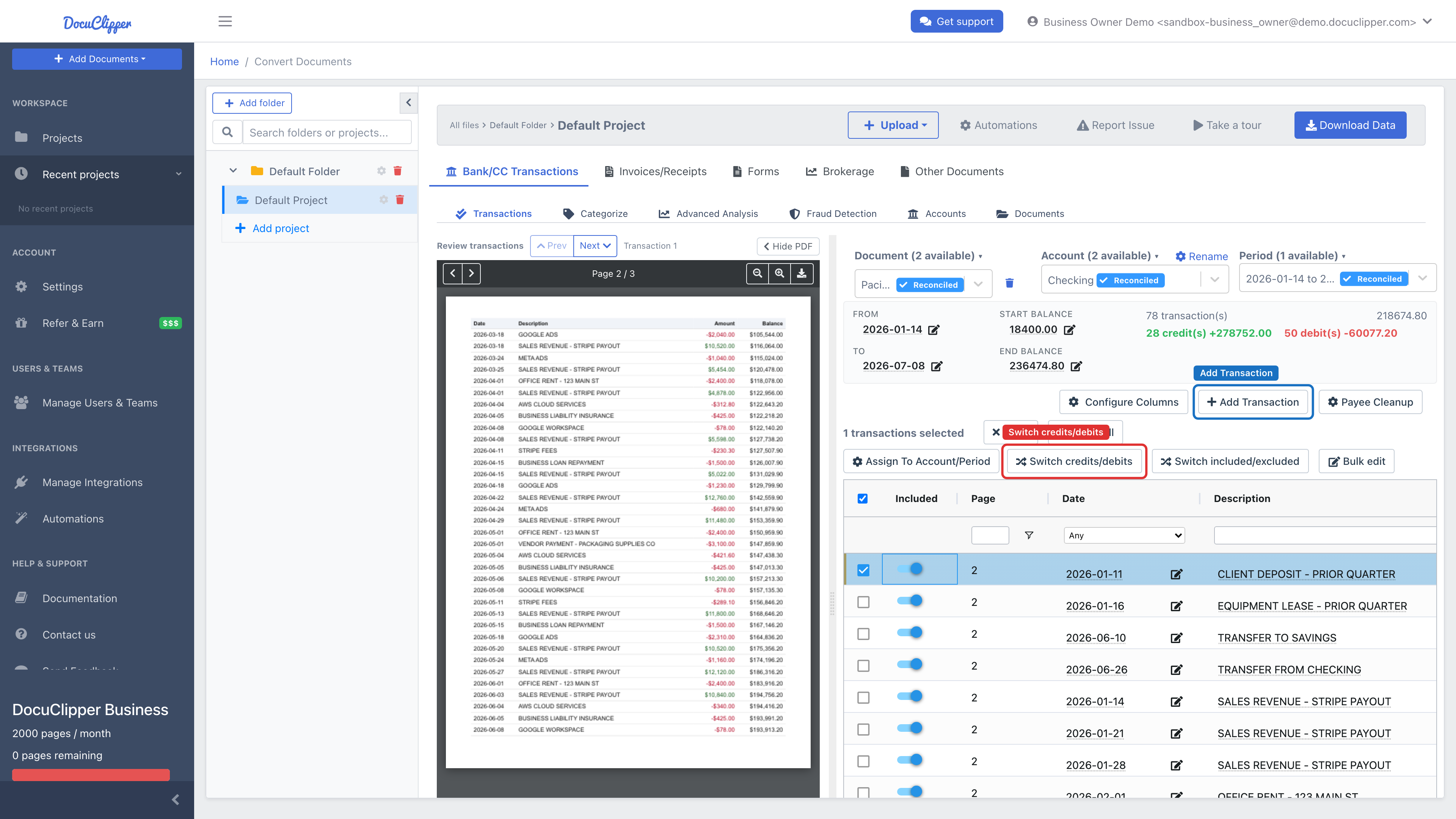
Select the transaction (or transactions) incorrectly labeled as a debit when it should be a credit, then click Switch credits/debits in the toolbar. The Summary panel updates automatically.
4. Add Missing Transactions
Click Add Transaction and enter the date, description, and amount exactly as shown on your bank statement. Assign the correct type and save.
5. Recheck the Totals
Verify that:
- All statement pages were uploaded
- Beginning and ending balances are present
- Transaction amounts use consistent decimal formatting
Additional Considerations
- OCR quality: if the statement is a low-quality scan, small numbers (cents, balances) can be misread. Upload a higher-quality source if you have one.
- Multi-page PDFs: confirm every page made it in. If the last page is missing, the end balance won't match.
- Statements without printed totals: some bank formats don't print credit/debit totals. DocuClipper can't reconcile against something that isn't there; these will stay Not Reconciled even when the data is correct. Use Cashflow Analysis instead to verify the totals yourself.
If your statement remains unreconciled after these steps, email support@docuclipper.com with the source PDF, a screenshot of the reconciliation pane, and notes on the mismatch. We'll dig into the OCR output directly.
FAQs
What does "Not Reconciled" actually mean?
DocuClipper's extracted totals don't match the statement's printed totals. It's a mismatch warning, not proof the data is wrong - a statement can be extracted perfectly and still show Not Reconciled if the PDF never printed the totals to check against.
Why is one period reconciled and another not, in the same file?
Reconciliation is tracked per account and per period, not per file. A PDF holding several accounts or months reports each one separately, so fix each period on its own.
My statement doesn't print credit and debit totals. Can it ever reconcile?
No. DocuClipper can't reconcile against figures that aren't in the document, so those statements stay Not Reconciled even when every transaction is correct. Use Cashflow Analysis to verify the totals yourself.
How do I fix debits and credits that came out backwards?
Select the affected rows and click Switch credits/debits in the toolbar. The Summary panel updates straight away. For a whole statement that's inverted, see Debits and credits backwards.
How do I add a transaction DocuClipper missed?
Click Add Transaction and enter the date, description, and amount exactly as printed on the statement, then assign the correct type and save.
The totals are still off after I've checked everything. What now?
Email support@docuclipper.com with the source PDF, a screenshot of the reconciliation pane, and a note on the mismatch. We can inspect the OCR output directly and ship an extractor fix.