
The DocuClipper Mobile App
Download the DocuClipper mobile app for iOS or Android to capture documents on the go, sign in fast with a QR code, or just use DocuClipper in your phone's browser — it's the same account either way.
Last updated
DocuClipper has a mobile app for iOS and Android for capturing documents while you're away from your desk, plus a QR-code quick sign-in so you don't have to type your password on a phone. You can also use DocuClipper in any mobile browser without installing anything. Everything is tied to your account, so a document you add from your phone shows up in the same projects, document lists, and exports you see on your laptop.
Get the mobile app
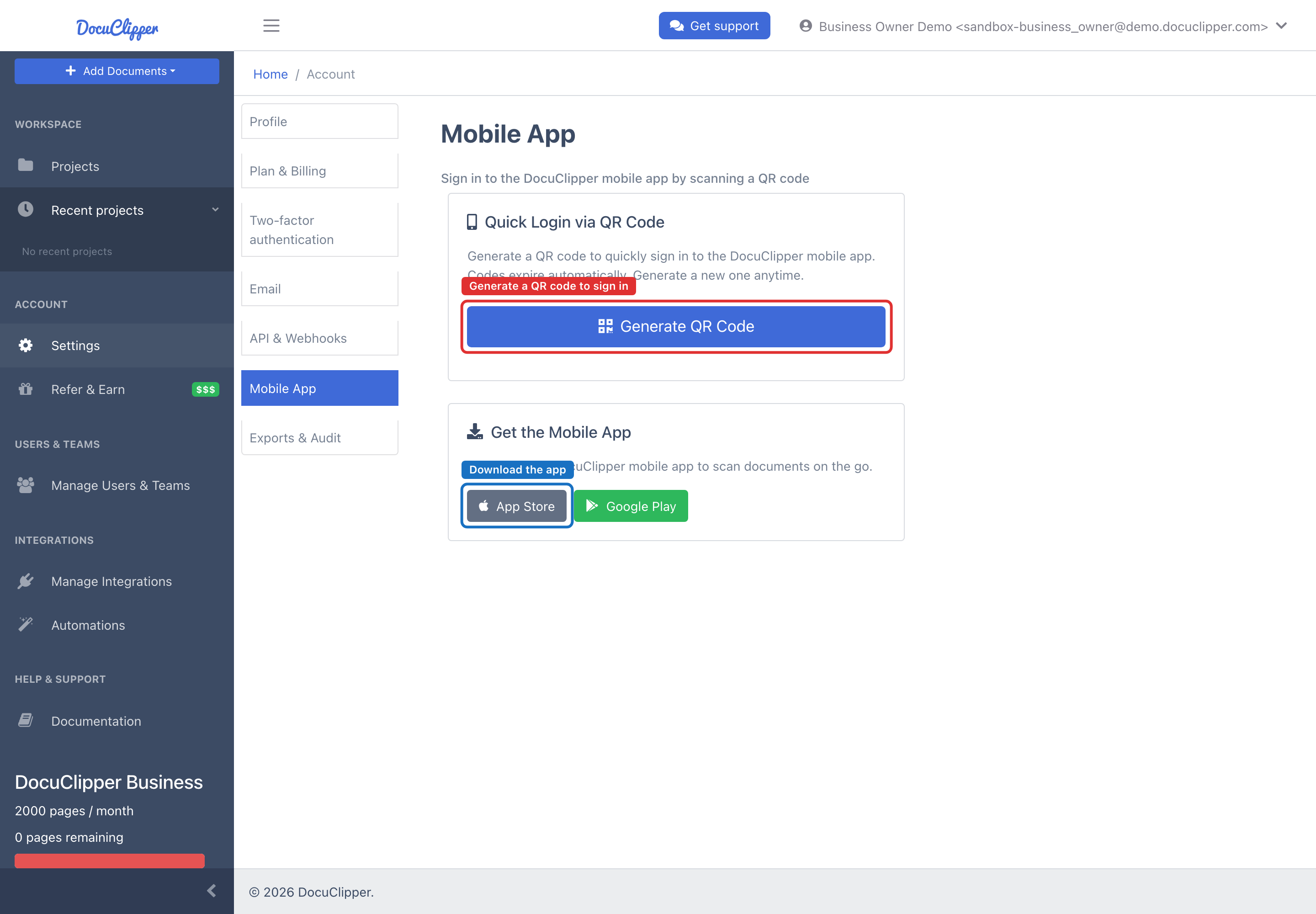
- On a desktop, open Settings → Mobile App.
- Under Get the Mobile App, tap App Store (iOS) or Google Play (Android) to install the DocuClipper app.
You can also search "DocuClipper" directly in the App Store or Google Play.
Sign in fast with a QR code
Instead of typing your email and password on the app, you can scan a one-time QR code:
- On a desktop, go to Settings → Mobile App → Quick Login via QR Code.
- Click Generate QR Code. The code is time-limited.
- Open the DocuClipper app on your phone and point it at the QR code to sign in.
If the code expires before you scan it, just generate a new one.
Prefer not to install? Use the browser
You don't need the app to work from a phone:
- Open your mobile browser (Safari, Chrome, or similar) and go to docuclipper.com.
- Sign in with your normal email and password. Two-factor authentication works the same way — see Two-Factor Authentication.
- Upload a document into a project — either a PDF already on your phone or a photo you take of a paper document.
Add a document from your phone
Whether you're in the app or the browser, you have two easy ways to get a document in:
- Photograph a paper document. On the upload screen, choose to add a file and pick your camera to take a picture of a bank statement, invoice, receipt, or check. The photo uploads as an image DocuClipper can extract from.
- Upload a PDF you already have. If a statement or invoice arrived by email, use your phone's file picker or share sheet to send the PDF into DocuClipper.
Either way, pick the project you want the document to land in before you upload.
Supported document types
DocuClipper accepts the same document types from a phone that it accepts from a desktop:
- Bank and credit card statements (single or multi-page).
- Invoices and receipts.
- Checks.
- Tax forms (W-2, 1099, and similar).
Tips for good phone captures
Extraction accuracy is much higher when the source image is clear. A blurry or cropped photo can't be fixed after upload.
- Lay the document flat on a contrasting surface (a dark desk under white paper works well).
- Fill the frame with the document. Avoid large empty borders.
- Use even lighting. Side glare from a window or overhead light reduces OCR quality.
- For a multi-page statement, capture the pages in order so they stay in sequence.
If a page looks unreadable on your phone screen, it will look unreadable to extraction too. Retake that photo before uploading.
Editing and exporting
Reviewing extracted data, correcting transactions, and setting up exports all work best on a larger screen. A common workflow is to capture documents on your phone while you're out, then review and export them later from a laptop — it's the same account and the same documents throughout.