
Connecting Multiple QuickBooks or Xero Accounts (One Per Project)
Firms with multiple client books: connect each client's QuickBooks Online company or Xero organization once, then link the right one to each client's project.
Last updated
If you do bookkeeping for several clients on a single DocuClipper login, keep their books separate by connecting each client's accounting account and linking the right one to each client's project. That way exports from one client's project always go to that client's QuickBooks company or Xero organization, with no crossover.
How connections and projects fit together
- Connections live at the account level. You connect QuickBooks Online companies and Xero organizations once, on the Integrations page. A single login can hold multiple QuickBooks companies and multiple Xero organizations at the same time.
- A project is a workspace in your projects tree. Each project can have one accounting connection linked to it at a time.
- Linking a connection to a project tells DocuClipper which QuickBooks company or Xero organization that project's exports should use.
The same connection can be linked to more than one project, but the clean pattern for a firm is one connection per client and one project per client.
Step 1: Connect each client's QuickBooks or Xero account
Do this once per client accounting file.
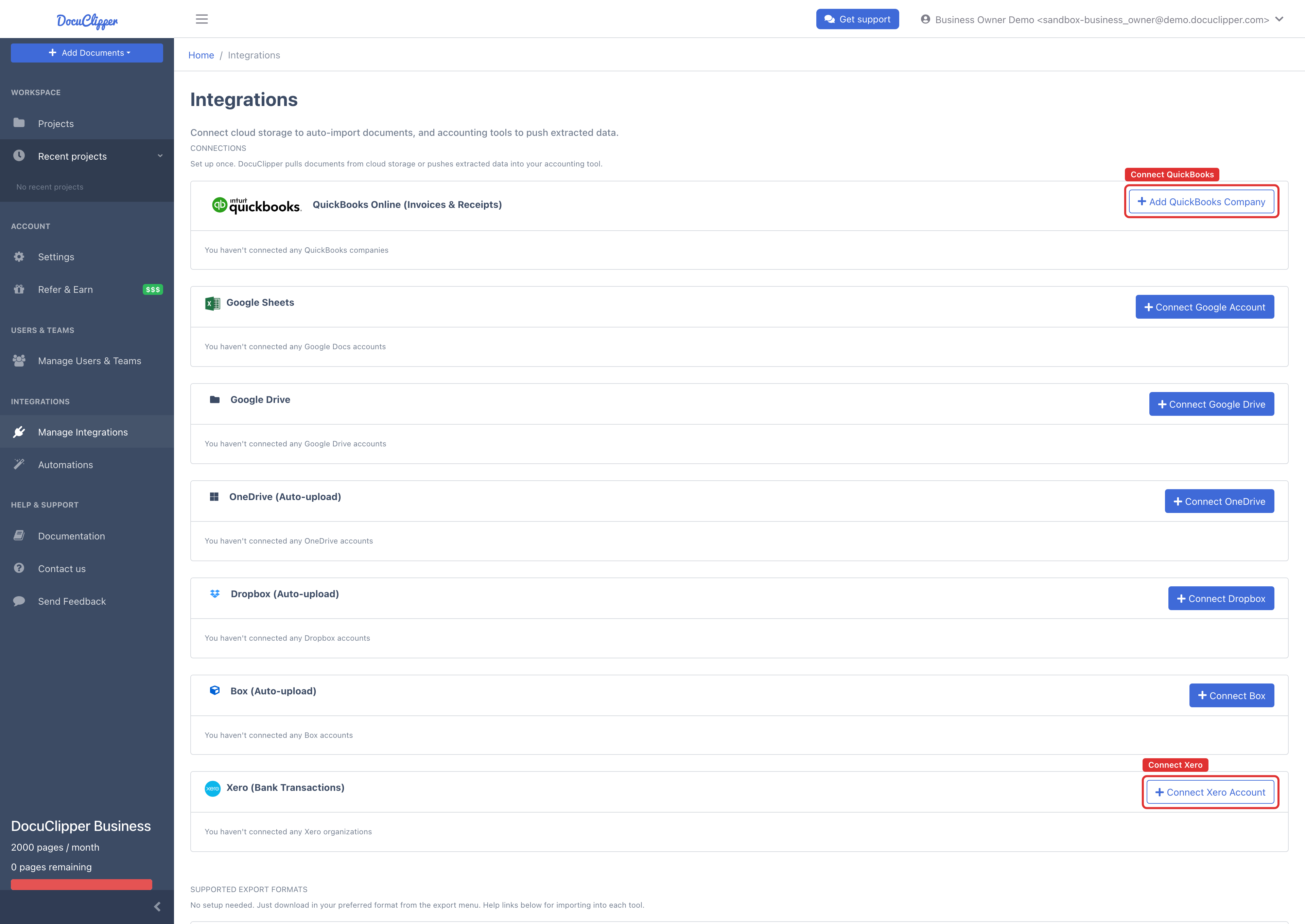
- Open the Integrations page (
/manageIntegrations). - Under Connections, click Connect QuickBooks or Connect Xero Account.
- On the provider's screen, sign in to this client's QuickBooks company or Xero organization and authorize. If you're already signed in to a different company, switch it on the provider's side before authorizing.
- Repeat for each client. All connected accounts appear in the Connections list and coexist.
Step 2: Create one project per client
- In the projects tree (on the Extract Data / Tools page), create a new project.
- Give it a name that identifies the client (for example "Acme Plumbing" or "Smith LLC 2026").
Each project is a separate workspace: its documents, exports, and linked connection are scoped to it.
Step 3: Link each project to the client's connection
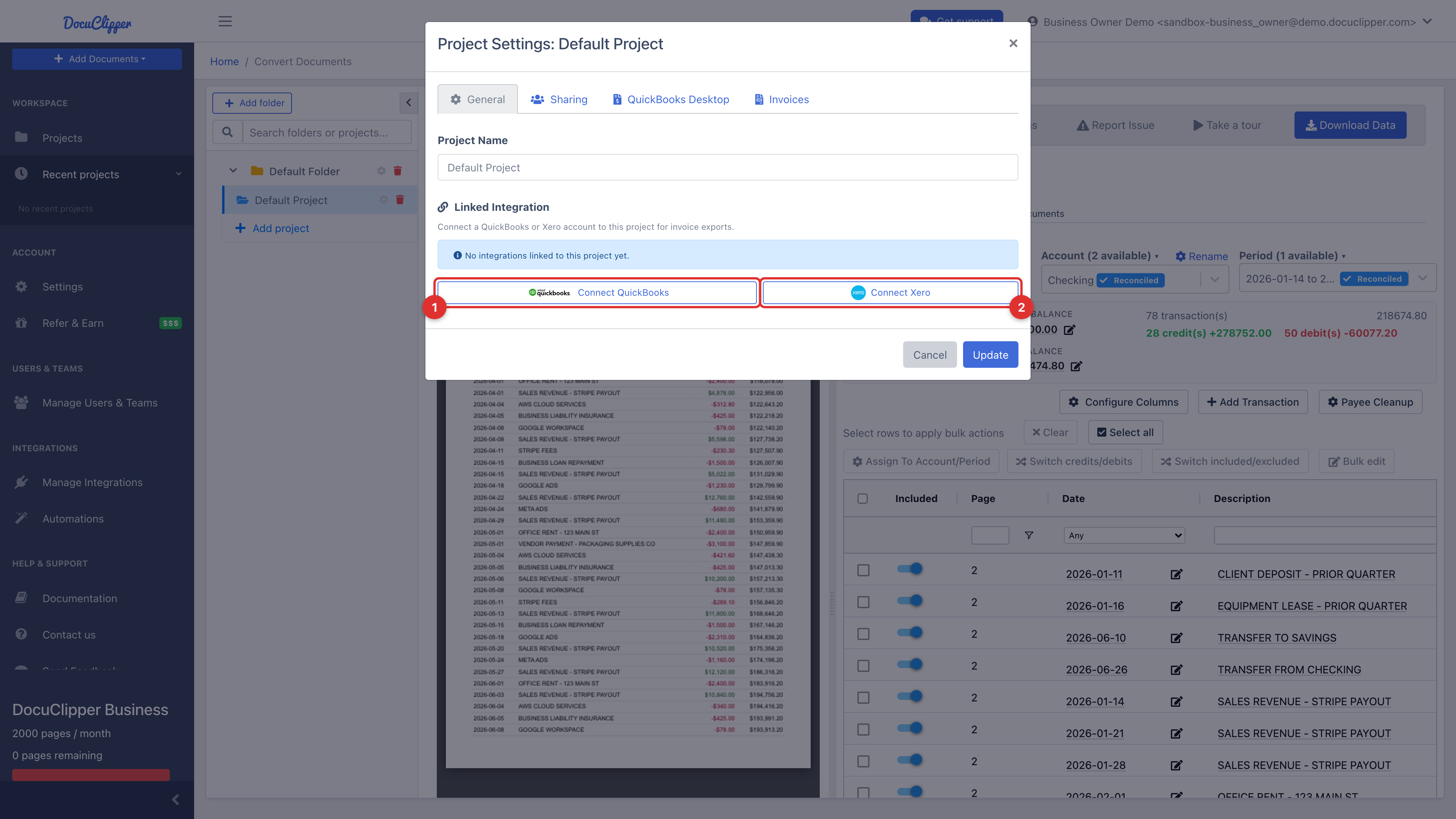
- In the projects tree, click the gear (Settings) icon on the client's project to open Project Settings.
- Stay on the General tab and find Linked Integration.
- Pick the client's connected QuickBooks or Xero account from the list. If it isn't connected yet, click Connect QuickBooks or Connect Xero here to add it and link it in one step.
A project can have only one linked connection at a time (QuickBooks or Xero, not both). Once one is linked, DocuClipper hides the add controls and shows "Delete the current integration to add or connect a new one." To switch the connection, remove the current one first (see below).
From then on, exports from that project use its linked connection.
Changing or removing a project's connection
In Project Settings → General → Linked Integration, click the remove (×) control next to the linked account. This unlinks it from the project. It does not sign the account out of DocuClipper or revoke its tokens, the connection stays in your Connections list and available to link elsewhere. After removing, you can link a different connection to the project.
Disconnecting or reconnecting an account
These actions happen on the account-level Integrations page, not inside a project:
- Reconnect re-authorizes a connection whose credentials expired or changed at the provider ("Credentials are invalid or expired. Reconnect to resume syncing."). The same company or organization is refreshed.
- Disconnect revokes the connection's tokens and removes it. This affects every project that was linked to that connection.
- Test checks that a connection's credentials still work.
Connection labels
The label DocuClipper shows for a connection is the company or organization name reported by QuickBooks or Xero. To change it, rename the company or organization at the source and then Reconnect it on the Integrations page to refresh the cached name.
When to put two clients in the same project
Almost never. A project is the unit of separation, and it links to a single accounting connection at a time. Two clients in one project means shared documents, shared exports, and a shared connection. The clean pattern is one connection per client and one project per client.