
Setting Up Invoice Rules
Automatically categorize invoices and auto-code them to GL accounts. Save a one-time choice as a rule with the "Always do this for {vendor}" chip, or build rules in the editor using vendor, customer, or line-item conditions.
Last updated
Overview
Invoice Rules automatically categorize your invoices based on the text on each document. A rule watches a field for a keyword and, when it matches, assigns a category, product/service, vendor/customer, or tax code to the line item — so repeat vendors arrive already coded and you skip the manual data entry.
Coding (or categorizing) an invoice assigns it to the right GL account or expense category before it posts — for example, an Adobe invoice to Software Subscriptions or a utility bill to Utilities Expense. Done by hand, someone codes every invoice every time, even for the same vendor month after month. A rule teaches the mapping once and reuses it: DocuClipper applies it to every future invoice from that vendor, and the mapping persists.
Rules run automatically when an invoice is first processed, so uploaded documents come in already categorized. You can also re-run rules manually from the invoice editing view.
Invoice Rules are separate from Invoice Approval Rules (opened from the Edit Approval Rules button in the Approvals panel). Approval rules route invoices for sign-off using vendor, customer, amount, account, category, and description conditions. This page covers categorization rules only.
Document Types
Our system supports several document types, each with its own set of fields and rules:
- Payables: Invoices you receive from vendors (bills you need to pay). For QuickBooks Online the document types are Bill and Expense.
- Receivables: Invoices you send to customers (money owed to you). For QuickBooks Online the document type is Invoice.
- Credit Note: A vendor credit that reduces an amount owed. Syncs to QuickBooks Online as a Vendor Credit and to Xero as an Accounts Payable credit note.
- Debit Note: A customer debit that reduces an amount owed to you. Syncs to Xero as an Accounts Receivable credit note.
Fields Available for Rules
The fields available for creating rules depend on the document type:
For Payables, Expense, Bill, and Credit Note:
- Line Item Description: The description of each line item on the invoice.
- Vendor: The name of the vendor who issued the invoice.
For Receivables, Invoice, and Debit Note:
- Line Item Description: The description of each line item on the invoice.
- Customer: The name of the customer to whom the invoice is issued.
The fast way: "Always do this for {vendor}"
The quickest way to create a rule is to code one invoice and let DocuClipper turn that choice into a rule for you.
Step 1: Code one invoice manually
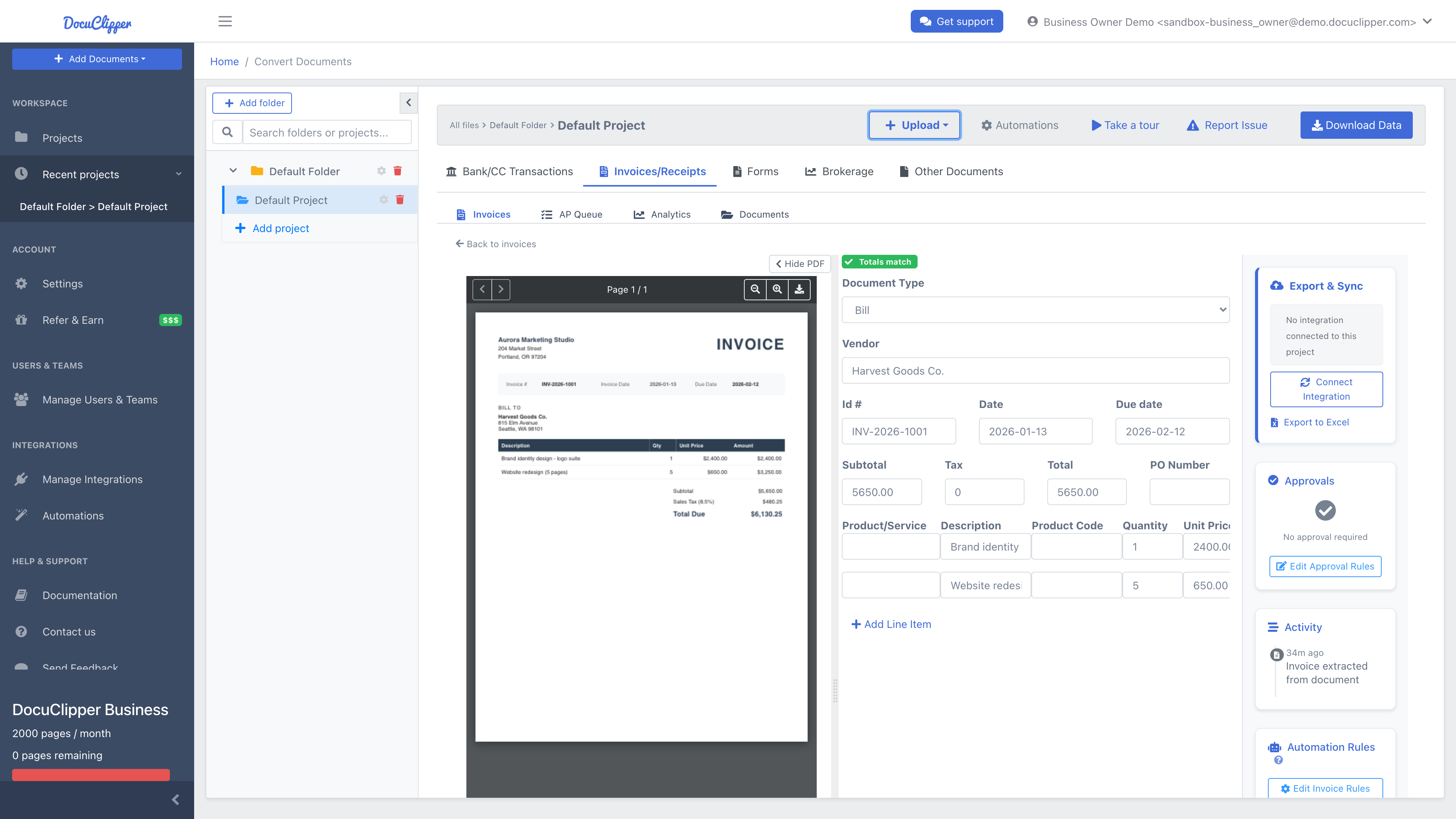
- Open the project's Invoices tab and click an invoice.
- Set the Category (payables) or Product/Service (receivables) on the line item — or a tax code, or the header Vendor/Customer.
Step 2: Turn that choice into a rule
Right after you set the field, a small amber chip appears beneath it: ⚡ Always do this for "{Vendor Name}". The vendor (or customer) name is filled in automatically from the current invoice. The chip only shows once there's both an extracted vendor/customer to key the rule on and a value you've set.
Click it. That's the whole step — the rule is saved immediately, and DocuClipper applies it to the invoice you're looking at right away, so every other line from the same vendor is coded without you touching them.
The rule it creates is:
- Condition — the invoice's Vendor (payables) or Customer (receivables) Contains the extracted name.
- Action — set the same field you just edited: Category/Product/Service for a plain Excel export, or the mapped Account/Item when a QuickBooks or Xero integration is connected.
The chip is replaced by a confirmation telling you what will happen next — "Future invoices from "ACME Office Supplies" will use category "Office Supplies" automatically." — with two links:
- Undo — deletes the rule again, if you clicked by accident.
- Edit rule — opens the Automation Rules drawer on that rule, for when you want to widen the condition or add more actions.
The rule is scoped to your account and runs on every matching invoice from here on.
A practical example
You upload a PDF from "ACME Office Supplies." DocuClipper extracts it but leaves the category blank. You set the line's category to Office Supplies in the editor. The Always do this for "ACME Office Supplies" chip appears under that field. Click it, and DocuClipper saves:
- Condition: Vendor contains "ACME Office Supplies"
- Action: set Category → Office Supplies
From now on, every new invoice from ACME Office Supplies gets the Office Supplies category set automatically — and if the invoice you're on has more lines from that vendor, they're coded on the spot.
Setting Up Rules in the Editor
Accessing the Rules Editor
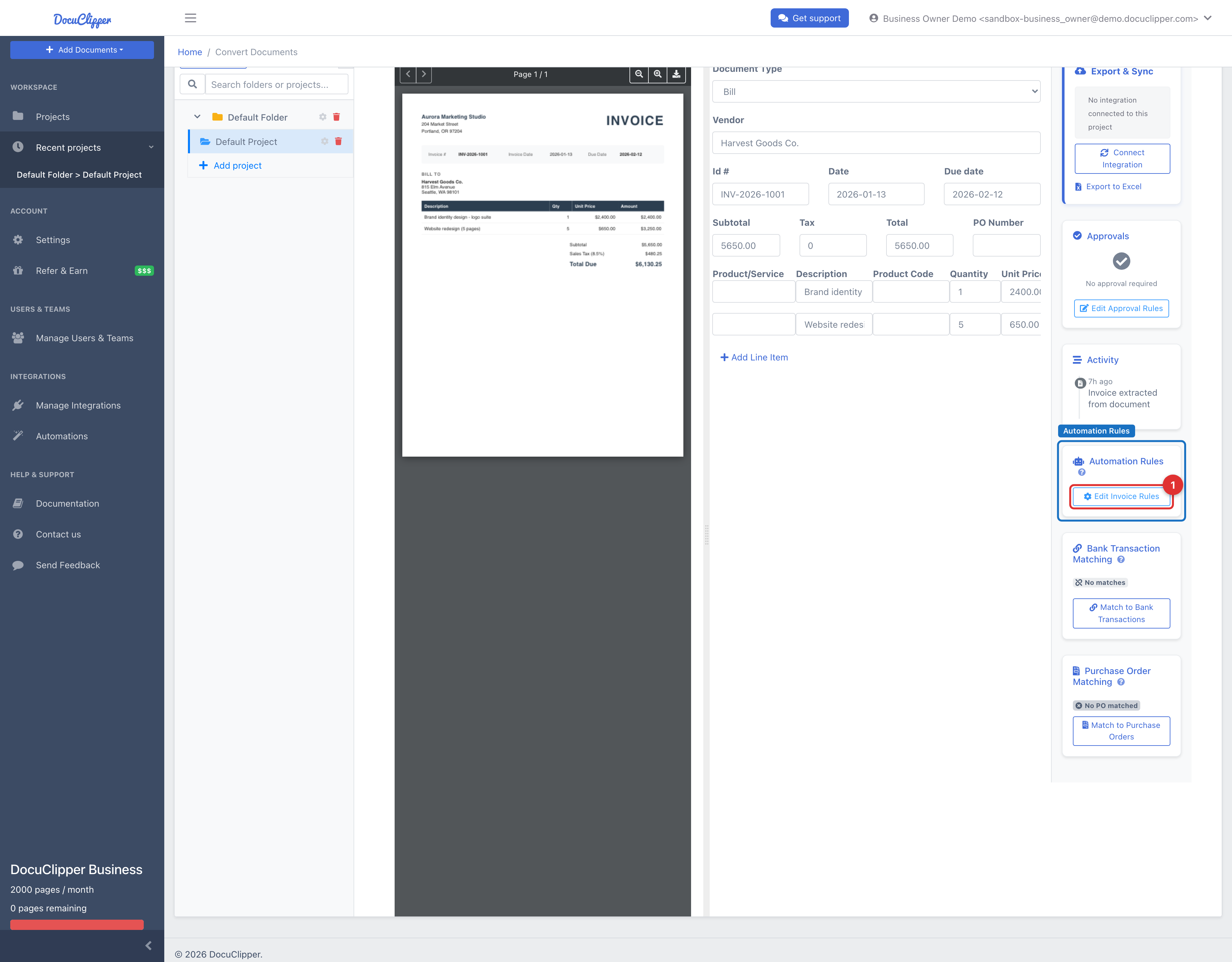
- Open an invoice job and select a document.
- In the right sidebar, find the Automation Rules section and click Edit Invoice Rules to open the Rules Editor.
Creating a New Rule
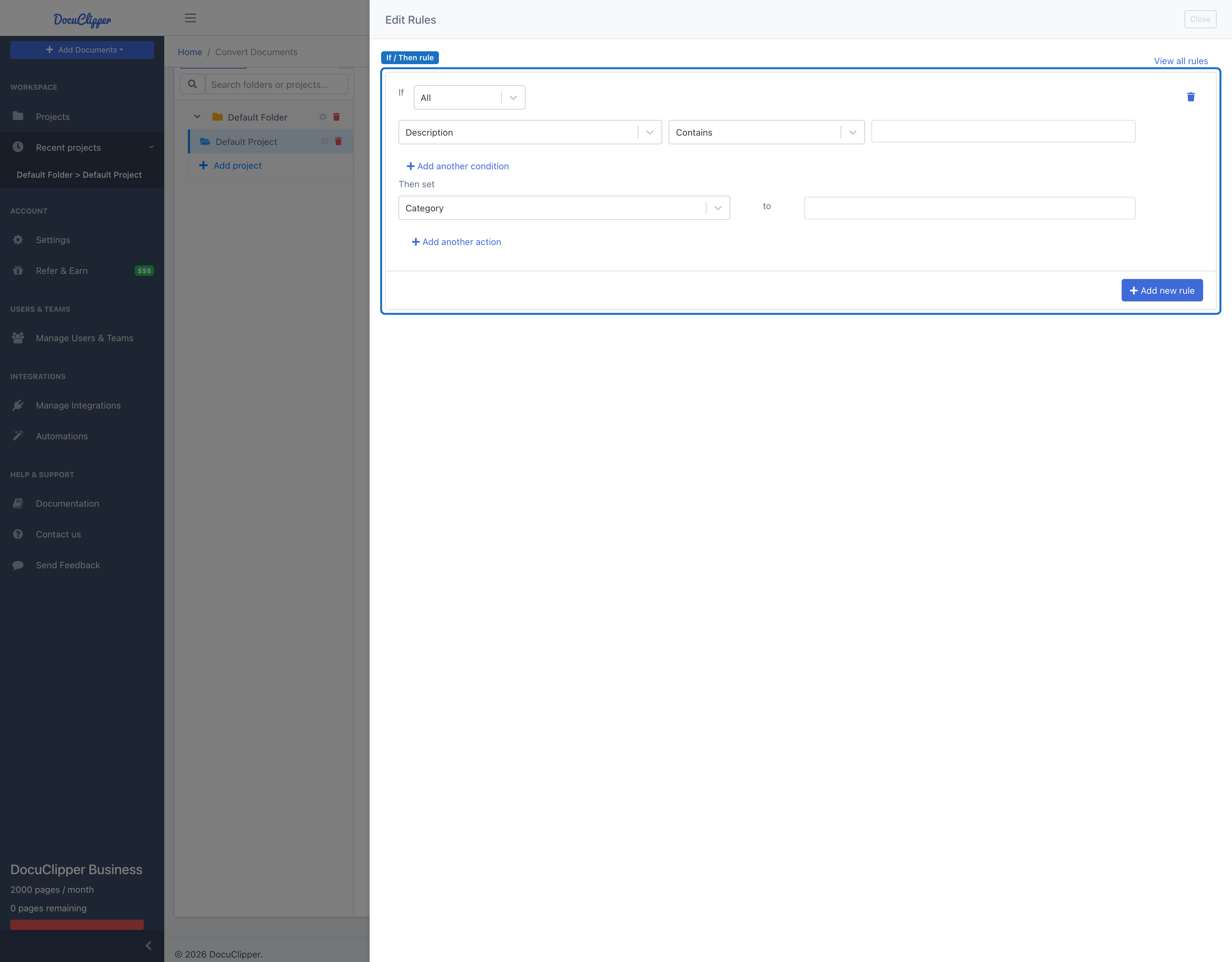
In the Rules Editor, click Add new rule. A new rule card appears with default settings.
Configuring Rule Conditions
Each rule has one or more conditions and an action to take when they are met. When a rule has multiple conditions, all of them must match (they are combined with AND).
- Select the Field: Choose Line Item Description, or Vendor (payables) / Customer (receivables).
- Choose the Operator:
- Contains: the field includes the specified text. Matching is case-insensitive, and you can enter multiple comma-separated keywords (any one match triggers the rule).
- Not Contains: the field does not include any of the specified text.
Invoice rules act on text fields only — there are no amount, date, or account-balance conditions. Vendor and Customer conditions also show Equals and Not Equals in the dropdown, but these do not reliably match and are effectively no-ops. Use Contains with the full vendor/customer name instead.
Setting the Action
- Choose what to set: pick Category (payables, expenses, bills, credit notes) or Product/Service (receivables, debit notes). You can also set Vendor/Customer or a Tax Code (Xero: Account, Item/Service, Tax Rate). Click Add another action to set more than one on the same rule.
- Select the value: choose the account, item, or tax code to assign when the conditions match. Without a connected integration (Excel export), you type the value as free text.
Saving the Rule
Once you've configured the conditions and action, click Save rule at the bottom of the rule card. Nothing is stored until you do — if you close the drawer with an unsaved rule, DocuClipper asks before discarding it. Edits to an existing rule save automatically when you change a field.
Vendor-level vs. line-item mapping
- Vendor-level mapping ("Vendor contains Acme Hosting → Software Subscriptions") fits vendors that always hit one account.
- Line-item mapping ("Line Item Description contains support") fits an invoice that spans multiple accounts — map different line items on the same bill to different accounts (e.g. hardware vs. support).
When rules run and how to re-apply them
Once a rule is saved, it runs automatically:
- On every newly extracted invoice for the same account. As soon as DocuClipper finishes pulling fields out of the PDF, the rule engine matches the invoice against your saved rules and fills in the category, product, account, or tax code.
- When you change an invoice's Document Type. Switching, say, from Bill to Expense re-runs your rules against the new type so the categorization re-applies correctly.
- When you save or edit a rule in the Automation Rules drawer — the engine re-applies your ruleset so the change takes effect on the current job.
Rules apply going forward; invoices uploaded before a rule existed aren't re-coded retroactively. To apply a new rule to existing documents, save or edit it in the drawer (that triggers a fresh rules pass) or re-run the rules manually from the invoice editing view. Over a few cycles, the long tail of recurring vendors becomes fully auto-coded, leaving manual attention for genuinely new or unusual invoices.
Managing Existing Rules
- View All Rules: When you open the Rules Editor, you'll see a list of all existing rules.
- Edit a Rule: Click the edit icon next to a rule to modify its conditions or actions.
- Delete a Rule: Click the trash icon next to a rule to remove it.
Where coded invoices go next
Coded invoices flow through the rest of the AP workflow: math validation checks the totals and flags duplicate invoice numbers, two-way PO matching checks each invoice against its purchase order at the line level, approval routing sends them to the right approver with an audit trail, and approved invoices sync to QuickBooks Online, QuickBooks Desktop (IIF), or Xero. (NetSuite has no direct connector — export those invoices as CSV.) Because the GL account is already set, the invoice posts to the correct account instead of a catch-all.
Best Practices
- Start narrow. Vendor contains "ACME Office Supplies" is safer than Line Item Description contains "office", which can sweep up unrelated vendors. Refine as needed.
- Use Contains for name variations. It still fires when a vendor's name varies slightly across invoices ("ACME Office", "ACME Office Supplies Inc.").
- Regular review. Periodically review your rules to ensure they're still relevant and accurate.
- Test your rules. After creating or modifying rules, test them with a variety of invoices to ensure they're working as expected.
- Rules are scoped to your account. Teammates on the same account share rules; a separate account has its own set.
Troubleshooting
- If a rule isn't applying as expected, check that the keyword actually appears in the field you selected. Contains matching is case-insensitive and looks for the keyword anywhere in the text.
- If a Vendor or Customer rule never fires, confirm you used Contains (not Equals/Not Equals) and that the name is spelled the way it appears on the invoice.
- Remember that multiple conditions on one rule are combined with AND — every condition must match. Split them into separate rules if you want either to trigger categorization.
FAQs
How do I automatically categorize invoices in DocuClipper?
Code one invoice manually, then click the Always do this for "{vendor}" chip that appears beneath the field. That single click saves the rule; it then runs automatically on every future matching invoice.
Does DocuClipper remember a vendor's GL account?
Yes. Once you save a rule for a vendor, the mapping persists and is applied automatically to every new invoice from that vendor.
Will a new rule re-code invoices I already uploaded?
Not automatically. Rules apply to newly extracted invoices going forward. To re-apply your ruleset, save the rule (from the chip or the drawer) or edit an existing one — each of those triggers a fresh rules pass over the current invoice.
Can one invoice be split across multiple GL accounts?
Yes. Use line-item-description rules to map different line items on the same invoice to different accounts.