
Invoice To Bank Transaction Matching Guide
Link extracted invoice data to corresponding bank transactions in DocuClipper for reconciliation, expense tracking, and complete audit trails.
Last updated
DocuClipper's Invoice-to-Bank Transaction Matching links extracted invoice data (invoices, vendor bills, and expense receipts) to the corresponding bank transactions, producing a single reconciled record of which invoices were actually paid and when.
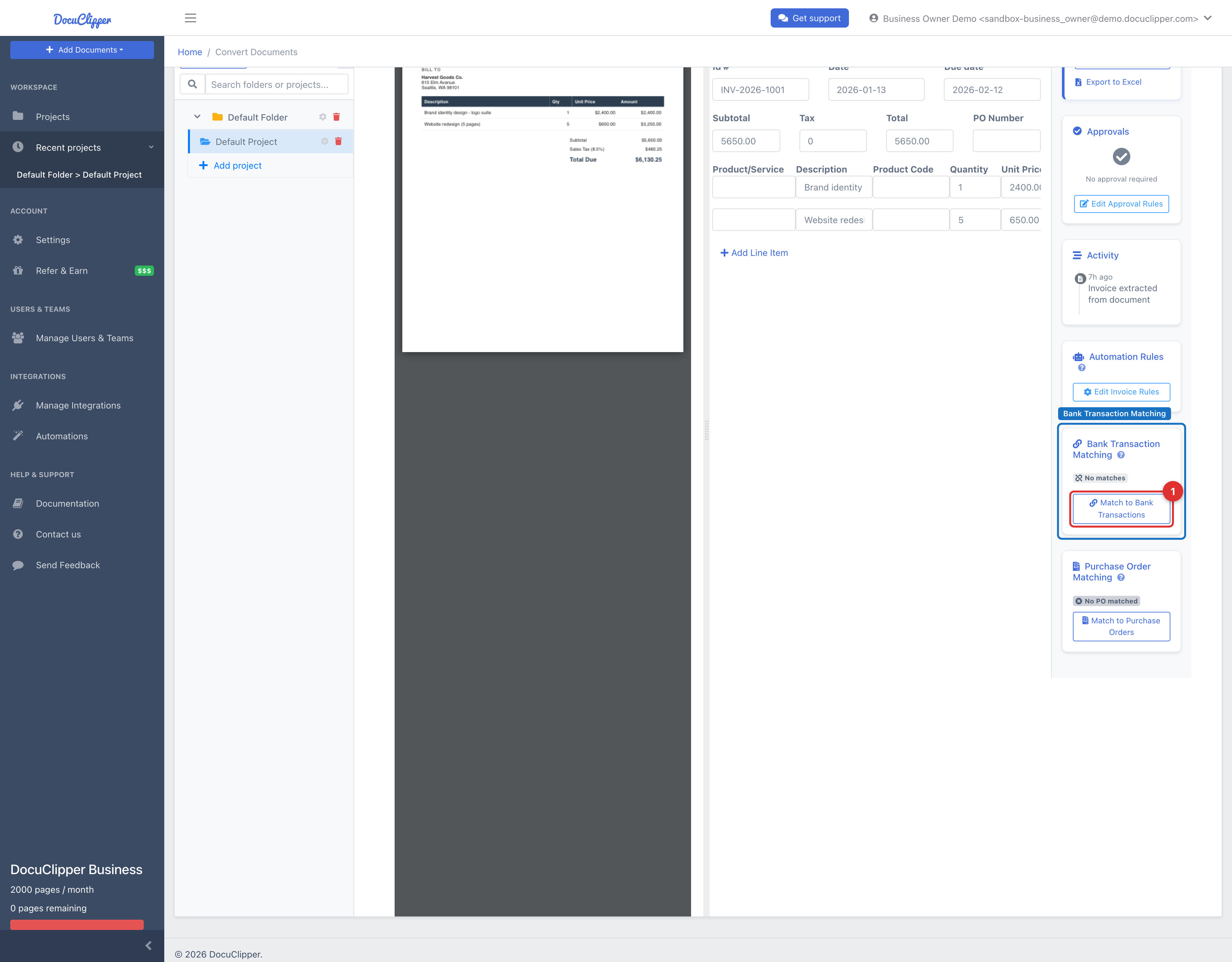
Open an invoice in the detail view, find the Bank Transaction Matching card in the right sidebar, and click Match to Bank Transactions to open the matching drawer.
When the invoice's project is connected to QuickBooks or Xero, the drawer surfaces a Top suggestion - the best-matching transaction with a confidence score and amount/date proximity badges - that you can accept with a single Confirm match click. Without a connected integration, you filter and select transactions manually.
Why match invoices to bank transactions?
Financial Reconciliation
Ensure your invoice records match your actual bank transactions for accurate bookkeeping.
Audit Trail
Create a complete paper trail linking invoices to actual payments for compliance and auditing.
Expense Tracking
Monitor cash flow by connecting invoices to actual payment dates and amounts.
Automation
Streamline your accounting workflow by automating the matching process.
Supported Document Types
- Invoices - Customer invoices for services or products sold
- Bills - Vendor bills for purchases and services
- Expenses - Business expense documents and receipts
How to Access the Matching Feature
Step 1: Open an invoice in the detail view, where you can review and edit extracted invoice data.
Step 2: In the right sidebar, find the Bank Transaction Matching card.
Step 3: Click Match to Bank Transactions to open the matching drawer.
Creating New Matches
Step-by-Step Process
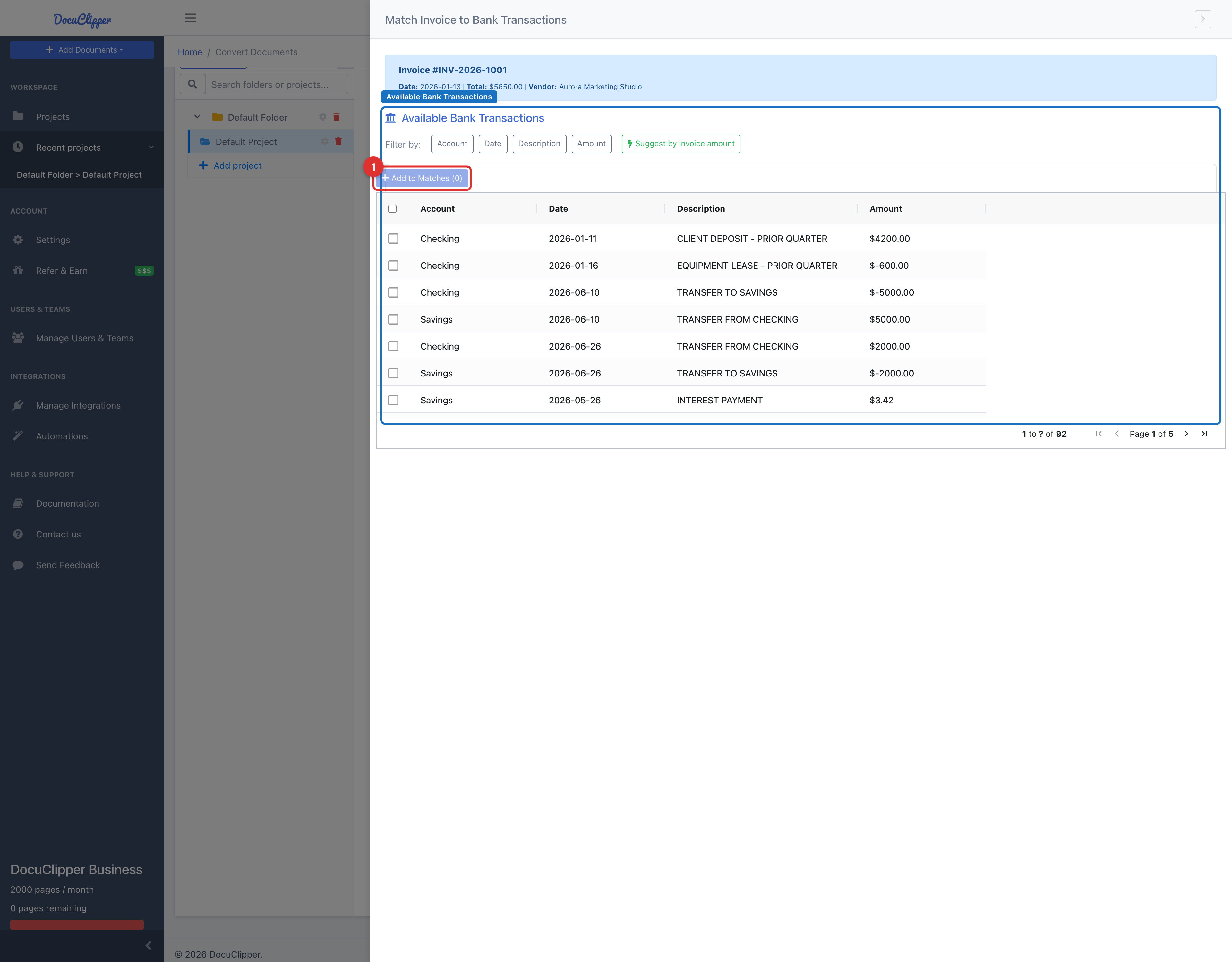
Step 1: Review Invoice Information. The drawer will display the current invoice details including:
- Invoice number and date
- Total amount
- Customer or vendor information
Step 2: Filter Bank Transactions. Use the filtering options to narrow down available bank transactions:
- Account: Filter by specific bank accounts
- Date: Filter by transaction date ranges
- Description: Search by transaction descriptions
- Amount: Filter by transaction amounts
Step 3: Select Bank Transactions
- Browse the “Available Bank Transactions” table
- Select one or more transactions using the checkboxes
- Click “Add to Matches” to add selected transactions
Step 4: Review New Matches. Selected transactions will appear in the “New Matches” section where you can:
- Review the transaction details
- Remove transactions if needed using the trash icon
Step 5: Create the Matches. Click “Create Matches” to finalize the linking process.
Managing Existing Matches
Viewing Existing Matches
If an invoice already has matched bank transactions, they will be displayed in the “Existing Matches” section showing:
- Bank account information
- Transaction date
- Transaction description
- Transaction amount
- Match status (pending, approved, rejected)
Deleting Matches
Important: You can delete existing matches if they were created in error. Click the trash icon next to any existing match to remove it. This action cannot be undone.
Best Practices and Tips
Pro Tips for Effective Matching:
- Date Range Filtering: Start by filtering bank transactions to a reasonable date range around the invoice date
- Amount Matching: Look for bank transactions that match or are close to the invoice total
- Description Keywords: Use vendor names or invoice numbers in the description filter
- Multiple Transactions: Some invoices may be paid across multiple bank transactions
- Regular Review: Periodically review and update matches as new bank data becomes available
Common Scenarios to Watch For:
- Partial Payments: An invoice might be paid in multiple installments
- Processing Fees: Bank transactions might include processing fees, making amounts slightly different
- Currency Conversion: International transactions may have different amounts due to exchange rates
- Payment Timing: Bank transactions might occur days after the invoice due date
Troubleshooting
Common Issues and Solutions
No Bank Transactions Appear
- Check that you have bank transaction data imported
- Verify your date range filters aren’t too restrictive
- Ensure the bank account filter includes the relevant accounts
Can’t Find the Right Transaction
- Try broader date ranges (payments often occur after invoice dates)
- Search by partial amounts if fees were included
- Check different bank accounts if multiple accounts are used
- Look for similar but not exact description matches
Match Creation Fails
- Ensure you have proper permissions for the selected bank accounts
- Verify the bank transactions haven’t already been matched to other invoices
- Check your internet connection and try again
Getting Help
Need Additional Support? If you encounter issues or have questions about invoice-to-bank transaction matching, please contact our support team or consult the additional documentation in your knowledge base.
FAQs
How do I match an invoice to a bank transaction in DocuClipper?
Open the invoice detail view, find Bank Transaction Matching in the right sidebar, and click Match to Bank Transactions. Filter the available transactions by account, date, description, or amount, select the right rows, and click Create Matches.
Can a single invoice match multiple bank transactions?
Yes. Some invoices are paid in installments, and you can select more than one bank transaction in the matching drawer before clicking Create Matches.
Which document types can be matched against bank transactions?
Invoices for services or products sold, vendor bills for purchases, and business expense documents and receipts.
What if the bank amount differs slightly from the invoice total?
That is common when processing fees or currency conversion are involved. Try filtering by partial amounts or by vendor name in the description filter to find the right transaction.
How do I remove a match created in error?
Click the trash icon next to the match in the Existing Matches section. The action is permanent and cannot be undone.
Why don't I see any bank transactions in the matching drawer?
Either no bank data has been imported, the filters are too restrictive, or the bank account filter excludes the relevant accounts. Loosen the filters or import the missing bank statement and try again.