
Invoice To Purchase Order Matching Guide
Match extracted invoices to purchase orders in DocuClipper for two-way matching, duplicate payment prevention, and complete audit trails.
Last updated
Overview
Invoice to Purchase Order (PO) matching connects each invoice to its corresponding purchase order, creating a complete audit trail for your procurement process. It streamlines accounts payable and flags discrepancies between what was ordered and what was billed.
Purchase orders are pulled live from your connected QuickBooks Online account, so the project needs a QuickBooks connection for matching to have anything to match against.
What is Invoice to PO Matching?
Invoice to PO matching allows you to:
- Link invoices to purchase orders - Create connections between received invoices and original purchase orders
- Track procurement cycles - Follow the complete process from PO creation to invoice payment
- Improve accuracy - Reduce errors by verifying invoice details against original purchase orders
- Enhance reporting - Track the relationship between POs and invoices
Key Benefits
- Two-way matching - Compare each invoice against its purchase order at the line level, flagging overbilling, underbilling, and missing lines
- Prevent duplicate payments - Identify if an invoice has already been processed
- Budget tracking - Monitor spending against original purchase authorizations
- Complete audit trail - Maintain records of all matches and their approval status
- Workflow efficiency - Process multiple matches simultaneously with status tracking
How to Use Invoice to PO Matching
Accessing the Feature
- Open an invoice in the detail view.
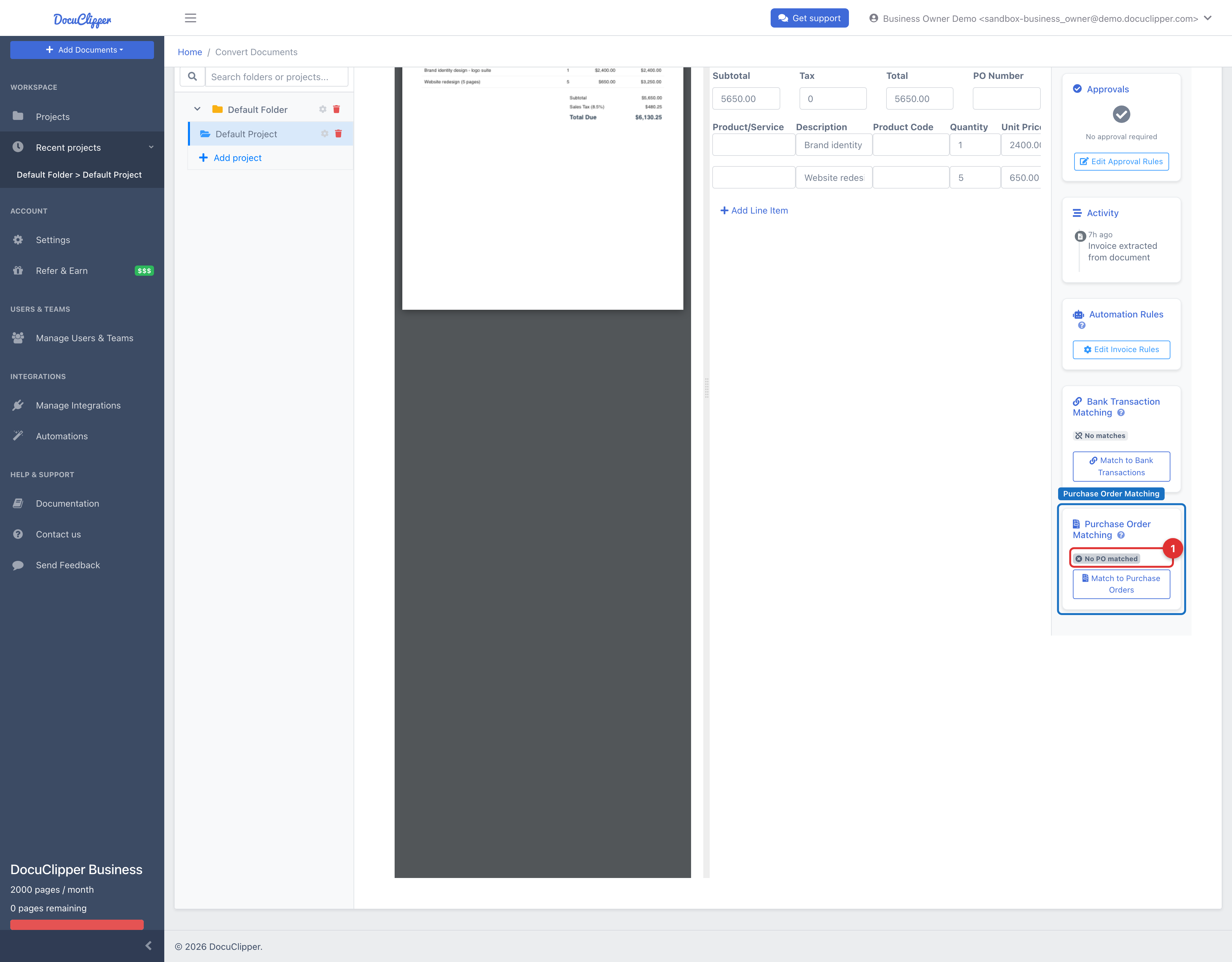
- Find the Purchase Order Matching card in the right sidebar - it appears inline, no button needed to open it.
Reviewing the Suggested Match
DocuClipper automatically evaluates available purchase orders and suggests the best candidate, showing:
- A match confidence badge (green ≥ 80%, yellow ≥ 50%, gray below)
- Matched-by chips explaining the score - PO # match, Vendor match, Amount match, Date match
- A Why this match summary and, once matched, an amount difference badge and any line-item differences between the invoice and the PO
Click Confirm to accept the suggested match.
Viewing an Existing Match
When an invoice is already matched, the card shows the matched PO number, the vendor, the invoice total versus the PO total, and the amount difference. For QuickBooks POs a View in QuickBooks link is included. Remove an incorrect match with the trash / Remove match icon.
Finding a Different PO
If the suggestion is wrong or you want another PO, click Match to Purchase Orders (labeled Browse other POs or Change PO when a candidate or match already exists) to reveal the search box. Type a PO number, vendor, or amount to filter candidates, then click Confirm on the one you want. It is a single search field - not separate PO-number, date, and amount filters.
Match Status
- Matched - the invoice is fully matched to a PO (green)
- Partial match - matched with discrepancies, such as an amount or line-item difference (yellow)
- No PO matched - no purchase order is linked yet (gray)
Best Practices
Matching Accuracy
- Verify amounts - Ensure invoice amounts align with purchase order totals
- Check dates - Confirm invoice dates are reasonable compared to PO dates
- Validate vendors - Ensure vendor information matches between documents
Workflow Management
- Regular reviews - Periodically review pending matches
- Batch processing - Process multiple matches together for efficiency
- Document discrepancies - Note any differences between POs and invoices
Troubleshooting Common Issues
No Matching Purchase Orders Found
Solutions:
- Clear the search box or try a shorter term (search a PO number, vendor, or amount)
- Try partial or alternate vendor name spellings
- Confirm the PO exists and is open in QuickBooks Online, and that the project is connected to that QuickBooks company
Amount Discrepancies
Common reasons: Partial deliveries, price adjustments, tax differences, shipping costsSolutions: Document the discrepancy, verify with vendor if needed, consider partial matching
Reporting and Analytics
Available Views and Filters
The invoice management system provides basic reporting through filtered table views:
- Invoice ID - Search by specific invoice numbers
- Date Range - Filter invoices by document date
- Amount - Filter by invoice amount ranges
- Type - Filter by receivables/payables
- Vendor/Customer - Search by vendor or customer names
- Approval Status - View pending or approved invoices
- PO Match Status - See which invoices have PO matches (Yes/No)
- Bank Match Status - See which invoices have bank matches (Yes/No)
Basic Reporting Workflow
- Access the invoice table - Navigate to the main invoices view
- Apply filters - Use the “Filter by” options to narrow results
- Review status - Check PO and bank match columns for completion status
- Export data - Use the “Download Invoices” button to export filtered results
- Take action - Click “View Invoice” to access detailed matching tools
Common Report Scenarios
- Unmatched Invoices: Filter “Has PO Match” to “No” to find invoices needing PO matches
- Pending Approvals: Filter “Approval Status” to “Pending” to see invoices awaiting approval
- Vendor Analysis: Filter by specific vendors to review their invoices
- Date-based Reviews: Filter by date ranges for period-specific reviews
Getting Started
- Setup - Ensure your purchase orders are properly entered in the system
- Training - Familiarize your team with the matching interface
- Process - Establish clear workflows for match approval
- Monitor - Regularly review match quality and success rates
Support and Resources
For additional assistance with invoice to PO matching:
- Email Support - Contact support@docuclipper.com
- System Administrator - Reach out to your system administrator
- Internal Resources - Review your organization’s procurement policies and consult with the accounts payable team
This feature is designed to make your procurement and accounts payable processes more efficient and accurate. Regular use of invoice to PO matching will improve your financial controls and provide better visibility into your organization’s spending patterns.