
Automations
Automations: Dropbox
Watch a Dropbox folder and convert PDFs into structured data automatically.
Last updated
This guide covers the Dropbox specifics for an automation.
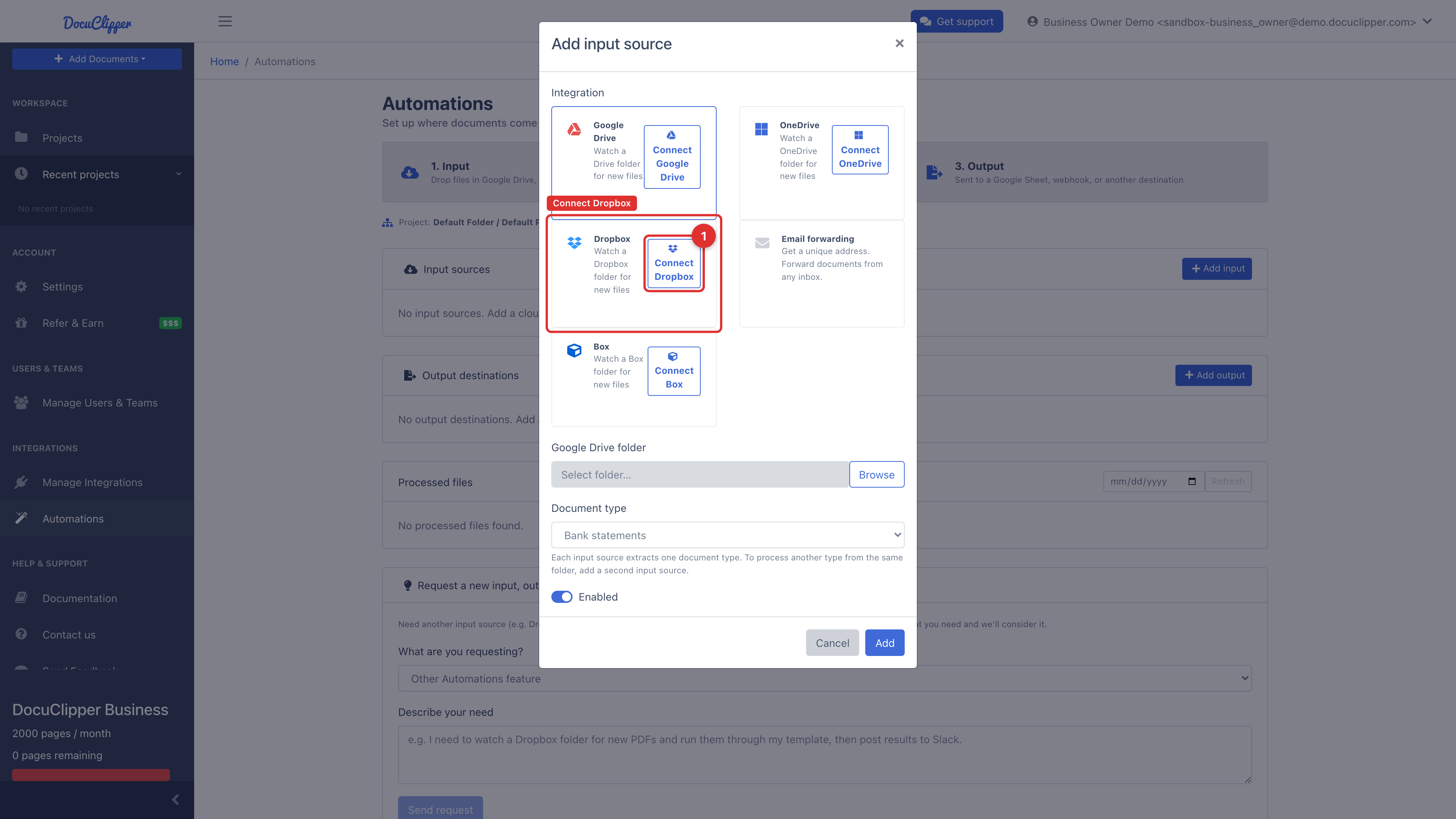
Connect Dropbox
- Open Automations and select the project.
- Under Input sources, click Add input, then choose Dropbox.
- Click Connect Dropbox. You'll be redirected to Dropbox's OAuth consent screen.
- After returning to DocuClipper, click Browse to pick the folder to watch, set the document type, and save.
If you close Dropbox's consent screen or decline it, nothing is connected and DocuClipper tells you so when you return. Click Connect Dropbox again and allow access to finish.
How it works
- New files in the watched folder are pulled in. Dropbox notifies DocuClipper of changes, and a scheduled poll acts as a backstop.
- Processed files are tracked so the same file isn't imported twice.
- Optionally add an output to send results to a Dropbox folder, another destination, or a webhook.
Disconnecting
Open Settings → Manage Integrations, find the Dropbox connection, and click Disconnect. Any automations using it pause until you reconnect.