
Automations: Google Drive
Watch a Google Drive folder and convert PDFs into structured data automatically.
Last updated
This guide covers the Google Drive specifics for an automation.
Connect Google Drive
- Open Automations and select the project.
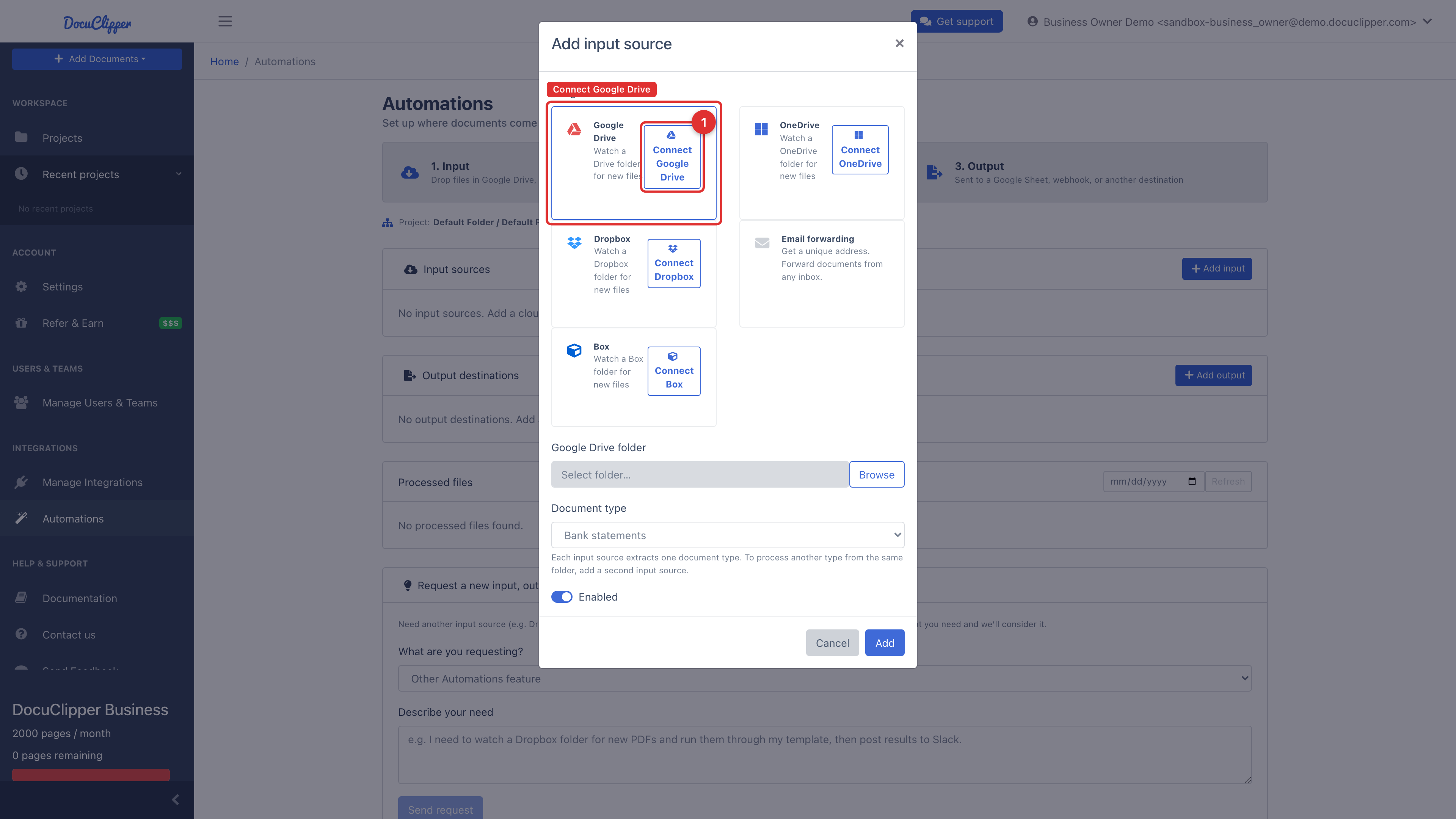
- Under Input sources, click Add input, then choose Google Drive.
- Click Connect Google Drive. You'll be redirected to Google's OAuth consent screen to grant DocuClipper access to your Drive.
- After you return to DocuClipper, click Browse and pick the folder to watch, then set the document type and save.
If you close Google's consent screen or decline it, nothing is connected and DocuClipper tells you so when you return. Click Connect Google Drive again and approve access to finish.
How it works
- DocuClipper watches the folder for new files. Google sends a push notification when the folder changes, and DocuClipper also checks the folder every hour to catch anything a notification missed.
- Processed files are tracked so they aren't reprocessed.
- Optionally add an output to send results to a Google Sheet, another cloud folder, or a webhook.
Saving exports to Google Drive
Watching a folder only needs read access, so when you connect Google Drive for an input, DocuClipper asks Google for read-only access. Saving converted files back to a Drive folder (a Google Drive output destination) needs write access.
If Google Drive is connected read-only, the Google Drive card in Add output shows Linked read-only with a Grant write access link, and the output cannot be saved until you grant it. Click Grant write access, approve the request on Google's consent screen, and you return to Automations with the folder picker open. Your existing input keeps working throughout.
An output that already exists on a read-only connection shows Exports are not being saved in its Status column, with the same Grant write access link.
Disconnecting
Open Settings → Manage Integrations, find the Google Drive connection, and click Disconnect. The OAuth token is revoked immediately, and any automations using that connection pause until you reconnect.
Troubleshooting
- "Folder not found" after renaming the folder in Drive: Google assigns new IDs when folders are moved between shared drives. Re-pick the folder in the automation settings.
- Files not being picked up: check that the account you connected has read access to the folder; a shared drive may require admin approval.