
Automations Overview
Set up hands-off document ingestion: watch a cloud folder, convert new PDFs automatically, and write results to another folder or downstream system.
Last updated
Automations let you wire DocuClipper into your existing document workflow so files are converted as soon as they arrive. Drop a statement into a Google Drive folder; DocuClipper picks it up, extracts the data, and writes the result wherever you need it.
When to use automations
Use an automation when you have a recurring inflow of documents: monthly bank statements from a set of accounts, vendor invoices emailed to a shared inbox, receipts dropped into a folder by your team, etc. Manual uploads are fine for ad-hoc jobs; automations pay off when the same job runs on a schedule.
What an automation does
Each automation has two halves:
- Input: where documents come from. Currently supported sources:
- Email forwarding: a dedicated
@files.docuclipper.comaddress; any PDF emailed there is ingested automatically - Google Drive
- Dropbox
- Box
- OneDrive
- Email forwarding: a dedicated
- Output (optional): where the extracted data goes. You can send results to a Google Sheet, to a cloud storage folder (Drive, OneDrive, Dropbox, or Box), or to a webhook that delivers the payload to your own systems. Without an output, results stay in the project like a normal upload.
Between input and output, the document goes through the same extraction pipeline as a manual upload: OCR, classification, reconciliation (for bank statements), and your configured rules.
A file that is identical to one already in the project (for example, the same statement forwarded twice) is skipped: it uses no pages and is not added to the project a second time. See Detecting Duplicate Statements and Transactions.
Creating an automation
- Open Automations from the left sidebar.
- Use Select folder & project at the top to pick the project the automation belongs to. Inputs and outputs are configured per project.
- Under Input sources, click Add input.
- Choose a source (Google Drive, OneDrive, Dropbox, Box, or Email forwarding), then pick the document type (bank statements, invoices, tax forms, etc.). The first time you use a cloud provider you'll go through an OAuth flow, then browse to the folder to watch.
- (Optional) Under Output destinations, add an output. Each output writes through a connection linked to the project: a Google Sheet output needs Google Sheets, and a Google Drive, OneDrive, Dropbox, or Box output needs that provider. If the connection isn't linked yet, use the link or connect button on the destination's card first; Add stays unavailable until it is.
- Save. Cloud folders are watched automatically from here on.
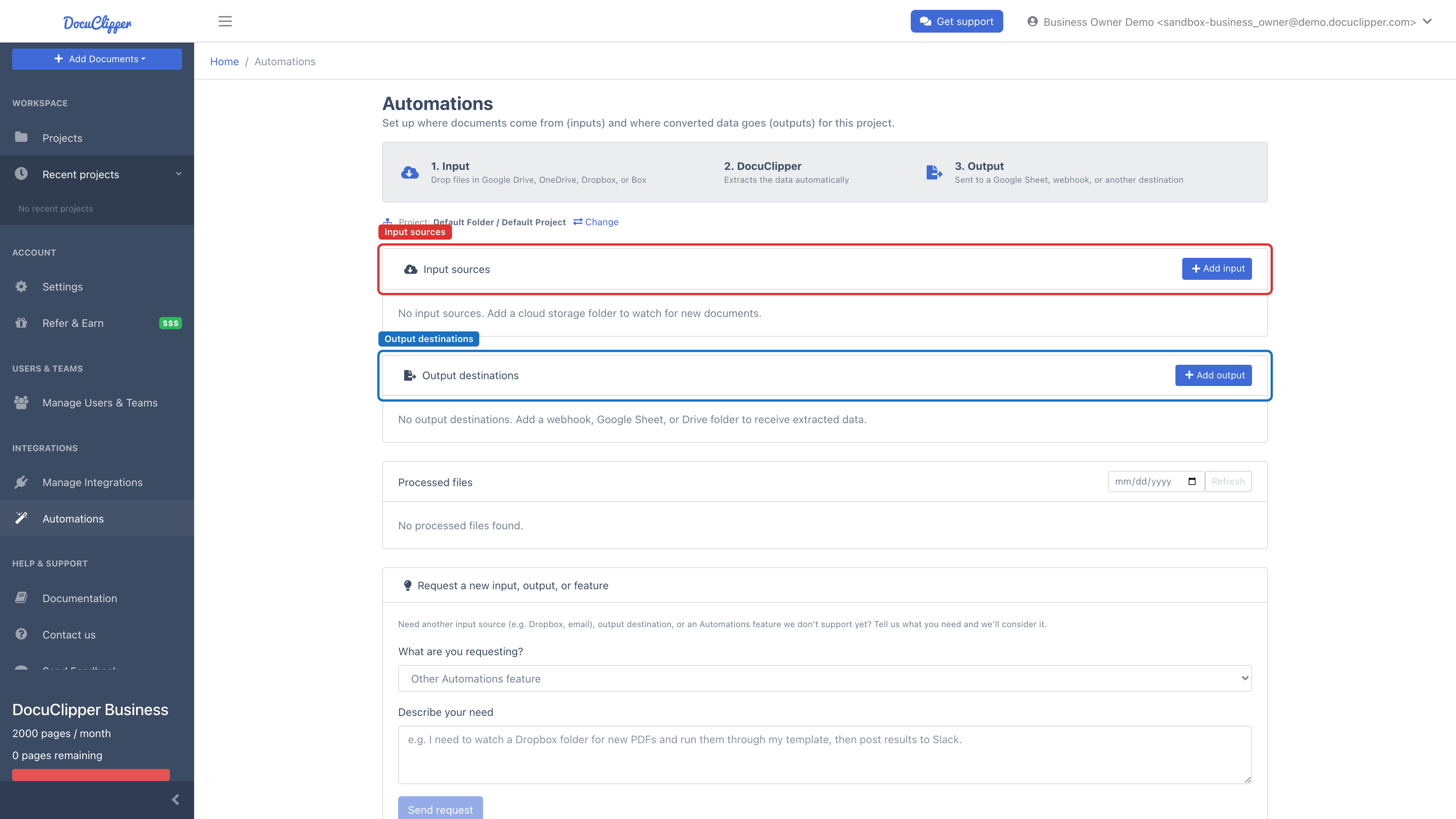
You can also set up email forwarding and cloud folders directly from a project's upload page via the Set up automations card.
What a cloud folder output saves
Outputs run for every job that finishes in the project, however the documents arrived: a manual upload, a watched cloud folder, or email forwarding.
A Google Drive, OneDrive, Dropbox, or Box output saves one set of files per job, named after the job number. Formats (set when you add or edit the output) controls which files are written:
json-job-<job number>-export.json, the full extraction for the job in the same shape as the API returns.csv-job-<job number>-export.csv, one row per transaction (bank statements) or per invoice (invoices and receipts). Each row starts with the job number and the document number, so files from many jobs can be combined and still traced back.
Running and monitoring
New files are picked up within minutes. Google Drive, Dropbox, and Box notify DocuClipper as soon as a folder changes, and Google Drive folders are also checked every hour in case a notification is missed. OneDrive folders are checked every few minutes. Each imported file becomes a job in the project, so you can trace results in the project's jobs list.
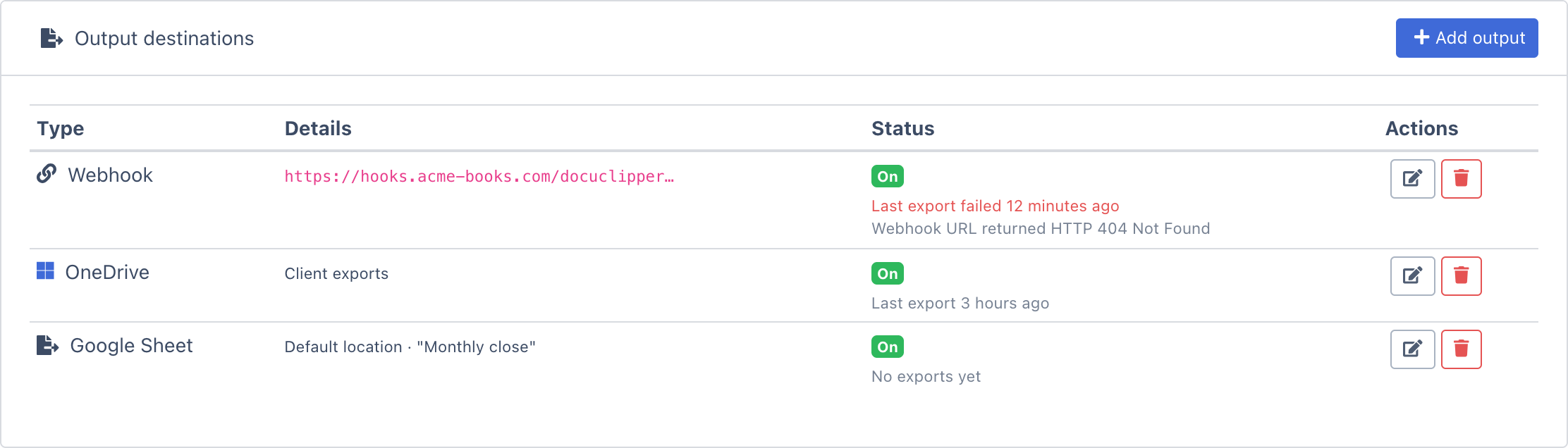
Every output destination shows the result of its most recent export under Status:
- Last export ... - the most recent export was delivered.
- Last export failed ... - the most recent export did not arrive, with the reason underneath (for example,
Webhook URL returned HTTP 404 Not Found). Fix the destination and the next converted document is delivered normally. - No exports yet - nothing has been converted in this project since the output was added.
- Exports are not being saved - the destination cannot accept files as it is set up, and every export will fail until it is fixed. The reason is shown underneath, with the button that fixes it:
- Connect Google Sheets (or Google Drive, OneDrive, Dropbox, Box) - the project has no connection to that service, for example because it was disconnected after the output was added. Click the button, sign in, and the connection is linked to the project.
- Grant write access - the Google Drive connection is read-only (see Google Drive).
Email when an output stops working
When an export fails, DocuClipper emails the account's admins. The email names the project, the destination, and the job, says what the error means, and how to fix it:
| Error | What it means | Fix |
|---|---|---|
Webhook returned 404 or 410 | The webhook URL no longer exists on your server. | Edit the webhook to your current URL, or turn it off. |
Webhook returned 401 or 403 | Your server no longer accepts DocuClipper's requests. | Check that your endpoint accepts requests signed with the webhook secret. |
| Webhook timed out | Your server did not answer within 10 seconds. | Reply as soon as the request arrives and process the data afterwards. |
| Drive, OneDrive, Dropbox, or Box access refused | The connection expired, was revoked, or is read-only. | Reconnect the provider on that output. |
| Folder not found | The destination folder was deleted or moved. | Pick the folder again on that output. |
You get one email per output when it starts failing, not one per job. Once the output delivers again, a later failure sends a new email (at most one per output per day). The email goes to account admins who have signed in or converted a document in the last two weeks.