
Request statements from your clients
Send a client one link to upload their bank and credit card statements every month, straight into their project, and ask for exactly the months that are missing.
Last updated
Each project can have a client upload link: a page your client opens on any device to send statements, without creating an account. Files sent through it go into that project only and are converted as bank and credit card statements, just like files you upload yourself. The link works for a year, so your client can keep it and use it every month.
Client upload links are included in paid plans (Starter, Business and Enterprise).
Ask for missing statements
- Open the project's Advanced Analysis and select the Coverage tab. See Date Gaps Analysis.
- If months are missing, click Request from client on the missing-months card. When nothing is missing, click Request statements at the top of the page to ask for the newest statements.
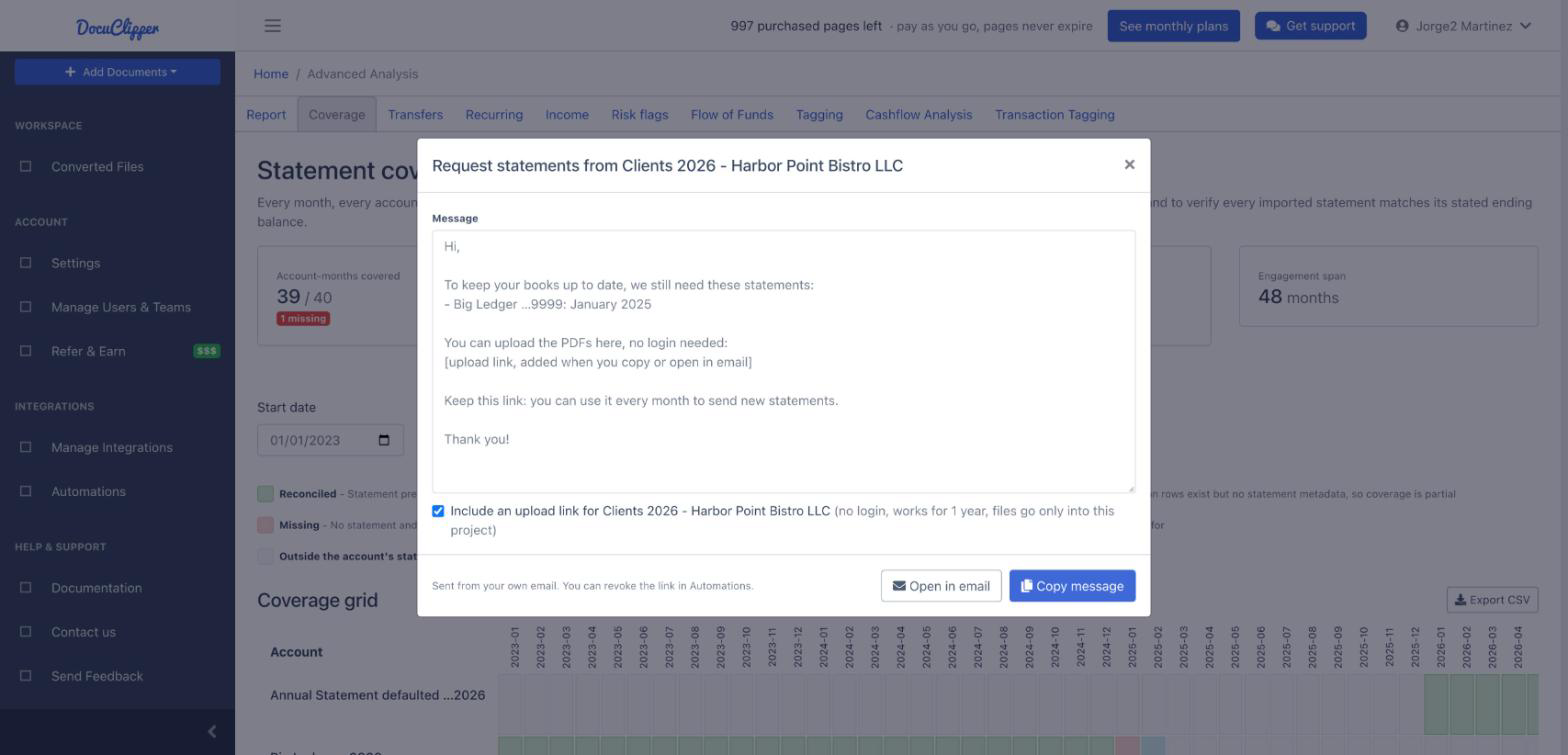
- DocuClipper writes the message for you. It lists every account with the months still missing, including the months since its latest statement up to last month. Edit the text if you like.
- Click Copy message and paste it into your email, or click Open in email to start a new email with the message in it. The first time, this creates the project's upload link and adds it to the message.
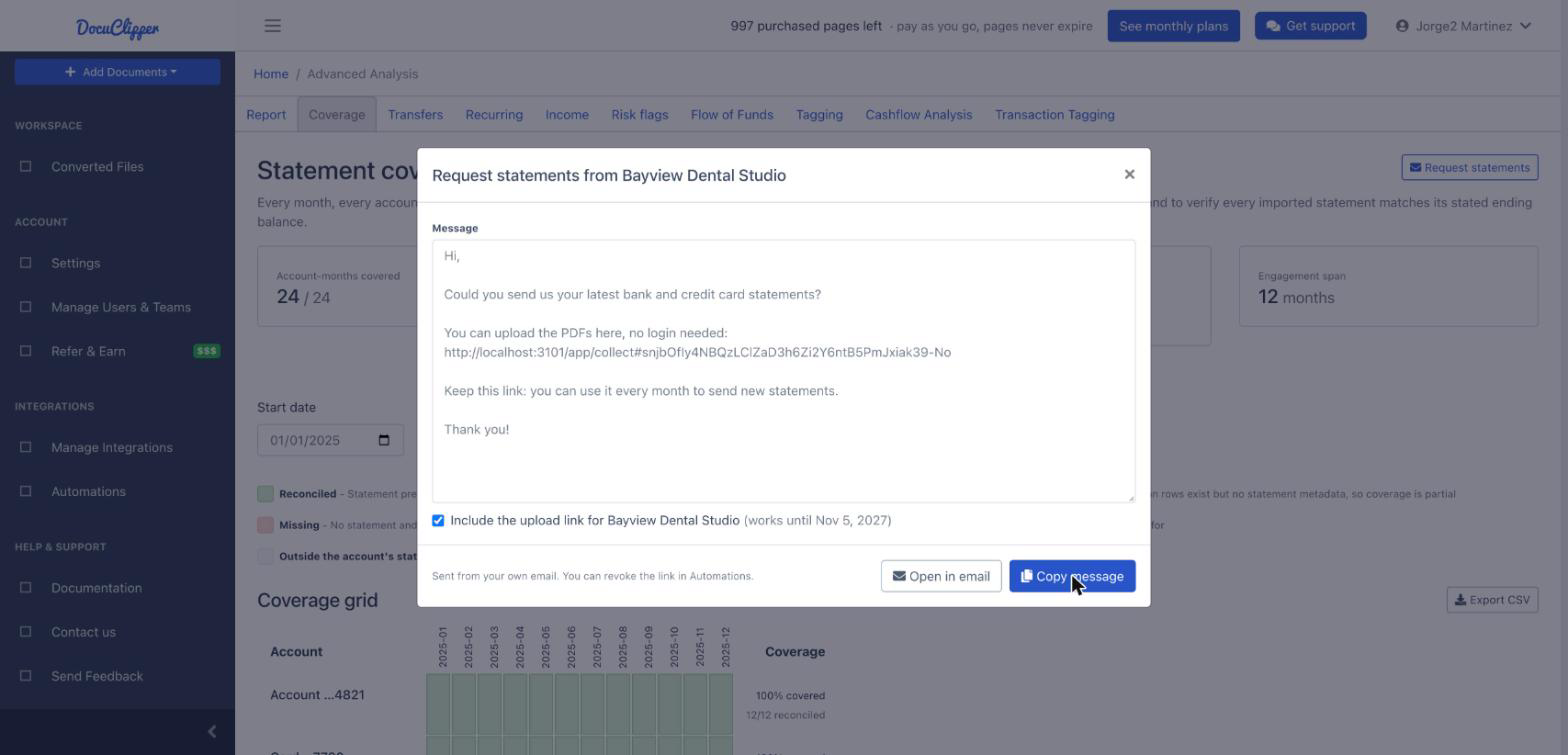
The message goes out from your own email. DocuClipper does not email your client.
What your client sees
Your client opens the link and sees a page addressed from your firm, with the link's name and the date it works until. The name of your project is never shown to your client. They choose or drag in their PDFs (or photos of paper statements) and see each file marked Received. A file they already sent is marked Already received and is not converted or counted again. Anything that is not a PDF, JPG or PNG is marked Not sent, with the reason.
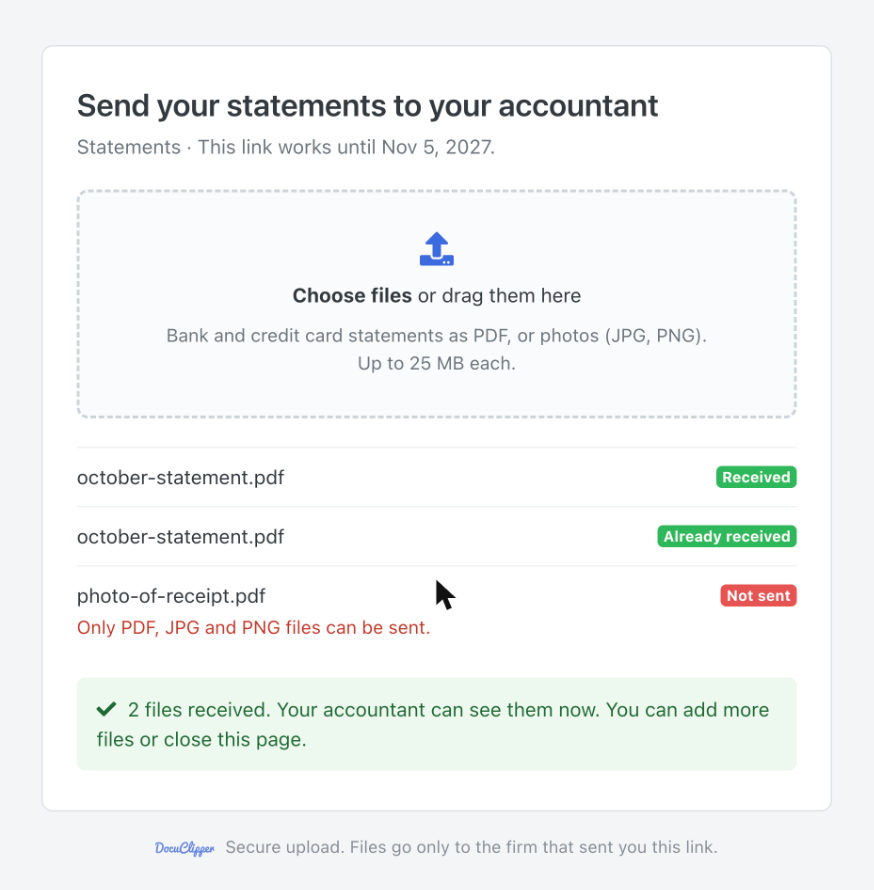
On the Business and Enterprise plans the page says Send your statements to your firm's name. On Starter it says to your accountant, with DocuClipper branding only.
Manage links and see what arrived
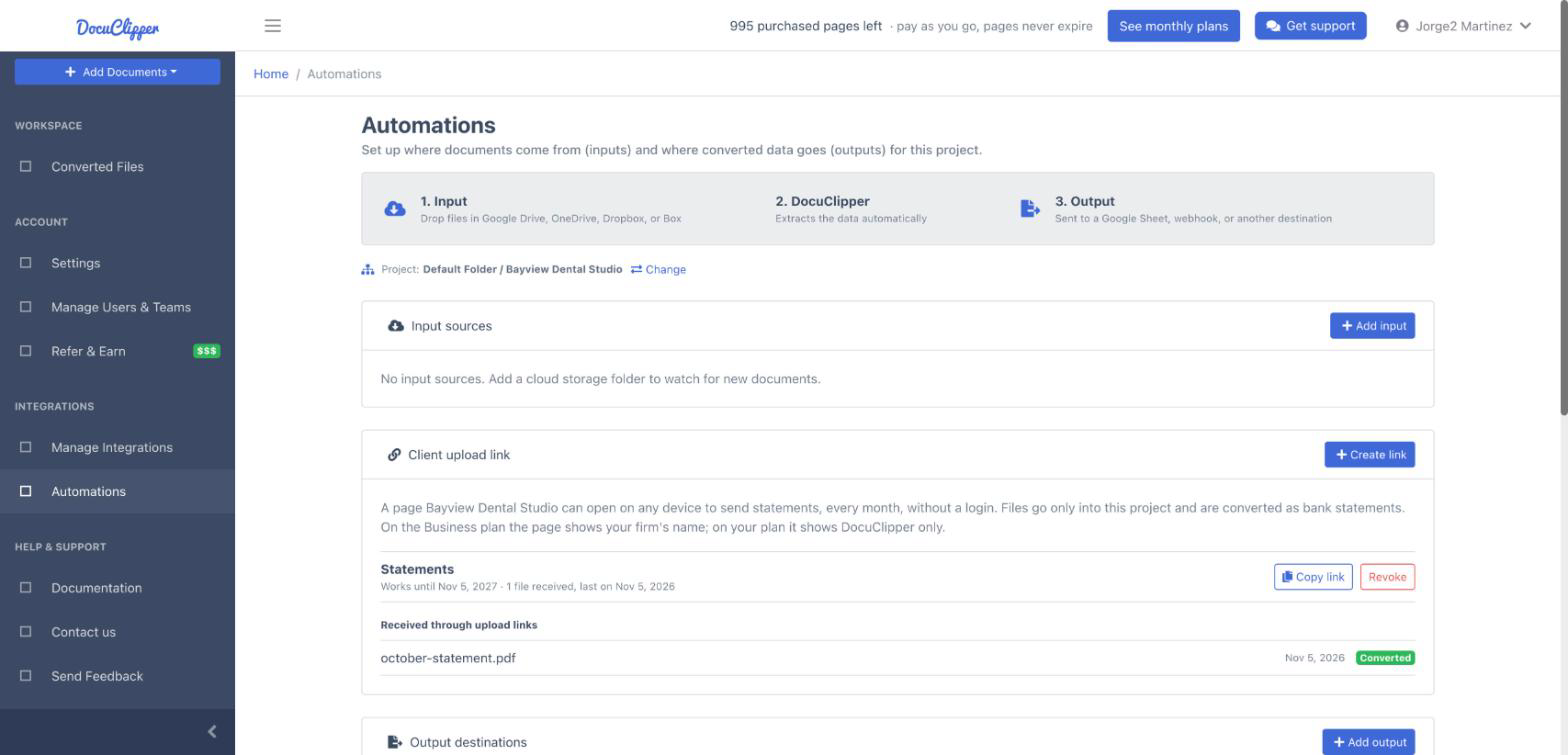
Open Automations, select the project, and find Client upload link:
- Create link: a new link with a name your client sees (for example "Monthly statements") and how long it works (30 days, 90 days or 1 year).
- Copy link: copy an active link again at any time.
- Revoke: the link stops working right away. Files already received stay in the project.
- Received through upload links: each file and its status (Converting, Converted, Failed or Removed). A file that cannot be converted, such as a password-protected PDF, shows as Failed: ask your client for a copy without a password.
Pages are counted to your account, as with any upload. New files show up in Coverage once they are converted.
Security
- The link opens one project only. Your client cannot see your projects, their names, or any files, including the ones they sent.
- Only PDF, JPG and PNG files up to 25 MB are accepted, checked by their content, not their name.
- Files go straight to encrypted storage over a secure connection.
- Links expire on the date you choose, and you can revoke one at any time.