
Converting Forms (W-2, 1099, Paystubs, Tax Forms)
Extract structured data from W-2s, 1099s, paystubs, and other US tax forms. Supported form types, the fields DocuClipper extracts per form, accuracy expectations, and common gotchas.
Last updated
DocuClipper extracts data from US tax and payroll forms (W-2s, 1099s, paystubs, and 1040-family returns) into structured rows you can review, edit, and export to Excel, CSV, or QuickBooks. This article covers exactly which forms are recognized, which fields come back per form, and what to expect on edge cases like scans and handwritten amounts.
Where to start a Forms job
- Sidebar: click Add Documents, then Forms (W-2, 1099, Paystubs, Tax Forms) to open the upload page.
- Inside a project: open the Forms tab of any project. If there are no forms yet, click Add Forms.
- Direct link:
/extract/formopens the upload page directly.
Step 1: Upload
- Drag and drop the PDFs onto the Upload Forms page, or click to pick files. You can batch-upload multiple forms in one job.
- Optionally set a Job name and Tags.
- If the PDF has extra pages (cover sheets, transmittal forms, etc.), use the built-in viewer to exclude or rotate them.
- Click Import.
Step 2: Review and edit
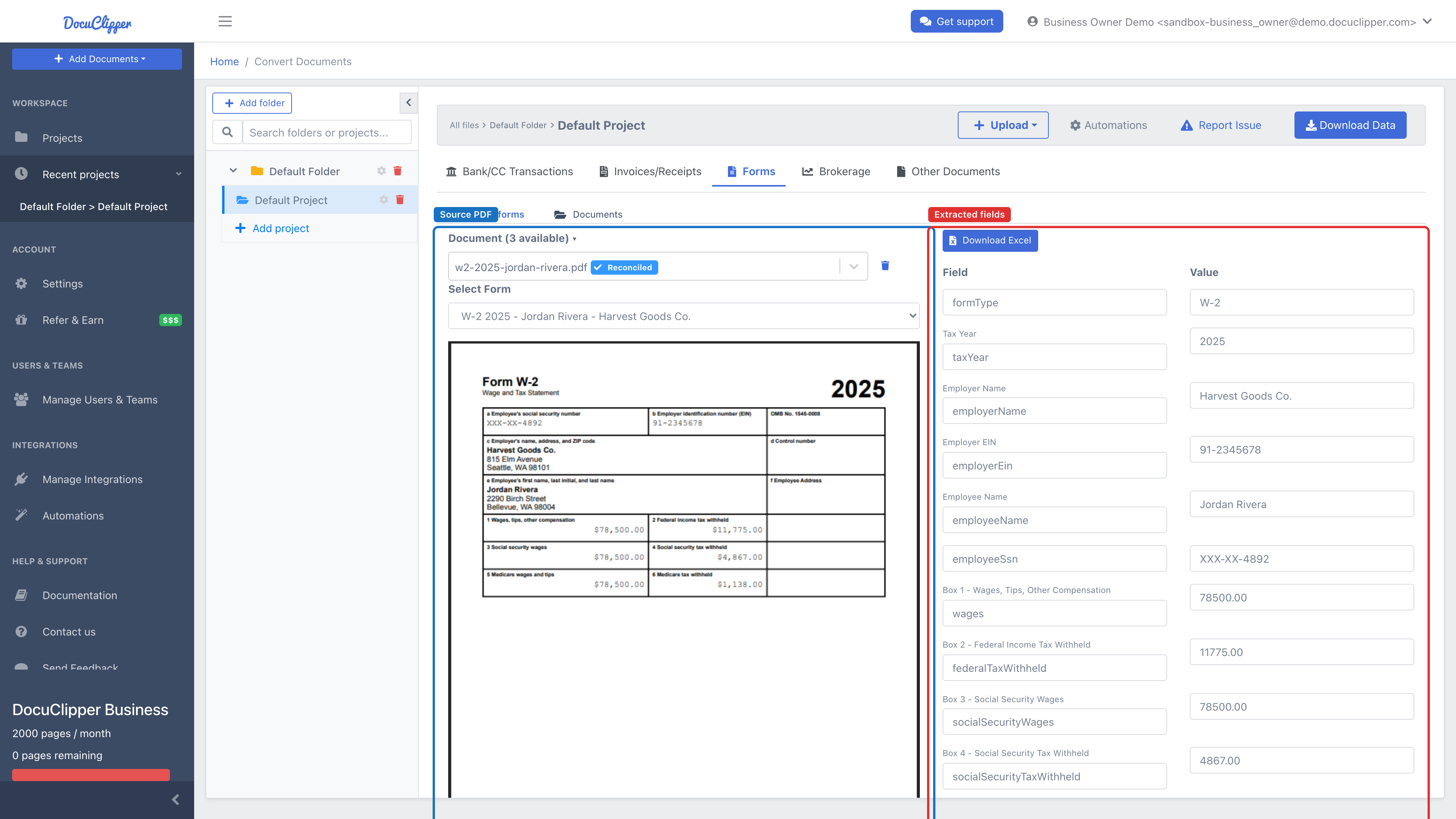
Each recognized form becomes one row of extracted data.
- Use the Documents dropdown to switch between uploaded PDFs.
- Click into any cell to edit the extracted value. Changes save automatically.
- The left panel shows the source PDF; the right shows the extracted fields. Click a field to highlight where DocuClipper pulled it from.
- Add more forms to the same job by clicking Add Forms and repeating Step 1.
Step 3: Download
- Select which forms to include (all by default).
- Pick an Output format: Excel, CSV, or QBO.
- Click Download.
How the spreadsheet is laid out
For recognized tax forms (W-2, 1099-MISC, 1099-NEC, 1099-INT, 1099-DIV, and 1099-R), the export is laid out like the form itself:
- One row per form, one column per IRS box, in box order. The same box always lands in the same column, however the payer printed its label. So a 1099-MISC from one issuer and a 1099-MISC from another line up and can be summed.
- Money boxes are real numbers, not text, so Excel can total a column directly.
- One sheet per form type in Excel. A job holding both W-2s and 1099-NECs gets a W-2 sheet and a 1099-NEC sheet. In CSV the sections are stacked one after another.
- Nothing is dropped. Anything DocuClipper read that does not belong to a known box goes to a separate Unmapped fields sheet, one row per field, so the form sheets stay a fixed width.
- Tax year is left blank when the form does not print it. DocuClipper does not guess it from the IRS revision stamp, such as "(Rev. 4-2025)", because that is not the tax year.
Other documents processed as forms keep the simple layout: one row per document and one column per field DocuClipper found.
For format-specific details see Supported output formats.
Which forms are supported
DocuClipper classifies an upload by reading the IRS OMB control number and the form's title line off the page. Both signals come from the actual print, so DocuClipper recognizes the form regardless of the year, payer, or payroll-software variant, as long as those two markers are visible.
The classifier currently recognizes these US forms:
Wage and information returns
- W-2 (Wage and Tax Statement, OMB 1545-0008)
- 1099-NEC (Nonemployee Compensation)
- 1099-MISC (Miscellaneous Information)
- 1099-DIV (Dividends and Distributions)
- 1099-INT (Interest Income)
- 1099-B (Proceeds From Broker and Barter Exchange Transactions)
- 1099-G (Certain Government Payments)
- 1099-R (Distributions From Pensions, Annuities, Retirement Plans)
- 1099-Q (Payments From Qualified Education Programs)
- 1099-K (Payment Card and Third Party Network Transactions)
- 1099-C (Cancellation of Debt)
- 1099-S (Proceeds From Real Estate Transactions)
- 1098 (Mortgage Interest Statement)
- 1098-T (Tuition Statement)
- 5498 (IRA Contribution Information)
Income tax returns
- 1040 (US Individual Income Tax Return)
- 1041 (Income Tax Return for Estates and Trusts)
- 1065 (Return of Partnership Income)
- 1120 (US Corporation Income Tax Return)
- 1120-S (Income Tax Return for an S Corporation)
- Schedule K-1 (Form 1065)
- Schedule K-1 (Form 1120-S)
Paystubs
Paystubs do not have an OMB number or a single canonical layout, so DocuClipper handles them through the generic key-value extractor rather than a dedicated classifier. In practice that works well for paystubs from major payroll providers (Gusto, ADP, Paychex, Workday, QuickBooks Payroll) because their layouts label fields cleanly: gross pay, net pay, federal withholding, state withholding, Social Security, Medicare, year-to-date totals. Boutique or hand-built paystubs may need manual review of the extracted row.
If your form is not in the list above (a state-level form, a country-specific form, or a niche tax document), use the custom-extraction flow to draw your own fields and save a reusable template.
Fields extracted per form
For the high-volume forms, DocuClipper has a canonical field list and validates that each one came back populated. Below is the per-form field set; numbered references match the box numbers as printed on the IRS form.
W-2 (Wage and Tax Statement)
- Employer EIN (Box b)
- Employer name and address (Box c)
- Employee SSN (Box a)
- Employee name and address (Box e)
- Wages, tips, other compensation (Box 1)
- Federal income tax withheld (Box 2)
- Social Security wages (Box 3)
- Social Security tax withheld (Box 4)
- Medicare wages and tips (Box 5)
- Medicare tax withheld (Box 6)
- State wages, tips, etc. (Box 16)
- State income tax (Box 17)
State boxes 16 and 17 are correctly left empty for W-2s from no-wage-tax states (FL, TX, NV, WA, SD, WY, AK, NH, TN). Empty in those cases is not an extraction miss.
1099-NEC (Nonemployee Compensation)
- Payer name and address
- Payer TIN
- Recipient TIN
- Recipient name and address
- Nonemployee compensation (Box 1)
- Federal income tax withheld (Box 4)
- State tax withheld (Box 5)
1099-MISC (Miscellaneous Information)
- Payer name and address, Payer TIN
- Recipient name and address, Recipient TIN
- Rents (Box 1)
- Royalties (Box 2)
- Other income (Box 3)
- Federal income tax withheld (Box 4)
1099-DIV (Dividends and Distributions)
- Payer name and address, Payer TIN
- Recipient name and address, Recipient TIN
- Total ordinary dividends (Box 1a)
- Qualified dividends (Box 1b)
- Total capital gain distributions (Box 2a)
- Federal income tax withheld (Box 4)
1099-INT (Interest Income)
- Payer name and address, Payer TIN
- Recipient name and address, Recipient TIN
- Interest income (Box 1)
- Early withdrawal penalty (Box 2)
- Federal income tax withheld (Box 4)
Other 1099s, 1098s, 1040, K-1s
For 1099-B/G/R/Q/K/C/S, 1098/1098-T, 5498, 1040, 1041, 1065, 1120/1120-S, and the K-1 schedules, DocuClipper recognizes the form type and extracts the labeled fields it finds via the generic key-value pass. There isn't a curated per-box checklist for these yet, so the exact column set you see in the export depends on which fields the source PDF labeled cleanly.
Accuracy expectations
- Native (digital) PDFs straight from a payroll or tax-software provider extract with the highest accuracy. The text layer is exact; the only failure modes are unusual layouts.
- Clean scans at 300 DPI or higher of an original printed form extract well. Most labeled boxes come back populated.
- Phone photos and low-DPI scans are the largest source of misses. Fields with handwritten amounts, glare, or skew are the most common to drop.
- Forms missing the OMB number (employer-generated W-2 lookalikes, broker-customized 1099-Bs) still classify correctly when the title line scans cleanly. If both the OMB and the title line are missing or garbled, DocuClipper falls back to a density-based classifier (counts how many of each form's expected labels it found). Density requires at least three matchers and a clear lead, otherwise the form is left as unknown.
Multi-form PDFs
If a single PDF contains several forms (a stack of 1099s for the same payer, or a packaged tax return with W-2s plus 1099s plus a 1040), DocuClipper splits and classifies each form individually. Each one becomes its own row in the export. The split happens automatically on page boundaries.
The classifier is per-page, so a form that spans two pages (most 1040 schedules, some K-1s) is identified by whichever page contains the title and OMB markers, then merged with adjacent pages of the same form.
1099 summary dashboard
When you're processing 1099s, the per-form rows are only half the picture - at filing time you usually need the per-recipient total: how much you paid each payee across all their forms, and whether that crosses the reporting threshold. The 1099 summary view rolls your extracted 1099s up by recipient so you don't have to pivot the export by hand.
Pick a tax year and the summary shows one row per recipient with:
- The recipient's name and TIN.
- The number of 1099 forms and the total amount for that recipient.
- Which 1099 form types they appear on.
- An above-threshold flag - recipients whose total meets or exceeds the reporting threshold (defaults to $600) are marked, so the people you actually have to file for stand out. You can change the threshold.
You can filter the summary by form type (for example only 1099-NEC, or only 1099-MISC), and it surfaces a missing-TIN count so you can chase down the recipients whose taxpayer ID didn't extract before you file. The table is sortable and paginated for large recipient lists, and you can export it to CSV.
Output formats
- Excel (.xlsx) is the default. One sheet, one row per form, one column per field. Multi-form jobs are easy to filter and pivot in Excel.
- CSV has the same shape as Excel without formatting.
- QBO is supported for forms that map cleanly into a QuickBooks transaction shape (mainly 1099s as bills/expenses against the payer). For W-2s and 1040-family returns, prefer Excel/CSV; QuickBooks does not have a native import shape for those.
Common gotchas
- Handwritten amounts. OCR for handwriting is hit-or-miss. If a customer or contractor handwrote box values on a printed form, expect to manually correct those cells. Typed values (laser-printed) extract reliably.
- Black-and-white photocopies of carbon-copy forms lose the red-print boxes that delimit fields. The labels still extract, but boxes can bleed into each other; review the row before exporting.
- Multi-employer or multi-state W-2s with multiple Box 16/17 rows: DocuClipper extracts the first state row. For multi-state W-2s, manually add the additional rows after extraction or split the PDF first.
- 1099-NEC vs 1099-MISC vs 1099-R confusion can happen on poorly-scanned forms where the OMB number is unreadable. The classifier is conservative and will mark these unknown rather than guess. Re-scan at 300 DPI to fix.
- State and country-specific forms (state W-2 equivalents, Canadian T4s, UK P60s) are not in the classifier. Use custom extraction instead.
- W-9 forms are not extracted. W-9 is a request form, not a return form, so DocuClipper does not include it in the typed-form taxonomy.
Related
- Extract data from bank statements
- Extract custom fields from any document
- Creating and using custom templates
- Supported output formats
- Other Documents Overview
For issues, email support@docuclipper.com.