
Matching & Reconciling Transactions
Review, include/exclude, and reconcile the transactions DocuClipper extracted from your bank statements.
Last updated
After you convert a batch of bank statements, every extracted transaction lands in the Transactions view. This is where you review totals, exclude outliers, flip signs, fix the occasional OCR miss, and get the data ready for export or analysis.
Opening the view
- Open a project that has at least one converted statement.
- Click Transactions in the left sidebar.
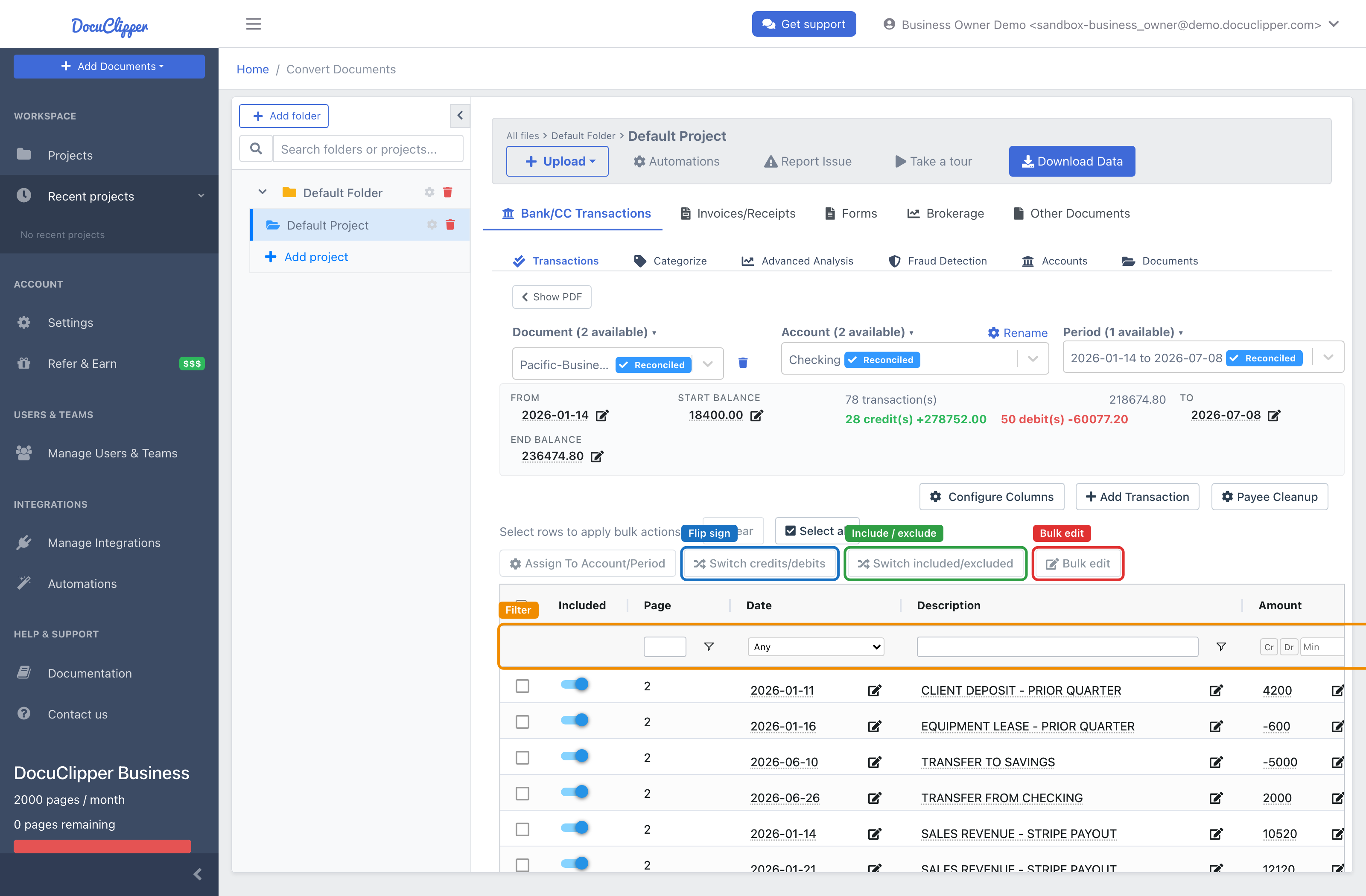
What you can do
- Filter by account, date range, amount, description, or status.
- Include / exclude rows. Excluded rows are kept for audit but removed from totals, exports, and analysis.
- Flip sign: if OCR captured a debit as positive (or vice versa), flip the sign on selected rows in one pass (credits become debits and vice versa).
- Bulk edit: select multiple rows and edit description, category, or account together.
- Corrections: every edit is saved as a correction, so the change is tracked against the raw OCR value.
Automatic check matching
If a conversion includes check images alongside the bank statement, DocuClipper automatically links each extracted check to its matching Check #N row on the statement and fills in the payee and memo it read from the check image.
- Rows are matched by check number and amount; the date is used only to break ties.
- This runs automatically when the conversion finishes - there is nothing to click.
- It only enriches rows still showing the default "Check #N" placeholder, so it never overwrites a description you have edited. Re-running the job leaves your edits in place.
Exporting
Click Download Data to export. Excluded rows are never sent. Excel and the CSV formats (Xero CSV, Sage, MYOB, Relate, NetSuite) and QIF export only the rows that match the table's current filters; QuickBooks (Web Connect), OFX, QFX, IIF and Xero Direct Sync send every included row of the selected documents. See Supported Output Formats for the full list of formats.
FAQs
What happens to a transaction I exclude?
It stays on the record for audit but drops out of totals, exports, and analysis. Excluding is reversible and never deletes the row.
Are excluded rows included when I export?
No. Every export sends only included rows. Excel, the CSV formats and QIF also apply the table's current filters.
How do I fix a debit that was captured as a credit?
Select the rows and use Switch credits/debits to flip the sign in one pass. The totals update with it.
Will my manual edits be overwritten if the job runs again?
No. Every edit is stored as a correction against the raw OCR value, and automatic check matching only fills rows still showing the default "Check #N" placeholder.
How does DocuClipper match check images to statement rows?
By check number and amount, using the date only to break ties. It runs automatically when the conversion finishes - there's nothing to click.
Can I edit several transactions at once?
Yes - select the rows and use Bulk edit to change description, category, or account together.