
Customize Date Format
Control how dates are interpreted by DocuClipper and formatted in your exports, per download and at the profile level.
Last updated
DocuClipper handles dates in two places: interpreting ambiguous dates on the source PDF (is 01/02 January 2 or February 1?) and formatting dates in your exported file (Excel, CSV, QBO, etc.). Both are configurable.
Per-download: choose the export date format
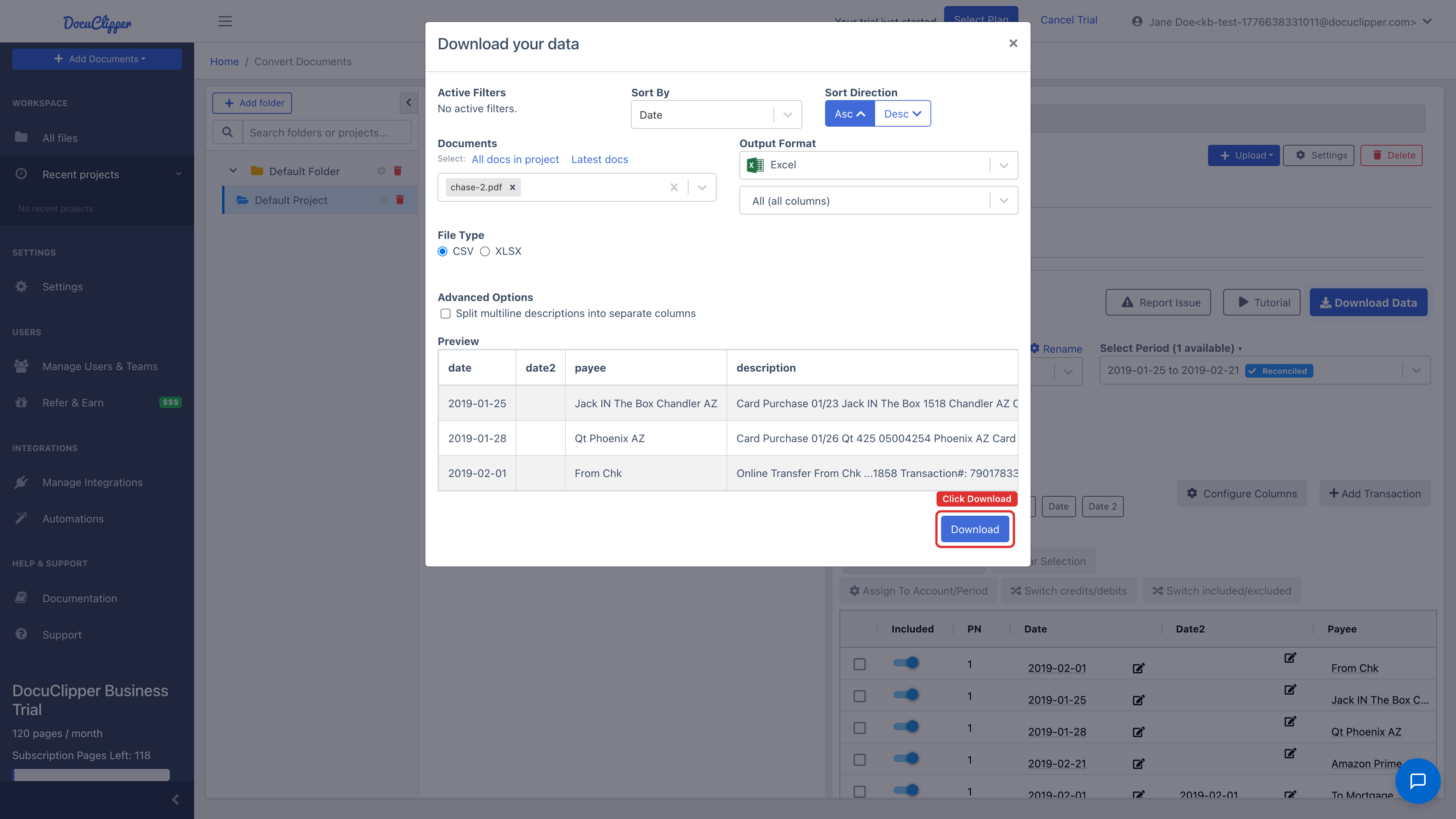
Every download dialog lets you pick how dates appear in the output file.
- Click Download Data on a converted project.
- Find the Date Format dropdown.
- Pick one of:
YYYY-MM-DD: ISO, recommended for spreadsheets.MM/DD/YYYY: US.DD/MM/YYYY: UK / EU / AU.DD-MMM-YYYY: e.g.15-Jan-2025, unambiguous.
- Click Download.
This setting only affects the file you download. The underlying transaction dates are stored in a locale-independent format.
Profile-level: how DocuClipper reads ambiguous dates
Some statements print dates as 01/02 with no year and no obvious format. DocuClipper uses your profile date format to disambiguate.
- Click your profile icon → Settings → Profile.
- Set Date format to:
- MM/DD: for US-style statements.
- DD/MM: for UK / EU / AU / most international statements.
- Save.
This setting applies to every future conversion. Existing converted statements can be re-extracted if you change it.
Per-project override
If a single client sends you UK statements while the rest of your work is US, you can override the format on the statement detail page without changing your profile default:
- Open the converted statement.
- Click Settings (gear icon on the top right of the transactions view).
- Change Date format to the one that matches this statement.
- Re-run extraction. The transactions update in place.
Common problems
- Dates are off by "flipping" day and month (e.g. all
5/4became April 5 instead of May 4): your profile date format is the opposite of the source. Change it at the profile or statement level and re-extract. - Dates appear as
NaNin Excel: the export date format doesn't match Excel's regional setting. PickYYYY-MM-DDin the download dialog. See Dates shows as NaN in Excel. - Year is wrong: see Correcting the Year. Statements often omit the year, so DocuClipper infers it from the statement period.