
How Reconciliation Works
Learn how DocuClipper verifies bank statement accuracy by checking that opening balance + transactions = closing balance, and what to do when it shows Not Reconciled.
Last updated
DocuClipper reconciles a bank statement by reading the printed start balance and end balance, summing the extracted credits and debits, and checking that end balance − start balance = credits − debits; if the math matches, the statement gets a green Reconciled badge.
If the equation doesn't balance, DocuClipper shows a red Not Reconciled badge. Common causes are a misread balance, missing or wrong transactions, swapped debits and credits, or a multi-account or multi-period statement that needs assignment.
How does DocuClipper reconcile a bank statement?
The check runs in three steps:
-
DocuClipper reads the start and end balance from the statement.
-
Next, DocuClipper adds up all the credits and debits in the statement.
-
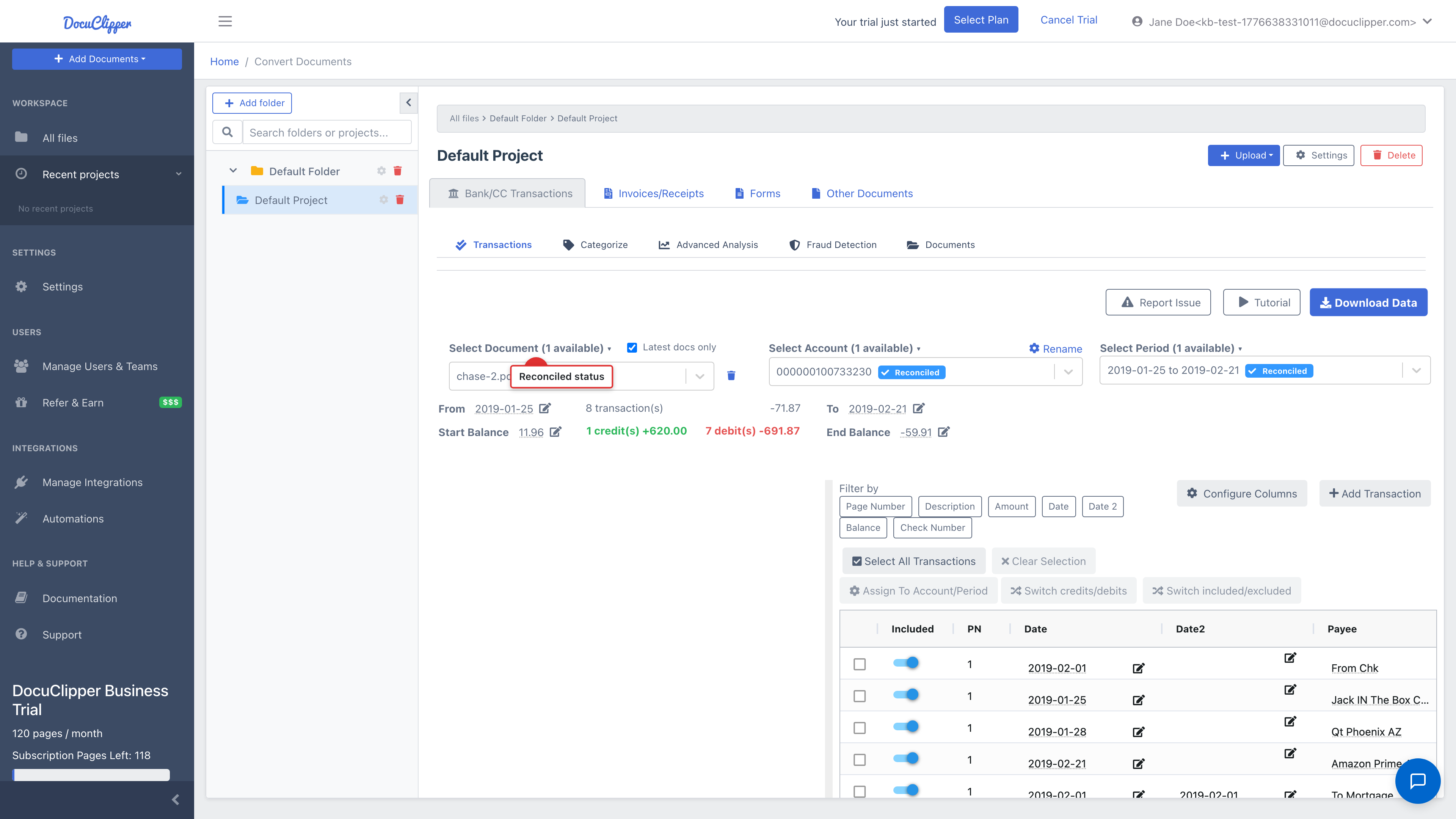
If “end balance” – “start balance” is equal to “credits” – “debits” then the statement is reconciled and DocuClipper displays a green Reconciled badge next to the statement summary:
What does it mean when the job is “not reconciled”? #
Sometimes DocuClipper isn’t able to reconcile the statement. When this happens you’ll see a red badge:
Here are a couple of reasons that can prevent DocuClipper from reconciling the statement:
- The start or end balances have been detected incorrectly.
- DocuClipper wasn’t able to read the start or end balances.
- Balances are correct but there are missing or wrong transactions.
- DocuClipper can’t reconcile this statement type yet. E.g. different language, non-supported bank statements
- DocuClipper is experiencing issues when interpreting multi-account statements.
- Debit/Credit has been swapped.
- Your statement contains multiple periods, and DocuClipper has consolidated them into a single period.
Fixing Errors to Reconcile the Statement #
-
If the start or end balances are wrong, click the pencil icon next to the balance figure and enter the correct value. DocuClipper re-runs the reconciliation check immediately.
-
DocuClipper displays the uploaded statement in the summary panel. Use the Document, Account, and Period selectors to navigate multi-account or multi-period statements. Transactions that appear missing may be under a different account or period selector.
-
To fix a wrong transaction, click the pencil icon on its row and edit the value. To add a missing transaction, click Add transaction at the bottom of the table. See the detailed guide.
-
If your statement includes multiple accounts or periods, you can assign transactions accordingly. See Assigning transactions to multiple accounts and periods.
-
If debits and credits appear swapped, click the row options and choose Switch credits/debits. See Debits and credits backwards.
What to do if there are lots of Errors? #
While we strongly encourage everyone to familiarize themselves with the platform, it remains our duty to ensure the optimal experience for all our customers. Our dedicated team continuously strives to enhance the system, and we highly value your feedback and suggestions. In the event of multiple errors, please do not hesitate to reach out to our support team.
FAQs
How does DocuClipper reconcile a bank statement?
DocuClipper reads the start and end balance from the statement, sums all credits and debits, and confirms that end balance minus start balance equals credits minus debits. When the totals match, the statement gets a green Reconciled badge.
What does a red Not Reconciled badge mean?
The totals do not match. Common causes include misread start or end balances, missing or wrong transactions, swapped debits and credits, multi-account or multi-period statements that need manual assignment, or unsupported statement formats.
How do I fix a wrong start or end balance?
Click the pencil icon next to the balance figure and enter the correct value. DocuClipper re-runs the reconciliation check immediately.
My debits and credits look reversed. How do I fix that?
Click the row options on a transaction and choose Switch credits/debits. For bulk fixes, select multiple rows first and use the bulk Switch Credits/Debits action.
What if my statement covers multiple accounts or periods?
Use the Document, Account, and Period selectors above the transactions table to navigate. Transactions that look missing may simply be filed under a different account or period and can be reassigned manually.
What should I do if there are too many errors to fix manually?
Contact the support team. They can review the statement and either ship an extractor improvement or help reconcile the file directly.