
Detecting Duplicate Statements and Transactions
DocuClipper catches duplicate bank statements at two levels — identical files at upload, and overlapping transactions across a project — so reissued statements, overlapping periods, and the same account uploaded as both PDF and CSV don't double-count.
Last updated
When you process a lot of bank statements, duplicates creep in: the same PDF gets uploaded twice, a bank reissues a corrected statement that overlaps the original, or you import the same account once as a PDF and again as a CSV. Left unchecked, duplicates inflate totals, break reconciliation, and waste pages.
DocuClipper detects duplicates at two levels — when files are uploaded, and across the transactions already in a project — so you catch them before they distort the numbers.
File-level detection at upload
Before DocuClipper spends any pages processing a file, it checks whether the same file already exists in the project. If you upload a file that is identical to one already there, DocuClipper flags it as already in this project and lets you skip it rather than converting it again.
This runs at upload time, so:
- You don't burn pages re-processing a document you already have.
- You don't end up with two copies of the same statement's transactions.
- Re-uploading the same PDF by accident (a common slip when working through a client folder) is a no-op instead of a silent duplicate.
File-level detection only catches files that are byte-for-byte the same (it compares the stored file, not the visible content). A reissued statement, a re-scan, or the same account exported in a different format won't be identical — those are caught at the transaction level.
Transaction-level detection across a project
Even when two files aren't identical, they can still cover the same money. DocuClipper looks across all the statements in a project and flags likely duplicate coverage. It catches:
- Overlapping periods — two statements for the same account whose date ranges overlap (for example, a Jan 1–31 statement and a Jan 15 – Feb 15 statement that share the second half of January).
- Reissued or corrected statements — a bank sends a replacement statement covering a period you already uploaded.
- The same account uploaded as both a PDF and a CSV — you convert the PDF statement and also import the bank's CSV export for the same account and dates.
Detection groups transactions by date and amount, then confirms each pair with description similarity. The account is used to keep unrelated accounts apart, but it's matched loosely — on the last 4 digits, and with CSV placeholder accounts (like account1) allowed to match a real account — so a masked number or a bare CSV export still lines up with the PDF it came from. When two sources line up this way, DocuClipper treats them as potential duplicates rather than two separate transactions.
Where duplicates are surfaced
Transaction-level duplicates show up in two places:
- A post-upload prompt. After processing, if DocuClipper sees overlapping coverage it prompts you so you can review before the duplicates affect any analysis or export.
- The Coverage tab. Overlapping ranges are listed under Overlapping periods (potential duplicates), alongside the coverage grid for the project. This is the same place you confirm continuous statement coverage, so you can spot both gaps and overlaps in one view. The Coverage CSV export adds a Missing Periods column per account, so gaps and duplicates come out of the same report.
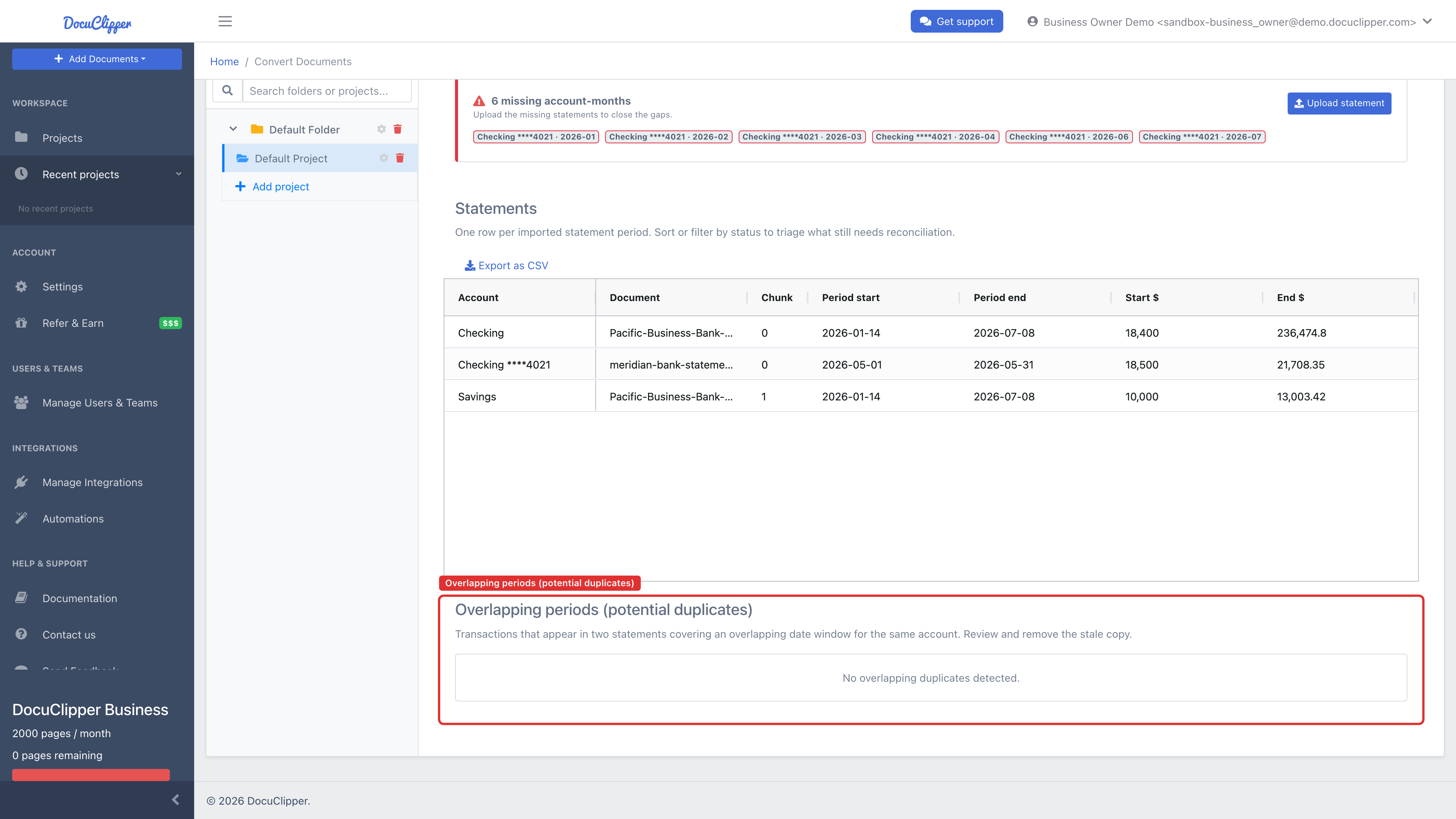
From there you can remove the redundant statement so totals and reconciliation reflect each transaction once.
Why this matters
- Reconciliation. A duplicated statement double-counts credits and debits, so a statement that should reconcile won't.
- Cash-flow and underwriting. Overlapping periods overstate deposits and inflate averages — a borrower's "monthly deposits" jump if January is counted twice.
- Forensic review. Duplicate uploads are sometimes used to pad a document production; surfacing overlaps makes that obvious.
FAQs
DocuClipper says a file is "already in this project." What does that mean?
You uploaded a file that is identical to one already in the project. DocuClipper flagged it before processing so you don't spend pages converting the same document twice. Skip it, or remove the earlier copy if you meant to replace it.
I uploaded the same account as a PDF and a CSV. Will the transactions be counted twice?
DocuClipper detects that overlap at the transaction level (grouping on date and amount, confirming with description similarity, and matching the account on its last 4 digits) and flags it as a potential duplicate in the Coverage tab and in the post-upload prompt. Review the overlap and remove whichever source you don't want to keep.
Where do I see overlapping periods?
Open the Coverage tab for the project. Overlaps are listed under Overlapping periods (potential duplicates), next to your coverage summary. You'll also get a prompt right after upload when an overlap is detected.
How do I remove a duplicate statement?
Remove the redundant statement from the project via the Documents sub-tab. See Managing Project Documents. Reconciliation and any analysis update automatically once it's gone.