
Import PDF Invoices and Receipts into FreshBooks
Turn PDF vendor invoices and receipts into a CSV that FreshBooks' Import Expenses from a File screen accepts: save a FreshBooks export format in DocuClipper with Date, Merchant, Description, Category and Amount columns, then map it in FreshBooks.
Last updated
To import PDF invoices or receipts into FreshBooks, upload the PDFs to DocuClipper, save an export format with the columns FreshBooks' expense import needs (Date, Merchant, Description, Category, Amount), download it as CSV, keep one row per invoice, and upload the file in FreshBooks under Expenses > More Actions > Import Expenses from a File. Each invoice becomes one FreshBooks expense.
DocuClipper does not connect to FreshBooks directly. The hand-off is a CSV file that you upload in FreshBooks, so it takes about a minute per batch, not per invoice.
What FreshBooks can import
FreshBooks has two places for money you spend:
| FreshBooks record | What it is for | Can it be imported from a file? |
|---|---|---|
| Expenses | Purchases you have already paid | Yes, from a CSV with Import Expenses from a File |
| Bills | Vendor invoices you will pay later (Accounts Payable, on FreshBooks Premium and Select) | No. FreshBooks creates bills one at a time with Create New > Bill |
So the file import suits paid invoices and receipts. For an unpaid bill you want to track in FreshBooks Accounts Payable, enter it with Create New > Bill and copy the vendor, dates, line items and amounts from the invoice in DocuClipper.
Step 1: Upload your invoices or receipts
- Click Add Documents in the left sidebar and choose Bills & Receipts (you pay).
- Drag in your PDFs. You can mix vendors and layouts in one upload; no per-vendor setup is needed.
- Click Convert.
DocuClipper extracts the vendor, invoice number, invoice date, due date, line items, tax and total from each document.
Step 2: Review the invoices and set a category
Open the project's Invoices tab and check each invoice. Click any field to correct it; your edits are what get exported.
FreshBooks files each imported expense under a category, so set the Category on the invoice's lines to the FreshBooks expense category you use, for example Office Supplies. To do this once per vendor instead of once per invoice, click Always do this for "{vendor}" after setting it, or add a rule in Invoice Rules. Every later invoice from that vendor then arrives with the category already filled in.
Step 3: Save a FreshBooks export format
You do this once. DocuClipper keeps the format for every later export.
- From the Invoices list, click Download Data.
- Leave Output Format on Excel. In the dropdown under it, choose Create New Export Format. The Configure Columns window opens.
- Rename the configuration, for example FreshBooks expenses.
- Set up five columns. For each column, type the column name and pick the DocuClipper field it reads. Delete any other columns with the trash icon, and use Add Column if you need more.
| Column name | Field |
|---|---|
| Date | Invoice Date |
| Merchant | Vendor/From |
| Description | Invoice Number |
| Category | Item/Service Category |
| Amount | Invoice Total |
- Click Close.
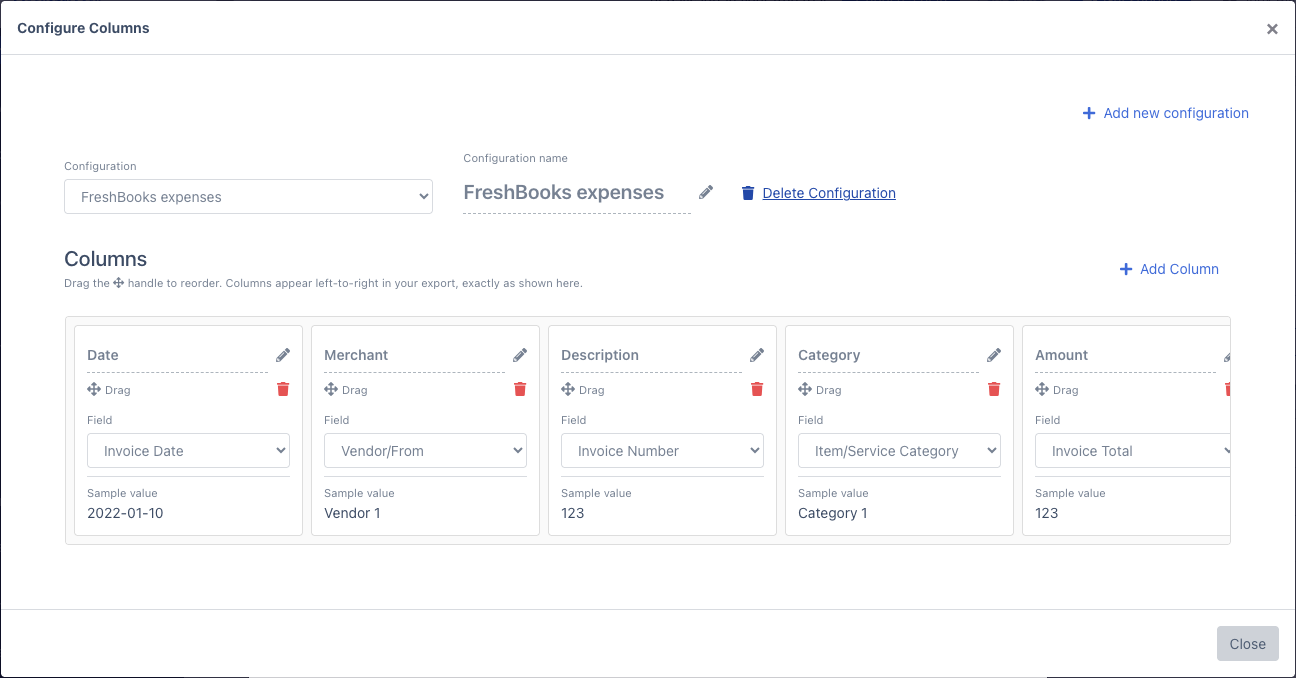
Invoice Total includes tax, so each FreshBooks expense carries the full amount you paid.
Step 4: Download the CSV
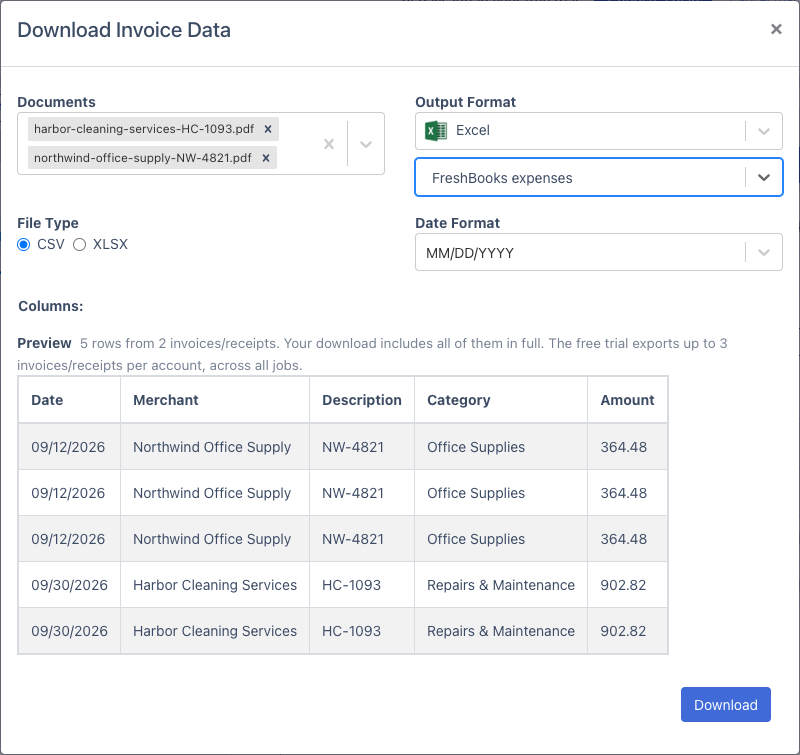
- In the Download Invoice Data window, pick your FreshBooks expenses format in the dropdown under Output Format.
- Under Documents, choose the invoices to include. To export only signed-off invoices, filter the Invoices list by status Approved before you click Download Data.
- Set File Type to CSV.
- Set Date Format to the order FreshBooks will expect, for example MM/DD/YYYY for a US account. Use the same order for every row.
- Check the Preview and click Download.
Step 5: Keep one row per invoice
DocuClipper writes one row for each line item, so an invoice with three line items appears on three rows with the same total. FreshBooks imports every row as its own expense, so remove the repeats first:
- Open the CSV in Excel (or Google Sheets).
- Select all the data and choose Data > Remove Duplicates (in Google Sheets, Data > Data cleanup > Remove duplicates). Keep every column ticked so only identical rows are removed.
- Save the file as CSV.
Each invoice is now one row with its full total. Rows only collapse when they are identical, so give every line of an invoice the same category (the Apply to all line items prompt in the invoice editor does this in one click). For an invoice you want split across categories, import its line items instead, as described in the FAQ below.
Step 6: Import the file in FreshBooks
These are the steps FreshBooks documents for its expense import:
- In FreshBooks, open Expenses, click More Actions, and choose Import Expenses from a File.
- Click Choose File... and select your CSV.
- Match each FreshBooks field to a column with the dropdowns: Date to Date, Merchant to Merchant, Description to Description, Category to Category, and Amount to Amount.
- Under Other Details, set the currency and currency format.
- Check the date format FreshBooks selected. It should match the Date Format you picked in DocuClipper.
- Click Import Expenses.
FreshBooks' own rules for this import:
- The file needs the Amount, Category, Date, Description and Merchant columns.
- Keep all amounts positive (or all negative). DocuClipper exports invoice totals as positive numbers.
- Category must match one of your FreshBooks expense categories or subcategories. Anything else lands in Uncategorized Expenses.
- One currency per file, one sheet, up to 5 MB.
- FreshBooks does not skip duplicates, so import each file once.
- If you use FreshBooks Bank Reconciliation, FreshBooks recommends importing there instead.
FreshBooks' current instructions are in its help article "How do I import expenses from a file?".
FAQs
Can DocuClipper send invoices to FreshBooks automatically?
No. DocuClipper has no direct FreshBooks connection. You export a CSV from DocuClipper and upload it with FreshBooks' Import Expenses from a File. Direct sync is available for QuickBooks Online and Xero.
Can I import unpaid bills into FreshBooks Accounts Payable?
FreshBooks does not import bills from a file; it creates them one at a time with Create New > Bill. Use the CSV import for invoices and receipts you have paid, and enter unpaid bills in FreshBooks by hand from the extracted data in DocuClipper.
Why does my CSV have several rows for one invoice?
DocuClipper writes one row per line item and repeats the invoice details on each row. Remove duplicate rows in Excel before importing so each invoice becomes one FreshBooks expense.
Can I import each line item as a separate expense instead?
Yes. Set the Amount column to Line Item Total and the Description column to Line Item Description, and skip the duplicate removal. Line item amounts do not include the invoice's tax, so add the tax as its own expense if you need it in FreshBooks.
Does the file include tax?
Invoice Total includes tax, so each expense carries the full amount paid. If you want tax as a separate figure, add a column that reads Tax Amount.
Which date format should I pick?
Pick the order your FreshBooks account uses, for example MM/DD/YYYY for a US account. FreshBooks needs one date order across the whole file.
Does DocuClipper work with scanned receipts?
Yes. Scanned PDFs and photos of paper receipts are read with OCR. Use 300 DPI or higher, and check the extracted fields before you export.