
Import Your QuickBooks Desktop Vendors and Customers
Save your QuickBooks Desktop vendor and customer lists in DocuClipper so the invoice editor offers your real names in a dropdown, add a new vendor without re-importing the list, and see which names QuickBooks is about to create.
Last updated
QuickBooks Desktop matches vendors and customers by name. There is no id in an IIF file - the text in the NAME column is the lookup key. That has one consequence worth knowing before you import anything:
If a vendor on your IIF file is not already in QuickBooks, QuickBooks creates it. It does not warn you and it does not reject the file.
That is convenient the first time and a problem the hundredth. An invoice header that reads JULINA FOODS INC DBA LEBLON FOODS one month and Julina Foods Inc. the next quietly becomes two suppliers in your books, each holding half the history.
Saving your vendor and customer lists in DocuClipper fixes that. Your real names become a dropdown in the invoice editor, so coding an invoice is a pick from a list instead of retyped text, and the export tells you in advance which names QuickBooks is about to create.
This is separate from your Chart of Accounts, which controls which account each line posts to. See Categorize invoice line items with your QuickBooks Desktop accounts for that.
Export the lists from QuickBooks Desktop
Both lists come out of the same place, in the same file:
- In QuickBooks Desktop, go to File → Utilities → Export → Lists to IIF Files.
- Tick Chart of Accounts, Vendor List and Customer List.
- Save the
.iiffile somewhere you can find it.
QuickBooks writes every list you tick into a single file, so one export covers all three.
Save them in DocuClipper
- Open the project, click the gear icon, and choose the QuickBooks Desktop tab.
- At the top, under Import from QuickBooks Desktop, upload the
.iiffile. - Click Import lists.
DocuClipper fills whichever lists the file contains and tells you what it found, for example Imported 159 accounts, 387 vendors, 12 customers. One upload, all three lists.
If the file only holds some of them, the rest are left exactly as they were - re-importing an accounts-only export will not wipe a vendor list you saved last week. DocuClipper says so explicitly: No vendors or customers list in this file, so those were left unchanged.
Saving one list on its own
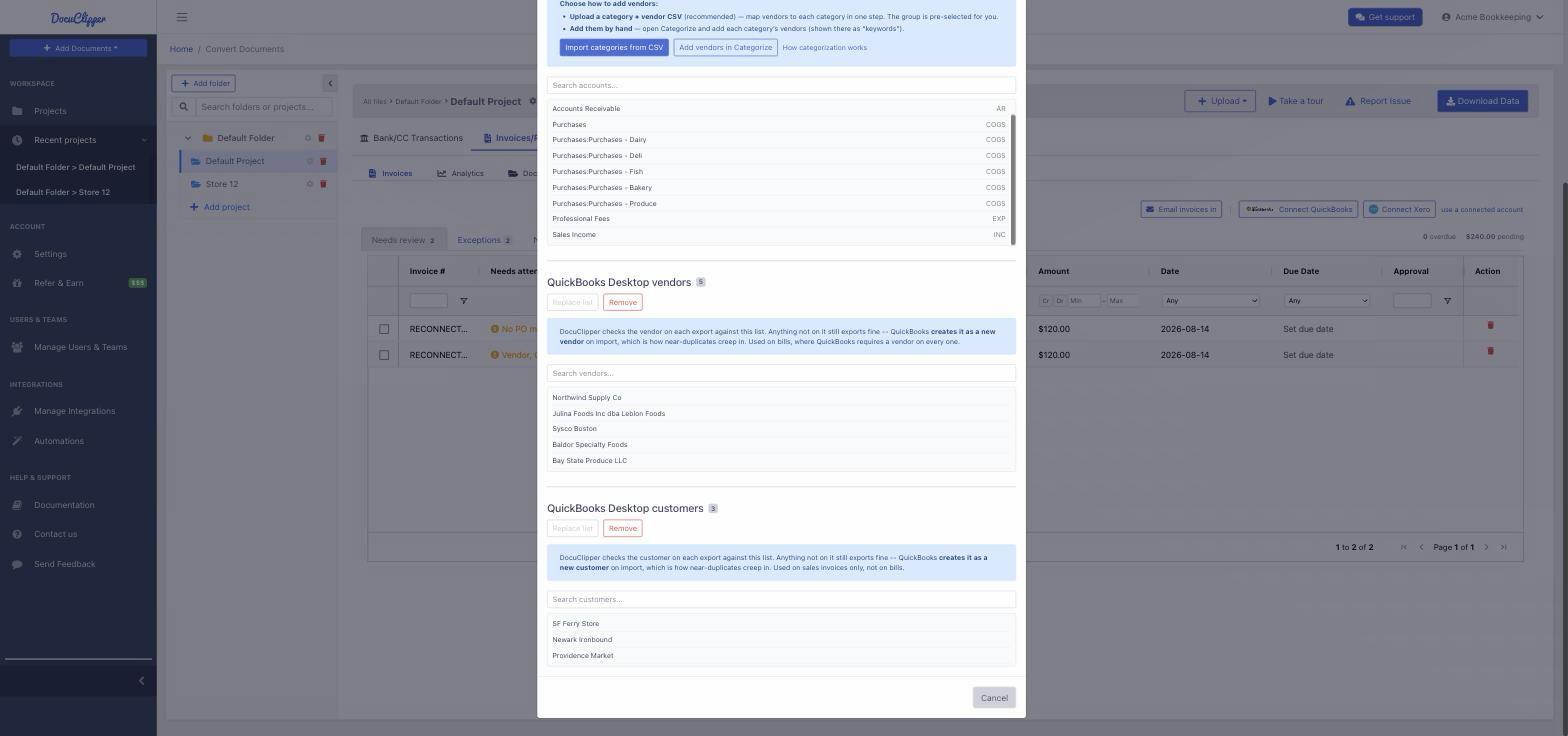
The QuickBooks Desktop vendors and QuickBooks Desktop customers sections further down the same tab still let you replace a single list, which is what you want when you are correcting one of them rather than re-importing everything.
They are also the only place to paste a plain list of names, one per line. A plain list has no !VEND or !CUST header, so nothing in it says which list it belongs to - the combined importer rejects it rather than guess, and asks you to use the individual box instead.
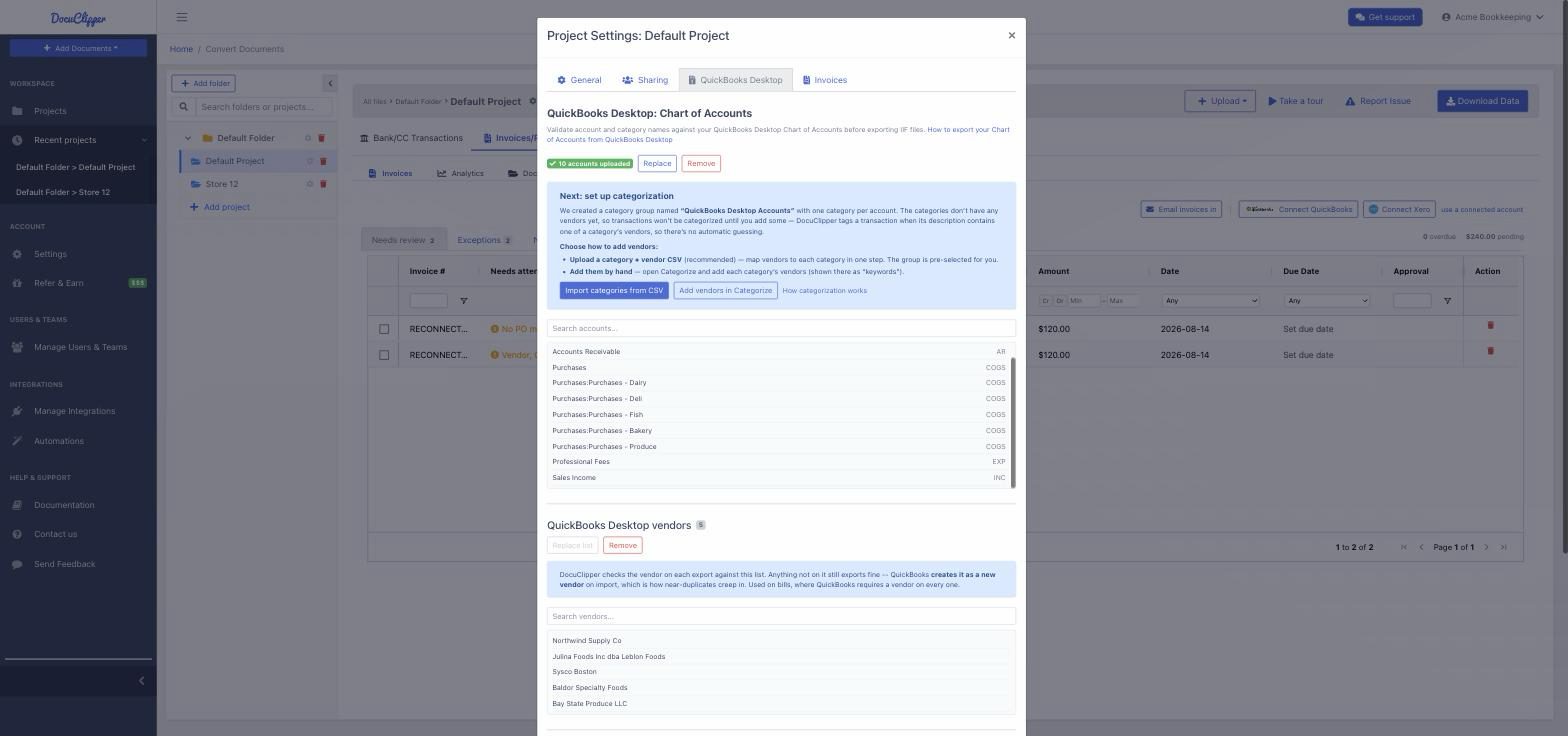
Every list - accounts, vendors and customers alike - is saved per project, so a bookkeeper working several companies keeps them separate. One client's vendors are never offered on another client's invoice, and the same is true of the Chart of Accounts. Give each QuickBooks company file its own project and import its lists there. See Folders vs projects for the recommended setup for bookkeeping firms.
Vendors are used on bills (accounts payable); customers are used on sales invoices (accounts receivable) only.
Coding an invoice
With a list saved, the Vendor field on an invoice becomes a dropdown of your real QuickBooks vendors instead of a free-text box.
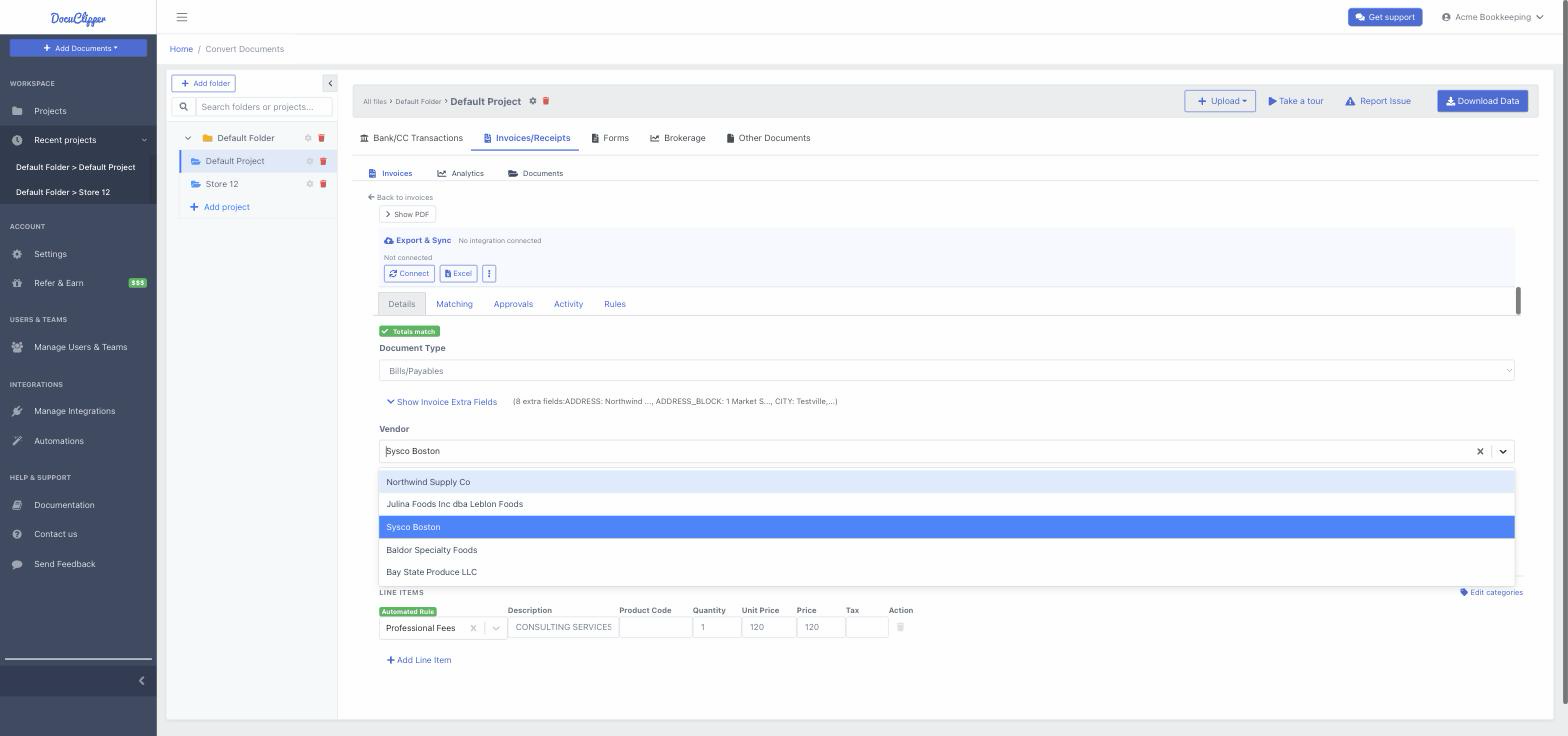
Long lists work the same way. The dropdown shows the first 100 matching names, followed by a greyed-out line such as 286 more - keep typing to narrow. Start typing any part of the name and the list filters instantly, so you never have to scroll through hundreds of vendors. The greyed-out line is only a count and cannot be selected.
Picking a vendor here always wins over one applied by an automation rule, so correcting a single invoice does not fight your rules. To make a correction stick for every future invoice from that supplier, use the Always do this for… link that appears after you change the name - that writes a rule.
Add a new vendor
When a bill comes in from a supplier you have never used, you do not need to add it in QuickBooks first or re-import your vendor list. Create it right on the invoice:
- Open the invoice in the project.
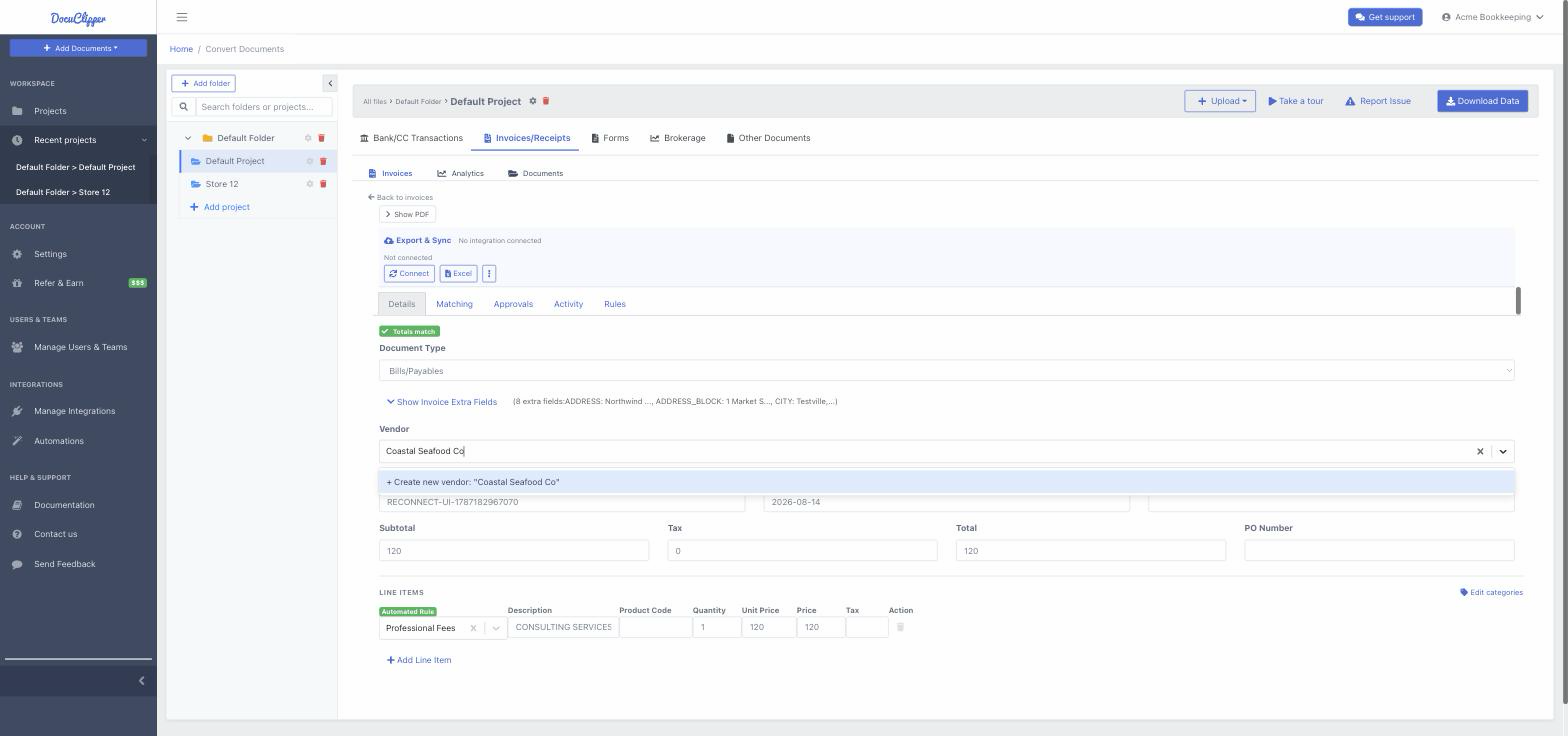
- Click the Vendor box and type the vendor's name exactly as you want it in QuickBooks. This is usually the name DocuClipper read from the invoice.
- Choose + Create new vendor: "name" at the bottom of the dropdown.
What happens next:
- In DocuClipper, the name is added to the project's saved vendor list. It shows up in the QuickBooks Desktop vendors section of Project Settings and is offered on every future invoice in that project, so you only type it once. Other projects are not affected.
- In the IIF export, the bill names the new vendor. It is on your saved list, so it is not listed in the "not in your vendors list" note described below.
- In QuickBooks Desktop, importing the IIF file creates the vendor, because QuickBooks adds any vendor a bill names that it does not already have. You do not need to set it up by hand.
On a sales invoice the same box is Customer and the option is + Create new customer. It works the same way, using the project's customer list.
When to re-import your vendor list
Only when the change started in QuickBooks. If you added several vendors, renamed vendors, or merged duplicates directly in QuickBooks Desktop, export the list again (File → Utilities → Export → Lists to IIF Files) and import it under Import from QuickBooks Desktop so DocuClipper offers the same names QuickBooks has. Vendors you create in DocuClipper do not need a re-import.
What the export tells you
When you download the IIF, DocuClipper compares every vendor or customer against your saved list and adds a note at the top of the file:
; NOTE: the following vendors are not in your QuickBooks Desktop vendors list.
; QuickBooks will CREATE them on import. If one of these is a spelling of a
; vendor you already have, map it in DocuClipper first to avoid a duplicate:
;   - Julina Foods Inc dba Leblon Foods
Lines starting with ; are comments. QuickBooks ignores them, so the note never affects the import - it is there for you to read before you run it.
This is not an error. Everything on that list will import; the note simply tells you what is about to be added to your books so you can catch a near-duplicate first.
That is the opposite of how accounts behave, which is worth keeping straight:
| Unmatched name | What QuickBooks does |
|---|---|
| Account (a line-item category) | Rejects the whole file - The Account Name on a distribution does not exist in Quickbooks [11110] |
| Vendor or customer | Creates it silently and imports normally |
So an account warning is something you must fix before importing. A vendor note is something you should read and usually can ignore.
If you have not saved a list
Nothing breaks. The Vendor field stays a free-text box, the export works exactly as before, and no note is added. The lists are an accuracy aid, not a requirement.
Troubleshooting
- Names with a comma. QuickBooks wraps any exported name that contains a comma in double quotes, so
A & R Glass, LLCappears in the.iiffile as"A & R Glass, LLC". Those quotes belong to the file format, not the name. DocuClipper removes them when it reads the list and keeps the comma, so the name matches the vendor already in QuickBooks. - The vendor dropdown is empty on a bill. Vendors are offered on bills and customers on sales invoices. Check that the list you saved is the one for the invoice type you are coding, and that you clicked Save vendors.
- I can't find a vendor in a long list. Only the first 100 names are shown at once. Type part of the name to filter.