
Import PDF Invoices into NetSuite as Vendor Bills
Extract vendor invoices with DocuClipper, download a vendor bills file and a bill expenses file from two saved export formats, and load them with NetSuite's Import Assistant (Setup > Import/Export > Import CSV Records, Transactions, Vendor Bill).
Last updated
To import PDF invoices into NetSuite, upload them to DocuClipper, download two CSV files from saved export formats (a vendor bills file with one row per invoice, and a bill expenses file with one row per line item, linked by the invoice number as External ID), then load both in NetSuite with Setup > Import/Export > Import CSV Records, Import Type Transactions, Record Type Vendor Bill. Each invoice becomes a vendor bill with one expense line per invoice line.
DocuClipper does not connect to NetSuite directly. The hand-off is NetSuite's own CSV Import Assistant, which loads a whole batch in one import, and you can save the field mapping so later imports take a few clicks.
Why two files
NetSuite's help for vendor bill imports says that when bills have expense lines, the expense lines belong in a separate CSV file from the bill header (the "mainline"), and every row in both files carries the same unique ID. DocuClipper's saved export formats produce both files from the same invoices:
| File | One row per | Columns |
|---|---|---|
| Vendor bills | Invoice | External ID, Vendor, Date, Due Date, Reference No |
| Bill expenses | Invoice line item | External ID, Account, Amount, Memo |
The invoice number is the External ID in both, which is how NetSuite attaches each expense line to its bill.
What you need first
- Vendors set up in NetSuite. NetSuite recommends referring to the vendor by its internal ID or external ID rather than its name.
- Expense accounts for the lines. If Use Account Numbers is on (Setup > Accounting > Accounting Preferences), NetSuite expects the number and name, for example
6100 Office Supplies; otherwise just the name. - The Import CSV File permission in NetSuite.
Step 1: Upload your invoices
- Click Add Documents in the left sidebar and choose Bills & Receipts (you pay).
- Drag in your vendor invoice PDFs. Any mix of vendors and layouts works; no templates are needed.
- Click Convert.
DocuClipper extracts the vendor, invoice number, invoice and due dates, every line item, tax and the total.
Step 2: Code each line to an expense account
Open the project's Invoices tab and review each invoice. Click any field to correct it.
Set the Category on each line to the NetSuite expense account, written the way NetSuite expects it (for example 6100 Office Supplies). The Category becomes the Account column. To code a vendor once instead of every month, click Always do this for "{vendor}" after setting it, or add a rule in Invoice Rules.
Step 3: Save the two NetSuite export formats
You do this once; the formats stay in the dropdown for every later export.
- From the Invoices list, click Download Data.
- Leave Output Format on Excel. In the dropdown under it, choose Create New Export Format. The Configure Columns window opens.
- Rename the configuration NetSuite vendor bills and set up these columns (type the column name, pick the field, and delete the rest with the trash icon):
| Column name | Field |
|---|---|
| External ID | Invoice Number |
| Vendor | Vendor/From |
| Date | Invoice Date |
| Due Date | Invoice Due Date |
| Reference No | Invoice Number |
- Click Close, choose Create New Export Format again, and create NetSuite bill expenses:
| Column name | Field |
|---|---|
| External ID | Invoice Number |
| Account | Item/Service Category |
| Amount | Line Item Total |
| Memo | Line Item Description |
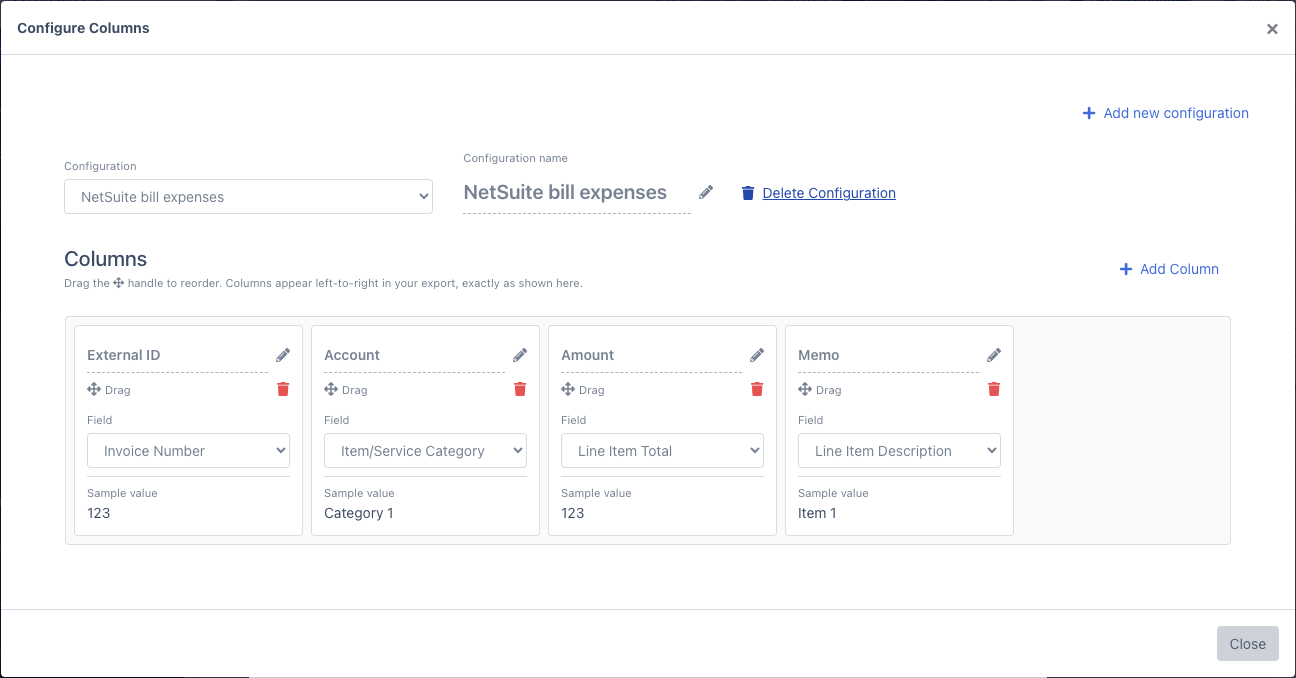
Both formats now appear in the dropdown under Output Format.
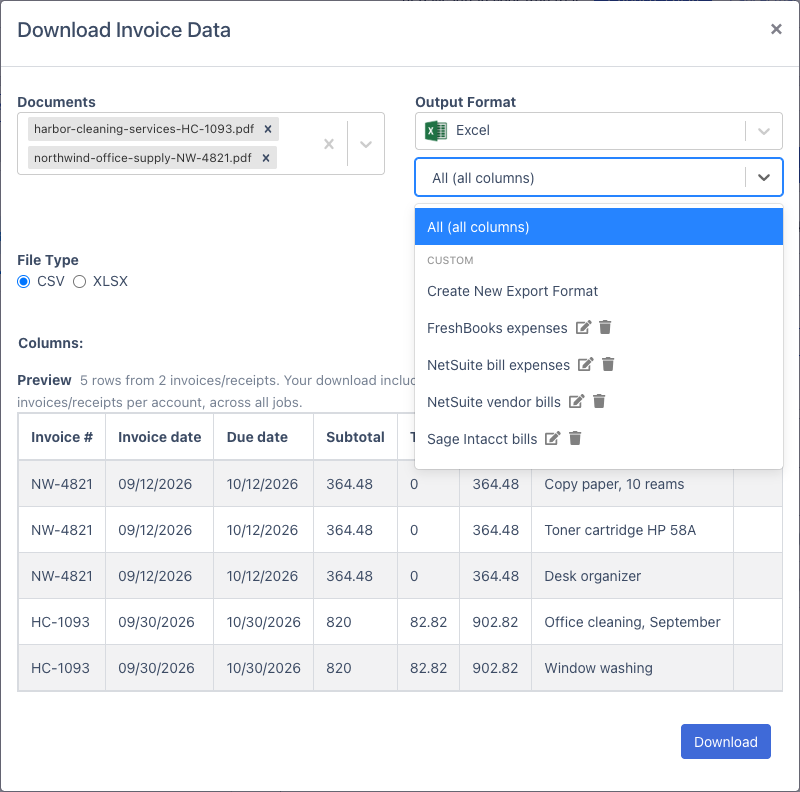
Step 4: Download the vendor bills file
- In the Download Invoice Data window, pick NetSuite vendor bills.
- Under Documents, choose the invoices to include. To send only signed-off invoices, filter the Invoices list by status Approved before you click Download Data.
- Set File Type to CSV and the Date Format to the one in your NetSuite preferences (Home > Set Preferences), for example MM/DD/YYYY.
- Click Download.
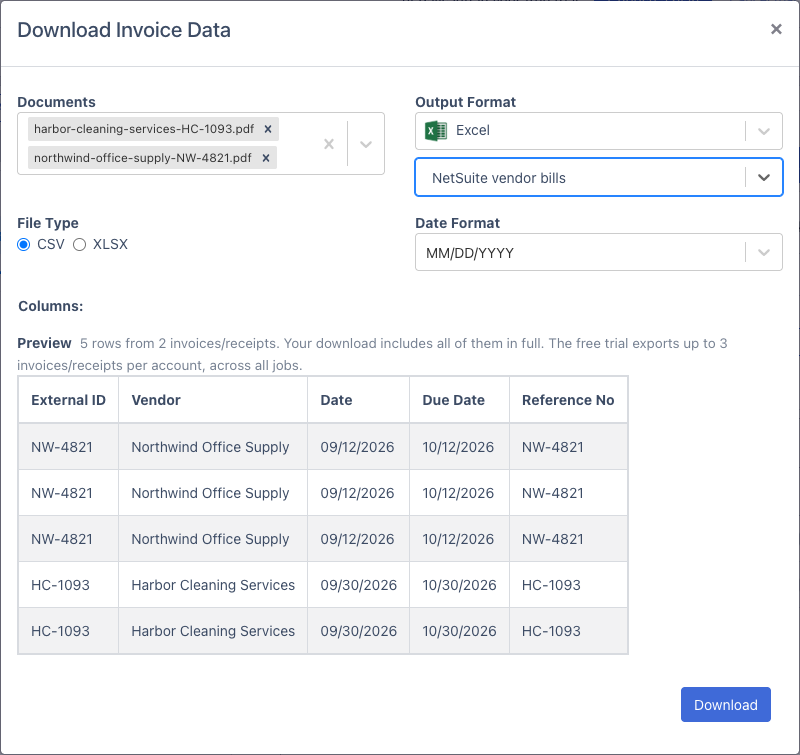
DocuClipper writes one row per line item, so an invoice with three lines appears three times. Open the file in Excel, select the data, choose Data > Remove Duplicates with every column ticked, and save it as CSV. Each invoice is now one row.
Vendor: replace each vendor name with the vendor's NetSuite internal ID or external ID (a lookup against an export of your vendor list does it in one formula), or set the vendor on each invoice in DocuClipper to that ID so the export carries it directly. An Invoice Rule can set it per vendor.
Step 5: Download the bill expenses file
Open Download Data again, pick NetSuite bill expenses, keep the same documents, and download it as CSV. Keep every row: each one is an expense line.
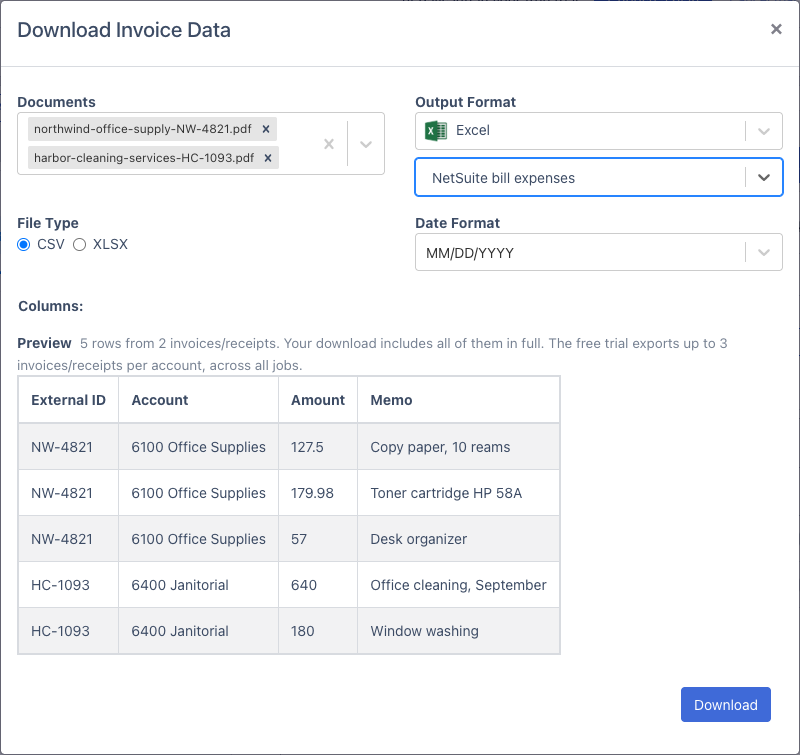
Tax: line amounts do not include the invoice's tax. For an invoice with tax, add a row to this file with the same External ID, your tax expense account, and the tax amount, so the bill total matches the invoice.
Step 6: Import both files in NetSuite
These are the Import Assistant steps NetSuite documents for vendor bills:
- Go to Setup > Import/Export > Import CSV Records.
- Scan & Upload File: set Import Type to Transactions and Record Type to Vendor Bill. Choose the multiple files to upload option, then select the vendor bills file as the primary file and the bill expenses file for the expenses data.
- Import Options: set the data handling to add new records.
- File Mapping: pick External ID as the primary key column of the vendor bills file, and External ID as the key column of the bill expenses file.
- Field Mapping: map External ID to External ID, Vendor to Vendor, Date to Date, Due Date to Due Date, and Reference No to Reference No. For the expenses sublist, map Account to Account, Amount to Amount and Memo to Memo. If Multiple Currencies is on, map or default the Exchange Rate field.
- Save Mapping & Start Import: save the mapping under a name so next month's import reuses it, then run the import.
NetSuite's rules for this import:
- Every bill needs a vendor reference and at least one line.
- The External ID has to be on every row of both files.
- Dates follow the importing user's Date Format preference.
- A single vendor bill can have up to 5,000 lines.
NetSuite's current instructions are in its help topics "Import Assistant" and "Vendor Bill Import".
FAQs
Does DocuClipper have a NetSuite connector?
No. DocuClipper has no direct connection to NetSuite and is not a SuiteApp. You export CSV files from saved formats and load them with NetSuite's CSV Import Assistant. Direct sync is available for QuickBooks Online and Xero.
Why two files instead of one?
NetSuite's help says expense lines on vendor bills go in their own file, separate from the bill header, with the same External ID on every row. The vendor bills format gives you the header file and the bill expenses format gives you the lines.
Can I import item lines instead of expense lines?
NetSuite allows bills with only item lines to be imported from a single file. DocuClipper's export can supply the item description, quantity and unit price, but each value must match an item record in NetSuite, so expense lines coded to accounts are the simpler fit for most vendor invoices.
How do I get the expense account into the file?
Set each line's Category in DocuClipper to the NetSuite account, for example 6100 Office Supplies. Invoice Rules fill it in automatically for repeat vendors.
Can I send only approved invoices?
Yes. Filter the Invoices list by status Approved before you click Download Data, or pick just those documents in the Documents box of the download window. Use the same selection for both files.
Do I have to rebuild the mapping every month?
No. Both DocuClipper formats are saved, and NetSuite lets you save the field mapping in the last step of the Import Assistant. Later imports reuse both.