
Import PDF Invoices into Sage Intacct as AP Bills
Extract vendor invoices with DocuClipper, export them with a saved format whose columns use Sage Intacct's bill import names (BILL_NO, VENDOR_ID, CREATED_DATE, DUE_DATE, ACCT_NO, AMOUNT, MEMO), and load the file with Accounts Payable > Bills > Import.
Last updated
To import PDF invoices into Sage Intacct, upload them to DocuClipper, export them as CSV with a saved format whose columns are named after Intacct's bill import fields (BILL_NO, VENDOR_ID, CREATED_DATE, DUE_DATE, ACCT_NO, AMOUNT, MEMO), copy those columns into the bill template you download from Intacct, add LINE_NO, and upload it under Accounts Payable > All > Bills > Import. Each invoice becomes an AP bill with one bill line per invoice line item.
DocuClipper does not connect to Sage Intacct directly. The hand-off is Intacct's own CSV bill import, which loads a whole batch of invoices in one upload.
What you need first
- Vendors set up in Intacct. The import refers to each vendor by its Intacct Vendor ID, and the vendor must already exist.
- GL account numbers for the expense accounts the bills post to.
- Permission to import bills in Intacct. Without the Post permission, Intacct imports bills as drafts.
Step 1: Upload your invoices
- Click Add Documents in the left sidebar and choose Bills & Receipts (you pay).
- Drag in your vendor invoice PDFs. Any mix of vendors and layouts works; no templates are needed.
- Click Convert.
DocuClipper extracts the vendor, invoice number, invoice and due dates, every line item, tax and the total, and checks that the line items add up to the subtotal and the subtotal plus tax to the total.
Step 2: Code each line to a GL account
Open the project's Invoices tab and review each invoice. Click any field to correct it.
Set the Category on each line to the Intacct GL account number it posts to, for example 6100. The Category becomes the ACCT_NO column in the export. To code a vendor once instead of on every invoice, click Always do this for "{vendor}" after you set it, or add a rule in Invoice Rules. Without a connected accounting integration, the category is free text, so you type the account number exactly as Intacct expects it.
Step 3: Save a Sage Intacct export format
You do this once; DocuClipper keeps the format for every later export.
- From the Invoices list, click Download Data.
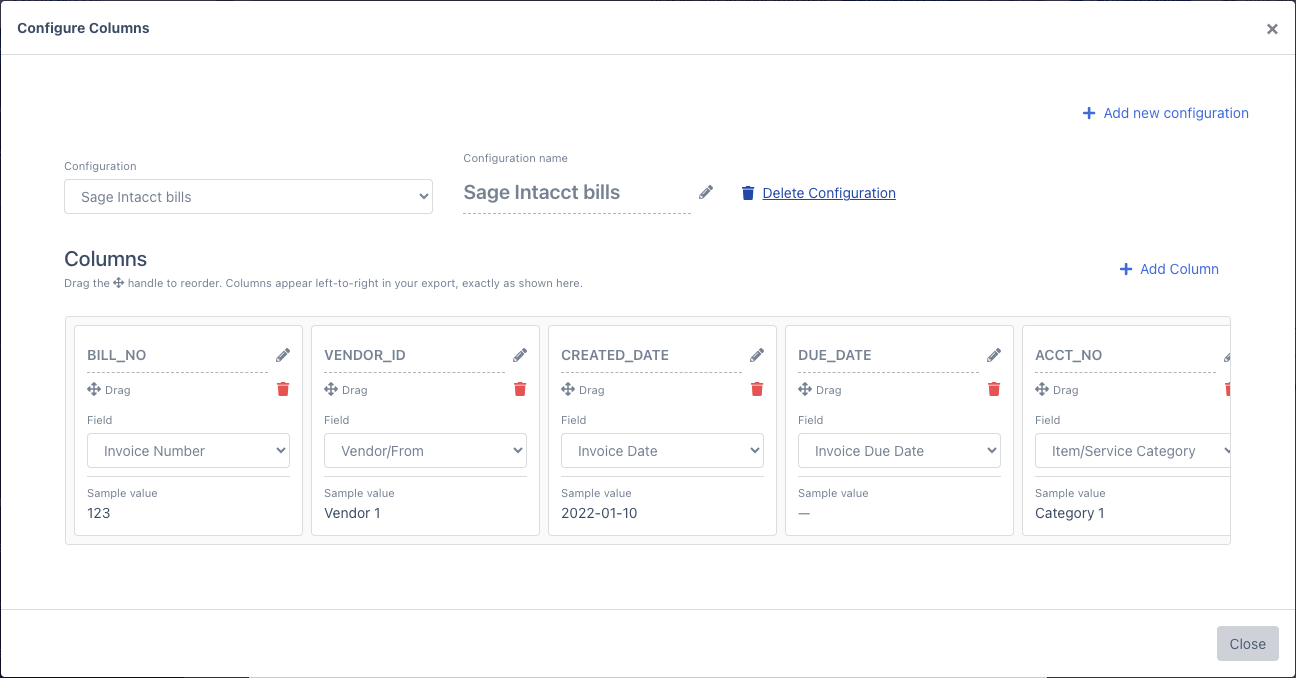
- Leave Output Format on Excel. In the dropdown under it, choose Create New Export Format. The Configure Columns window opens.
- Rename the configuration, for example Sage Intacct bills.
- Set up these columns. For each one, type the column name exactly as shown and pick the field. Delete other columns with the trash icon; use Add Column to add more.
| Column name | Field | Intacct field |
|---|---|---|
| BILL_NO | Invoice Number | Bill number |
| VENDOR_ID | Vendor/From | Vendor ID (see Step 5) |
| CREATED_DATE | Invoice Date | Bill date |
| DUE_DATE | Invoice Due Date | Due date |
| ACCT_NO | Item/Service Category | GL account of the line |
| AMOUNT | Line Item Total | Line amount |
| MEMO | Line Item Description | Line memo |
- Click Close.
Step 4: Download the CSV
- In the Download Invoice Data window, pick Sage Intacct bills in the dropdown under Output Format.
- Under Documents, choose the invoices to include. To send only signed-off invoices, filter the Invoices list by status Approved before you click Download Data.
- Set File Type to CSV and choose a Date Format. You will pick the same format in Intacct.
- Check the Preview and click Download.
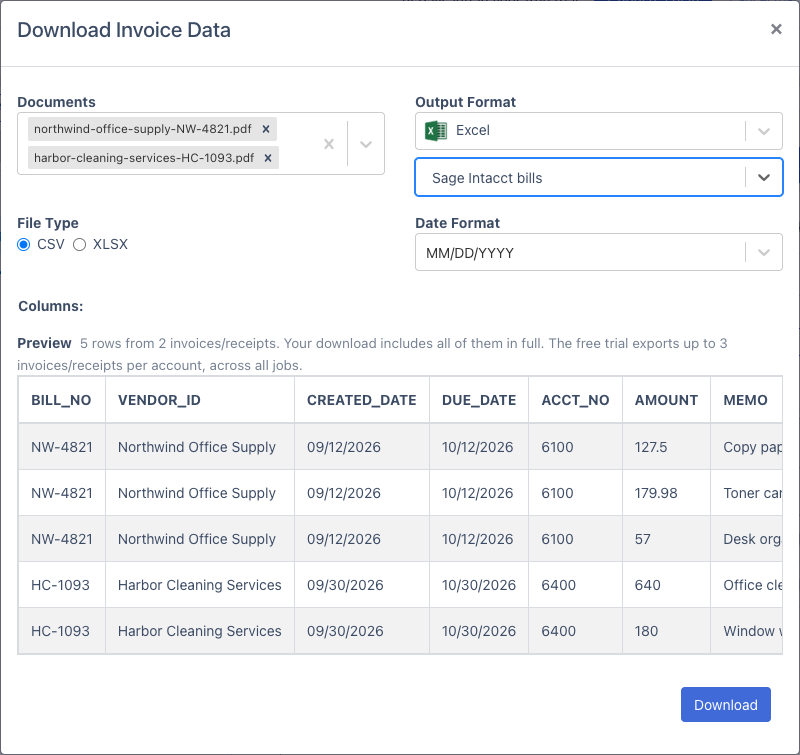
The file has one row per line item, and each row repeats the bill's number, vendor and dates. That is the layout Intacct's bill import uses for multi-line bills.
Step 5: Fill in Intacct's bill template
Intacct does not map columns: the header row must match its template exactly, so you move the DocuClipper columns into that template.
- In Intacct, go to Accounts Payable > All > Bills and select Import. Download the template from that window. Intacct builds it for your company, including your dimensions and custom fields, so download a fresh one rather than reusing an old copy.
- Paste each DocuClipper column under the template column with the same name.
- VENDOR_ID: replace each vendor name with the vendor's Intacct Vendor ID. A lookup against an export of your Intacct vendor list does this in one formula. Alternatively, set the vendor on each invoice in DocuClipper to its Intacct Vendor ID (an Invoice Rule can do this per vendor), and the export carries the ID directly.
- LINE_NO: number the lines of each bill 1, 2, 3 and so on. If BILL_NO is in column A with headers in row 1, put
=COUNTIF($A$2:A2,A2)in the first LINE_NO cell and fill it down. - Tax: line amounts do not include the invoice's tax. For an invoice with tax, add one more row for that bill with the tax amount in AMOUNT and your tax account in ACCT_NO. Leave TOTAL_DUE blank so Intacct adds up the lines.
- Fill any other columns your company requires, such as LOCATION_ID, and save as CSV.
Step 6: Import the file in Intacct
These are the steps Sage documents for its "CSV import: Bills":
- Go to Accounts Payable > All > Bills and select Import.
- Choose your file.
- Set the date format to the one you picked in DocuClipper.
- Set the file format, or leave it on auto-detect.
- Choose General ledger to post the bills, or Historical to load them into the AP subledger only.
- Enter an email address for the import notification and select Import.
Intacct's rules for this import:
- VENDOR_ID, CREATED_DATE, LINE_NO, ACCT_NO and AMOUNT are required. DUE_DATE is required unless the vendor has default payment terms.
- Each vendor must already exist in Intacct.
- Amounts must be positive.
- One error rejects the whole file, so fix the row the notification names and import the file again.
- AP journals must be set up first.
FAQs
Does DocuClipper have a Sage Intacct integration?
No. DocuClipper has no direct connection to Sage Intacct. You export a CSV with a saved format and load it with Intacct's own bill import (Accounts Payable > All > Bills > Import). Direct sync is available for QuickBooks Online and Xero.
Can I import multi-line invoices?
Yes. DocuClipper exports one row per line item with the bill details repeated on each row, which is how Intacct's import builds a multi-line bill. Number the lines in LINE_NO, starting at 1 for each bill.
How do I get the GL account into the file?
Set each line's Category in DocuClipper to the Intacct account number. Invoice Rules fill it in automatically for repeat vendors, and the Category exports as ACCT_NO.
Why does Intacct reject my file?
The usual causes are a header that does not match the template, a vendor ID that does not exist in Intacct, a missing LINE_NO or DUE_DATE, or a date format that differs from the one chosen in the import window. One bad row rejects the whole file.
Can I send only approved invoices?
Yes. Filter the Invoices list by status Approved before you click Download Data, or select just those documents in the Documents box of the download window.
Can I reuse the format next month?
Yes. The saved format appears in the dropdown under Output Format every time you download. Fix the column names once and every later export comes out the same.