
Downloading Bank Transactions
Download converted bank transactions from the Transactions view and export to any supported format — Excel, CSV, QBO, IIF, QIF, OFX, QFX, Xero, Sage, MYOB, Relate, or NetSuite — with custom columns and date formats.
Last updated
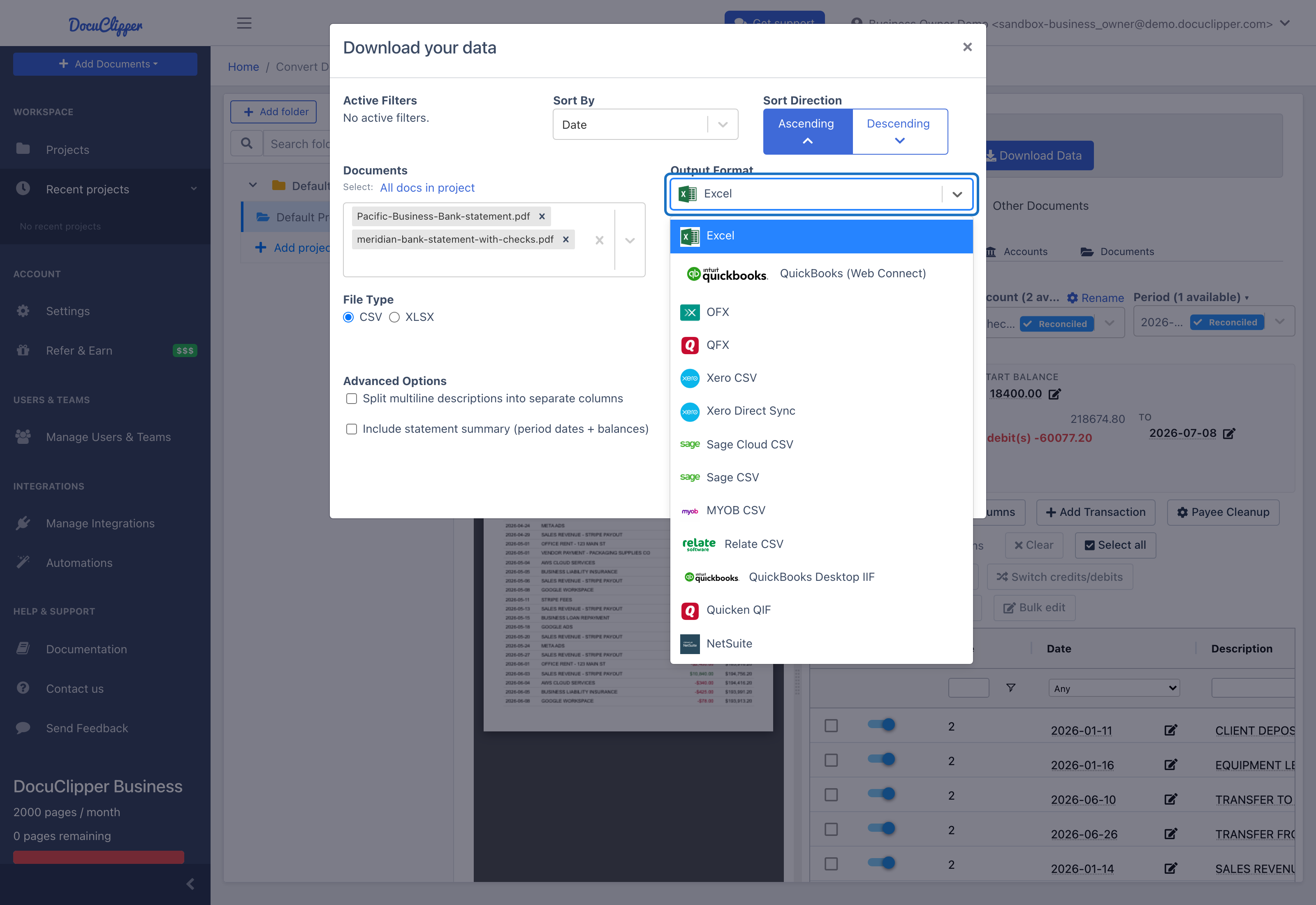
DocuClipper exports converted bank transactions to Excel (.xlsx), CSV, QuickBooks Web Connect (.qbo), QuickBooks Desktop IIF, Quicken QIF, OFX, QFX, Xero, Sage, MYOB, Relate, and NetSuite from the Download Data button in the top-right of any project's transactions view.
Inside the download dialog you can pick the sort order, choose which uploaded statements to include, build a custom column set, set the date format, and split multi-description fields or one-file-per-account in Advanced Options. A live preview shows the selected columns before you download.
How do I open the DocuClipper download dialog?
- Open the project containing your converted statement(s).
- Click Download Data in the top-right of the transactions view.
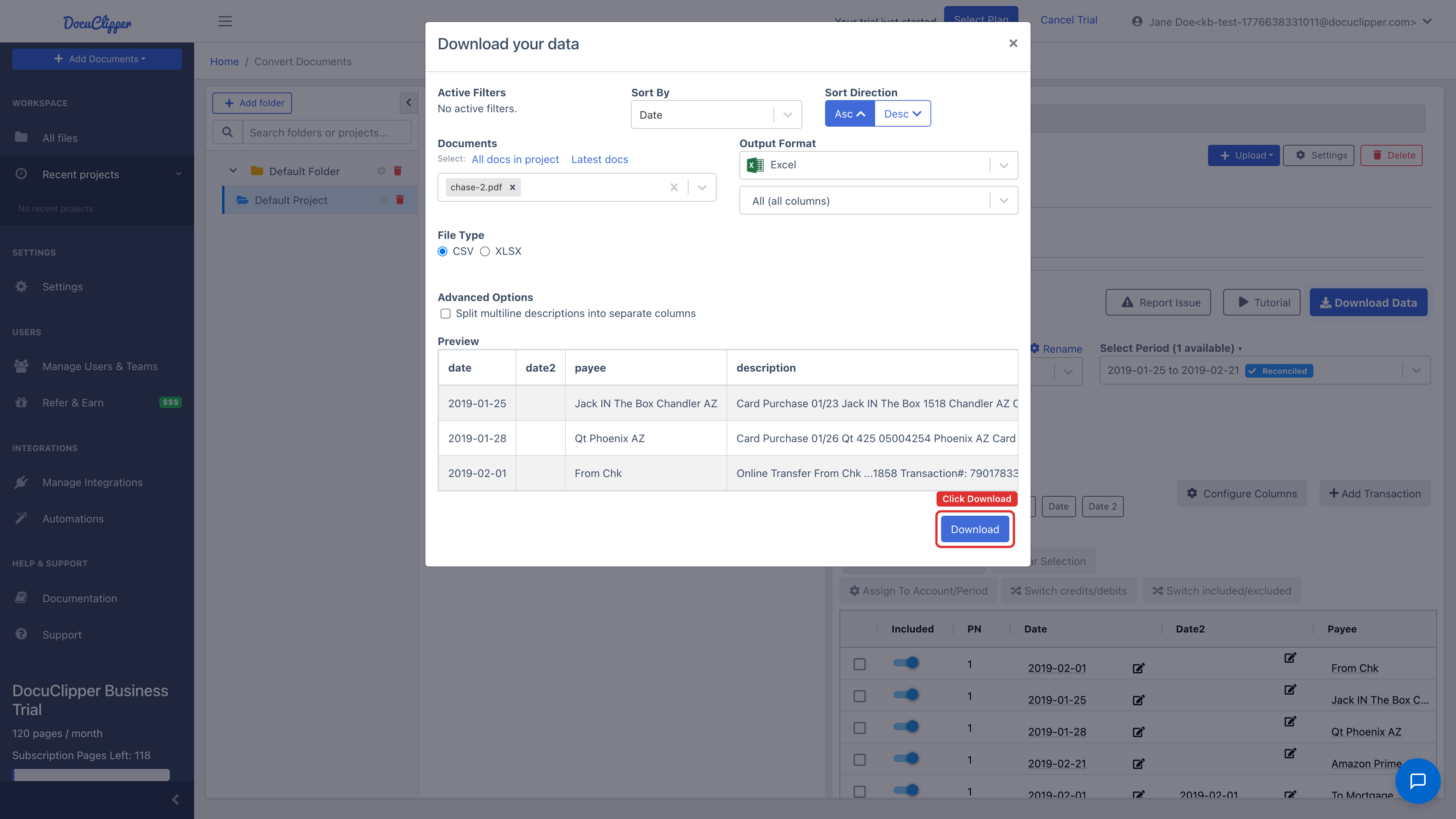
Download options
| Option | What it controls |
|---|---|
| Sort | Order rows by date (ascending / descending) or by the order they appeared on the original statement. |
| Documents | Which uploaded statements to include in the export. |
| Output Format | Excel (.xlsx), CSV, QBO Web Connect, QuickBooks Desktop IIF, Xero CSV, Sage CSV, Quicken QIF, and more. |
| Columns | Which fields to include. See Custom columns below. |
| Date Format | How dates appear in the output (ISO, US, UK, or abbreviated month). |
| Advanced Options | Split multi-description fields into separate columns; produce one file per account; include/exclude excluded rows. |
| Preview | Live preview of the columns you've selected. |
Supported output formats
Pick the format from the Output Format dropdown that matches where the data is going. You can re-download the same job in a different format as many times as you need — credits are only consumed at conversion, not at download.
Spreadsheet formats
Selecting Excel lets you download as XLSX or CSV and choose which columns to include.
| Option | Extension | Best for |
|---|---|---|
| Excel → XLSX | .xlsx | Analysis, filtering, pivots. Preserves column types. |
| Excel → CSV | .csv | Feeding into databases, scripts, or any tool that reads CSV. |
| Custom columns | .csv / .xlsx | A saved column layout (order and header names) matching a downstream system. Choose All columns, the Basic date/description/amount set, or a custom format. See Configuring custom columns below. |
Accounting software formats
Cross-link to the matching import guide for step-by-step setup in each destination.
| Format | Extension | Use with | Guide |
|---|---|---|---|
| QuickBooks (Web Connect) | .qbo | QuickBooks Online, QuickBooks Desktop (Web Connect import) | QBO for QuickBooks Online · QBO for QuickBooks Desktop |
| QuickBooks Desktop IIF | .iif | QuickBooks Desktop (direct list/transaction import) | IIF for QuickBooks Desktop |
| Quicken QIF | .qif | Quicken (legacy) and some older accounting apps | QIF for Quicken |
| OFX | .ofx | Quicken, older QuickBooks, banking tools that accept OFX bank feeds | (no guide yet) |
| QFX | .qfx | Quicken Web Connect import | (no guide yet) |
| Xero CSV | .csv | Xero bank reconciliation import | Import into Xero |
| Xero Direct Sync | — (API) | Pushing transactions straight into Xero without a file | Import into Xero |
| Sage CSV | .csv | Sage 50 | Import into Sage |
| Sage Cloud CSV | .csv | Sage Business Cloud | Import into Sage |
| MYOB CSV | .csv | MYOB | (no guide yet) |
| Relate CSV | .csv | Relate Accounts | (no guide yet) |
| NetSuite | .csv | NetSuite transaction import | (no guide yet) |
How to pick
- QuickBooks Online → QuickBooks (Web Connect)
- QuickBooks Desktop → IIF for full control (account mapping), QuickBooks (Web Connect) for a faster bank-feed-style flow
- Xero → Xero CSV, or Xero Direct Sync to push without a file
- Sage → Sage CSV (Sage 50) or Sage Cloud CSV (Sage Business Cloud)
- Quicken → QIF, or QFX for a Web Connect import
- MYOB / Relate / NetSuite → the matching CSV format above
- Anything else / unsure → Excel or CSV
Configuring custom columns
You can build your own column set for Excel and CSV exports and save it for reuse.
- Click the Columns selector under Output Format.
- Click Add New Custom Columns.
- Click Add a column, pick a source field from the dropdown (only fields DocuClipper extracts are listed), and check the box to include it.
- Click the header cell to rename the column to whatever your downstream system expects.
- Click Close to save. The configuration is remembered for this project, and you can promote it to your account default from Settings → Export templates.
Understanding ZIP downloads
DocuClipper bundles the output in a ZIP file when:
- Multiple accounts are exported separately: one file per account.
- The output exceeds format-specific size limits: e.g. a QBO file that would be larger than ~250 KB gets split.
- Source PDFs are included: the ZIP bundles originals with the data file.
Always extract the ZIP before importing into QuickBooks or Xero. These apps won't read the file through the archive. See DocuClipper exports data in zip file for details.
Re-downloading
Downloads are regenerated on demand. Closing the tab or clicking away doesn't lose your data. Open the project again, click Download Data, and re-export with the same or different settings.
FAQs
Which output formats does DocuClipper support?
Excel (.xlsx), CSV / Custom CSV, QuickBooks Web Connect (.qbo), QuickBooks Desktop IIF, Quicken QIF, OFX, QFX, Xero CSV, Xero Direct Sync, Sage CSV, Sage Cloud CSV, MYOB CSV, Relate CSV, and NetSuite. Pick the format from the Output Format dropdown in the download dialog. See Supported output formats above for which to use with each destination.
Can I choose which columns appear in my export?
Yes. For Excel and CSV exports, use the Columns selector to build a custom column set, rename headers to match your downstream system, and save the configuration for reuse in the project.
Why does DocuClipper give me a ZIP file instead of a single file?
ZIPs are produced when multiple accounts are exported as separate files, when the output exceeds a format's size limit (for example a QBO file over about 250 KB), or when source PDFs are bundled with the data file.
Do I have to extract the ZIP before importing?
Yes. QuickBooks and Xero will not read files through the archive. Extract the ZIP first, then point the import at the unzipped data file.
Can I sort transactions before exporting?
Yes. The Sort option lets you order rows by date ascending, date descending, or by the order they appeared on the original statement.
Can I re-download a file later?
Yes. Downloads are regenerated on demand, so closing the tab does not lose your data. Reopen the project, click Download Data, and export again with the same or different settings.