
Changing Your DocuClipper Plan: Upgrades And Downgrades
How plan changes work in DocuClipper: an upgrade starts now and keeps every page you have left, a downgrade takes effect when your current period ends with nothing charged today.
You can change your plan any time from Settings → Plan & Billing → Change plan. Before you confirm, the checkout summary tells you exactly what the change will do: either what you are charged today and which pages are kept, or the date your plan changes with no charge today.
Upgrading
A change is an upgrade when the new plan costs more per month, or costs the same and includes more pages. Moving from a monthly plan to an annual plan with the same or more pages per month is also an upgrade.
When you upgrade:
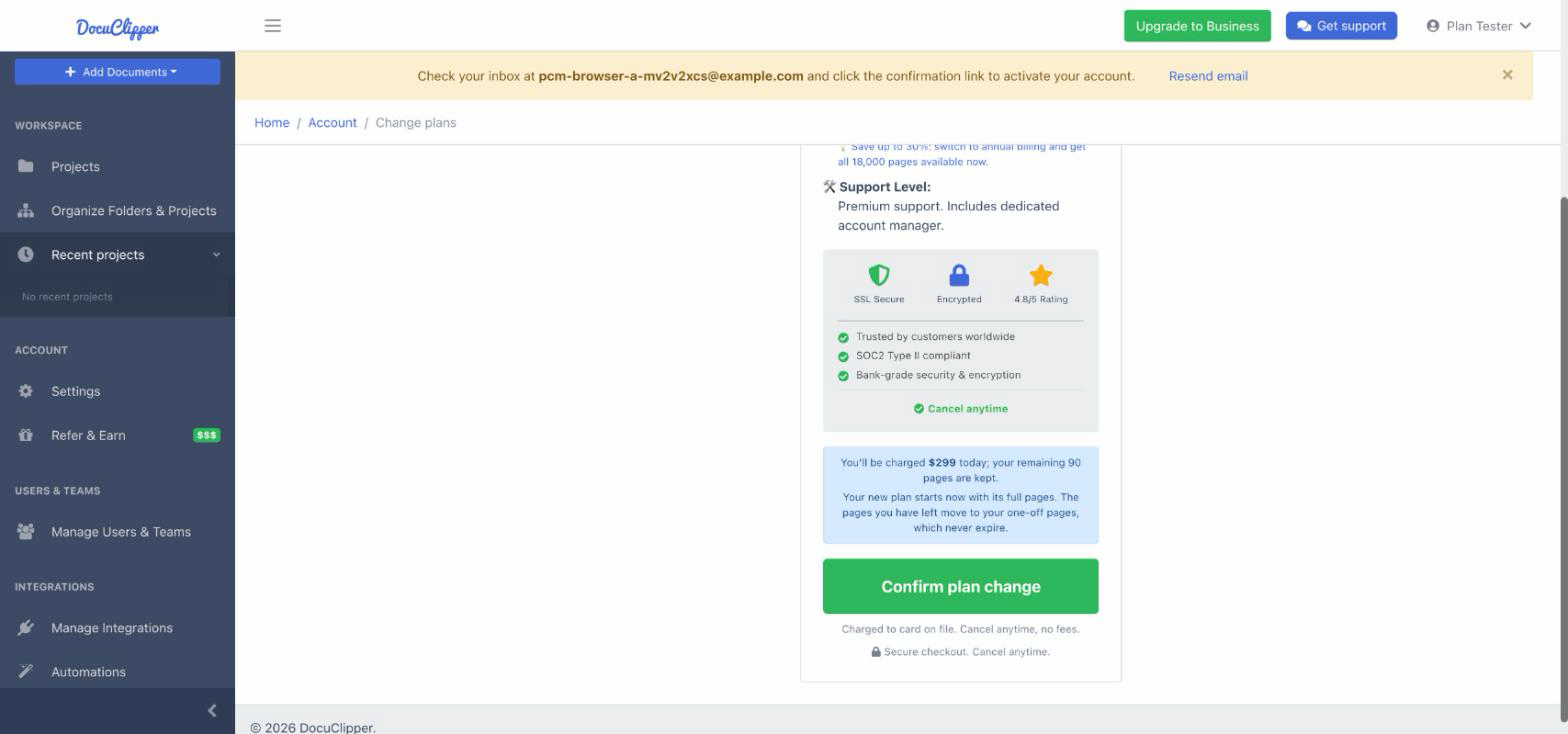
- Your new plan starts today. Your card on file is charged the new plan's price and a new billing period begins today.
- You get the new plan's full pages. The page balance is set to the new plan's allowance straight away.
- You keep every page you have left. The subscription pages you still had move to your one-off pages, which never expire, so nothing you paid for is lost.
- There is no proration. You pay the new plan's price in full, and there are no partial-period adjustments to work out.
The summary shows this before you click, for example: You'll be charged $299 today; your remaining 90 pages are kept.
Upgrading an annual plan
Annual plans can be upgraded at any time to a larger annual plan, from Change plan, from the banner shown at 90% of your pages, or from the out-of-pages screen. You are charged the new annual price today and a new 12-month term starts; the pages left on your current plan move to your one-off pages. If your plan is billed monthly under a 12-month commitment, the upgrade moves you to the annual price of the larger plan.

Downgrading
A change is a downgrade when the new plan costs less per month, or costs the same and includes fewer pages. Moving from an annual plan to a monthly plan is always a downgrade, whichever tier you pick, because your annual term is already paid for.
When you downgrade:
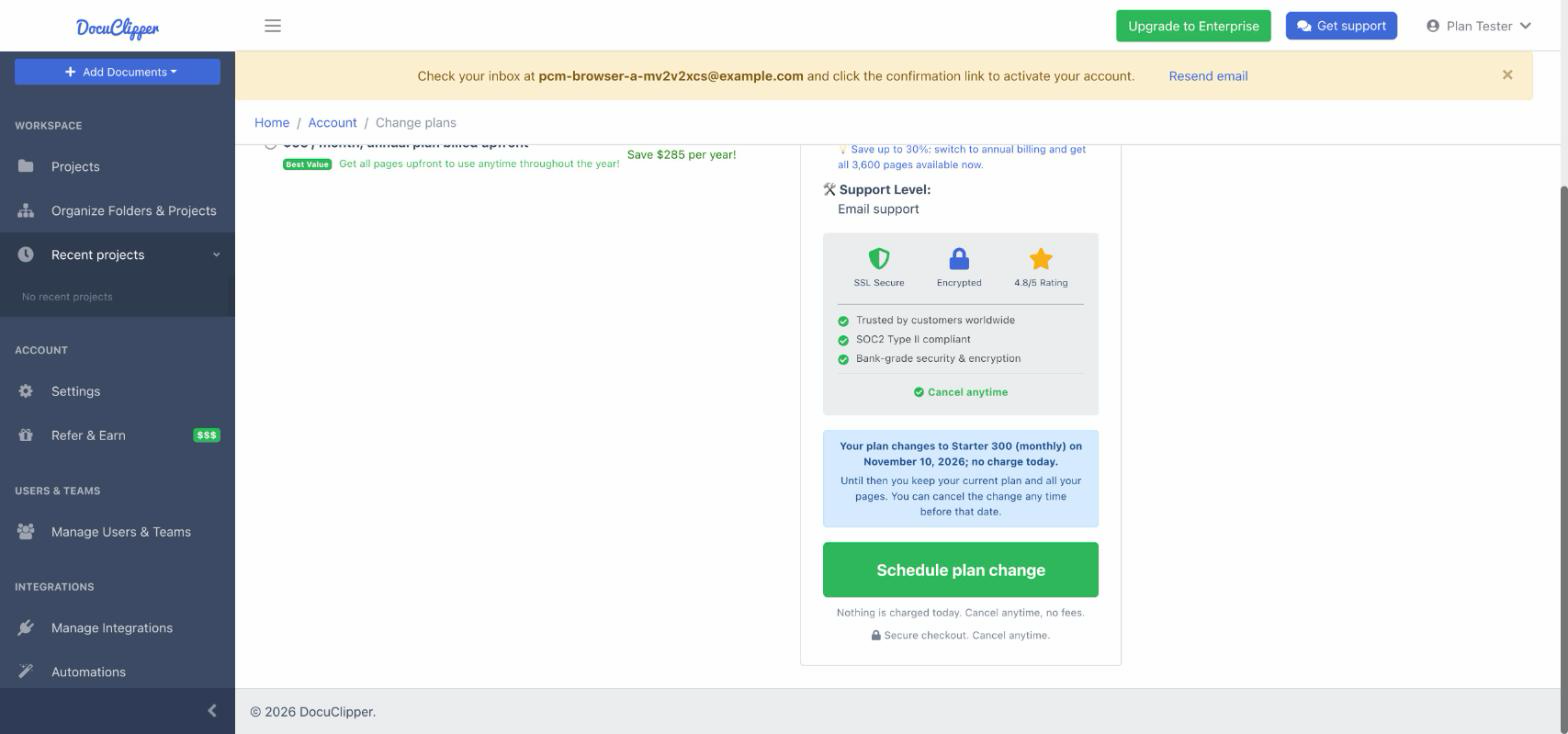
- Nothing is charged today. You keep your current plan and all your pages until the end of your current billing period.
- The change is scheduled. The summary shows the date, for example: Your plan changes to Starter 300 (monthly) on November 10, 2026; no charge today.
- Your next renewal bills the lower plan. On that date the lower plan's price is charged and its pages are added to your balance.
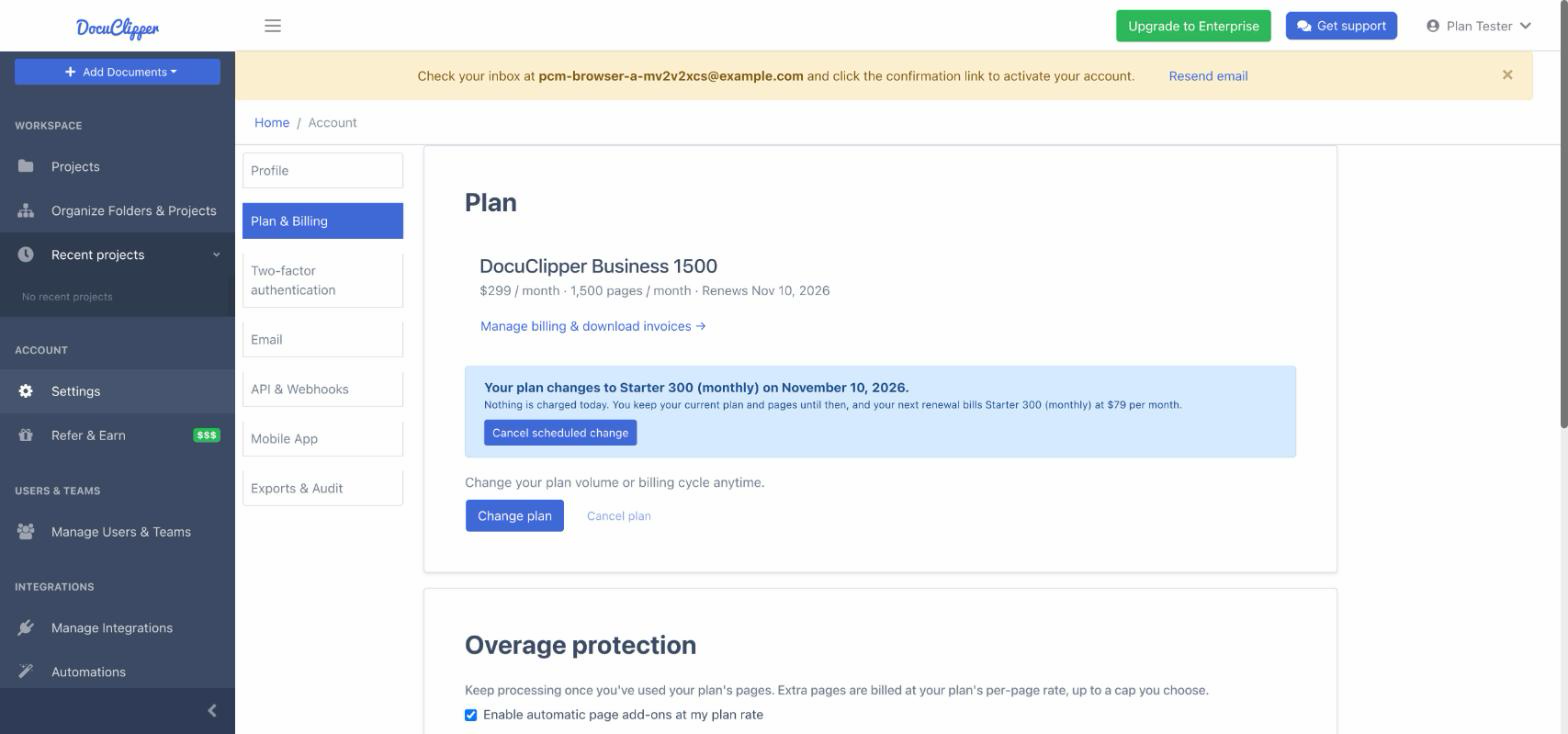
- You can cancel the scheduled change at any time before the date, from the banner on Settings → Plan & Billing. You then stay on your current plan and it renews as usual.
Plans paid monthly under a 12-month commitment (annual plan billed monthly) change at the end of the commitment.
Seeing and cancelling a scheduled change
While a downgrade is waiting, the Plan & Billing page shows Your plan changes to [plan] on [date] under your plan name, with the new plan's price and a Cancel scheduled change button. Click it to keep your current plan.
Choosing a different plan while a change is scheduled replaces the scheduled change. An upgrade starts immediately and removes it.
FAQs
Will I lose the pages I haven't used when I upgrade?
No. The pages you have left are added to your one-off pages, which never expire, and your new plan starts with its full allowance on top.
When does a downgrade take effect, and what do I pay today?
It takes effect when your current billing period ends. You pay nothing today and keep your current plan and pages until then.
Can I upgrade an annual plan mid-term?
Yes. You pay the new annual price today, a new 12-month term starts, and your remaining pages are kept as one-off pages.
Can I switch from annual to monthly?
Yes. The switch is scheduled for the end of your annual term, so you keep the pages and access you have paid for until then, and the monthly plan starts on that date.
Can I undo a scheduled downgrade?
Yes, until it takes effect. Open Settings → Plan & Billing and click Cancel scheduled change.
Who can change the plan?
Account admins. Other users see who to ask.