
How to Change Personal Information and Email
Update your name, login email, and password in DocuClipper, and what to do when an email change isn't possible through the UI.
Last updated
You can edit your name and login email yourself from Account Settings. A few email changes go through support.
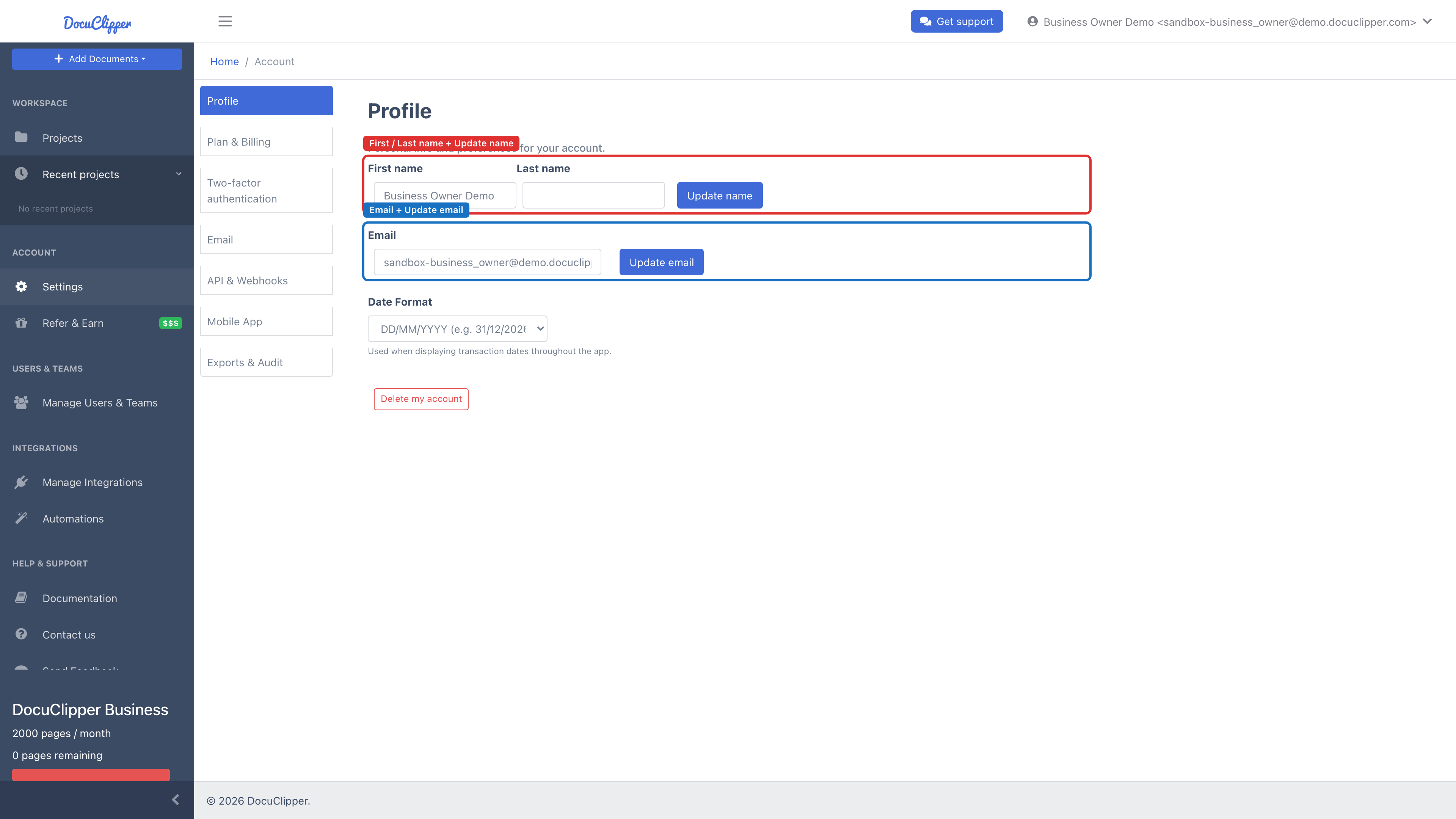
Updating your name
- Click your profile icon in the top-right of the dashboard → Settings.
- Open the Profile section and edit the First name and Last name fields.
- Click Update name to save.
Your name appears on subscription invoices and in emails sent from DocuClipper.
Updating your login email
- Go to Settings → Profile.
- Edit the Email field.
- Click Update email. DocuClipper sends a confirmation email to the new address.
- Open that email and click the confirmation link to verify the new address.
If the email change is rejected, it's usually because the new address is already tied to another DocuClipper account. Email support@docuclipper.com with the old and new addresses, and support can merge or migrate accounts as needed.
Changing your password
There's no password field in Account Settings. To set a new password, use the password-reset flow:
- Sign out, then click Forgot password? on the login screen.
- Enter your login email. DocuClipper sends a reset link.
- Open the email, click the link, and set a new password.
If your account uses Google or Microsoft SSO, sign in through that provider instead of a password.