
Reviewing Transactions: Running-Balance and Totals Checks
Understand the Review transactions box and the matches-statement-totals badge in DocuClipper's reconcile view — two review aids that show where an extracted statement stops tying out, and what to do when either turns red.
Last updated
After DocuClipper extracts a bank or credit card statement, the Transactions (reconcile) view gives you two at-a-glance review aids that help you confirm the numbers before you export: the Review transactions box above the statement, and a small totals badge next to the credit and debit summary line. Both work on the data DocuClipper has already extracted — they don't change anything, they just point you to any row worth a second look.
These checks are additional to the green Reconciled / red Not Reconciled badge described in How Reconciliation Works. Reconciliation confirms the net math (start balance + credits − debits = end balance). The two aids below can catch problems that the net check alone can miss — for example a single dropped row, or a mis-classified transaction that happens to cancel out.
The "Review transactions" box
For statements that print a running balance on each row (a "Balance" column that updates line by line), DocuClipper checks that every row's printed balance equals the previous row's balance plus that row's amount. As long as the whole ledger ties out, the box stays blue and shows a checkmark:
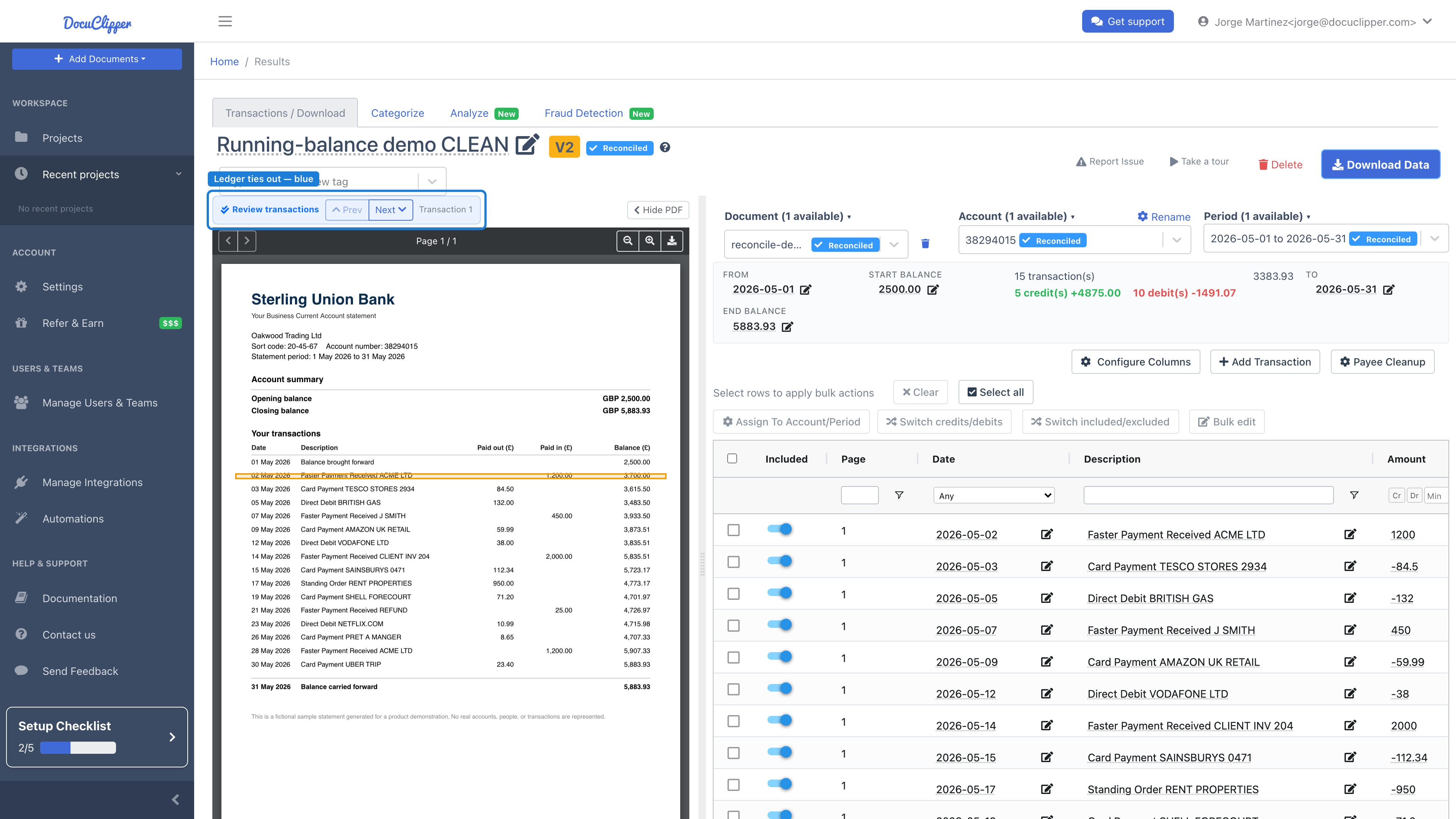
If the chain breaks anywhere — usually because a transaction was dropped or a value was mis-read — the box turns red with a warning icon, and the exact row where the ledger stops tying out is highlighted in red in the table:
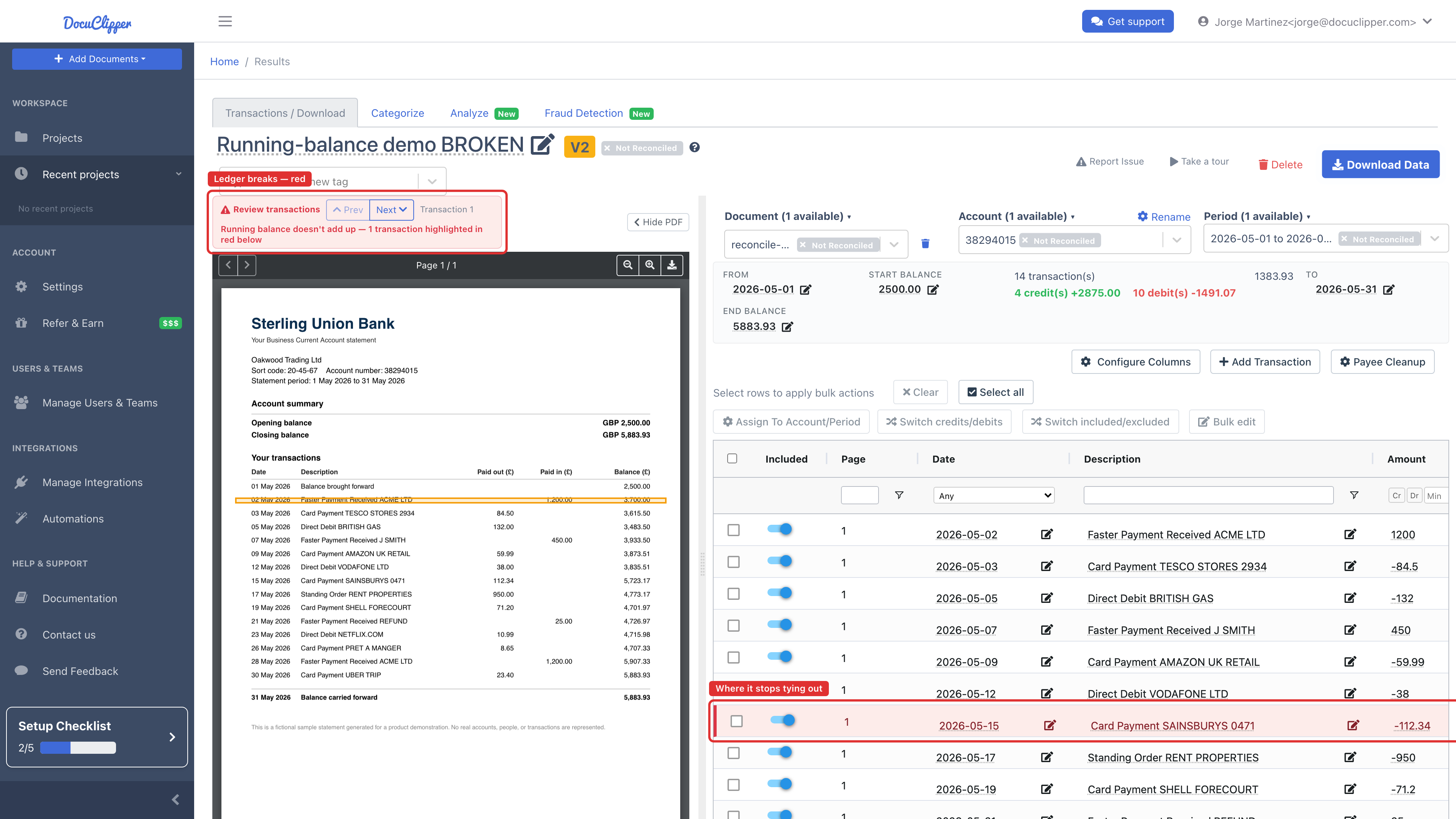
The check is direction-aware: it handles statements printed newest-row-first (reverse chronological) and statements where each period is reversed, so a normally-ordered statement won't be flagged by mistake.
What to do when the box is red: use the highlighted row as your starting point. Open the source PDF to that transaction and compare it line by line with what DocuClipper extracted:
- A row is missing — the transaction right before the highlighted one was likely dropped. Click Add Transaction and enter the date, description, and amount exactly as printed. See Missing or wrong transactions.
- A value was mis-read — click the pencil icon on the highlighted row and correct the amount or balance.
- Debit/credit is reversed — select the row and choose Switch credits/debits. See Debits and credits backwards.
The Prev / Next buttons in the box (arrow keys work in the table too) step through transactions one at a time and highlight each one in the PDF, which makes spot-checking around the flagged row quick.
The Review transactions box only appears for statements that print a per-row running balance. If your statement doesn't include a balance column, there's nothing to chain, so the box won't show — rely on the Reconciled badge and the totals badge below instead.
The "matches statement totals" badge
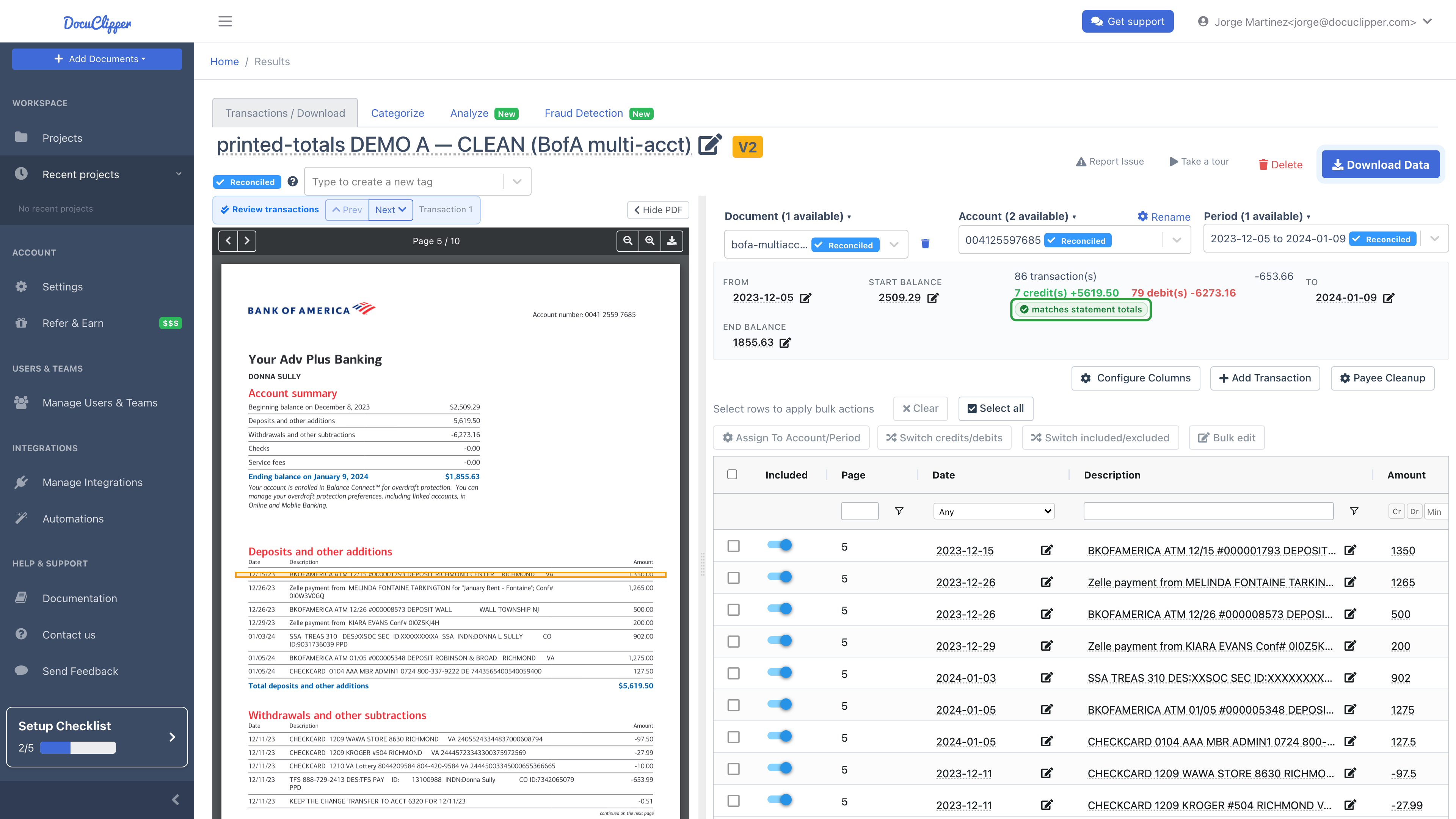
Many statements print their own Total credits and Total debits for the period. When they do, DocuClipper sums the extracted credit rows and the extracted debit rows and compares each side against the printed total. A green badge next to the summary line confirms they tie out:
When a side doesn't match, the badge turns red and shows how far off it is — for example off by $127.50:
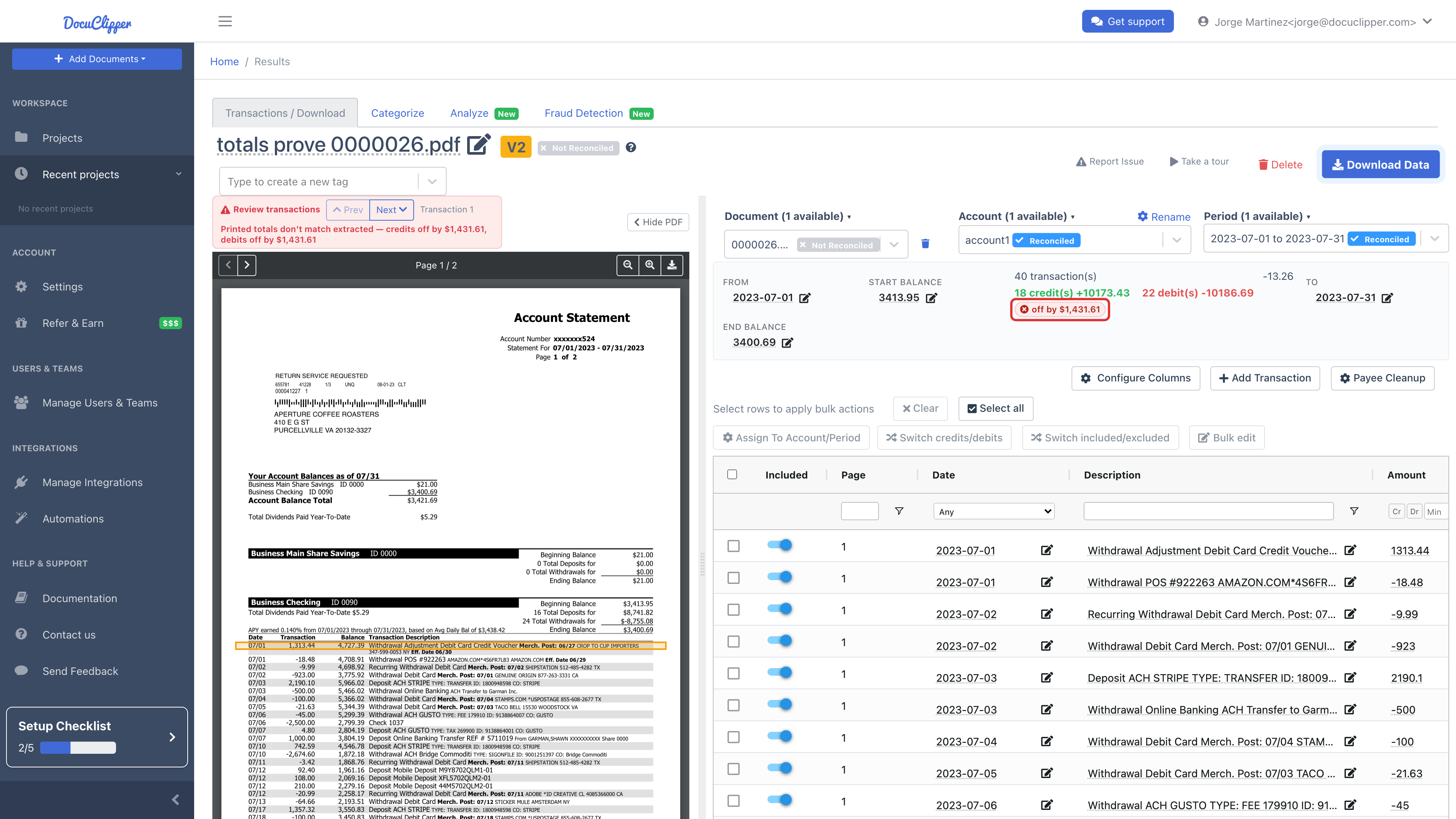
This is an independent check. Because it compares each side (credits and debits) on its own rather than only the net, it can catch errors the running-balance and Reconciled checks miss — such as a transaction classified on the wrong side that happens to net out, or a double-counted amount that inflates both sides equally.
Treat a red totals badge as a prompt to double-check, not proof of an error. Some banks bucket a transaction differently than you'd expect — a refund counted as a contra-withdrawal rather than a deposit, for instance — which produces a small, legitimate difference between the printed totals and the extracted per-side sums. When you see the red badge:
- Hover the badge to see the printed vs. extracted figures for each side.
- Open the statement's own totals line and compare it with the credit/debit totals in the summary panel.
- If a transaction is genuinely on the wrong side, missing, or mis-read, fix it using the steps in How to fix "Not Reconciled" statements. The badge re-checks automatically as you edit.
- If the difference is just a bank bucketing quirk and every transaction is actually correct, the data is fine to export — the badge is only flagging that the two totals were computed differently.
A green badge is positive confirmation: DocuClipper's extracted credit and debit totals match the statement's own printed totals for that period.
The badge only appears when the statement prints its own credit/debit totals. If it doesn't, DocuClipper has nothing to compare against and the badge is hidden — this is expected and doesn't mean anything is wrong.
How these checks relate to the Reconciled badge
| Indicator | What it confirms | When it appears |
|---|---|---|
| Reconciled badge | Start balance + credits − debits = end balance (the net) | Whenever start and end balances are present |
| Review transactions box | Each row's printed running balance ties out line by line | Only when the statement prints a per-row running balance |
| Totals badge | Extracted credit and debit sums match the statement's printed totals | Only when the statement prints its own credit/debit totals |
Together they cover complementary cases: reconciliation checks the net, the running-balance box pinpoints where a single-row error occurs, and the totals badge catches per-side errors that net out. All three are review aids — none of them change your data.
FAQs
Why is the Review transactions box red but the statement still shows Reconciled?
The two checks look at different things. The Reconciled badge only confirms the net (start + credits − debits = end). It's possible for two offsetting errors to keep the net correct while the row-by-row running balance still breaks. The red box points you to the exact row where the ledger stops tying out so you can correct it.
The totals badge is red but every transaction looks correct. Is my export wrong?
Not necessarily. The badge compares each side's extracted sum to the statement's printed totals. Some banks bucket transactions differently than you might (for example counting a refund as a contra-withdrawal rather than a deposit), which produces a small, legitimate mismatch. Treat the red badge as a prompt to spot-check against the PDF — if every transaction is genuinely correct, the data is fine to export.
My statement has no Review transactions box or totals badge. Why?
Both aids depend on what the statement prints. The box only appears when the statement includes a per-row running balance column, and the totals badge only appears when the statement prints its own Total credits / Total debits. If yours prints neither, use the Reconciled badge and compare the summary panel against the PDF instead.
Does a highlighted red row mean that row is wrong?
Not always. The highlight marks where the running balance first stops tying out. Often the real problem is the transaction before it being missing or mis-read. Start at the highlighted row, then check the rows immediately around it against the PDF.
Do these checks change my extracted data?
No. Both are read-only review aids computed from the data already on screen. They highlight rows and show badges; they never edit, add, or remove transactions. You make any corrections yourself.