
QuickBooks & Xero Two-Way Sync
How DocuClipper validates required fields before export, keeps later edits in sync with QuickBooks Online and Xero, and lets you pick contacts, items, accounts, and tax codes straight from your connected company.
Last updated
DocuClipper doesn't just push invoices and bills into QuickBooks Online (QBO) and Xero once — it keeps them aligned. Once a project is linked to a connected company, approved invoices are created automatically as they're extracted, DocuClipper validates the required fields before each push, it lets you pick contacts, items, accounts, and tax codes directly from your connected company, and after a record has been synced it pushes your later classification edits back automatically — matched by ID, so it updates the existing record instead of creating a duplicate.
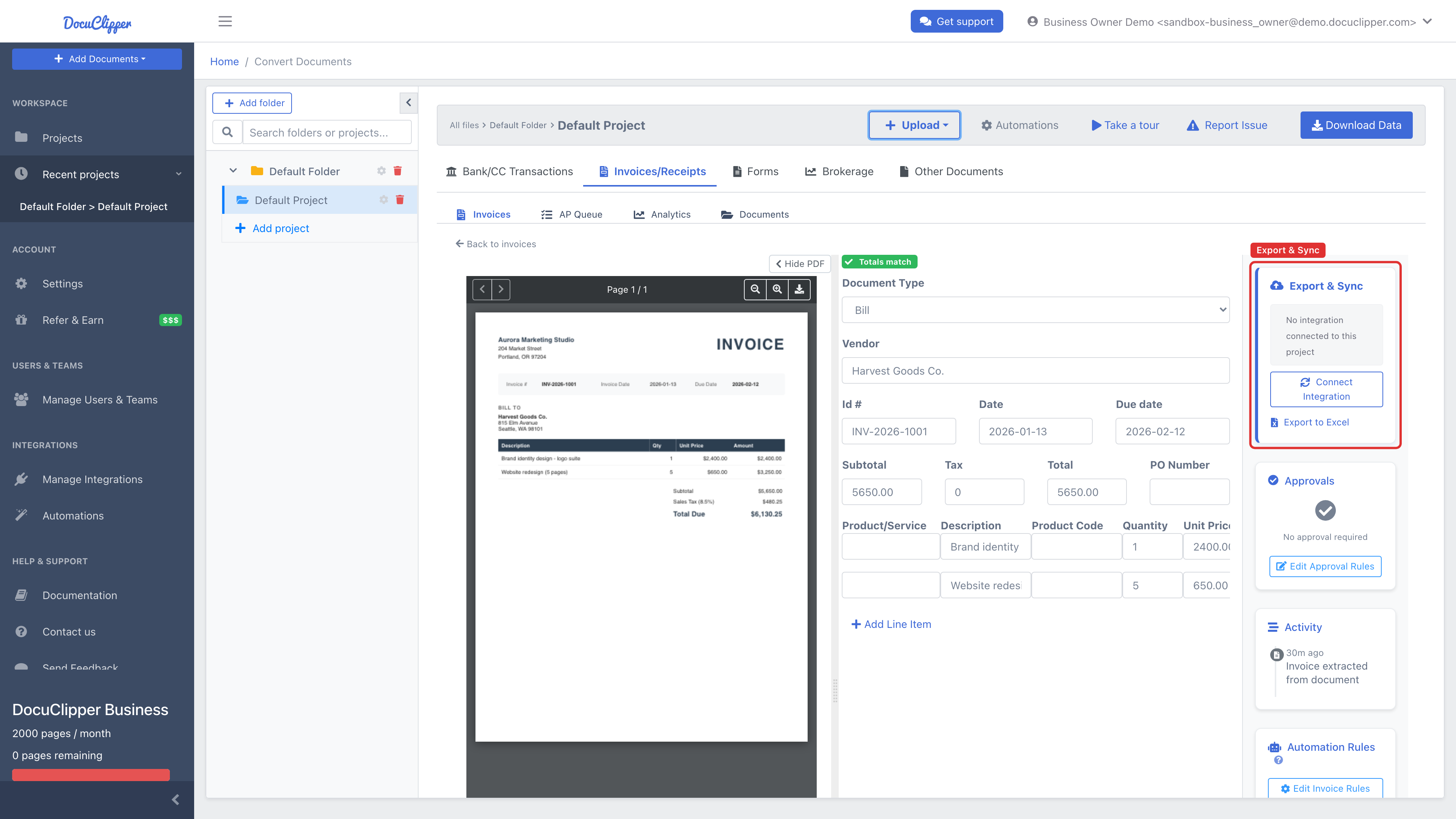
This article explains those behaviors. To connect a project in the first place, open the invoice's Export & Sync panel and choose Connect Integration; for the walkthrough, see Import invoices and receipts into QuickBooks Online and Export invoices to Xero.
Automatic creation on extraction
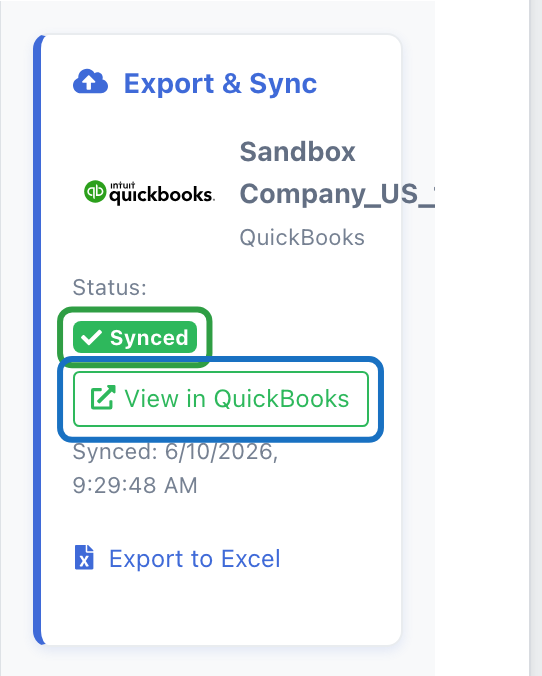
Linking a project to a QBO or Xero connection makes sync the default, not a manual step. As each document finishes extracting, DocuClipper creates it in the connected company automatically:
- Approved invoices only. If your project uses the approval workflow, an invoice syncs once it's approved. Purchase orders skip the approval gate and sync as draft POs.
- QuickBooks records post; Xero records land as drafts. In QuickBooks the bill, invoice, or expense is created as a normal posted record. In Xero the bill (ACCPAY) or sales invoice (ACCREC) is created in Draft status, so you review and approve it inside Xero before it hits your ledger.
- Document type sets the record type. A bill/payable becomes a QuickBooks Bill or Xero ACCPAY; a receivable becomes a QuickBooks Invoice or Xero ACCREC; an expense/purchase becomes a QuickBooks Purchase/expense; a purchase order becomes a draft PO; a credit note becomes a QuickBooks Vendor Credit or Credit Memo, or a Xero credit note - see Credit notes. See Choose "Bills & Receipts" or "Sales Invoices" when you upload.
The reconciliation gate below applies to edits you make afterward, not to this extraction-time creation.
Pre-flight required-field validation
Before any push — whether automatic on extraction or a manual sync — DocuClipper validates the invoice against the target accounting system before it makes any API call. If a field that QuickBooks or Xero requires is missing, the sync is blocked and you get a specific message telling you exactly what to fix — including the line number for line-level problems — instead of a cryptic error coming back from the accounting system.
What's required depends on the document type and the target:
| Target & document type | Header requirement | Per-line requirement |
|---|---|---|
| QBO — Invoice (receivable) | Customer | A numeric amount on each line |
| QBO — Bill (payable) | Vendor | A category/account or a product/service item, plus a numeric amount |
| QBO — Expense / Purchase | Payment account | A category/account, plus a numeric amount |
| QBO Vendor Credit (credit note, payable) | Vendor | A category/account or a product/service item, plus a numeric amount |
| QBO Credit Memo (credit note, receivable) | Customer | A numeric amount on each line |
| Xero — Bill (ACCPAY) | Contact (supplier) | An account code, plus an amount |
| Xero — Sales Invoice (ACCREC) | Contact (customer) | An account code, plus an amount |
| Xero credit note (ACCPAYCREDIT / ACCRECCREDIT) | Contact (supplier or customer) | An account code, plus an amount |
A line with no amount and no unit price at all - a note, a section heading or an unpriced backorder row carried over from the document - has nothing to post, so it is left out of invoices, bills and expenses sent to QuickBooks Online, Xero, Sage and Dynamics 365. It stays on the invoice in DocuClipper and in the Excel export.
A blocked sync reads, for example:
Cannot sync to QuickBooks Online: this bill is missing a required Vendor. Please set it before syncing.
or, for a line-level gap:
Cannot sync to Xero: line 2 (Office Supplies) is missing a category/account. Please set it before syncing.
Fix the flagged field on the invoice detail page and sync again. The invoice rules and per-project default account features exist largely to fill these required fields in for you so validation passes on the first try.
Pick contacts, items, accounts, and tax codes from your connected company
Once a project is linked to QuickBooks or Xero, the mapping fields on the invoice detail page become searchable dropdowns that pull live from your connected company — so you map to records that actually exist instead of typing free text that might not match.
- Contact — start typing to search your QBO customers/vendors or Xero contacts.
- Item / product-service — start typing to search the items and products defined in QBO or Xero. (Previously only the contact field was a connected dropdown; the item/product field now works the same way.)
- Category / account — pick from your chart of accounts.
- Tax code / tax rate — pick from the tax codes (QBO) or tax rates (Xero) configured in your company.
Each dropdown searches as you type. If the record you need doesn't exist yet, you can create it inline — type the new name and choose the "create" option, and DocuClipper creates it in QuickBooks or Xero on export.
Fixing what's missing also syncs it
The automatic push on extraction only goes through if the invoice already has everything the accounting system requires. On your first invoice from a new vendor that often isn't the case — no rule exists yet, so the vendor or a line's category may be blank, and the push is held.
You don't need to look for a Sync button. Fill in what the Export & Sync panel says is missing, and the moment nothing is blocking it, DocuClipper pushes the invoice on its own. If several lines need coding, it waits until the last one is done rather than retrying on every keystroke.
The same reconciliation and approval rules below apply to that first push.
Automatic re-sync of later edits
If you edit an invoice or bill after it has already been synced, DocuClipper pushes the change back to QuickBooks or Xero automatically — you don't have to remember to re-export it.
How it behaves:
- Update, never duplicate. Re-sync only updates the record that already exists in the accounting system (matched by its stored ID). It never creates a second copy.
- Classification fields only. Re-sync covers the fields you typically correct after the fact: category/account, product/service item, and tax code. Identity and amount fields (quantity, unit price, line description) are not re-pushed — change those before the first sync.
- Both systems. Works for QBO invoices, bills, and expenses, and for Xero bills and sales invoices. (Purchase orders are not re-synced.)
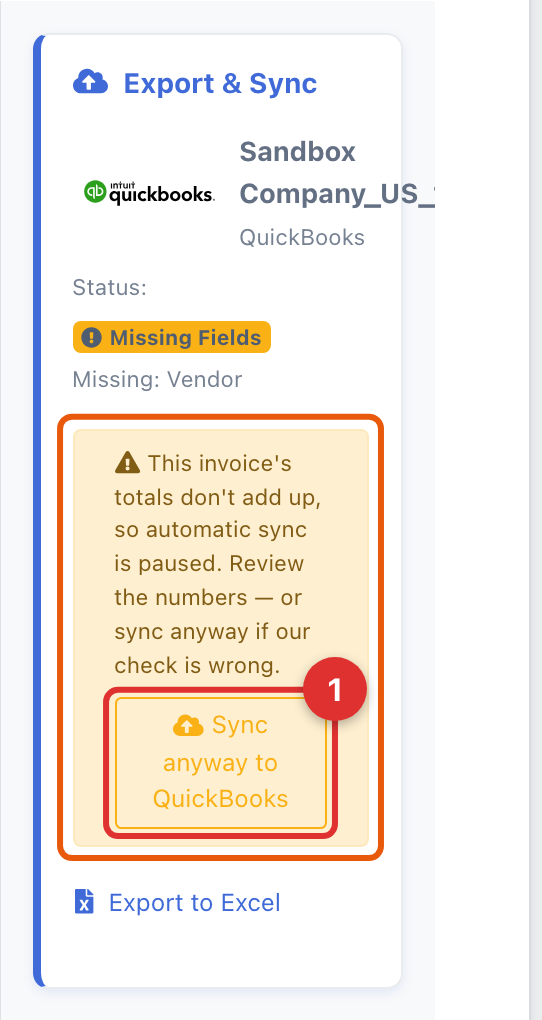
- Reconciliation-gated. If the invoice doesn't reconcile (subtotal + tax ≠ total, or lines don't sum to the subtotal), the automatic push is held so a broken record isn't sent to your books — including when a rule is what filled the fields in. The panel names the discrepancy, for example "Line items $34,901.92 ≠ Subtotal $35,156.13", the edit still saves in DocuClipper, and you can force the push with Sync anyway once you've reviewed it. This is usually worth investigating rather than overriding: it most often means a line didn't come through the extraction, so the total in your books would be short.
- Best-effort. Your edit always saves in DocuClipper immediately. The re-sync runs in the background; if the accounting system rejects it (for example a bill that's already locked or paid), the edit still sticks in DocuClipper and the failure is recorded so you can retry. The sync status badge and its timestamp update when the push succeeds.
This is what makes a bulk-apply of a category to every line, or a single corrected GL code, flow through to QuickBooks or Xero without a manual re-export.
Credit notes
A credit note is a refund or adjustment, and both accounting systems keep it as its own record type rather than as a bill with negative amounts. Set the document type to Credit Note and DocuClipper creates the right one.
Which record you get is decided by the contact already on the document, so there is no separate setting:
| The document has | QuickBooks creates | Xero creates | Effect |
|---|---|---|---|
| A vendor or supplier (the usual case) | Vendor Credit | Credit note (ACCPAYCREDIT) | Reduces what you owe |
| A customer, and no vendor | Credit Memo | Credit note (ACCRECCREDIT) | Reduces what you're owed |
If the wrong one is created, change the contact on the document, setting a customer instead of a vendor or the reverse, and it re-syncs to the correct side. Switching the document type between Credit Note and Bill also works: DocuClipper removes the record it created before, so you never end up with both on the ledger.
Enter the amounts as positive numbers, exactly as they appear on the document. The record type is what makes it a credit, and the accounting system subtracts it. A negative amount would double the sign and move the balance the wrong way.
Credit notes are validated like any other document, per the table above: a vendor-side credit note needs a vendor and a coded line, a customer-side one needs a customer. Setting a per-project default account covers any line you have not coded.
Neither QuickBooks nor Xero has a debit note record. If you set a document to Debit Note, DocuClipper will not sync it and says so rather than guessing - change it to Bill or Credit Note, whichever matches what the document actually does.