Connect DocuClipper to ChatGPT or Claude
Add DocuClipper to ChatGPT or Claude as a custom MCP server and sign in. Your assistant can then convert bank statements and read the documents and transactions in your DocuClipper projects.
Last updated
Connect DocuClipper to ChatGPT or Claude and ask for what you need in plain language: "convert this statement to a CSV", "which statements in my Smith & Co project didn't reconcile?", "total the March debits for account 4821". The assistant uses DocuClipper's extraction and your existing projects to answer, and bank statements it converts are reconciled against their printed opening and closing balances, the same as in the web app.
You connect by signing in to DocuClipper. There is no token to create or paste.
What you need
- A DocuClipper account. Any plan works; conversions use pages from your plan, the same as uploads in the web app.
- ChatGPT with custom MCP servers available on your plan, or Claude with custom connectors.
The server URL for both is:
https://www.docuclipper.com/api/v1/agent/mcp
Connect ChatGPT
- In ChatGPT, open Plugins in the sidebar, then click Add at the top right and choose Add custom MCP server.
- Enter a name (for example DocuClipper) and paste the server URL above into Connection (leave Server URL selected).
- Leave Authentication on OAuth, tick I understand and want to continue, and click Create as a plugin.
- ChatGPT opens DocuClipper. Sign in if you are not already, then review the request and click Allow.
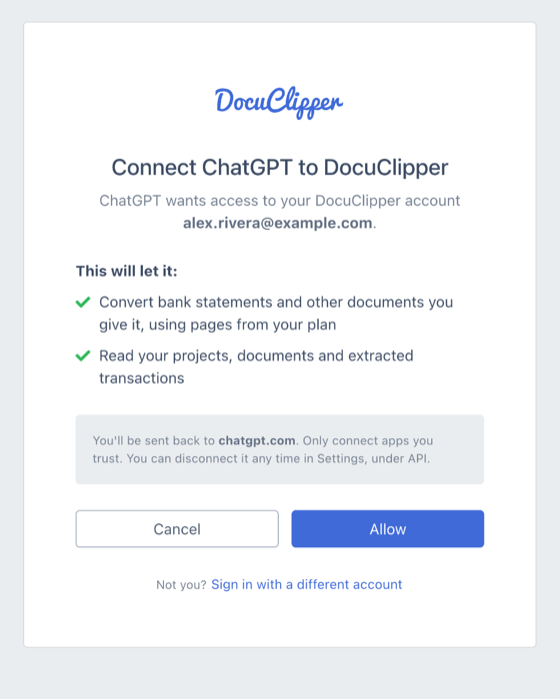
You are sent back to ChatGPT, and DocuClipper's tools are available in your chats.
Connect Claude
- In Claude, open Settings → Connectors and click Add custom connector.
- Enter a name and paste the server URL above, then click Add.
- Click Connect, sign in to DocuClipper if asked, and click Allow.
What the assistant can do
The consent screen lists what you are allowing:
- Convert documents you give it. Attach a bank statement PDF and ask for the transactions as a table or CSV. Larger files and multi-statement batches are converted as a job the assistant checks on until it finishes.
- Read your projects, documents and extracted transactions. This includes documents that reached DocuClipper another way: a connected Google Drive, Dropbox, Box or OneDrive folder, your ingestion email address, or a teammate working in the web app. Ask the assistant to list your projects first, then work within one.
The assistant acts as you: it sees what your account can see in DocuClipper and nothing more.
See and disconnect connected apps
Every app you connect appears under Settings → API & Webhooks → Connected apps, with where it returns you (for ChatGPT, chatgpt.com), when you connected it, and when it last used DocuClipper.
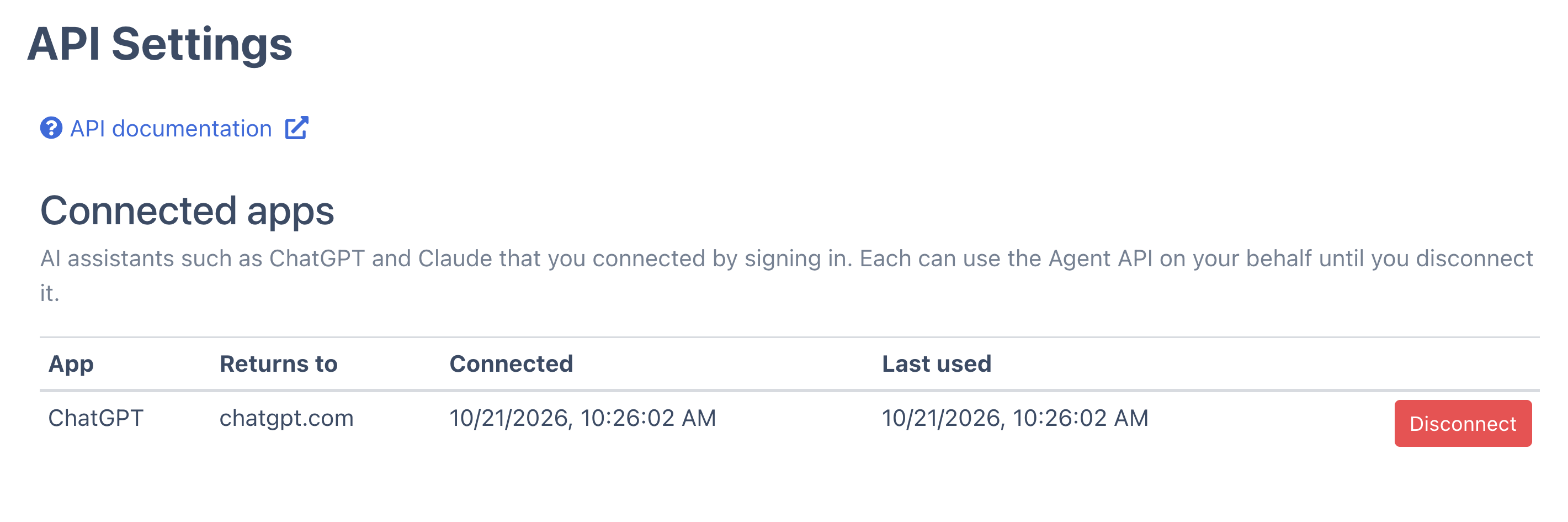
Click Disconnect to end a connection. The app loses access right away, and you can connect it again at any time. Changing your password or email, or turning two-factor authentication on or off, also disconnects every app; connect again from ChatGPT or Claude afterwards.
Good to know
- Pages. Conversions through ChatGPT or Claude use pages from your plan, the same as uploads in the web app. Reading documents and transactions you already converted uses no pages.
- Free trial. On the free trial, the assistant gets the same sample a download does (up to 10 transactions per account, across all jobs) and tells you it is a sample, with a link to upgrade. After you upgrade, ask again and it gets every transaction.
- Only connect apps you trust. The consent screen always shows the site you will be sent back to. If it is not the assistant you started from, click Cancel.
- Live demo. The DocuClipper live demo can't be connected to other apps. The consent screen asks you to sign in to your own account instead.
- Building your own agent or script? Use a Personal Access Token instead: see Connect DocuClipper to AI agents (MCP) and API Access: Personal Access Tokens.