
Jobs Are Missing
A converted statement that seems to have disappeared is almost always under a different account, a different project, or hidden by a filter. Here's how to find it.
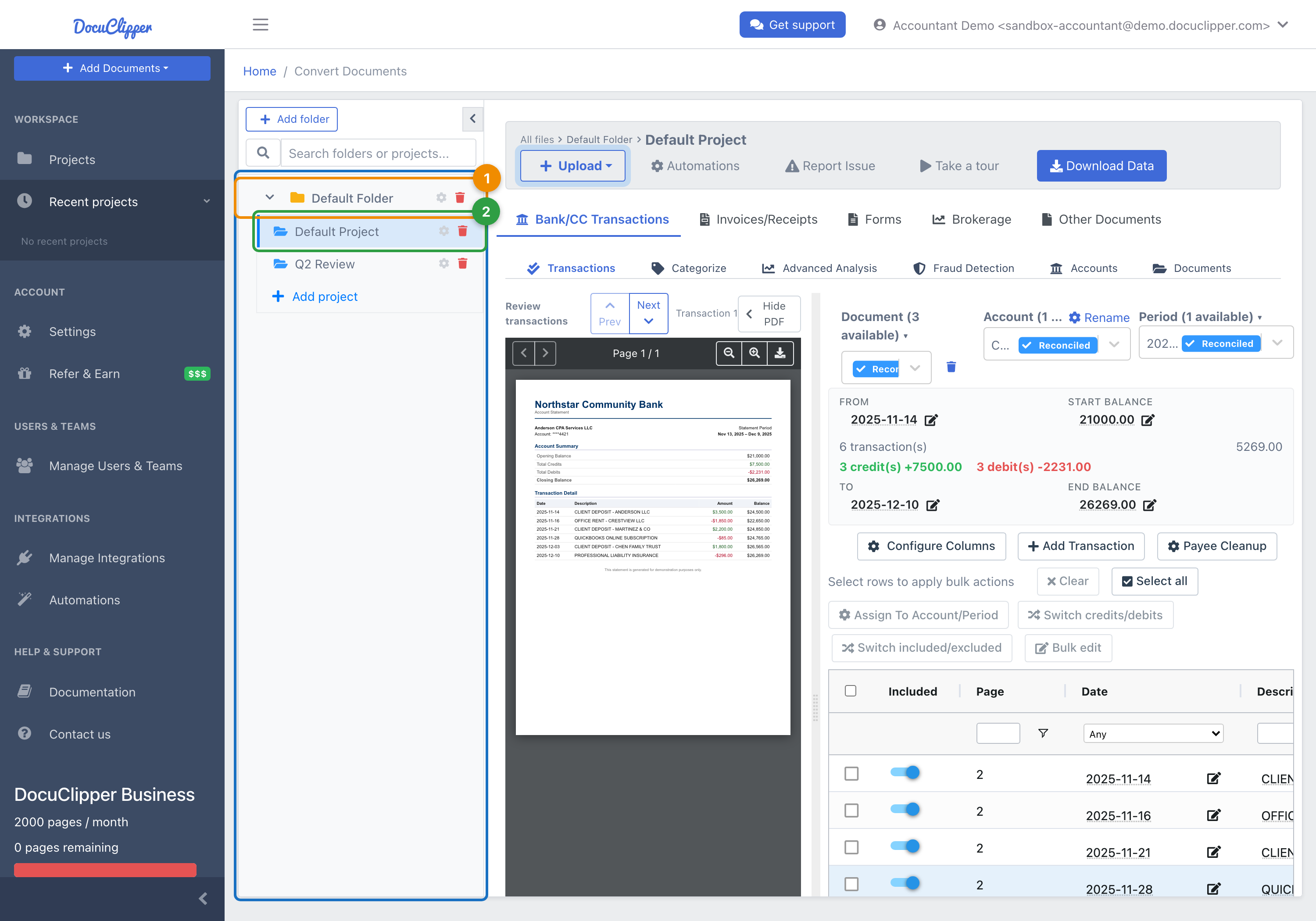
DocuClipper now organizes everything you convert as documents inside projects (shown in the left sidebar under All files). If a statement you converted earlier seems to be gone, one of the causes below almost always explains it.
1. You're signed in under a different account
If you have more than one DocuClipper login (e.g. personal + company), the document lives under whichever account uploaded it. Check the email in the top-right profile menu, then log out and back in under the right account.
2. You're looking in the wrong project or folder
Documents are grouped by project. In the left sidebar, open All files and expand each project and folder - the statement may be inside a project you don't usually open.
3. A filter is hiding it
The transactions view can filter by date, account, or included/excluded state. A filter you set earlier may still be active. Clear any active filters so all rows show again.
4. A teammate deleted the project
Project deletion is permanent and applies to everyone on the team. Check with your team admin to confirm whether a project was removed. Deleted projects can't be recovered - but if you still have the original PDFs, re-uploading them reproduces the same output.
5. It aged out of the retention window
Paid accounts keep their data for as long as they are subscribed, on every plan. Data is deleted 90 days after cancellation, and documents on free and trial accounts are deleted about 30 days after upload. If a statement is past that window, re-upload the original PDF; conversion produces the same result. Ask support if you're unsure.
Still can't find it?
Email support@docuclipper.com with the approximate upload date, the filename if you remember it, and the account email. We can check server-side records.